Introduction
Offline Edition · Pico 2 W / RP2350
Pico Pico · Embedded Programming with Rust
Create, instrument, and fly real projects on Raspberry Pi Pico 2 using modern Rust workflows. This deluxe offline volume packages everything: hardware prep, async firmware, peripherals, telemetry, and complete labs so you can learn on one beautiful page.
Chapters
50+
Foundational + project chapters with hands-on rituals.
Focus
Pico 2 / RP2350
Dual-core Cortex-M33 + Embassy async stack.
Audience
Builders
From the very first blink to telemetry dashboards.
Read Mode
Always Light
Designed for long-form reading on one screen.
Navigator
01
Foundation & Hardware
Introduction, pinouts, tools, project templates, and help desks.
Pinout · Hardware kit · Dev environment · Quick start · Abstraction layers
02
Signal & GPIO Stories
LEDs, buttons, PWM shaping, servo rituals, and how to speak to the physical world.
External LED · Breadboards · Button logic · PWM labs · Servo builds
03
Rust Firmware Core
no_std migrations, linker crafting, Embassy async, flashing, and VS Code happiness.
Cross compilation · Embassy RP · Panic handlers · Flashing guide
04
Sensor & Bus Academy
I2C, SPI-like rituals, OLED/LCD canvases, ultrasonic range, LDR thermistry, RFID, SD, and joystick fun.
I²C · OLED · LCD · Ultrasonic · LDR · Thermistor · RFID · SD · Joystick
05
Debugging & Projects
RTT traces, probe-rs, GDB missions, watchdogs, telemetry stacks, and final projects.
Debug probe · RTT · GDB · Watchdog · Projects · Resources
Complete Chapter Directory
- Orientation
- Pinout & RP2350 map
- Hardware companion list
- Dev environment & probes
- Quick start · Hello Pico
- Abstraction layers tour
- Project template ritual
- Run, flash, and troubleshoot
- Help & community
- GPIO & Motion
- External LED builds
- Breadboard primer
- Blink in Rust
- Buttons & pull resistors
- PWM theory + labs
- LED dimming clinics
- Servo control series
- Firmware Craft
- From std to no_std
- Cross compilation guide
- Embassy on RP
- VS Code rituals
- Watchdog & safety
- Debug probe setup
- GDB + probe-rs
- Sensors, Displays & Storage
- I²C & bus primer
- OLED showcase
- LCD characters + custom glyphs
- Ultrasonic distance
- LDR night light
- Thermistors & maths
- RFID adventures
- SD logging
- Joystick telemetry
- Sound, Projects & Resources
- Buzzer orchestra
- Project gallery
- Resource vault
Preface
Welcome to the Kololo-inspired Pico 2 W companion. Everything from tactile builds to telemetry dashboards is here so you can stay immersed without juggling PDFs or tiny screens. Pick any chapter above or follow the pagination controls at the bottom of every page.
Datasheets & References
License & Attribution
- Code samples: dual-licensed under MIT and Apache 2.0.
- Written prose: CC-BY-SA v4.0.
- Circuit illustrations: built with Fritzing.
Support & Disclaimer
You can support the project by starring it on GitHub or sharing it with other builders. The experiments documented here worked for the original crew but always exercise caution, follow safety doctrine, and double-check hardware setups before applying power.
Raspberry Pi Pico 2 Pinout Diagram
Tip
You don’t need to memorize or understand every pin right now. We will refer back to this section as needed while working through the exercises in this book.

Power Pins
Power pins are essential for keeping your Raspberry Pi Pico 2 running and supplying electricity to the sensors, LEDs, motors, and other components you connect to it.
The Raspberry Pi Pico 2 has the following power pins. These are marked in red (power) and black (ground) in the pinout diagrams. These pins are used to supply power to the board and to external components.
-
VBUS is connected to the 5V coming from the USB port. When the board is powered over USB, this pin will carry about 5V. You can use it to power small external circuits, but it’s not suitable for high-current loads.
-
VSYS is the main power input for the board. You can connect a battery or regulated supply here with a voltage between 1.8V and 5.5V. This pin powers the onboard 3.3V regulator, which supplies the RP2350 and other parts.
-
3V3(OUT) provides a stable 3.3V output from the onboard regulator. It can be used to power external components like sensors or displays, but it’s best to limit the current draw to under 300mA.
-
GND pins are used to complete electrical circuits and are connected to the system ground. The Pico 2 provides multiple GND pins spread across the board for convenience when connecting external devices.
GPIO Pins
When you want your microcontroller(i.e Pico) to interact with the world; like turning on lights, reading button presses, sensing temperature, or controlling motors; you need a way to connect and communicate with these external components. That’s exactly what GPIO pins do: they’re your Raspberry Pi Pico 2’s connection points to external components.
The Raspberry Pi Pico 2 includes 26 General Purpose Input/Output (GPIO) pins, labeled GPIO0 through GPIO29, though not all numbers are exposed on the headers. These GPIOs are highly flexible and can be used to read inputs like switches or sensors, or to control outputs such as LEDs, motors, or other devices.
All GPIOs operate at 3.3V logic. This means any input signal you connect should not exceed 3.3 volts, or you risk damaging the board. While many GPIOs support basic digital I/O, some also support additional functions like analog input (ADC), or act as communication lines for protocols like I2C, SPI, or UART.
Pin Numbering
Each GPIO pin can be referenced in two ways: by its GPIO number (used in software) and by its physical pin location on the board. When writing code, you will use the GPIO number (like GPIO0). When connecting wires, you need to know which GPIO is connected to which physical pin.
GPIO25 is special, it is connected to the onboard LED and can be controlled directly in code without any external wiring.
For example, when your code references GPIO0, you’ll connect your wire to physical pin 1 on the board. Similarly, GPIO2 connects to physical pin 4.
ADC Pins
Most pins on the Raspberry Pi Pico 2 work with simple on/off signals; perfect for things like LEDs or buttons. But what if you want to measure how bright a room is to automatically turn on lights? Or monitor soil moisture to water plants? Or read how far someone turned a volume knob? These tasks need pins that can sense gradual changes, not just on/off states.
Most of the pins on the Raspberry Pi Pico 2 are digital - they can only read or send values like ON (high) or OFF (low). But some devices, like light sensors or temperature sensors, produce signals that change gradually. To understand these kinds of signals, we need special pins called ADC pins.
ADC stands for Analog-to-Digital Converter. It takes a voltage and turns it into a number your program can understand. For example, a voltage of 0V might become 0, and 3.3V might become 4095 (the highest number the ADC can produce, since it uses 12-bit resolution). We will take a closer look at the ADC later in this book.
The Raspberry Pi Pico 2 has three ADC-capable pins. These are GPIO26, GPIO27, and GPIO28, which correspond to ADC0, ADC1, and ADC2 respectively. You can use these pins to read analog signals from sensors such as light sensors, temperature sensors.
There are also two special pins that support analog readings:
-
ADC_VREF is the reference voltage for the ADC. By default, it’s connected to 3.3V, meaning the ADC will convert anything between 0V and 3.3V into a number. But you can supply a different voltage here (like 1.25V) if you want more precise measurements in a smaller range.
-
AGND is the analog ground, used to provide a clean ground for analog signals. This helps reduce noise and makes your analog readings more accurate. If you’re using an analog sensor, it’s a good idea to connect its ground to AGND instead of a regular GND pin.
I2C Pins
The Raspberry Pi Pico 2 supports I2C, a communication protocol used to connect multiple devices using just two wires. It is commonly used with sensors, displays, and other peripherals.
I2C uses two signals: SDA (data line) and SCL (clock line). These two lines are shared by all connected devices. Each device on the bus has a unique address, so the Pico 2 can talk to many devices over the same pair of wires.
The Raspberry Pi Pico 2 has two I2C controllers: I2C0 and I2C1. Each controller can be mapped to multiple GPIO pins, giving you flexibility depending on your circuit needs.
-
I2C0 can use these GPIOs:
- SDA (data): GPIO0, GPIO4, GPIO8, GPIO12, GPIO16, or GPIO20
- SCL (clock): GPIO1, GPIO5, GPIO9, GPIO13, GPIO17, or GPIO21
-
I2C1 can use these GPIOs:
- SDA (data): GPIO2, GPIO6, GPIO10, GPIO14, GPIO18, or GPIO26
- SCL (clock): GPIO3, GPIO7, GPIO11, GPIO15, GPIO19, or GPIO27
You can choose any matching SDA and SCL pair from the same controller (I2C0 or I2C1).
SPI Pins
SPI (Serial Peripheral Interface) is another communication protocol used to connect devices like displays, SD cards, and sensors. Unlike I2C, SPI uses more wires but offers faster communication. It works with one controller (like the Pico 2) and one or more devices.
SPI uses four main signals:
- SCK (Serial Clock): Controls the timing of data transfer.
- MOSI (Master Out Slave In): Data sent from the controller to the device.
- MISO (Master In Slave Out): Data sent from the device to the controller.
- CS/SS (Chip Select or Slave Select): Used by the controller to select which device to talk to.
On Pico 2 pinout diagrams, MOSI is labeled as Tx, MISO as Rx, and CS as Csn.
The Raspberry Pi Pico 2 has two SPI controllers: SPI0 and SPI1. Each can be connected to multiple GPIO pins, so you can choose whichever set fits your circuit layout.
-
SPI0 can use:
- SCK: GPIO2, GPIO6, GPIO10, GPIO14, GPIO18
- MOSI: GPIO3, GPIO7, GPIO11, GPIO15, GPIO19
- MISO: GPIO0, GPIO4, GPIO8, GPIO12, GPIO16
-
SPI1 can use:
- SCK: GPIO14, GPIO18
- MOSI: GPIO15, GPIO19
- MISO: GPIO8, GPIO12, GPIO16
You can choose a group of compatible pins from the same controller depending on your circuit layout. The CS (chip select) pin is not fixed-you can use any free GPIO for that purpose. We will explore how to configure SPI and connect devices in upcoming chapters.
UART Pins
UART (Universal Asynchronous Receiver/Transmitter) is one of the simplest ways for two devices to talk to each other. It uses just two main wires:
- TX (Transmit): Sends data out.
- RX (Receive): Receives data in.
UART is often used to connect to serial devices like GPS modules, Bluetooth adapters, or even to your computer for debugging messages.
The Raspberry Pi Pico 2 has two UART controllers: UART0 and UART1. Each one can be mapped to several different GPIO pins, giving you flexibility when wiring your circuit.
-
UART0 can use:
- TX: GPIO0, GPIO12, GPIO16
- RX: GPIO1, GPIO13, GPIO17
-
UART1 can use:
- TX: GPIO4, GPIO8
- RX: GPIO5, GPIO9
You need to use a matching TX and RX pin from the same UART controller. For example, you could use UART0 with TX on GPIO0 and RX on GPIO1, or UART1 with TX on GPIO8 and RX on GPIO9.
SWD Debugging Pins
The Raspberry Pi Pico 2 provides a dedicated 3-pin debug header for SWD (Serial Wire Debug), which is the standard ARM debugging interface. SWD allows you to flash firmware, inspect registers, set breakpoints, and perform real-time debugging.

This interface consists of the following signals:
- SWDIO - Serial data line
- SWCLK - Serial clock line
- GND - Ground reference
These pins are not shared with general-purpose GPIO and are located on a separate debug header at the bottom edge of the board. You will typically use an external debug probe like the Raspberry Pi Debug Probe, CMSIS-DAP adapter, or other compatible tools (e.g., OpenOCD, probe-rs) to connect to these pins.
Onboard Temperature Sensor
The Raspberry Pi Pico 2 includes a built-in temperature sensor that is connected internally to ADC4. This means you can read the chip’s temperature using the ADC, just like you would with an external analog sensor.
This sensor measures the temperature of the RP2350 chip itself. It does not reflect the room temperature accurately, especially if the chip is under load and heating up.
Control Pins
These pins control the board’s power behavior and can be used to reset or shut down the chip.
-
3V3(EN) is the enable pin for the onboard 3.3V regulator. Pulling this pin low will disable the 3.3V power rail and effectively turn off the RP2350.
-
RUN is the reset pin for the RP2350. It has an internal pull-up resistor and stays high by default. Pulling it low will reset the microcontroller. This is helpful if you want to add a physical reset button or trigger a reset from another device.
Additional Hardware
In this section we will look at some of the extra hardware you might use along with the Raspberry Pi Pico.
Electronic kits
You can start with a basic electronics kit or buy components as you need them. A simple, low cost kit is enough to begin, as long as it includes resistors, jumper wires, and a breadboard. These are required throughout the lessons.
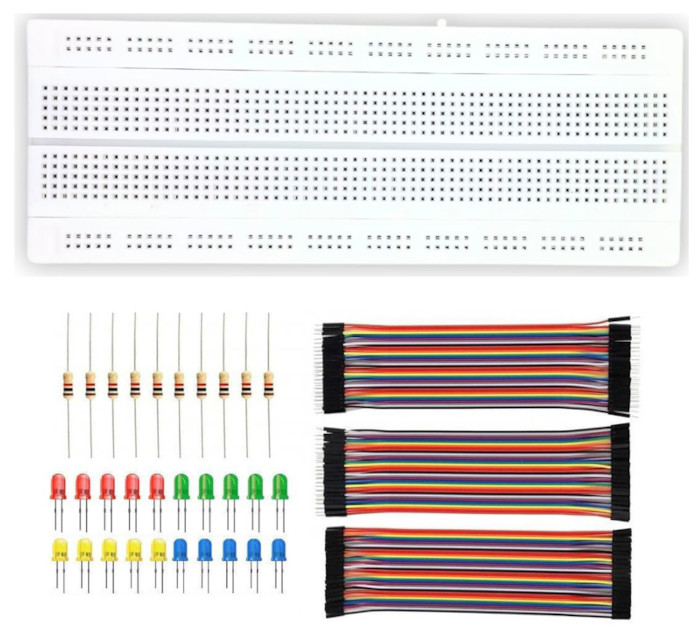
Additional components used in this book include LEDs, the HC SR04 ultrasonic sensor, active and passive buzzers, the SG90 micro servo motor, an LDR, an NTC thermistor, the RC522 RFID reader, a micro SD card adapter, the HD44780 display, and a joystick module.
Optional Hardware: Debug Probe
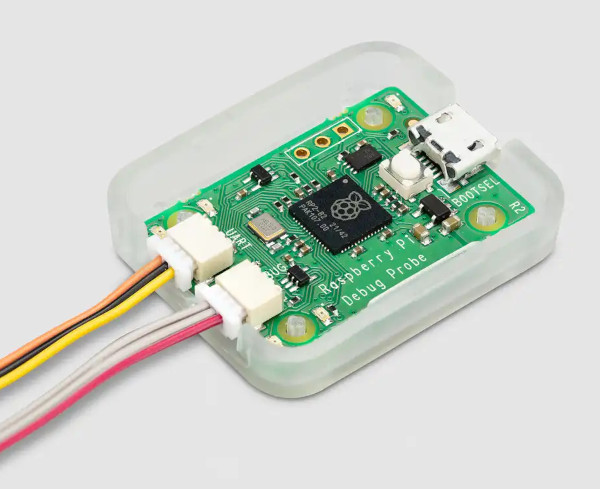
The Raspberry Pi Debug Probe makes flashing the Pico 2 much easier. Without it you must press the BOOTSEL button each time you want to upload new firmware. The probe also gives you proper debugging support, which is very helpful.
This tool is optional. You can follow the entire book without owning one(except the one specific to debug probe). When I first started with the Pico, I worked without a probe and only bought it later.
How to decide?
If you are on a tight budget, you can skip it for now because its price is roughly twice the cost of a Pico 2. If the cost is not an issue, it is a good purchase and becomes very handy. You can also use another Pico as a low cost debug probe if you have a second board available.
Setup
Picotool
picotool is a tool for working with RP2040/RP2350 binaries, and interacting with RP2040/RP2350 devices when they are in BOOTSEL mode.
Tip
Alternatively, you can download the pre-built binaries of the SDK tools from here, which is a simpler option than following these steps.
Here’s a quick summary of the steps I followed:
# Install dependencies
sudo apt install build-essential pkg-config libusb-1.0-0-dev cmake

mkdir embedded && cd embedded

# Clone the Pico SDK
git clone https://github.com/raspberrypi/pico-sdk
cd pico-sdk
git submodule update --init lib/mbedtls
cd ../

# Set the environment variable for the Pico SDK
PICO_SDK_PATH=/MY_PATH/embedded/pico-sdk

# Clone the Picotool repository
git clone https://github.com/raspberrypi/picotool
Build and install Picotool
cd picotool
mkdir build && cd build
# cmake ../
cmake -DPICO_SDK_PATH=/MY_PATH/embedded/pico-sdk/ ../
make -j8
sudo make install
On Linux you can add udev rules in order to run picotool without sudo:
cd ../
# In picotool cloned directory
sudo cp udev/60-picotool.rules /etc/udev/rules.d/
Rust Targets
To build and deploy Rust code for the RP2350 chip, you’ll need to add the appropriate targets:
rustup target add thumbv8m.main-none-eabihf
rustup target add riscv32imac-unknown-none-elf
probe-rs - Flashing and Debugging Tool
probe-rs is a modern, Rust-native toolchain for flashing and debugging embedded devices. It supports ARM and RISC-V targets and works directly with hardware debug probes. When you use a Debug Probe with the Pico 2, probe-rs is the tool you rely on for both flashing firmware and debugging.
Install probe-rs using the official installer script:
curl -LsSf https://github.com/probe-rs/probe-rs/releases/latest/download/probe-rs-tools-installer.sh | sh
For latest installation instructions, better refer to the official probe-rs documentation.
By default, debug probes on Linux can only be accessed with root privileges. To avoid using sudo for every command, you should install the appropriate udev rules that allow regular users to access the probe. Follow the instructions provided here.
Quick summary:
- Download the udev rules file from the probe-rs repository
- Copy it to
/etc/udev/rules.d/ - Reload udev rules with
sudo udevadm control --reload - Unplug and replug your Debug Probe
After this setup, you can use probe-rs without root privileges.
Quick Start
Before diving into the theory and concepts of how everything works, let’s jump straight into action. Use this simple code to turn on the onboard LED of the Pico2.
We’ll use Embassy, a Rust framework built for microcontrollers like the Raspberry Pi Pico 2. Embassy lets you write async code that can handle multiple tasks at the same time; like blinking an LED while reading a button press, without getting stuck waiting for one task to finish before starting another.
The following code creates a blinking effect by switching the pin’s output between high (on) and low (off) states. As we mentioned in the pinout section, the Pico 2 has its onboard LED connected to GPIO pin 25. In this program, we configure that pin as an Output pin (we configure a pin as Output whenever we want to control something like turning LEDs on/off, driving motors, or sending signals to other devices) with a low (off) initial state.
The code snippet
We’re looking at just the main function code here. There are other initialization steps and imports required to make this work. We’ll explore these in depth in the next chapter to understand what they do and why they’re needed. For now, our focus is just to see something working in action. You can clone the quick start project I created and run it to get started immediately.
Important
This code is incompatible with the Pico 2 W variant. On the Pico 2 W, GPIO25 is dedicated to controlling the wireless interface, we will need to follow a different procedure to control the onboard LED.
#[embassy_executor::main]
async fn main(_spawner: Spawner) {
    let p = embassy_rp::init(Default::default());

    // The onboard LED is actually connected to pin 25
    let mut led = Output::new(p.PIN_25, Level::Low);

    loop {
        led.set_high(); // Turn on the LED
        Timer::after_millis(500).await;

        led.set_low(); // Turn off the LED
        Timer::after_millis(500).await;
    }
}
Clone the Quick start project
git clone https://github.com/ImplFerris/pico2-quick
cd pico2-quick
How to Run?
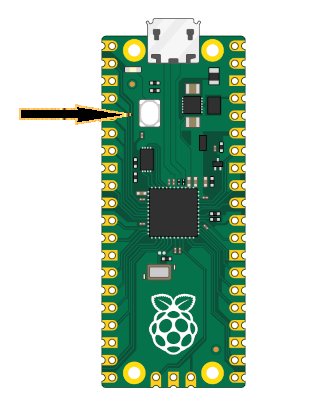
To Flash your application onto the Pico 2, press and hold the BOOTSEL button. While holding it, connect the Pico 2 to your computer using a micro USB cable. You can release the button once the USB is plugged in.
# Run the program
cargo run
This will flash (write) our program into the Pico 2’s memory and run it automatically. If successful, you should see the onboard LED blinking at regular intervals. If you encounter any errors, verify that you have set up your development environment correctly and connected the Pico properly. If you’re still unable to resolve the issue, please raise a GitHub issue with details so i can update and improve this guide
With Debug Probe
If you’re using a debug probe, you don’t need to press the BOOTSEL button. You can just run cargo flash or cargo embed instead. These commands are covered in detail later in the book, though you can jump ahead to the Debug Probe chapter if you’d like to explore them now.
Abstraction Layers
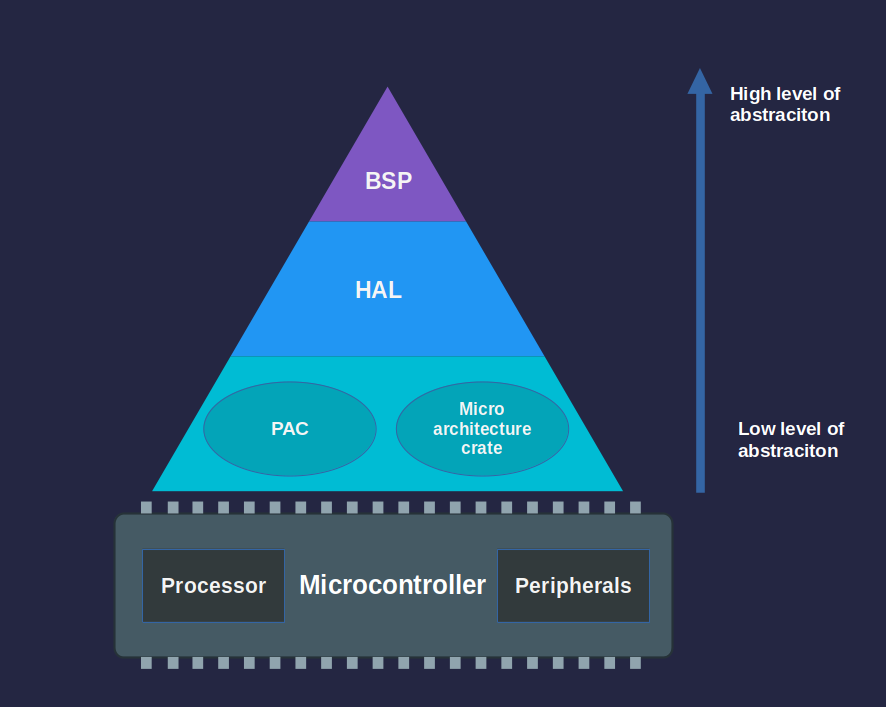
When working with embedded Rust, you will often come across terms like PAC, HAL, and BSP. These are the different layers that help you interact with the hardware. Each layer offers a different balance between flexibility and ease of use.
Let’s start from the highest level of abstraction down to the lowest.
Board Support Package (BSP)
A BSP, also referred as Board Support Crate in Rust, tailored to specific development boards. It combines the HAL with board-specific configurations, providing ready to use interfaces for onboard components like LEDs, buttons, and sensors. This allows developers to focus on application logic instead of dealing with low-level hardware details. Since there is no popular BSP specifically for the Raspberry Pi Pico 2, we will not be using this approach in this book.
Hardware Abstraction Layer (HAL)
The HAL sits just below the BSP level. If you work with boards like the Raspberry Pi Pico or ESP32 based boards, you’ll mostly use the HAL level. HALs are typically written for the specific chip (like the RP2350 or ESP32) rather than for individual boards, which is why the same HAL can be used across different boards that share the same microcontroller. For Raspberry Pi’s family of microcontrollers, there’s the rp-hal crate that provides this hardware abstraction.
The HAL builds on top of the PAC and provides simpler, higher-level interfaces to the microcontroller’s peripherals. Instead of handling low-level registers directly, HALs offer methods and traits that make tasks like setting timers, setting up serial communication, or controlling GPIO pins easier.
HALs for the microcontrollers usually implement the embedded-hal traits, which are standard, platform-independent interfaces for peripherals like GPIO, SPI, I2C, and UART. This makes it easier to write drivers and libraries that work across different hardware as long as they use a compatible HAL.
Embassy for RP
Embassy sits at the same level as HAL but provides an additional runtime environment with async capabilities. Embassy (specifically embassy-rp for Raspberry Pi Pico) is built on top of the HAL layer and provides an async executor, timers, and additional abstractions that make it easier to write concurrent embedded applications.
Embassy provides a separate crate called embassy-rp specifically for Raspberry Pi microcontrollers (RP2040 and RP235x). This crate builds directly on top of the rp-pac (Raspberry Pi Peripheral Access Crate).
Throughout this book, we will use both rp-hal and embassy-rp for different exercises.
Note
The layers below the HAL are rarely used directly. In most cases, the PAC is accessed through the HAL, not on its own. Unless you are working with a chip that does not have a HAL available, there is usually no need to interact with the lower layers directly. In this book, we will focus on the HAL layer.
Peripheral Access Crate (PAC)
PACs are the lowest level of abstraction. They are auto-generated crates that provide type-safe access to a microcontroller’s peripherals. These crates are typically generated from the manufacturer’s SVD (System View Description) file using tools like svd2rust. PACs give you a structured and safe way to interact directly with hardware registers.
Raw MMIO
Raw MMIO (memory-mapped IO) means directly working with hardware registers by reading and writing to specific memory addresses. This approach mirrors traditional C-style register manipulation and requires the use of unsafe blocks in Rust due to the potential risks involved. We will not touch this area; I haven’t seen anyone using this approach.
Project Template with cargo-generate
“cargo-generate is a developer tool to help you get up and running quickly with a new Rust project by leveraging a pre-existing git repository as a template.â€
Read more about here.
Prerequisites
Before starting, ensure you have the following tools installed:
- Rust
- cargo-generate for generating the project template.
Install the OpenSSL development package first because it is required by cargo-generate:
sudo apt install libssl-dev
You can install cargo-generate using the following command:
cargo install cargo-generate
Step 1: Generate the Project
Run the following command to generate the project from the template:
cargo generate --git https://github.com/ImplFerris/pico2-template.git --tag v0.3.1
This will prompt you to answer a few questions: Project name: Name your project. HAL choice: You can choose between embassy or rp-hal.
Step 2: Default LED Blink Example
By default, the project will be generated with a simple LED blink example. The code structure may look like this:
src/main.rs: Contains the default blink logic.
Cargo.toml: Includes dependencies for the selected HAL.
Step 3: Choose Your HAL and Modify Code
Once the project is generated, you can decide to keep the default LED blink code or remove it and replace it with your own code based on the HAL you selected.
Removing Unwanted Code
You can remove the blink logic from src/main.rs and replace it with your own code. Modify the Cargo.toml dependencies and project structure as needed for your project.
Running the program
Before we explore further examples, let’s cover the general steps to build and run any program on the Raspberry Pi Pico 2. The Pico 2 contains both ARM Cortex-M33 and Hazard3 RISC-V processors, and we’ll provide instructions for both architectures.
Note: These commands should be run from your project folder. This is included here as a general step to avoid repetition. If you haven’t created a project yet, begin with the Quick Start or Blink LED section.
Build and Run for ARM
Use this command to build and run programs on the Raspberry Pi Pico 2 in ARM mode, utilizing the Cortex-M33 processors.
# build the program
cargo build --target=thumbv8m.main-none-eabihf
To Flash your application onto the Pico 2, press and hold the BOOTSEL button. While holding it, connect the Pico 2 to your computer using a micro USB cable. You can release the button once the USB is plugged in.
# Run the program
cargo run --target=thumbv8m.main-none-eabihf
Note
The example codes include a runner configuration in the
.cargo/config.tomlfile, defined as:runner = "picotool load -u -v -x -t elf". This means that when you executecargo run, it actually invokes thepicotoolwith theloadsubcommand to flash the program.
Build and Run for RISC-V
Use this command to build and run programs on the Raspberry Pi Pico 2 n RISC-V mode, utilizing the Hazard3 processors.
Important
This book focuses on ARM. Some examples may need changes before they work on RISC V mode. For simplicity, it is recommended to follow the ARM workflow while reading this book.
# build the program
cargo build --target=riscv32imac-unknown-none-elf
Follow the same BOOTSEL steps as described above.
# Run the program
cargo run --target=riscv32imac-unknown-none-elf
With Debug Probe
When using a Debug Probe, you can flash your program directly onto the Pico 2 with:
# cargo flash --chip RP2350
# cargo flash --chip RP2350 --release
cargo flash --release
If you want to flash your program and also view its output in real time, use:
# cargo embed --chip RP2350
# cargo embed --chip RP2350 --release
cargo embed --release
cargo-embed is a more advanced version of cargo-flash. It can flash your program, and it can also open an RTT terminal and a GDB server.
Help & Troubleshooting
If you face any bugs, errors, or other issues while working on the exercises, here are a few ways to troubleshoot and resolve them.
1. Compare with Working Code
Check the complete code examples or clone the reference project for comparison. Carefully review your code and Cargo.toml dependency versions. Look out for any syntax or logic errors. If a required feature is not enabled or there is a feature mismatch, make sure to enable the correct features as shown in the exercise.
If you find a version mismatch, either adjust your code(research and find a solution; it’s a great way for you to learn and understand things better) to work with the newer version or update the dependencies to match the versions used in the tutorial.
2. Search or Report GitHub Issues
Visit the GitHub issues page to see if someone else has encountered the same problem: https://github.com/ImplFerris/pico-pico/issues?q=is%3Aissue
If not, you can raise a new issue and describe your problem clearly.
3. Ask the Community
The Rust Embedded community is active in the Matrix Chat. The Matrix chat is an open network for secure, decentralized communication.
Here are some useful Matrix channels related to topics covered in this book:
-
Embedded Devices Working Group
#rust-embedded:matrix.org
General discussions around using Rust for embedded development. -
RP Series Development
#rp-rs:matrix.org
For Rust development and discussions around the Raspberry Pi RP series chips. -
Debugging with Probe-rs
#probe-rs:matrix.org
For support and discussion around the probe-rs debugging toolkit. -
Embedded Graphics
#rust-embedded-graphics:matrix.org
For working withembedded-graphics, a drawing library for embedded systems.
You can create a Matrix account and join these channels to get help from experienced developers.
You can find more community chat rooms in the Awesome Embedded Rust - Community Chat Rooms section.
4. Discord
There is an unofficial Discord community for Embedded Rust where you can ask questions, discuss topics, share your experiences, and showcase your projects. It is especially useful for learners and general discussion.
Keep in mind that most HAL and embedded ecosystem maintainers are more active on Matrix. Still, this Discord server can be a good place to learn and interact with others.
Join here: https://discord.gg/NHenanPUuG
Debug Probe for Raspberry Pi Pico 2
Pressing the BOOTSEL button every time you want to flash a new program is annoying. On devboards like the ESP32 DevKit this step is mostly automatic because the devboard can reset the chip into bootloader mode when needed. The Pico 2 does not have this feature, but you can get the same convenience and even more capability by using a debug probe.
This chapter explains why a debug probe is helpful, and step-by-step how to set one up and use it to flash and debug your Pico 2 without pressing BOOTSEL each time.
Raspberry Pi Debug Probe
The Raspberry Pi Debug Probe is the official tool recommended for SWD debugging on the Pico and Pico 2. It is a small USB device that acts as a CMSIS-DAP adapter. CMSIS-DAP is an open standard for debuggers that lets your computer talk to microcontrollers using the SWD protocol.
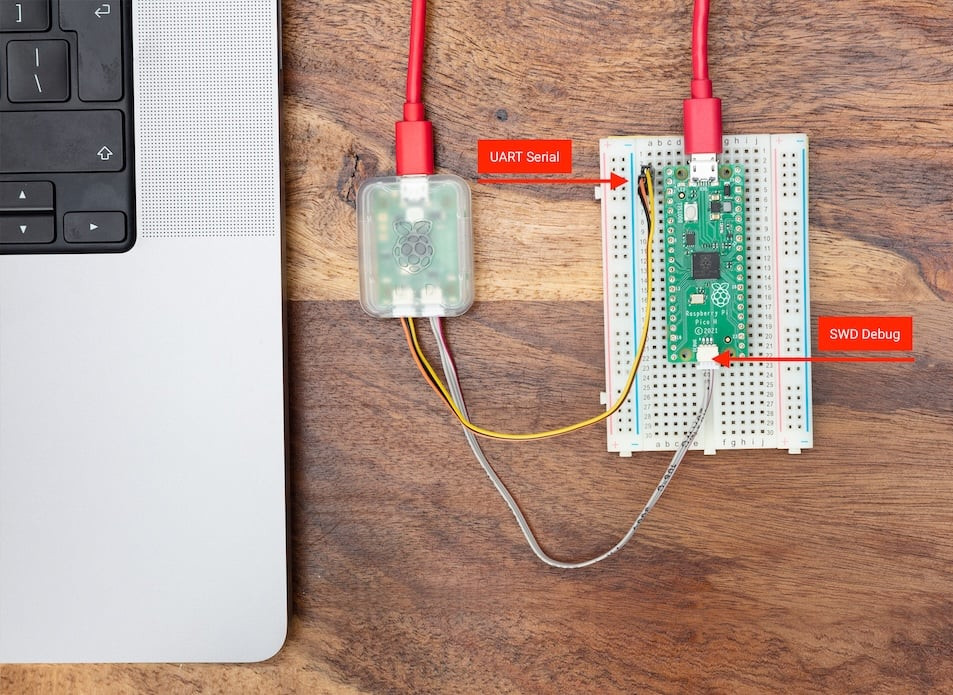
The probe provides two main features:
-
SWD (Serial Wire Debug) interface - This connects to the Pico’s debug pins and is used to flash firmware and perform real time debugging. You can set breakpoints, inspect variables, and debug your program just like you would in a normal desktop application.
-
UART bridge - This provides a USB to serial connection so you can view console output or communicate with the board.
Both features work through the same USB cable that goes into your computer, which keeps the setup simple because you do not need a separate UART device.
Soldering SWD Pins
Before you can connect the Debug Probe to the Pico 2, you need to make the SWD pins accessible. These pins are located at the bottom edge of the Pico board, in a small 3-pin debug header separate from the main GPIO pins.
Once the SWD pins are soldered, your Pico is ready to connect to the Debug Probe.
Preparing Debug Probe
Your Debug Probe may not ship with the latest firmware, especially the version that adds support for the Pico 2 (RP2350 chip). Updating the firmware is recommended before you start.
The official Raspberry Pi documentation provides clear instructions for updating the Debug Probe. Follow the steps provided here.
Connecting Pico with Debug Probe
The Debug Probe has two ports on its side:
- D port - For the SWD (debug) connection
- U port - For the UART (serial) connection
SWD Connection (Required)
The SWD connection is what allows flashing firmware and using a debugger. Use the JST to Dupont cable that comes with your Debug Probe.
Connect the wires from the Debug Probe’s D port to the Pico 2 pins as follows:
| Probe Wire | Pico 2 Pin |
|---|---|
| Orange | SWCLK |
| Black | GND |
| Yellow | SWDIO |
Make sure the Pico 2 SWD pins are properly soldered before you attempt the connection.
UART Connection (Optional)
The UART connection is useful if you want to see serial output (like println! logs from Rust) in your computer’s terminal. This is separate from the SWD connection.
Connect the wires from the Debug Probe’s U port to the Pico 2 pins:
| Probe Wire | Pico 2 Pin | Physical Pin Number |
|---|---|---|
| Yellow | GP0 (TX on Pico) | Pin 1 |
| Orange | GP1 (RX on Pico) | Pin 2 |
| Black | GND | Pin 3 |
You can use any GPIO pins configured for UART, but GP0 and GP1 are the Pico’s default UART0 pins.
Powering the Pico
The Debug Probe does not supply power to the Pico 2, it only provides the SWD and UART signals. To power the Pico 2, connect the Debug Probe to your PC through its USB port, then power the Pico 2 separately through its own USB connection. Both devices must be powered for debugging to work properly.
Final Setup
Once connected:
- Plug the Debug Probe into your computer via USB
- Ensure your Pico 2 is powered
- The Debug Probe’s red LED should light up, indicating it has power
- Your setup is ready - no BOOTSEL button pressing needed from now on
You can now flash and debug your Pico 2 directly through your development environment without any manual intervention.
Test it
To verify that your Debug Probe and Pico 2 are connected correctly, you can use the quick start project. Flash it and test that everything works.
git clone https://github.com/ImplFerris/pico2-quick
cd pico2-quick
You cannot just use cargo run like we did before, unless you modified the config.toml. Because the quick start project is set up to use picotool as its runner. You can comment out the picotool runner and enable the probe-rs runner. Then you can use the cargo run command.
Or more simply (i recommend this), you can just use the following commands provided by probe-rs. This will flash your program using the Debug Probe:
cargo flash
# or
cargo flash --release
cargo embed
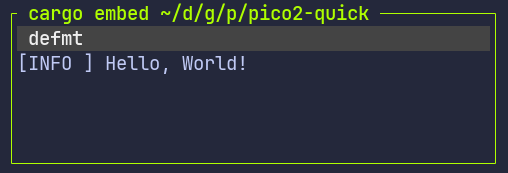
You can use cargo embed to flash your program and watch the log output in your terminal. The quick start project is already set up to send its log messages over RTT, so you do not need to configure anything before trying it out.
cargo embed
# or
cargo embed --release
If RTT is new to you, we will explain it later, but for now you can simply run the command to see your program run and print logs.
If everything works, you should see the “Hello, World!†message in the system terminal.
Reference
Real-Time Transfer (RTT)
When developing embedded systems, you need a way to see what’s happening inside your program. On a normal computer, you would use println! to print messages to the terminal. But on a microcontroller, there’s no screen or terminal attached. Real-Time Transfer (RTT) solves this problem by letting you print debug messages and logs from your microcontroller to your computer.
What is RTT?
RTT is a communication method that lets your microcontroller send messages to your computer through the debug probe you’re already using to flash your programs.
When you connect the Raspberry Pi Debug Probe to Pico, you’re creating a connection that can do two things:
- Flash new programs onto the chip
- Read and write the chip’s memory
RTT uses this memory access capability. It creates special memory buffers on your microcontroller, and the debug probe reads these buffers to display messages on your computer. This happens in the background while your program runs normally.
Using Defmt for Logging
Defmt (short for “deferred formattingâ€) is a logging framework designed specifically for resource-constrained devices like microcontrollers. In your Rust embedded projects, you’ll use defmt to print messages and debug your programs.
Defmt achieves high performance using deferred formatting and string compression. Deferred formatting means that formatting is not done on the machine that’s logging data but on a second machine.
Your Pico sends small codes instead of full text messages. Your computer receives these codes and turns them into normal text. This keeps your firmware small and avoids slow string formatting on the microcontroller.
You can add the defmt crate in your project:
defmt = "1.0.1"
Then use it like this:
#![allow(unused)]
fn main() {
use defmt::{info, warn, error};

...
info!("Starting program");
warn!("You shall not pass!");
error!("Something went wrong!");
}
Defmt RTT
By itself, defmt doesn’t know how to send messages from your Pico to your computer. It needs a transport layer. That’s where defmt-rtt comes in.
The defmt-rtt crate connects defmt to RTT, so your log messages get transmitted through the debug probe to your computer.
You can add the defmt-rtt crate in your project:
defmt-rtt = "1.0"
Tip
To see RTT and defmt logs, you need to run your program using probe-rs tools like the
cargo embedcommand. These tools automatically open an RTT session and show the logs in your terminal
Then include it in your code:
#![allow(unused)]
fn main() {
use defmt_rtt as _;
}
The line sets up the connection between defmt and RTT. You don’t call any functions from it directly, but it needs to be imported to make it work.
Panic Messages with Panic-Probe
When your program crashes (panics), you want to see what went wrong. The panic-probe crate makes panic messages appear through defmt and RTT.
You can add the panic-probe crate in your project:
# The print-defmt feature - tells panic-probe to use defmt for output.
panic-probe = { version = "1.0", features = ["print-defmt"] }
Then include it in your code:
#![allow(unused)]
fn main() {
use panic_probe as _;
}
You can manually trigger a panic to see how panic messages work. Try adding this to your code:
#![allow(unused)]
fn main() {
panic!("something went wrong");
}
Async In Embedded Rust
When I first started this book, I wrote most of the examples using rp-hal only. In this revision, I have rewritten the book to focus mainly on async programming with Embassy. The official Embassy book already has good documentation, but I want to give a short introduction here. Let’s have a brief look at async and understand why it’s so valuable in embedded systems.
Imagine You’re Cooking Dinner
If you’re familiar with concurrency and async concepts, you don’t need this analogy; Embassy is basically like Tokio for embedded systems, providing an async runtime. If you’re new to async, let me explain with this analogy.
You are making dinner and you put water on to boil. Instead of standing there watching, you chop vegetables. You glance at the pot occasionally, and when you see bubbles, you’re ready for the next step. Now while the main dish cooks, you prepare a side dish in another pan. You even check a text message on your phone. You’re one person constantly moving between tasks, checking what needs attention, doing work whenever something is ready, and never just standing idle waiting.

That’s async programming. You’re the executor, constantly deciding what needs attention. Each cooking task is an async operation. The stove does its heating without you watching it. That’s the non-blocking wait. You don’t freeze in place staring at boiling water. You go do other productive work and come back when it’s ready. The key insight is efficient orchestration: one person (the executor), multiple waiting tasks, and you’re always doing something useful by switching your attention to whatever is ready right now. This is exactly what async programming does for your microcontroller.
Different Approaches
In embedded systems, your microcontroller spends a lot of time waiting. It waits for a button press, for a timer to expire, or for an LED to finish blinking for a set duration. Without async, you have two main approaches.
Blocking
The first approach is blocking code. Your program literally stops and waits. If you’re waiting for a button press, your code sits in a loop checking if the button state has changed. During this time, your microcontroller can’t do anything else. It can’t blink an LED, it can’t check other buttons, it can’t respond to timers. All of your processor’s power is wasted in a tight loop asking “is it ready yet?†over and over again.
Interrupt
The second approach is using interrupts directly. When hardware events happen, like a button being pressed or a timer expiring, the interrupt handler runs. This is better because your main code can keep running, but interrupt-based code quickly becomes complex and error-prone. You need to carefully manage shared state between your main code and interrupt handlers.
Do not worry about interrupts for now. We will go into them in more depth in later chapters.
Async
Async programming gives you the best of both worlds. Your code looks clean and sequential, like blocking code, but it doesn’t actually block. When you await something, your code says “I need to wait for this, but feel free to do other work in the meantime.†The async runtime, which Embassy provides for us, handles all the complexity of switching between tasks efficiently.
How Async Works in Rust
When you write an async function in Rust, you use the async keyword before fn. Inside that function, you can use the await keyword on operations that might take time. Here’s what it looks like:
#![allow(unused)]
fn main() {
async fn blink_led(mut led: Output<'static>) {
    loop {
        led.set_high();
        Timer::after_millis(500).await;
        led.set_low();
        Timer::after_millis(500).await;
    }
}
}
The important part is the .await. When you write Timer::after_millis(500).await, you’re telling the runtime “I need to wait 500 milliseconds, but I don’t need the CPU during that time.†The runtime can then go run other tasks. When the 500 milliseconds are up, your task resumes right where it left off.
Think back to our cooking analogy. When you put something on the stove and walk away, you’re essentially “awaiting†it to be ready. You do other things, and when it’s done, you return to that task. Just like you act as the executor in the kitchen, keeping track of what needs attention and when, the async runtime plays the same role for your program.
Embassy
Embassy is one of the popular async runtime that makes all of this work in embedded Rust. It provides the executor that manages your tasks, handles hardware interrupts.
Executor
When you use #[embassy_executor::main], Embassy automatically sets everything up - it runs your tasks, puts the CPU to sleep when everything is waiting, and wakes it up when hardware events occur. The Executor is the coordinator that decides which task to poll when. The executor maintains a queue of tasks that are ready to run. When a task hits await and yields, the executor moves to the next ready task. When there are no tasks ready to run, the executor puts the CPU to sleep. Interrupts wake the executor back up, which then polls any tasks that became ready.
RTIC
RTIC (Real-Time Interrupt-driven Concurrency) is another popular framework for embedded Rust. Unlike Embassy, which provides an async runtime along with hardware drivers, RTIC focuses only on execution and scheduling. In RTIC, you declare tasks with fixed priorities and shared resources upfront, and the framework checks at compile time that resources are shared safely without data races. Higher-priority tasks can preempt lower-priority ones, and the scheduling is handled by hardware interrupts, which makes timing very predictable. This makes RTIC a good fit for hard real-time systems where precise control and determinism matter. You can refer the official RTIC book for more info.
In this book, we will mainly use Embassy.
Blinking an External LED
From now on, we’ll use more external parts with the Pico. Before we get there, it helps to get comfortable with simple circuits and how to connect components to the Pico’s pins. In this chapter, we’ll start with something basic: blinking an LED that’s connected outside the board.
Hardware Requirements
- LED
- Resistor
- Jumper wires
Components Overview
-
LED: An LED (Light Emitting Diode) lights up when current flows through it. The longer leg (anode) connects to positive, and the shorter leg (cathode) connects to ground. We’ll connect the anode to GP13 (with a resistor) and the cathode to GND.
-
Resistors: A resistor limits the current in a circuit to protect components like LEDs. Its value is measured in Ohms (Ω). We’ll use a 330 ohm resistor to safely power the LED.
| Pico Pin | Wire | Component |
|---|---|---|
| GPIO 13 |
|
Resistor |
| Resistor |
|
Anode (long leg) of LED |
| GND |
|
Cathode (short leg) of LED |
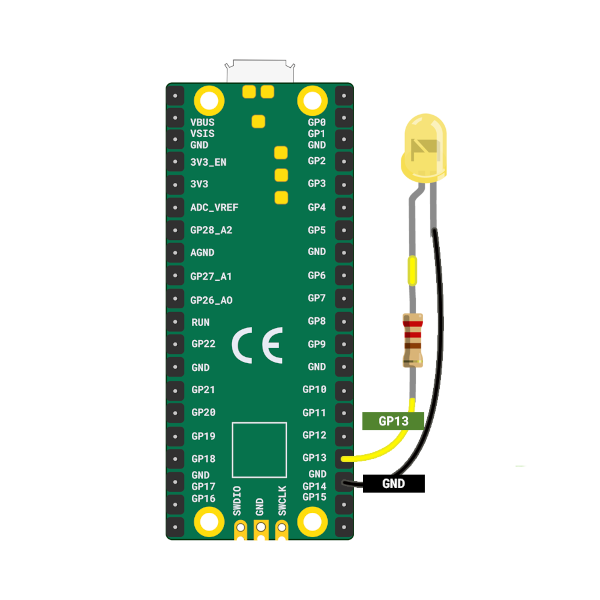
You can connect the Pico to the LED using jumper wires directly, or you can place everything on a breadboard. If you’re unsure about the hardware setup, you can also refer the Raspberry pi guide.

Tip
On the Pico, the pin labels are on the back of the board, which can feel inconvenient when plugging in wires. I often had to check the pinout diagram whenever I wanted to use a GPIO pin. Use the Raspberry Pi logo on the front as a reference point and match it with the pinout diagram to find the correct pins. Pin positions 2 and 39 are also printed on the front and can serve as additional guides.
LED Blink - Simulation
In this simulation I set the default delay to 5000 milliseconds so the animation is calmer and easier to follow. You can lower it to something like 500 milliseconds to see the LED blink more quickly. When we run the actual code on the Pico, we will use a 500 millisecond delay.
Breadboard
A breadboard is a small board that helps you build circuits without soldering. It has many holes where you can plug in wires and electronic parts. Inside the board, metal strips connect some of these holes. This makes it easy to join parts together and complete a circuit.
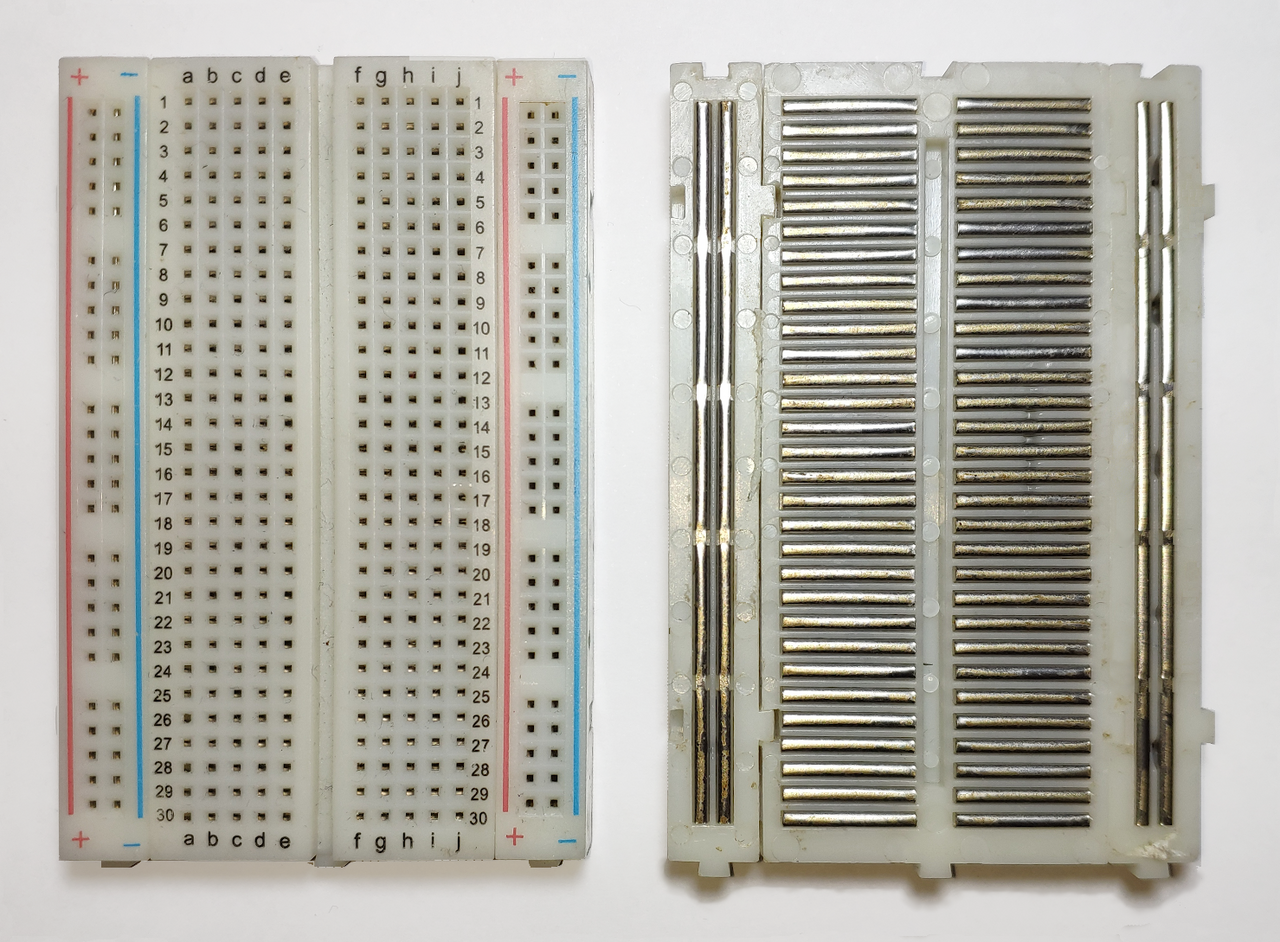

The picture shows how the holes are connected inside the breadboard.
Power rails
The long vertical lines on both sides are called power rails. People usually connect the power supply to the rail marked with “+†and the ground to the rail marked with “-â€. Each hole in a rail is connected from top to bottom.
Let’s say you want to give power to many parts. You only need to connect your power source (for example, 3.3V or 5V) to one point on the “+†rail. After that, you can use any other hole on the same rail to power your components.
Middle area
The middle part of the breadboard is where you place most of your components. The holes here are connected in small horizontal rows. Each row has five holes that are linked together inside the board.
As you can see in the image, each row is separate, and the groups marked as a b c d e are separated from the groups marked as f g h i j. The center gap divides these two sides, so the connections do not cross from one side to the other.
Here are some simple examples:
- If you plug a wire into 5a and another wire into 5c, they are connected because they are in the same row.
- If you plug one wire into 5a and another into 5f, they are
notconnected because they are on different sides of the gap. - If you plug one wire into 5a and the other into 6a, they are
notconnected because they are in different rows.
Blink an External LED on the Raspberry Pi Pico with Embedded Rust
Let’s start by creating our project. We’ll use cargo-generate and use the template we prepared for this book.
In your terminal, type:
cargo generate --git https://github.com/ImplFerris/pico2-template.git --tag v0.3.1
You will be asked a few questions:
-
For the project name, you can give anything. We will use external-led.
-
Next, it asks us to Select HAL. We should choose “Embassyâ€.
-
Then, it will ask whether we want to enable defmt logging. This works only if we use a debug probe, so you can choose based on your setup. Anyway we are not going to write any log in this exercise.
Imports
Most of the required imports are already in the project template. For this exercise, we only need to add the Output struct and the Level enum from gpio:
#![allow(unused)]
fn main() {
use embassy_rp::gpio::{Level, Output};
}
While writing the main code, your editor will normally suggest missing imports. If something is not suggested or you see an error, check the full code section and add the missing imports from there.
Main Logic
The code is almost the same as the quick start example. The only change is that we now use GPIO 13 instead of GPIO 25. GPIO 13 is where we connected the LED (through a resistor).
Let’s add these code the main function :
#![allow(unused)]
fn main() {
let mut led = Output::new(p.PIN_13, Level::Low);

loop {
    led.set_high(); // Turn on the LED
    Timer::after_millis(500).await;

    led.set_low(); // Turn off the LED
    Timer::after_millis(500).await;
}
}
We are using the Output struct here because we want to send signals from the Pico to the LED. We set up GPIO 13 as an output pin and start it in the low (off) state.
Note
If you want to read signals from a component (like a button or sensor), you’ll need to configure the GPIO pin as Input instead.
Then we call set_high and set_low on the pin with a delay between them. This switches the pin between high and low, which turns the LED on and off.
The Full code
Here is the complete code for reference:
#![no_std]
#![no_main]

use embassy_executor::Spawner;
use embassy_rp as hal;
use embassy_rp::block::ImageDef;
use embassy_rp::gpio::{Level, Output};
use embassy_time::Timer;

//Panic Handler
use panic_probe as _;
// Defmt Logging
use defmt_rtt as _;

/// Tell the Boot ROM about our application
#[unsafe(link_section = ".start_block")]
#[used]
pub static IMAGE_DEF: ImageDef = hal::block::ImageDef::secure_exe();

#[embassy_executor::main]
async fn main(_spawner: Spawner) {
    let p = embassy_rp::init(Default::default());

    let mut led = Output::new(p.PIN_13, Level::Low);

    loop {
        led.set_high(); // Turn on the LED
        Timer::after_millis(500).await;

        led.set_low(); // Turn off the LED
        Timer::after_millis(500).await;
    }
}

// Program metadata for `picotool info`.
// This isn't needed, but it's recomended to have these minimal entries.
#[unsafe(link_section = ".bi_entries")]
#[used]
pub static PICOTOOL_ENTRIES: [embassy_rp::binary_info::EntryAddr; 4] = [
    embassy_rp::binary_info::rp_program_name!(c"external-led"),
    embassy_rp::binary_info::rp_program_description!(c"your program description"),
    embassy_rp::binary_info::rp_cargo_version!(),
    embassy_rp::binary_info::rp_program_build_attribute!(),
];

// End of file
Clone the existing project
You can clone the project I created and navigate to the external-led folder:
git clone https://github.com/ImplFerris/pico2-embassy-projects
cd pico2-embassy-projects/external-led
How to Run?
You refer the “Running The Program†section
Blinky Example using rp-hal
In the previous section, we used Embassy. We keep the same circuit and wiring. For this example, we switch to rp-hal to show how both approaches look. You can choose Embassy if you want async support, or rp-hal if you prefer the blocking style. In this book, we will mainly use Embassy.
We will create a new project again with cargo-generate and the same template.
In your terminal, type:
cargo generate --git https://github.com/ImplFerris/pico2-template.git --tag v0.3.1
When it asks you to select HAL, choose “rp-hal†this time.
Imports
The template already includes most imports. For this example, we need to add the OutputPin trait from embedded-hal:
#![allow(unused)]
fn main() {
// Embedded HAL trait for the Output Pin
use embedded_hal::digital::OutputPin;
}
This trait provides the set_high() and set_low() methods we’ll use to control the LED.
Main Logic
If you compare this with the Embassy version, there’s not much difference in how the LED is toggled. The main difference is in how the delay works. Embassy uses async and await, which lets the program pause without blocking and allows other tasks to run in the background. rp-hal uses a blocking delay, which stops the program until the time has passed.
#![allow(unused)]
fn main() {
let mut led_pin = pins.gpio13.into_push_pull_output();

loop {
    led_pin.set_high().unwrap();
    timer.delay_ms(200);

    led_pin.set_low().unwrap();
    timer.delay_ms(200);
}
}
Full code
#![no_std]
#![no_main]

use embedded_hal::delay::DelayNs;
use hal::block::ImageDef;
use rp235x_hal as hal;

//Panic Handler
use panic_probe as _;
// Defmt Logging
use defmt_rtt as _;

// Embedded HAL trait for the Output Pin
use embedded_hal::digital::OutputPin;

/// Tell the Boot ROM about our application
#[unsafe(link_section = ".start_block")]
#[used]
pub static IMAGE_DEF: ImageDef = hal::block::ImageDef::secure_exe();
/// External high-speed crystal on the Raspberry Pi Pico 2 board is 12 MHz.
/// Adjust if your board has a different frequency
const XTAL_FREQ_HZ: u32 = 12_000_000u32;

#[hal::entry]
fn main() -> ! {
    // Grab our singleton objects
    let mut pac = hal::pac::Peripherals::take().unwrap();

    // Set up the watchdog driver - needed by the clock setup code
    let mut watchdog = hal::Watchdog::new(pac.WATCHDOG);

    // Configure the clocks
    //
    // The default is to generate a 125 MHz system clock
    let clocks = hal::clocks::init_clocks_and_plls(
        XTAL_FREQ_HZ,
        pac.XOSC,
        pac.CLOCKS,
        pac.PLL_SYS,
        pac.PLL_USB,
        &mut pac.RESETS,
        &mut watchdog,
    )
    .ok()
    .unwrap();

    // The single-cycle I/O block controls our GPIO pins
    let sio = hal::Sio::new(pac.SIO);

    // Set the pins up according to their function on this particular board
    let pins = hal::gpio::Pins::new(
        pac.IO_BANK0,
        pac.PADS_BANK0,
        sio.gpio_bank0,
        &mut pac.RESETS,
    );

    let mut timer = hal::Timer::new_timer0(pac.TIMER0, &mut pac.RESETS, &clocks);

    let mut led_pin = pins.gpio13.into_push_pull_output();

    loop {
        led_pin.set_high().unwrap();
        timer.delay_ms(200);

        led_pin.set_low().unwrap();
        timer.delay_ms(200);
    }
}

// Program metadata for `picotool info`.
// This isn't needed, but it's recomended to have these minimal entries.
#[unsafe(link_section = ".bi_entries")]
#[used]
pub static PICOTOOL_ENTRIES: [hal::binary_info::EntryAddr; 5] = [
    hal::binary_info::rp_cargo_bin_name!(),
    hal::binary_info::rp_cargo_version!(),
    hal::binary_info::rp_program_description!(c"your program description"),
    hal::binary_info::rp_cargo_homepage_url!(),
    hal::binary_info::rp_program_build_attribute!(),
];
Clone the existing project
You can clone the project I created and navigate to the external-led folder:
git clone https://github.com/ImplFerris/pico2-rp-projects
cd pico2-rp-projects/external-led
From std to no_std
We have successfully flashed and run our first program, which creates a blinking effect. However, we have not yet explored the code or the project structure in detail. In this section, we will recreate the same project from scratch. I will explain each part of the code and configuration along the way. Are you ready for the challenge?
Tip
If you find this chapter overwhelming, especially if you’re just working on a hobby project, feel free to skip it for now. You can come back to it later after building some fun projects and working through exercises.
Create a Fresh Project
We will start by creating a standard Rust binary project. Use the following command:
#![allow(unused)]
fn main() {
cargo new pico-from-scratch
}
At this stage, the project will contain the usual files as expected.
├── Cargo.toml
└── src
    └── main.rs
Our goal is to reach the following final project structure:
├── build.rs
├── .cargo
│   └── config.toml
├── Cargo.toml
├── memory.x
├── rp235x_riscv.x
├── src
│   └── main.rs
Cross Compilation
You probably know about cross compilation already. In this section, we’ll explore how this works and what it means to deal with things like target triples. In simple terms, cross compilation is building programs for different machine than the one you’re using.
You can write code on one computer and make programs that run on totally different computers. For example, you can work on Linux and build .exe files for Windows. You can even target bare-metal microcontrollers like the RP2350, ESP32, or STM32.
TL;DR
We have to use either “thumbv8m.main-none-eabihf†or “riscv32imac-unknown-none-elf†as the target when building our binary for the Pico 2.
cargo build --target thumbv8m.main-none-eabihfWe can also configure the target in
.cargo/config.tomlso that we don’t need to type it every time.
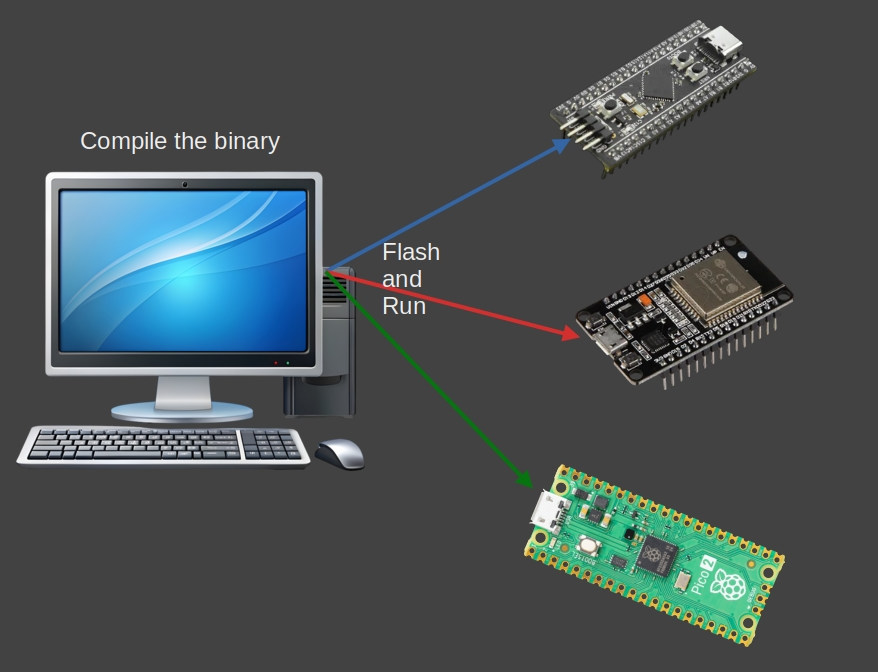
Building for Your Host System
Let’s say we are on a Linux machine. When you run the usual build command, Rust compiles your code for your current host platform, which in this case is Linux:
cargo build
You can confirm what kind of binary it just produced using the file command:
file ./target/debug/pico-from-scratch
This will give an output like the following. This tells you it is a 64-bit ELF binary, dynamically linked, and built for Linux.
./target/debug/pico-from-scratch: ELF 64-bit LSB pie executable, x86-64, version 1 (SYSV), dynamically linked, interpreter /lib64/ld-linux-x86-64.so.2, Build...
Cross compiling for Windows
Now let’s say you want to build a binary for Windows without leaving your Linux machine. That’s where cross-compilation comes into play.
First, you need to tell Rust about the target platform. You only have to do this once:
rustup target add x86_64-pc-windows-gnu
This adds support for generating 64-bit Windows binaries using the GNU toolchain (MinGW).
Now build your project again, this time specifying the target:
cargo build --target x86_64-pc-windows-gnu
That’s it. Rust will now create a Windows .exe binary, even though you’re still on Linux. The output binary will be located at target/x86_64-pc-windows-gnu/debug/pico-from-scratch.exe
You can inspect the file type like this:
file target/x86_64-pc-windows-gnu/debug/pico-from-scratch.exe
It will give you output like this, a 64 bit PE32+ File format file for windows.
target/x86_64-pc-windows-gnu/debug/pico-from-scratch.exe: PE32+ executable (console) x86-64, for MS Windows
What Is a Target Triple?
So what’s this x86_64-pc-windows-gnu string all about?
That’s what we call a target triple, and it tells the compiler exactly what kind of output you want. It usually follows this format:
`<architecture>-<vendor>-<os>-<abi>`
But the pattern is not always consistent. Sometimes the ABI part won’t be there. In other cases, even the vendor or both vendor and ABI might be absent. The structure can get messy, and there are plenty of exceptions. If you want to dive deeper into all the quirks and edge cases, check out the article “What the Hell Is a Target Triple?†linked in the references.
Let’s break down what this target triple actually means:
-
Architecture (x86_64): This just means 64-bit x86, which is the type of CPU most modern PCs use. It’s also called AMD64 or x64.
-
Vendor (pc): This is basically a placeholder. It’s not very important in most cases. If it is for mac os, the vendor name will be “appleâ€.
-
OS (windows): This tells Rust that we want to build something that runs on Windows.
-
ABI (gnu): This part tells Rust to use the GNU toolchain to build the binary.
Reference
Compiling for Microcontroller
Now let’s talk about embedded systems. When it comes to compiling Rust code for a microcontroller, things work a little differently from normal desktop systems. Microcontrollers don’t usually run a full operating system like Linux or Windows. Instead, they run in a minimal environment, often with no OS at all. This is called a bare-metal environment.
Rust supports this kind of setup through its no_std mode. In normal Rust programs, the standard library (std) handles things like file systems, threads, heap allocation, and I/O. But none of those exist on a bare-metal microcontroller. So instead of std, we use a much smaller core library, which provides only the essential building blocks.
The Target Triple for Pico 2
The Raspberry Pi Pico 2 (RP2350 chip), as you already know that it is unique; it contains selectable ARM Cortex-M33 and Hazard3 RISC-V cores . You can choose which processor architecture to use.
ARM Cortex-M33 Target
For ARM mode, we have to use the target [thumbv8m.main-none-eabi](https://doc.rust-lang.org/nightly/rustc/platform-support/thumbv8m.main-none-eabi.html):
Let’s break this down:
- Architecture (thumbv8m.main): The Cortex-M33 uses the ARM Thumb-2 instruction set for ARMv8-M architecture.
- Vendor (none): No specific vendor designation.
- OS (none): No operating system - it’s bare-metal.
- ABI (eabi): Embedded Application Binary Interface, the standard calling convention for embedded ARM systems.
To install and use this target:
rustup target add thumbv8m.main-none-eabi
cargo build --target thumbv8m.main-none-eabi
RISC-V Hazard3 Target
For RISC-V mode, use the target [riscv32imac-unknown-none-elf](https://doc.rust-lang.org/nightly/rustc/platform-support/riscv32-unknown-none-elf.html):
riscv32imac-unknown-none-elf
Let’s break this down:
- Architecture (riscv32imac): 32-bit RISC-V with I (integer), M (multiply/divide), A (atomic), and C (compressed) instruction sets.
- Vendor (unknown): No specific vendor.
- OS (none): No operating system - it’s bare-metal.
- Format (elf): ELF (Executable and Linkable Format), the object file format commonly used in embedded systems.
To install and use this target:
rustup target add riscv32imac-unknown-none-elf
cargo build --target riscv32imac-unknown-none-elf
In our exercises, we’ll mostly use the ARM mode. Some crates like panic-probe don’t work in RISC-V mode.
Cargo Config
In the quick start, you might have noticed that we never manually passed the –target flag when running the cargo command. So how did it know which target to build for? That’s because the target was already configured in the .cargo/config.toml file.
This file lets you store cargo-related settings, including which target to use by default. To set it up for Pico 2 in ARM mode, create a .cargo folder in your project root and add a config.toml file with the following content:
[build]
target = "thumbv8m.main-none-eabihf"
Now you don’t have to pass –target every time. Cargo will use this automatically.
no_std
Rust has two main foundational crates: std and core.
-
The std crate is the standard library. It gives you things like heap allocation, file system access, threads, and println!.
-
The core crate is a minimal subset. It contains only the most essential Rust features, like basic types (Option, Result, etc.), traits, and few other operations. It doesn’t depend on an operating system or runtime.
When you try to build the project at this stage, you’ll get a bunch of errors. Here’s what it looks like:
error[E0463]: can't find crate for `std`
  |
  = note: the `thumbv8m.main-none-eabihf` target may not support the standard library
  = note: `std` is required by `pico_from_scratch` because it does not declare `#![no_std]`

error: cannot find macro `println` in this scope
 --> src/main.rs:2:5
  |
2 |     println!("Hello, world!");
  |     ^^^^^^^

error: `#[panic_handler]` function required, but not found

For more information about this error, try `rustc --explain E0463`.
error: could not compile `pico-from-scratch` (bin "pico-from-scratch") due to 3 previous errors
There are so many errors here. Lets fix one by one. The first error says the target may not support the standard library. That’s true. We already know that. The problem is, we didn’t tell Rust that we don’t want to use std. That’s where no_std attribute comes into play.
#![no_std]
The #![no_std] attribute disables the use of the standard library (std). This is necessary most of the times for embedded systems development, where the environment typically lacks many of the resources (like an operating system, file system, or heap allocation) that the standard library assumes are available.
In the top of your src/main.rs file, add this line:
#![no_std]
That’s it. Now Rust knows that this project will only use the core library, not std.
Println
The println! macro comes from the std crate. Since we’re not using std in our project, we can’t use println!. Let’s go ahead and remove it from the code.
Now the code should be like this
#![no_std]


fn main() {

}
With this fix, we’ve taken care of two errors and cut down the list. There’s still one more issue showing up, and we’ll fix that in the next section.
Resources:
Panic Handler
At this point, when you try to build the project, you’ll get this error:
error: `#[panic_handler]` function required, but not found
When a Rust program panics, it is usually handled by a built-in panic handler that comes from the standard library. But in the last step, we added #![no_std], which tells Rust not to use the standard library. So now, there’s no panic handler available by default.
In a no_std environment, you are expected to define your own panic behavior, because there’s no operating system or runtime to take over when something goes wrong.
We can fix this by adding our own panic handler. Just create a function with the #[panic_handler] attribute. The function must accept a reference to PanicInfo, and its return type must be !, which means the function never returns.
Add this to your src/main.rs:
#![allow(unused)]
fn main() {
#[panic_handler]
fn panic(_: &core::panic::PanicInfo) -> ! {
    loop {}
}
}
Panic crates
There are some ready-made crates that provide a panic handler function for no_std projects. One simple and commonly used crate is “panic_haltâ€, which just halts the execution when a panic occurs.
#![allow(unused)]
fn main() {
use panic_halt as _;
}
This line pulls in the panic handler from the crate. Now, if a panic happens, the program just stops and stays in an infinite loop.
In fact, the panic_halt crate’s code implements a simple panic handler, which looks like this:
#![allow(unused)]
fn main() {
use core::panic::PanicInfo;
use core::sync::atomic::{self, Ordering};

#[inline(never)]
#[panic_handler]
fn panic(_info: &PanicInfo) -> ! {
    loop {
        atomic::compiler_fence(Ordering::SeqCst);
    }
}
}
You can either use an external crate like this, or write your own panic handler function manually. It’s up to you.
Resources:
no_main
When you try to build at this stage, you’ll get an error saying the main function requires the standard library. What?! (I controlled my temptation to insert a Mr. Bean meme here since not everyone will like meme.) So what now? Where does the program even start?
In embedded systems, we don’t use the regular “fn main†that relies on the standard library. Instead, we have to tell Rust that we’ll bring our own entry point. And for that, we use the no_main attribute.
The #![no_main] attribute is to indicate that the program won’t use the standard entry point (fn main).
In the top of your src/main.rs file, add this line:
#![no_main]
Declaring the Entry Point
Now that we’ve opted out of the default entry point, we need to tell Rust which function to start with. Each HAL crates in the embedded Rust ecosystem provides a special proc macro attribute that allows us to mark the entry point. This macro initializes and sets up everything needed for the microcontroller.
If we were using rp-hal, we could use rp235x_hal::entry for the RP2350 chip. However, we’re going to use Embassy (the embassy-rp crate). Embassy provides the embassy_executor::main macro, which sets up the async runtime for tasks and calls our main function.
The Embassy Executor is an async/await executor designed for embedded usage along with support functionality for interrupts and timers. You can read the official Embassy book to understand in depth how Embassy works.
Cortex-m Run Time
If you follow the embassy_executor::main macro, you’ll see it uses another macro depending on the architecture. Since the Pico 2 is Cortex-M, it uses cortex_m_rt::entry. This comes from the cortex_m_rt crate, which provides startup code and minimal runtime for Cortex-M microcontrollers.
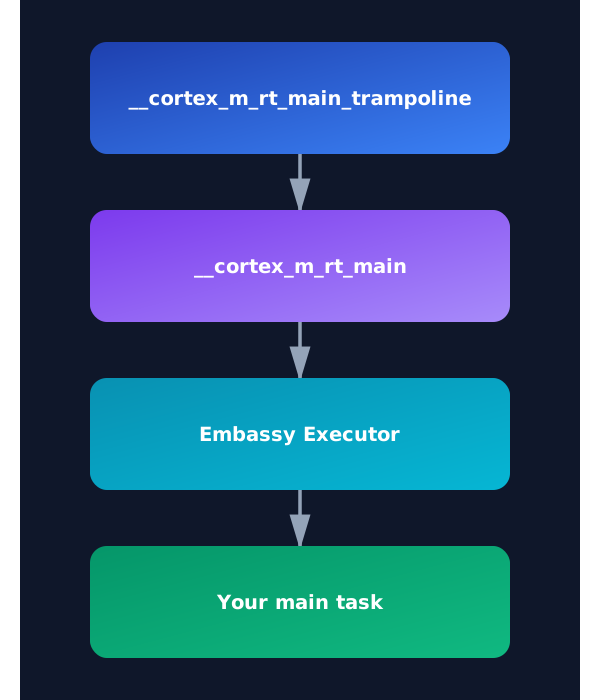
If you run cargo expand in the quick-start project, you can see how the macro expands and the full execution flow. If you follow the rabbit hole, the program starts at the __cortex_m_rt_main_trampoline function. This function calls __cortex_m_rt_main, which sets up the Embassy executor and runs our main function.
To make use of this, we need to add the cortex-m and cortex-m-rt crates to our project. Update the Cargo.toml file:
cortex-m = { version = "0.7.6" }
cortex-m-rt = "0.7.5"
Now, we can add the embassy executor crate:
embassy-executor = { version = "0.9", features = [
  "arch-cortex-m",
  "executor-thread",
] }
Then, in your main.rs, set up the entry point like this:
use embassy_executor::Spawner;

#[embassy_executor::main]
async fn main(_spawner: Spawner) {}
We have changed the function signature. The function must accept a Spawner as its argument to satisfy embassy’s requirements, and the function is now marked as async.
Are we there yet?
Hoorah! Now try building the project - it should compile successfully.
You can inspect the generated binary using the file command:
file target/thumbv8m.main-none-eabihf/debug/pico-from-scratch
It will show something like this:
target/thumbv8m.main-none-eabihf/debug/pico-from-scratch: ELF 32-bit LSB executable, ARM, EABI5 version 1 (GNU/Linux), statically linked, with debug_info, not stripped
As you can see, the binary is built for a 32-bit ARM. That means our base setup for Pico is working.
But are we there yet? Not quite. We’ve crossed half the stage - we now have a valid binary ready for Pico, but there’s more to do before we can run it on real hardware.
Resources:
Peripherals
Before we move on to the next part, let’s quickly look at what peripherals are.
In embedded systems, peripherals are hardware components that extend the capabilities of a microcontroller (MCU). They allow the MCU to interact with the outside world by handling inputs and outputs, communication, timing, and more.
While the CPU is responsible for executing program logic, peripherals do the heavy lifting of interacting with hardware, often offloading work from the CPU. This allows the CPU to focus on critical tasks while peripherals handle specialized functions independently or with minimal supervision.
Offloading
Offloading refers to the practice of delegating certain tasks to hardware peripherals instead of doing them directly in software via the CPU. This improves performance, reduces power consumption, and enables concurrent operations. For example:
- A UART peripheral can send and receive data in the background using DMA (Direct Memory Access), while the CPU continues processing other logic.
- A Timer can be configured to generate precise delays or periodic interrupts without CPU intervention.
- A PWM controller can drive a motor continuously without the CPU constantly toggling pins.
Offloading is a key design strategy in embedded systems to make efficient use of limited processing power.
Common Types of Peripherals
Here are some of the most common types of peripherals found in embedded systems:
| Peripheral | Description |
|---|---|
| GPIO (General Purpose Input/Output) | Digital pins that can be configured as inputs or outputs to interact with external hardware like buttons, LEDs, and sensors. |
| UART (Universal Asynchronous Receiver/Transmitter) | Serial communication interface used for sending and receiving data between devices, often used for debugging. |
| SPI (Serial Peripheral Interface) | High-speed synchronous communication protocol used to connect microcontrollers to peripherals like SD cards, displays, and sensors using a master-slave architecture. |
| I2C (Inter-Integrated Circuit) | Two-wire serial communication protocol used for connecting low-speed peripherals such as sensors and memory chips to a microcontroller. |
| ADC (Analog-to-Digital Converter) | Converts analog signals from sensors or other sources into digital values that the microcontroller can process. |
| PWM (Pulse Width Modulation) | Generates signals that can control power delivery, used commonly for LED dimming, motor speed control, and servo actuation. |
| Timer | Used for generating delays, measuring time intervals, counting events, or triggering actions at specific times. |
| RTC (Real-Time Clock) | Keeps track of current time and date even when the system is powered off, typically backed by a battery. |
Peripherals in Rust
In embedded Rust, peripherals are accessed using a singleton model. One of Rust’s core goals is safety, and that extends to how it manages hardware access. To ensure that no two parts of a program can accidentally control the same peripheral at the same time, Rust enforces exclusive ownership through this singleton approach.
The Singleton Pattern
The singleton pattern ensures that only one instance of each peripheral exists in the entire program. This avoids common bugs caused by multiple pieces of code trying to modify the same hardware resource simultaneously.
In embassy, peripherals are also exposed using this singleton model. But we won’t be calling Peripherals::take() directly. Instead, we will use the embassy_rp::init(Default::default()) function. This function takes care of basic system setup and internally calls Peripherals::take() for us. So we get access to all peripherals in a safe and ready-to-use form.
Embassy for Raspberry Pi Pico
We already introduced the concept of HAL in the introduction chapter. For the Pico, we will use the Embassy RP HAL. The Embassy RP HAL targets the Raspberry Pi RP2040, as well as RP235x microcontrollers.
The HAL supports blocking and async peripheral APIs. Using async APIs is better because the HAL automatically handles waiting for peripherals to complete operations in low power mode and manages interrupts, so you can focus on the primary functionality.
Let’s add the embassy-rp crate to our project.
embassy-rp = { version = "0.8.0", features = [
  "rp235xa",
] }
We’ve enabled the rp235xa feature because our chip is the RP2350. If we were using the older Pico, we would instead enable the rp2040 feature.
Initialize the embassy-rp HAL
Let’s initialize the HAL. We can pass custom configuration to the initialization function if needed. The config currently allows us to modify clock settings, but we’ll stick with the defaults for now:
#![allow(unused)]
fn main() {
let peripherals = embassy_rp::init(Default::default());
}
This gives us the peripheral singletons we need. Remember, we should only call this once at startup; calling it again will cause a panic.
Timer
We are going to replicate the quick start example by blinking the onboard LED. To create a blinking effect, we need a timer to add delays between turning the LED on and off. Without delays, the blinking would be too fast to see.
To handle timing, we’ll use the “embassy-time†crate, which provides essential timing functions:
#![allow(unused)]
fn main() {
embassy-time = { version = "0.5.0" }
}
We also need to enable the time-driver feature in the embassy-rp crate. This configures the TIMER peripheral as a global time driver for embassy-time, running at a tick rate of 1MHz:
embassy-rp = { version = "0.8.0", features = [
  "rp235xa",
  "time-driver",
  "critical-section-impl",
] }
We’ve almost added all the essential crates. Now let’s write the code for the blinking effect.
Blinking onboard LED on Raspberry Pi Pico 2
When you start with embedded programming, GPIO is the first peripheral you’ll work with. “General-Purpose Input/Output†means exactly what it sounds like: we can use it for both input and output. As an output, the Pico can send signals to control components like LEDs. As an input, components like buttons can send signals to the Pico.
For this exercise, we’ll control the onboard LED by sending signals to it. If you check page 8 of the Pico 2 datasheet, you’ll see that the onboard LED is wired to GPIO Pin 25.
We’ll configure GPIO Pin 25 as an output pin and set its initial state to low (off):
#![allow(unused)]
fn main() {
let mut led = Output::new(peripherals.PIN_25, Level::Low);
}
Most code editors like VS Code have shortcuts to automatically add imports for you. If your editor doesn’t have this feature or you’re having issues, you can manually add these imports:
#![allow(unused)]
fn main() {
use embassy_rp::gpio::{Level, Output};
}
Blinking Logic
Now we’ll create a simple loop to make the LED blink. First, we turn on the LED by calling the set_high() function on our GPIO instance. Then we add a short delay using Timer. Next, we turn off the LED with set_low(). Then we add another delay. This creates the blinking effect.
Let’s import Timer into our project:
#![allow(unused)]
fn main() {
use embassy_time::Timer;
}
Here’s the blinking loop:
#![allow(unused)]
fn main() {
loop {
    led.set_high();
    Timer::after_millis(250).await;

    led.set_low();
    Timer::after_millis(250).await;
}
}
Flashing the Rust Firmware into Raspberry Pi Pico 2
After building our program, we’ll have an ELF binary file ready to flash.
For a debug build (cargo build), you’ll find the file here:
./target/thumbv8m.main-none-eabihf/debug/pico-from-scratch
For a release build (cargo build --release), you’ll find it here:
./target/thumbv8m.main-none-eabihf/release/pico-from-scratch
To load our program onto the Pico, we’ll use a tool called Picotool. Here’s the command to flash our program:
#![allow(unused)]
fn main() {
picotool load -u -v -x -t elf ./target/thumbv8m.main-none-eabihf/debug/pico-from-scratch
}
Here’s what each flag does:
-ufor update mode (only writes what’s changed)-vto verify everything wrote correctly-xto run the program immediately after loading-t elftells picotool we’re using an ELF file
cargo run command
Typing that long command every time gets tedious. Let’s simplify it by updating the “.cargo/config.toml†file. We can configure Cargo to automatically use picotool when we run cargo run:
[target.thumbv8m.main-none-eabihf]
runner = "picotool load -u -v -x -t elf"
Now, you can just type:
cargo run --release

#or

cargo run
and your program will be flashed and executed on the Pico.
But at this point, it still won’t actually flash. We’re missing one important step.
Linker Script
The program now compiles successfully. However, when you attempt to flash it onto the Pico, you may encounter an error like the following:
ERROR: File to load contained an invalid memory range 0x00010000-0x000100aa
Comparing our project with quick start project
To understand why flashing fails, let’s inspect the compiled program using the arm-none-eabi-readelf tool. This tool shows how the compiler and linker organized the program in memory.
I took the binary from the quick-start project and compared it with the binary our project produces at its current state.

You don’t need to understand every detail in this output. The important part is simply noticing that the two binaries look very different, even though our Rust code is almost the same.
The big difference is that our project is missing some important sections like .text, .rodata, .data, and .bss. These sections are normally created by the linker:
- .text : this is where the actual program instructions (the code) go
- .rodata : read-only data, such as constant values
- .data : initialized global or static variables
- .bss : uninitialized global or static variables
You can also use cargo size command provided by the cargo-binutils toolset to compare them.

Linker:
This is usually taken care of by something called linker. The role of the linker is to take all the pieces of our program, like compiled code, library code, startup code, and data, and combine them into one final executable that the device can actually run. It also decides where each part of the program should be placed in memory, such as where the code goes and where global variables go.
However, the linker does not automatically know the memory layout of the RP2350. We have to tell it how the flash and RAM are arranged. This is done through a linker script. If the linker script is missing or incorrect, the linker will not place our code in the proper memory regions, which leads to the flashing error we are seeing.
Linker Script
We are not going to write the linker script ourselves. The cortex-m-rt crate already provides the main linker script (link.x), but it only knows about the Cortex-M core. It does not know anything about the specific microcontroller we are using. Every microcontroller has its own flash size, RAM size, and memory layout, and cortex-m-rt cannot guess these values.
Because of this, cortex-m-rt expects the user or the board support crate to supply a small linker script called memory.x. This file describes the memory layout of the target device.
In memory.x, we must define the memory regions that the device has. At minimum, we need two regions: one named FLASH and one named RAM. The .text and .rodata sections of the program are placed in the FLASH region. The .bss and .data sections, along with the heap, are placed in the RAM region.
For the RP2350, the datasheet (chapter 2.2, Address map) specifies that flash starts at address 0x10000000 and SRAM starts at 0x20000000. So our memory.x file will look something like this:
MEMORY {
    FLASH : ORIGIN = 0x10000000, LENGTH = 2048K

    RAM : ORIGIN = 0x20000000, LENGTH = 512K
    SRAM4 : ORIGIN = 0x20080000, LENGTH = 4K
    SRAM5 : ORIGIN = 0x20081000, LENGTH = 4K
    ...
    ...
}
...
...
There are a few more settings required in memory.x for RP2350. We do not need to write those by hand. Instead, we will use the file provided in the embassy-rp examples repository. You can download it from here and place it in the root of your project.
Codegen Option for Linker
Putting the memory.x file in the project folder is not enough. We also need to make sure the linker actually uses the linker script provided by cortex-m-rt.
To fix this, we tell Cargo to pass the linker script (link.x) to the linker. There are multiple ways we can pass the argument to the rust. we can use the method like .cargo/config.toml or build script (build.rs) file. In the quick start, we are using the build.rs. So we will use the .cargo/config.toml approach. In the file, update the target section with the following
[target.thumbv8m.main-none-eabihf]
runner = "picotool load -u -v -x -t elf" # we alerady added this
rustflags = ["-C", "link-arg=-Tlink.x"]  # This is the new line
Run Pico Run
With everything set up, you can now flash the program to the Pico:
#![allow(unused)]
fn main() {
cargo run --release
}
Phew… we took a normal Rust project, turned it into a no_std firmware for the Pico. Finally, we can now see the LED blinking.
Resources
Creating a Rust Project for Raspberry Pi Pico in VS Code (with extension)
We’ve already created the Rust project for the Pico manually and through the template. Now we are going to try another approach: using the Raspberry Pi Pico extension for VS Code.
Using the Pico Extension
In Visual Studio Code, search for the extension “Raspberry Pi Pico†and ensure you’re installing the official one; it should have a verified publisher badge with the official Raspberry Pi website. Install that extension.
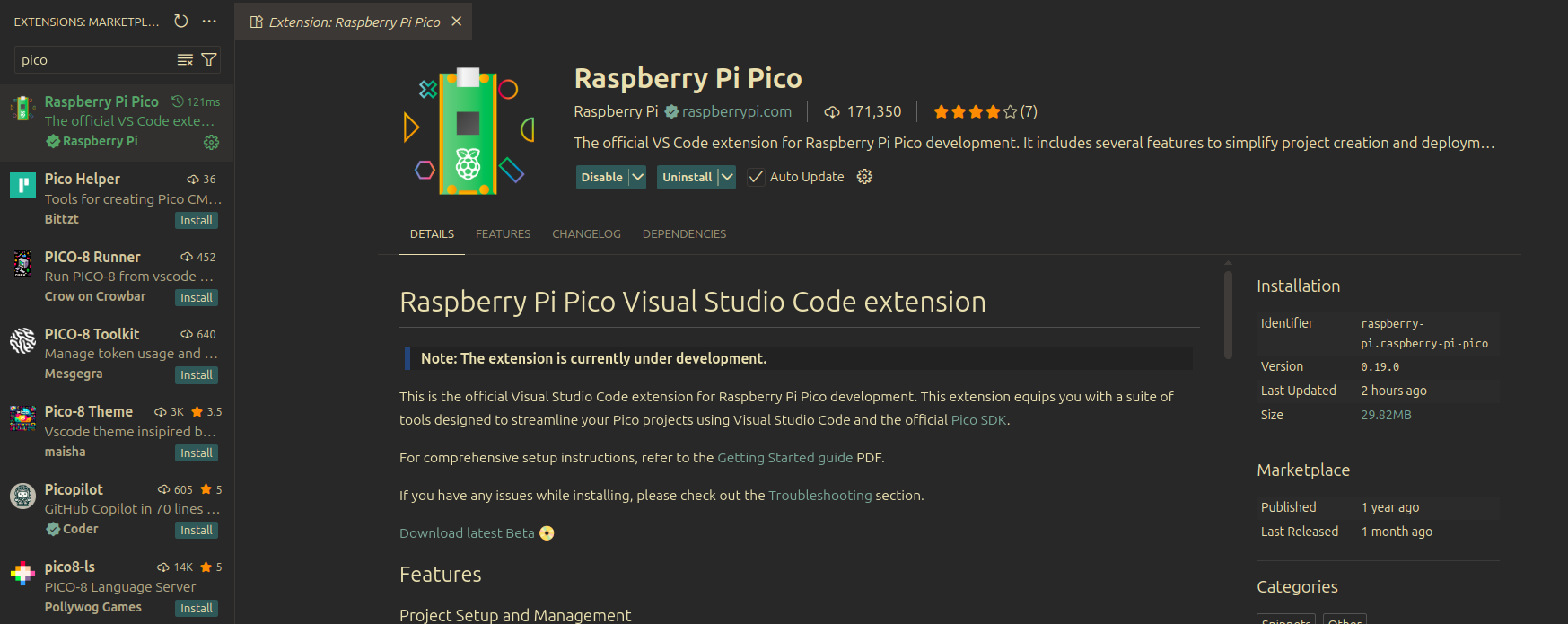
Just installing the extension might not be enough though, depending on what’s already on your machine. On Linux, you’ll likely need some basic dependencies:
sudo apt install build-essential libudev-dev
Create Project
Let’s create the Rust project with the Pico extension in VS Code. Open the Activity Bar on the left and click the Pico icon. Then choose “New Rust Project.â€
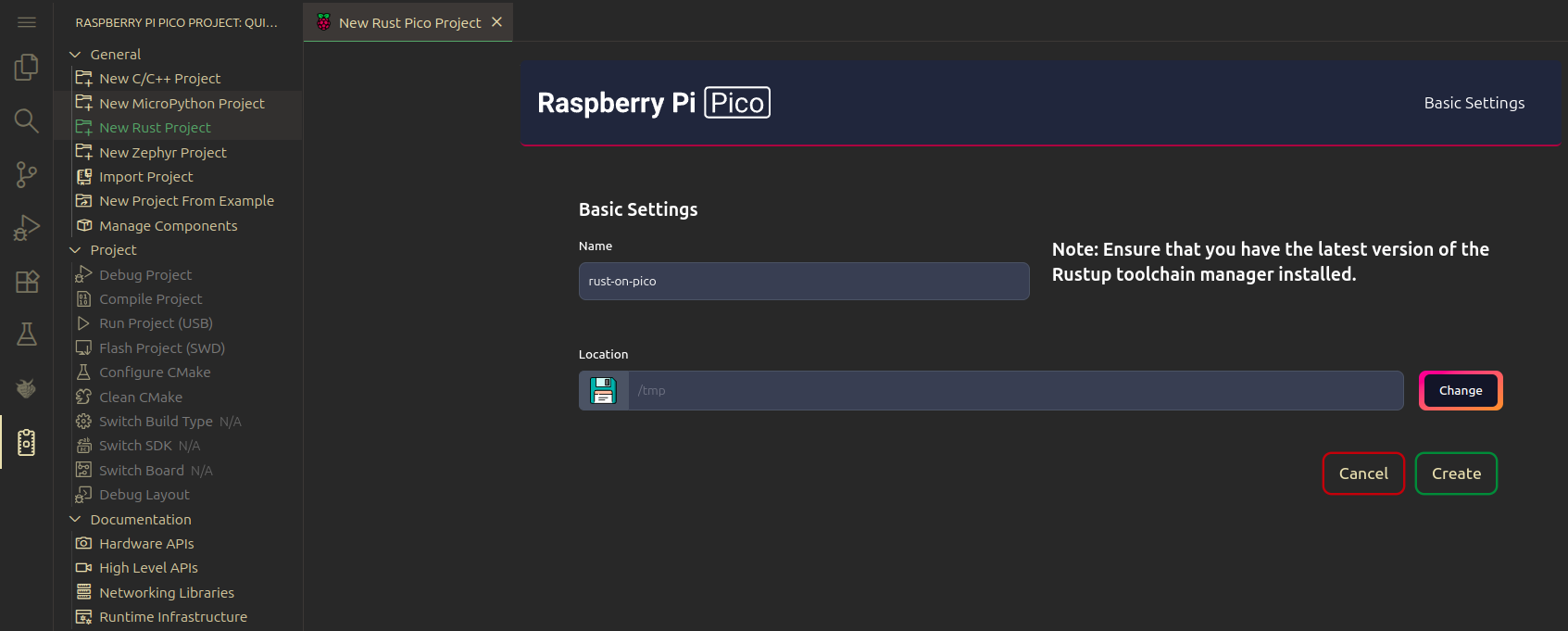
Since this is the first time setting up, the extension will download and install the necessary tools, including the Pico SDK, picotool, OpenOCD, and the ARM and RISC-V toolchains for debugging.
Project Structure
If the project was created successfully, you should see folders and files like this:
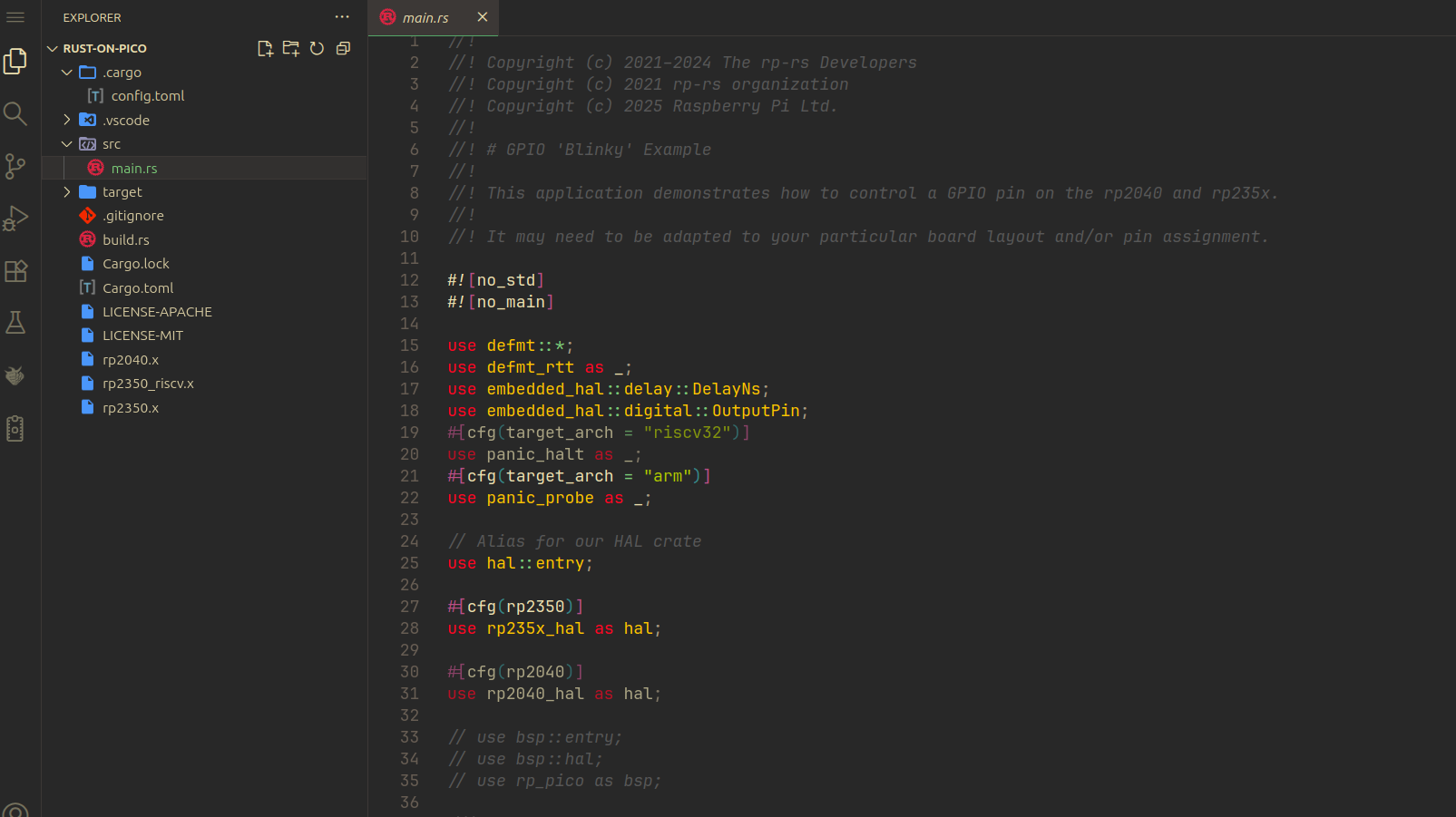
Running the Program
Now you can simply click “Run Project (USB)†to flash the program onto your Pico and run it. Don’t forget to press the BOOTSEL button when connecting your Pico to your computer. Otherwise, this option will be in disabled state.
.png)
Once flashing is complete, the program will start running immediately on your Pico. You should see the onboard LED blinking.
Pulse Width Modulation (PWM)
In this section, we will explore what is PWM and why we need it.
Digital vs Analog
To understand PWM, we first need to understand what is digital and analog signal.
Digital Signals
A digital signal has only two states: HIGH or LOW. In microcontrollers, HIGH typically means the full voltage (5V or 3.3V), and LOW means 0V. There’s nothing in between. Think of it like a light switch that can only be fully ON or fully OFF.

When you use a digital pin on your microcontroller, you can only output these two values. If you write HIGH to a pin, it outputs 3.3V. If you write LOW, it outputs 0V. You cannot tell a digital pin to output 1.5V or 2.7V or any value in between.
Analog Signals
An analog signal can have any voltage value within a range. Instead of just ON or OFF, it varies continuously and smoothly. Think of it like a dimmer switch that can set brightness anywhere from completely off to fully bright, with infinite positions in between.

For example, an analog signal could be 0V, 0.5V, 1.5V, 2.8V, 3.1V, or any other value within the allowed range. This smooth variation allows you to have precise control over devices.
The Problem
Here’s the challenge: most microcontroller pins are digital. They can only output HIGH or LOW. But what if you want to:
Dim an LED to 50% brightness instead of just fully ON or fully OFF (like we did in the quick-start blinking example)? Or Control a servo motor to any position between 0° and 180°? Or Adjust the speed of a fan or control temperature gradually?
You need something that acts like an analog output, but you only have digital pins. This is where PWM comes in.
Pulse Width Modulation (PWM)
PWM stands for Pulse Width Modulation. It is a technique that uses a digital signal switching rapidly between HIGH and LOW to produce an output that behaves like an analog voltage.

In the image above, the first chart shows a simple 3.3 V signal. This is what we normally use on a GPIO pin, for example to turn an LED fully on or fully off, which creates a blinking effect.
To produce a voltage between 0 V and 3.3 V, we do not keep the signal HIGH all the time. Instead, we repeatedly switch the pin between 0 V and 3.3 V.
When this switching happens very quickly, the connected device cannot follow each individual change. It does not see a clean 0 V or a clean 3.3 V. What it responds to is how long the signal stays at 3.3 V compared to how long it stays at 0 V.
In this example, the signal is at 3.3 V for half the time and at 0 V for the other half. Because of this, the device receives about half the voltage on average, which behaves like approximately 1.65 V.
Pulse Width & Duty Cycle
Pulse width is simply how long a signal stays ON before it turns OFF. It is measured in time, such as microseconds or milliseconds.
For example, if a pulse has a width of 1 millisecond, the signal stays HIGH for 1 millisecond and then turns LOW for the rest of the cycle.
The duty cycle describes the same idea, but in a different way. Instead of using time, it describes how much of the cycle the signal stays ON, written as a percentage.
So instead of saying the signal is ON for 1 millisecond, we can say it is ON for 50% of the time.
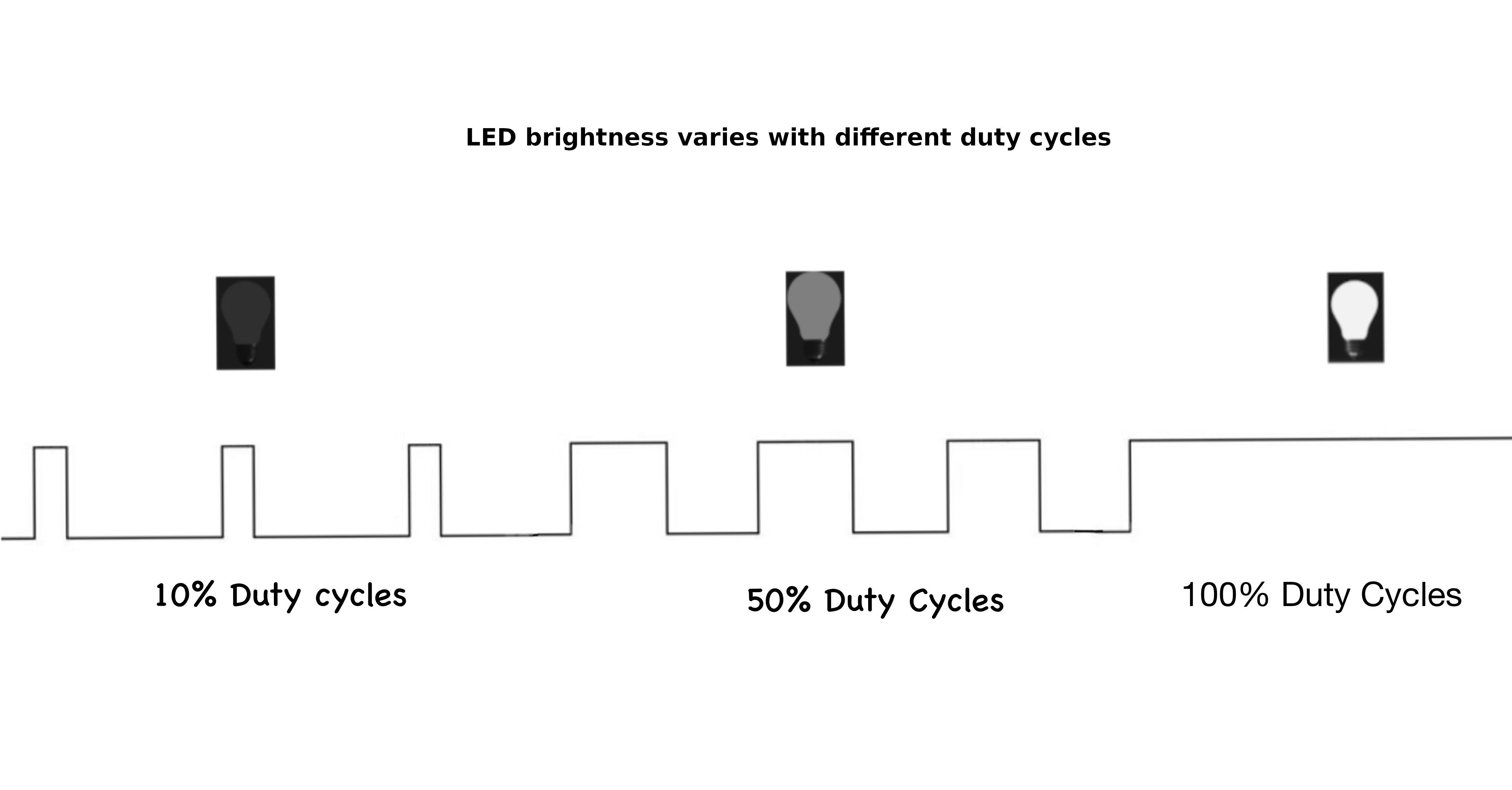
For example:
- A 0% duty cycle means the signal is always LOW (0V average).
- A 50% duty cycle means the signal is HIGH and LOW for equal amounts of time (1.65V average on a 3.3V system).
- A 75% duty cycle means the signal is HIGH for 75% of the time and LOW for 25% of the time.
- A 100% duty cycle means the signal is always HIGH (3.3V).
Changing the duty cycle changes how much power is delivered to the load, which is why an LED appears dim, medium bright, or fully bright in the image above.
Example Usage 1: Dimming an LED
An LED flashes so quickly that your eyes can’t see individual ON and OFF pulses, so you perceive only the average brightness. A low duty cycle makes it look dim, a higher one makes it look brighter, even though the LED is always switching between full voltage and zero. In the next chapter, we will do this.
Example Usage 2: Controlling a Servo Motor
A servo reads the width of a pulse to decide its angle. It expects a pulse every 20 milliseconds, and the pulse width - about 1ms for 0°, 1.5ms for 90°, and 2ms for 180° - tells the servo where to move.
Period and Frequency
By now, you should have a basic idea of pulse width and duty cycle. Next, we will look at two more important concepts used in PWM: period and frequency.
These two ideas describe how fast the PWM signal repeats.

Period
The period is the total time it takes for one complete ON-OFF cycle to finish. In other words, it is the time from one point in the signal until that same point appears again in the next cycle.
For example:
- In the top part of the diagram, one complete cycle takes 1 second, so the period is 1 second. This is a slow-changing signal.
- In the bottom part of the diagram, one complete cycle takes 0.2 seconds, so the period is 0.2 seconds. This is a faster-changing signal.
Frequency
Frequency tells us how many complete cycles happen in one second. It’s measured in Hertz (Hz).
For example:
- 1 Hz = 1 cycle per second (like the top part of the diagram)
- 5 Hz = 5 cycles per second (like the bottom part of the diagram)
Relationship
The frequency of a signal and its period are inversely related.
\[ \text{Frequency (Hz)} = \frac{1}{\text{Period (s)}} \]
This means:
- When the period gets shorter, the frequency gets higher
- When the period gets longer, the frequency gets lower
Still Confusing? Think of It Like This:
Imagine you and your friend are counting from 0 to 99, over and over again.
You count fast and finish one round quickly. Your friend counts slowly and takes much longer to finish the same round. You both count the same numbers. Only the speed is different.
The time it takes to finish one round is the period. How fast you repeat the rounds is the frequency. Counting faster means a shorter period and a higher frequency. Counting slower means a longer period and a lower frequency.
Examples
So if the period is 1 second, then the frequency will be 1Hz.
\[ 1 \text{Hz} = \frac{1 \text{ cycle}}{1 \text{ second}} = \frac{1}{1 \text{ s}} \]
For example, if the period is 20ms (0.02s), the frequency will be 50Hz.
\[ \text{Frequency} = \frac{1}{20 \text{ ms}} = \frac{1}{0.02 \text{ s}} = 50 \text{ Hz} \]
Simulation
Here is the interactive simulation. Use the sliders to adjust the duty cycle and frequency, and watch how the pulse width and LED brightness change. The upper part of the square wave represents when the signal is high (on). The lower part represents when the signal is low (off). The width of the high portion changes with the duty cycle.
If you change the duty cycle from “low to high†and “high to low†in the simulation, you should notice the LED kind of giving a dimming effect.
PWM Peripheral in RP2350
The RP2350 has a PWM peripheral with 12 PWM generators called slices. Each slice contains two output channels (A and B), giving you a total of 24 PWM output channels. For detailed specifications, see page 1077 of the RP2350 Datasheet.
Let’s have a quick look at some of the key concepts.
PWM Generator (Slice)
A slice is the hardware block that generates PWM signals. Each of the 12 slices (PWM0-PWM11) is an independent timing unit with its own 16-bit counter, compare registers, control settings, and clock divider. This independence means you can configure each slice with different frequencies and resolutions.
Channel
Each slice contains two output channels: Channel A and Channel B. Both channels share the same counter, so they run at the same frequency and are synchronized. However, each channel has its own compare register, allowing independent duty cycle control. This lets you generate two related but distinct PWM signals from a single slice.
Mapping of PWM channels to GPIO Pins
Each GPIO pin connects to a specific slice and channel. You’ll find the complete mapping table on page 1078 of the RP2350 Datasheet. For example, GP25 (the onboard LED pin) maps to PWM slice 4, channel B, labeled as 4B.
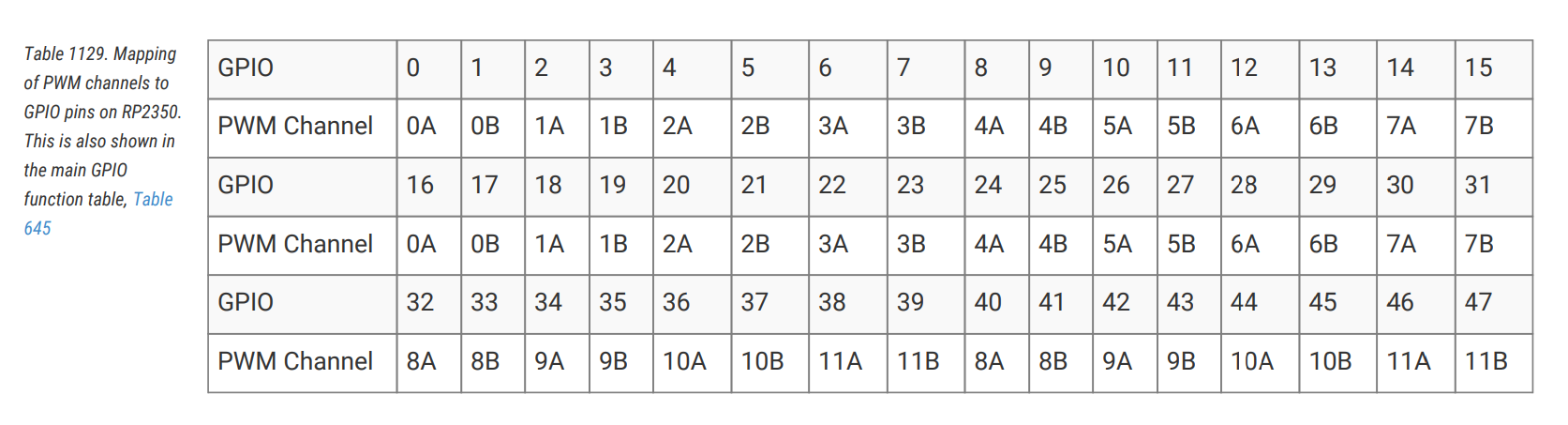
Initialize the PWM peripheral and get access to all slices:
#![allow(unused)]
fn main() {
let mut pwm_slices = hal::pwm::Slices::new(pac.PWM, &mut pac.RESETS);
}
Get a reference to PWM slice 4 for configuration:
#![allow(unused)]
fn main() {
let pwm = &mut pwm_slices.pwm4;
}
GPIO to PWM
I have created a small form that helps you figure out which GPIO pin maps to which PWM channel and also generates sample code.
Phase-Correct Mode
In standard PWM (fast PWM), the counter counts up from 0 to TOP, then immediately resets to 0. This creates asymmetric edges where the output changes at different points in the cycle.
Phase-correct PWM counts up to TOP, then counts back down to 0, creating a triangular waveform. The output switches symmetrically - once going up and once coming down. This produces centered pulses with edges that mirror each other, reducing electromagnetic interference and creating smoother transitions. The trade-off is that phase-correct mode runs at half the frequency of standard PWM for the same TOP value.
Configure PWM4 to operate in phase-correct mode for smoother output transitions.
#![allow(unused)]
fn main() {
pwm.set_ph_correct();
}
Get a mutable reference to channel B of PWM4 and direct its output to GPIO pin 25.
#![allow(unused)]
fn main() {
let channel = &mut pwm.channel_b;
channel.output_to(pins.gpio25);
}
Dimming LED
In this section, we will learn how to create a dimming effect(i.e. reducing and increasing the brightness gradually) for an LED using the Raspberry Pi Pico 2. First, we will dim the onboard LED, which is connected to GPIO pin 25 (based on the datasheet).
To make it dim, we use a technique called PWM (Pulse Width Modulation). You can refer to the intro to the PWM section here.
We will gradually increment the PWM’s duty cycle to increase the brightness, then we gradually decrement the PWM duty cycle to reduce the brightness of the LED. This effectively creates the dimming LED effect.
The Eye
“ Come in close… Closer…
Because the more you think you see… The easier it’ll be to fool you…
Because, what is seeing?…. You’re looking but what you’re really doing is filtering, interpreting, searching for meaning… “
Here’s the magic: when this switching happens super quickly, our eyes can’t keep up. Instead of seeing the blinking, it just looks like the brightness changes! The longer the LED stays ON, the brighter it seems, and the shorter it’s ON, the dimmer it looks. It’s like tricking your brain into thinking the LED is smoothly dimming or brightening.
Core Logic
What we will do in our program is gradually increase the duty cycle from a low value to a high value in the first loop, with a small delay between each change. This creates the fade-in effect. After that, we run another loop that decreases the duty cycle from high to low, again with a small delay. This creates the fade-out effect.
You can use the onboard LED, or if you want to see the dimming more clearly, use an external LED. Just remember to update the PWM slice and channel to match the GPIO pin you are using.
Simulation - LED Dimming with PWM
Here is a simulation to show the dimming effect on an LED based on the duty cycle and the High and Low parts of the square wave. I set the default speed very slow so it is clear and not annoying to watch. To start it, click the “Start animation†button. You can increase the speed by reducing the delay time and watching the changes.
LED Dimming on Raspberry Pi Pico with Embassy
Let’s create a dimming LED effect using PWM on the Raspberry Pi Pico with Embassy.
Generate project using cargo-generate
By now you should be familiar with the steps. We use the cargo-generate command with our custom template, and when prompted, select Embassy as the HAL.
cargo generate --git https://github.com/ImplFerris/pico2-template.git --tag v0.3.1
Update Imports
Add the import below to bring the PWM types into scope:
#![allow(unused)]
fn main() {
use embassy_rp::pwm::{Pwm, SetDutyCycle};
}
Initialize PWM
Let’s set up the PWM for the LED. Use the first line for the onboard LED, or uncomment the second one if you want to use an external LED on GPIO 16.
#![allow(unused)]
fn main() {
// For Onboard LED
let mut pwm = Pwm::new_output_b(p.PWM_SLICE4, p.PIN_25, Default::default());

// For external LED connected on GPIO 16
// let mut pwm = Pwm::new_output_a(p.PWM_SLICE0, p.PIN_16, Default::default());
}
Main logic
In the main loop, we create the fade effect by increasing the duty cycle from 0 to 100 percent and then bringing it back down. The small delay between each step makes the dimming smooth. You can adjust the delay and observe how the fade speed changes.
#![allow(unused)]
fn main() {
loop {
    for i in 0..=100 {
        Timer::after_millis(8).await;
        let _ = pwm.set_duty_cycle_percent(i);
    }

    for i in (0..=100).rev() {
        Timer::after_millis(8).await;
        let _ = pwm.set_duty_cycle_percent(i);
    }

    Timer::after_millis(500).await;
}
}
The full code
#![no_std]
#![no_main]

use embassy_executor::Spawner;
use embassy_rp as hal;
use embassy_rp::block::ImageDef;
use embassy_rp::pwm::{Pwm, SetDutyCycle};
use embassy_time::Timer;

//Panic Handler
use panic_probe as _;
// Defmt Logging
use defmt_rtt as _;

/// Tell the Boot ROM about our application
#[unsafe(link_section = ".start_block")]
#[used]
pub static IMAGE_DEF: ImageDef = hal::block::ImageDef::secure_exe();

#[embassy_executor::main]
async fn main(_spawner: Spawner) {
    let p = embassy_rp::init(Default::default());

    // For Onboard LED
    let mut pwm = Pwm::new_output_b(p.PWM_SLICE4, p.PIN_25, Default::default());

    // For external LED connected on GPIO 16
    // let mut pwm = Pwm::new_output_a(p.PWM_SLICE0, p.PIN_16, Default::default());

    loop {
        for i in 0..=100 {
            Timer::after_millis(8).await;
            let _ = pwm.set_duty_cycle_percent(i);
        }
        for i in (0..=100).rev() {
            Timer::after_millis(8).await;
            let _ = pwm.set_duty_cycle_percent(i);
        }
        Timer::after_millis(500).await;
    }
}

// Program metadata for `picotool info`.
// This isn't needed, but it's recomended to have these minimal entries.
#[unsafe(link_section = ".bi_entries")]
#[used]
pub static PICOTOOL_ENTRIES: [embassy_rp::binary_info::EntryAddr; 4] = [
    embassy_rp::binary_info::rp_program_name!(c"led-dimming"),
    embassy_rp::binary_info::rp_program_description!(c"your program description"),
    embassy_rp::binary_info::rp_cargo_version!(),
    embassy_rp::binary_info::rp_program_build_attribute!(),
];

// End of file
Clone the existing project
You can clone the project I created and navigate to the external-led folder:
git clone https://github.com/ImplFerris/pico2-embassy-projects
cd pico2-embassy-projects/led-dimming
Dimming LED Program with RP HAL
rp-hal is an Embedded-HAL for RP series microcontrollers, and can be used as an alternative to the Embassy framework for pico.
This example code is taken from rp235x-hal repo (It also includes additional examples beyond just the blink examples):
“https://github.com/rp-rs/rp-hal/tree/main/rp235x-hal-examplesâ€
The main code
#![no_std]
#![no_main]

use embedded_hal::delay::DelayNs;
use hal::block::ImageDef;
use rp235x_hal as hal;

// Traig for PWM
use embedded_hal::pwm::SetDutyCycle;

//Panic Handler
use panic_probe as _;
// Defmt Logging
use defmt_rtt as _;

/// Tell the Boot ROM about our application
#[unsafe(link_section = ".start_block")]
#[used]
pub static IMAGE_DEF: ImageDef = hal::block::ImageDef::secure_exe();
/// External high-speed crystal on the Raspberry Pi Pico 2 board is 12 MHz.
/// Adjust if your board has a different frequency
const XTAL_FREQ_HZ: u32 = 12_000_000u32;

/// The minimum PWM value (i.e. LED brightness) we want
const LOW: u16 = 0;

/// The maximum PWM value (i.e. LED brightness) we want
const HIGH: u16 = 25000;

#[hal::entry]
fn main() -> ! {
    // Grab our singleton objects
    let mut pac = hal::pac::Peripherals::take().unwrap();

    // Set up the watchdog driver - needed by the clock setup code
    let mut watchdog = hal::Watchdog::new(pac.WATCHDOG);

    // Configure the clocks
    //
    // The default is to generate a 125 MHz system clock
    let clocks = hal::clocks::init_clocks_and_plls(
        XTAL_FREQ_HZ,
        pac.XOSC,
        pac.CLOCKS,
        pac.PLL_SYS,
        pac.PLL_USB,
        &mut pac.RESETS,
        &mut watchdog,
    )
    .ok()
    .unwrap();

    // The single-cycle I/O block controls our GPIO pins
    let sio = hal::Sio::new(pac.SIO);

    // Set the pins up according to their function on this particular board
    let pins = hal::gpio::Pins::new(
        pac.IO_BANK0,
        pac.PADS_BANK0,
        sio.gpio_bank0,
        &mut pac.RESETS,
    );

    // Init PWMs
    let mut pwm_slices = hal::pwm::Slices::new(pac.PWM, &mut pac.RESETS);

    // Configure PWM4
    let pwm = &mut pwm_slices.pwm4;
    pwm.set_ph_correct();
    pwm.enable();

    // Output channel B on PWM4 to GPIO 25
    let channel = &mut pwm.channel_b;
    channel.output_to(pins.gpio25);

    let mut timer = hal::Timer::new_timer0(pac.TIMER0, &mut pac.RESETS, &clocks);

    loop {
        for i in LOW..=HIGH {
            timer.delay_us(8);
            let _ = channel.set_duty_cycle(i);
        }

        for i in (LOW..=HIGH).rev() {
            timer.delay_us(8);
            let _ = channel.set_duty_cycle(i);
        }

        timer.delay_ms(500);
    }
}
// Program metadata for `picotool info`.
// This isn't needed, but it's recomended to have these minimal entries.
#[unsafe(link_section = ".bi_entries")]
#[used]
pub static PICOTOOL_ENTRIES: [hal::binary_info::EntryAddr; 5] = [
    hal::binary_info::rp_cargo_bin_name!(),
    hal::binary_info::rp_cargo_version!(),
    hal::binary_info::rp_program_description!(c"your program description"),
    hal::binary_info::rp_cargo_homepage_url!(),
    hal::binary_info::rp_program_build_attribute!(),
];

// End of file
Clone the existing project
You can clone the blinky project I created and navigate to the led-dimming folder to run this version of the blink program:
git clone https://github.com/ImplFerris/pico2-rp-projects
cd pico2-projects/led-dimming
Buttons
Now that we know how to blink an LED, let’s learn how to read input from a button. This will let us interact with our Raspberry Pi Pico and make our programs respond to what we do.
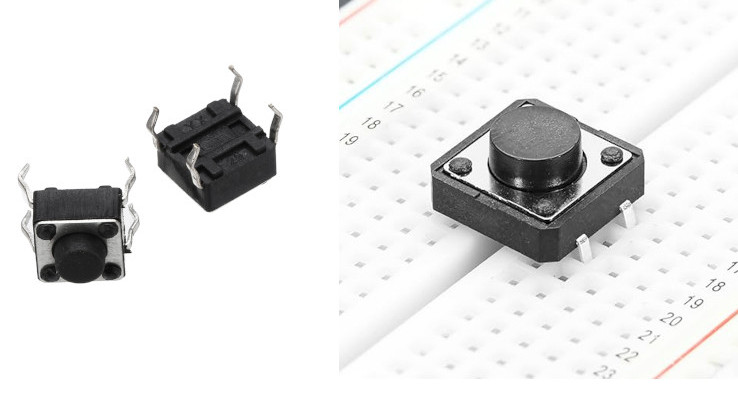
A button is a small tactile switch. You will find these in most beginner electronic kits. When you press it, the two pins inside make contact and the circuit closes. When you release it, the pins separate and the circuit opens again. Your program can read this open or closed state and do something based on it.
How a Tactile Button Works
A tactile button has four legs arranged in pairs. Looking at the button from above, the legs form a rectangle. The two legs on each side of the button are electrically connected together internally.
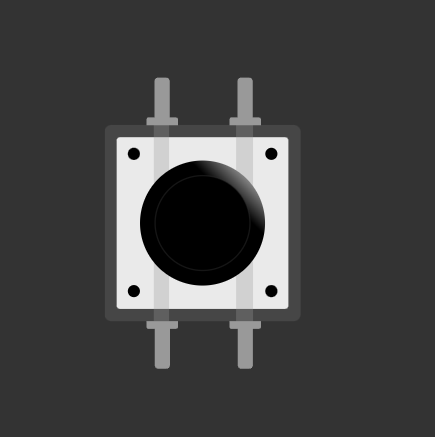
I will update this section later with a clearer diagram that shows the internal connections more explicitly. For now, this illustration is enough to understand the concept. The light line indicates that the pins on the left are connected to each other, and the same is true for the pins on the right. When the button is pressed, the left and right sides become connected.
Connecting Buttons to the Pico
Connect one side of the button to Ground and the other side to a GPIO pin (for example, GPIO 15). When the button is pressed, both sides become connected internally, and the GPIO 15 pin gets pulled low. We can check if the pin is pulled low in our code and trigger actions based on it.

Wait. What happens when the button is not pressed? What voltage or level is the GPIO pin reading now? For this to make sense logically, the pin should be in a High state so we can detect the Low state as a button press. But without anything else in the circuit, the GPIO pin will be in something called a floating state. This is unreliable, the pin can randomly switch between High and Low even when no button is pressed. How do we fix this? Let’s see in the next section.
Pull-up and Pull-down Resistors
When working with buttons, switches, and other digital inputs on your Raspberry Pi Pico, you’ll quickly encounter a curious problem: what happens when nothing is connected to an input pin? The answer might surprise you; the pin becomes “floating,†picking up electrical noise and giving you random, unpredictable readings. This is where pull-up and pull-down resistors come to the rescue.
The Floating Pin Problem
Imagine you connect a button directly to a GPIO pin on your Pico. When the button is pressed, it connects the pin to ground (0V). When released, you might expect the pin to read as HIGH, but it doesn’t work that way. Instead, the pin is disconnected from everything. It’s floating in an undefined state, acting like an antenna that picks up electrical noise from nearby circuits, your hand, or even radio waves in the air.
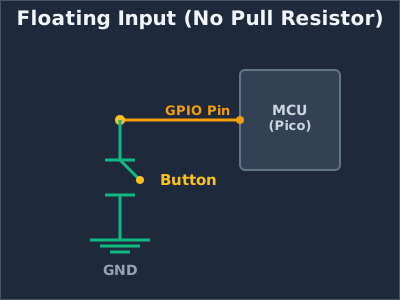
This floating state will cause your code to read random values, making your button appear to press itself or behave erratically. We need a way to give the pin a default, predictable state.
By the way, you can also connect the button the other way around; connecting one side to 3.3V instead of ground (though I wouldn’t recommend this for the RP2350, and I’ll explain why shortly). However, you’ll face the same issue. When the button is pressed, it connects to the High state. When released, you might expect it to go Low, but instead it’s in a floating state again.
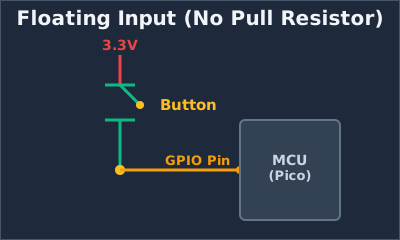
What Are Pull-up and Pull-down Resistors?
Pull-up and pull-down resistors are simple solutions that ensure a pin always has a known voltage level, even when nothing else is driving it.
Pull-up resistor: Connects the pin to the positive voltage (3.3V on the Pico) through a resistor. This “pulls†the pin HIGH by default. When you press a button that connects the pin to ground, the pin reads LOW.
Pull-down resistor: Connects the pin to ground (0V) through a resistor. This “pulls†the pin LOW by default. When you press a button that connects the pin to 3.3V, the pin reads HIGH.
How Pull-up Resistors Work
Let’s look at a typical button circuit with a pull-up resistor:
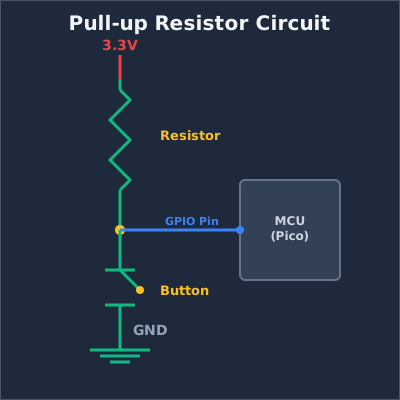
When the button is not pressed, current flows through the resistor to the GPIO pin, holding it at 3.3V (HIGH). When you press the button, you create a direct path to ground. Since electricity follows the path of least resistance, current flows through the button to ground instead of to the pin, and the pin reads LOW.
How Pull-down Resistors Work
A pull-down resistor works in the opposite direction:W
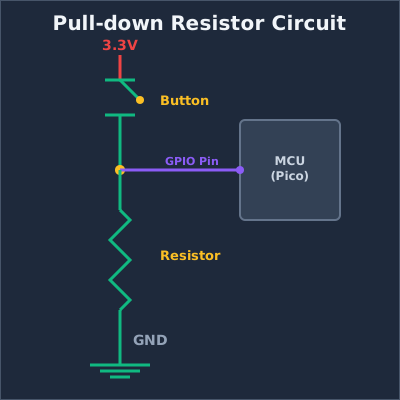
When the button is not pressed, the GPIO pin is connected to ground through the resistor, reading LOW. When pressed, the button connects the pin directly to 3.3V, and the pin reads HIGH.
Internal Pull Resistors
The Raspberry Pi Pico has built-in pull-up and pull-down resistors on every GPIO pin. You don’t need to add external resistors for basic button inputs. You can enable them in software.
Using Pull Resistors in Embedded Rust
Let’s see how to configure internal pull resistors when setting up a button input on the Pico.
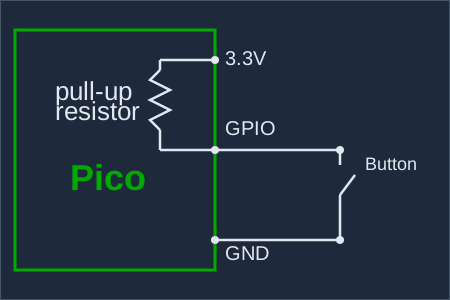
As you can see in the diagram, when we enable the internal pull-up resistor, the GPIO pin is pulled to 3.3V by default. The resistor sits inside the Pico chip itself, so we don’t need any external components; just the button connected between the GPIO pin and ground.
Here’s how to set it up in code:
#![allow(unused)]
fn main() {
let button = Input::new(p.PIN_16, Pull::Up);

// Read the button state
if button.is_low() {
    // Button is pressed (connected to ground)
    // Do something
}
}
With a pull-up resistor enabled, the GPIO pin gets pulled to HIGH voltage by default. When you press the button, it connects the pin to ground, and brings the pin LOW. So the logic is: button not pressed = HIGH, button pressed = LOW.
Setting up a Button with a Pull-down Resistor
Here’s similar code, but this time we use the internal pull-down resistor. With pull-down, the pin is pulled LOW by default. When the button is pressed, connecting the pin to 3.3V, it reads HIGH.
#![allow(unused)]
fn main() {
let button = Input::new(p.PIN_16, Pull::Down);

// Read the button state
if button.is_high() {
    // Button is pressed (connected to 3.3V)
    // Do something
}
}
Important
There’s a hardware bug (E9) in the initial RP2350 chip released in 2024 that affects internal pull-down resistors.
The bug causes the GPIO pin to read HIGH even when the button isn’t pressed, which is the opposite of what should happen. You can read more about this issue in this blog post.
The bug was fixed in the newer RP2350 A4 chip revision. If you’re using an older chip, avoid using
Pull::Downin your code. Instead, you can use an external pull-down resistor and setPull::Nonein the code.
With a pull-down resistor enabled, the button should connect to 3.3V when pressed. The pin reads LOW when not pressed, and HIGH when pressed.
Using a Floating Input
You can also configure a pin without any internal pull resistor:
#![allow(unused)]
fn main() {
let button = Input::new(p.PIN_16, Pull::None);
}
However, as we discussed earlier, floating inputs are unreliable for buttons because they pick up electrical noise and read random values. This option is only useful when you have an external pull-up or pull-down resistor in your circuit, or when connecting to devices that actively drive the pin HIGH or LOW (like some sensors).
LED on Button Press
Let’s build a simple project that turns on an LED whenever the button is pressed. You can use an external LED or the built in LED. Just change the LED pin number in the code to match the one you are using.
We will start by creating a new project with cargo generate and our template.
In your terminal, type:
cargo generate --git https://github.com/ImplFerris/pico2-template.git --tag v0.3.1
Button as Input
So far, we’ve been using the Output struct because our Pico was sending signals to the LED. This time, the Pico will receive a signal from the button, so we’ll configure it as an Input.
#![allow(unused)]
fn main() {
let button = Input::new(p.PIN_15, Pull::Up);
}
We’ve connected one side of the button to GPIO 15. The other side is connected to Ground. This means when we press the button, the pin gets pulled to the LOW state. As we discussed earlier, without a pull resistor, the input would be left in a floating state and read unreliable values. So we enable the internal pull-up resistor to keep the pin HIGH by default.
Led as Output
We configure the LED pin as an output, starting in the LOW state (off). If you’re using an external LED, uncomment the first line for GPIO 16. If you’re using the Pico’s built-in LED, use GPIO 25 as shown. Just make sure your circuit matches whichever pin you choose.
#![allow(unused)]
fn main() {
// let mut led = Output::new(p.PIN_16, Level::Low);
let mut led = Output::new(p.PIN_25, Level::Low);
}
Main loop
Now in a loop, we constantly check if the button is pressed by testing whether it’s in the LOW state. We add a small 5-millisecond delay between checks to avoid overwhelming the system. When the button reads LOW (pressed), we set the LED pin HIGH to turn it on, then wait for 3 seconds so we can visually observe it. You can adjust this delay to your preference.
#![allow(unused)]
fn main() {
loop {

    if button.is_low() {
        defmt::info!("Button pressed");
        led.set_high();
        Timer::after_secs(3).await;
    } else {
        led.set_low();
    }

    Timer::after_millis(5).await;
}
}
Note
Debounce: If you reduce the delay, you might notice that sometimes a single button press triggers multiple detections. This is called “button bounceâ€. When you press a physical button, the metal contacts inside briefly bounce against each other, creating multiple electrical signals in just a few milliseconds. In this example, the 3-second LED delay effectively masks any bounce issues, but in applications where you need to count individual button presses accurately, you’ll need debouncing logic.
We also log “Button pressed†using defmt. If you’re using a debug probe, use the cargo embed --release command to see these logs in your terminal.
The Full code
#![no_std]
#![no_main]

use embassy_executor::Spawner;
use embassy_rp::block::ImageDef;
use embassy_rp::gpio::Pull;
use embassy_rp::{
    self as hal,
    gpio::{Input, Level, Output},
};
use embassy_time::Timer;

//Panic Handler
use panic_probe as _;
// Defmt Logging
use defmt_rtt as _;

/// Tell the Boot ROM about our application
#[unsafe(link_section = ".start_block")]
#[used]
pub static IMAGE_DEF: ImageDef = hal::block::ImageDef::secure_exe();

#[embassy_executor::main]
async fn main(_spawner: Spawner) {
    let p = embassy_rp::init(Default::default());

    let button = Input::new(p.PIN_15, Pull::Up);
    // let mut led = Output::new(p.PIN_16, Level::Low);
    let mut led = Output::new(p.PIN_25, Level::Low);

    loop {
        if button.is_low() {
            defmt::info!("Button pressed");
            led.set_high();
            Timer::after_secs(3).await;
        } else {
            led.set_low();
        }
        Timer::after_millis(5).await;
    }
}

// Program metadata for `picotool info`.
// This isn't needed, but it's recomended to have these minimal entries.
#[unsafe(link_section = ".bi_entries")]
#[used]
pub static PICOTOOL_ENTRIES: [embassy_rp::binary_info::EntryAddr; 4] = [
    embassy_rp::binary_info::rp_program_name!(c"button"),
    embassy_rp::binary_info::rp_program_description!(c"your program description"),
    embassy_rp::binary_info::rp_cargo_version!(),
    embassy_rp::binary_info::rp_program_build_attribute!(),
];

// End of file
Clone the existing project
You can clone (or refer) project I created and navigate to the button folder.
git clone https://github.com/ImplFerris/pico2-embassy-projects
cd pico2-embassy-projects/button
PWM’s Top and Divider
Sometimes you need to specify a precise frequency for PWM output. For example, hobby servos typically operate at 50Hz. However, neither embassy-rp nor rp-hal provide a straightforward method to set the frequency directly (at least to my knowledge). Instead, we need to work with the underlying PWM hardware configuration. The embassy-rp crate allows you to configure PWM through a Config struct that has various fields, with our focus being on the top and divider parameters. Let’s explore how these work.
How PWM Works Inside the RP2350
The RP2350’s PWM slice is driven by a clock. This clock is much faster than the PWM signal you actually want on the pin. The PWM hardware uses a counter that repeatedly counts from 0 up to TOP, then wraps back to 0. The TOP register controls how high the counter goes before wrapping.
Each time the counter reaches the top value, it wraps back to zero and starts again. One full count from zero to top is one PWM period.
If the counter increases very quickly, the PWM frequency will be high. If it increases more slowly, the PWM frequency will be lower. This is where the divider comes in.
The RP2350 uses two main 16-bit registers for PWM generation: the Capture/Compare (CC) register and the TOP register. The CC register controls how long the output pulse stays high within each cycle (the duty cycle). The TOP register controls how long each complete cycle takes (the period).

For simple explanation, let’s say the TOP value is 9 and CC value is 3. It will count from 0 to 9 as illustrated in the digram. The signal stay high until it reaches CC value. After that, it remains low in that cycle. Take your own time and try to understand the above diagram. In the diagram, each count, we have drawn as steps(red colored). The pulse stays in high (colored in green) until the count matches CC value. As you can see, after 3 till 9, the pulse becomes low.
How TOP Controls Frequency
The PWM counter counts from 0 up to the TOP value, then wraps back to 0. One complete count cycle (0 to TOP) produces one PWM period. The frequency is simply how many of these complete cycles happen per second.
The system clock of the RP2350 runs at 150MHz (150 million cycles per second). If we ignore the divider for now and keep it at 1, the counter increments once per system clock cycle. Understanding how TOP affects frequency is crucial:
- Higher TOP value => Counter takes more steps to complete one cycle => Lower PWM frequency
- Lower TOP value => Counter takes fewer steps to complete one cycle => Higher PWM frequency
Let’s look at some concrete examples to make this clear:
Example 1: TOP = 149
The counter counts: 0, 1, 2, 3, … 148, 149, then wraps to 0.
That’s 150 total counts per cycle (counting from 0 through 149 inclusive).
At 150MHz system clock, the PWM frequency is:
Note
Don’t rely on this simplified formula yet. It’s not accurate enough because there’s one more factor to add (the clock divider). We’re showing it here just to understand the basic TOP-frequency relationship.
\[ f_{PWM} = \frac{150,000,000}{150} = 1,000,000 \text{ Hz (1 MHz)} \]
Example 2: TOP = 1,499
The counter counts through 1,500 values (0 through 1,499)
PWM frequency:
\[ f_{PWM} = \frac{150,000,000}{1,500} = 100,000 \text{ Hz (100 kHz)} \]
Why TOP Alone Is Not Enough
The TOP register is 16 bits wide, so the maximum value it can hold is 65,535. This means the counter goes through 65,536 steps before wrapping back to zero. If we apply this maximum TOP value to the same calculation we used in the examples above, the resulting PWM frequency comes out to about 2,288 Hz.
That is the lowest frequency we can reach using TOP alone with the system clock running at 150 MHz.
This is still far too high for many real-world uses. For example, hobby servo motors require a PWM frequency of around 50 Hz. With TOP alone, there is simply no way to slow the PWM down enough to reach that range.
To solve this, the RP2350 provides an additional control: the PWM clock divider. By dividing down the clock that feeds the PWM counter, we can generate much lower frequencies, including the 50 Hz required by servos.
The Clock Divider
The clock divider slows down the clock that drives the PWM counter. Instead of counting at the full 150 MHz system clock speed, the counter increments more slowly based on the divider value.
When the divider is increased, each count takes longer. This means the counter needs more time to go from 0 to TOP, so the PWM frequency becomes lower. This is what allows us to reach low frequencies like 50 Hz, which are impossible using TOP alone.
Let’s look at one more simplified example before introducing the actual formula from the RP2350’s datasheet.
Suppose we set TOP to 1,499, so the counter goes through 1,500 steps (0 through 1,499). Now, if we set the clock divider to 10, each step takes 10 system clock cycles instead of 1.
\[ f_{PWM} = \frac{150{,}000{,}000}{1{,}500 \times 10} = 10{,}000\ \text{Hz (10 kHz)} \]
Without the divider, we got 100 kHz for the same TOP value. Now with a divider of 10, we get 10 kHz; ten times slower. This shows how the divider gives us control over slowing down the PWM frequency.
Phase Correct Mode
Bear with me for a moment. Before introducing the actual formula, there is one more important concept we need to understand.
So far, we have assumed that the PWM counter counts in one direction, from 0 up to TOP, and then immediately wraps back to 0. This is not the only way PWM can work. In phase correct mode, the counter behaves differently, and that has a direct effect on the PWM frequency.
In phase correct mode, the PWM counter does not jump back to zero when it reaches TOP. Instead, it counts up from 0 to TOP, then counts back down from TOP to 0. This creates a symmetric, up-and-down counting pattern.

Because of this, one full PWM cycle now includes both the upward count and the downward count. In other words, the counter takes roughly twice as long to complete a full cycle compared to the normal up-counting mode.
The important takeaway is simple: enabling phase correct mode halves the PWM frequency for the same TOP and divider values.
This mode is often used when you want cleaner, more symmetric PWM signals, especially for things like motor control.
The PWM Frequency Formula
The RP2350 datasheet defines exactly how the PWM period is calculated. The period tells you how many system clock cycles are needed for one full PWM cycle.
Calculate the period in clock cycles with the following equation:
\[ \text{period} = (\text{TOP} + 1) \times (\text{CSR_PH_CORRECT} + 1) \times \left( \text{DIV_INT} + \frac{\text{DIV_FRAC}}{16} \right) \]
To determine the output frequency based on the system clock frequency, use the following equation:
\[ f_{PWM} = \frac{f_{sys}}{\text{period}} = \frac{f_{sys}}{(\text{TOP} + 1) \times (\text{CSR_PH_CORRECT} + 1) \times \left( \text{DIV_INT} + \frac{\text{DIV_FRAC}}{16} \right)} \]
Where:
- \( f_{PWM} \) is the PWM output frequency.
- \( f_{sys} \) is the system clock frequency. For the pico2, it is is 150MHZ.
Divider and Fraction
In the formula we discussed earlier, there is one important part we have not explained yet: DIV_FRAC. This controls the fractional part of the clock divider in the RP2350.
The RP2350 clock divider is split into two parts. DIV_INT is the integer part and sets the whole number division. DIV_FRAC is the fractional part and allows finer control over the division ratio. Together, they let you slow down the PWM counter more precisely than using an integer divider alone. One important rule is that when DIV_INT is set to 0, you must not set any DIV_FRAC bits.
Manually Calculate Top
In this section, we will manually derive the TOP value for a given PWM frequency. This method requires trying different divider values and checking whether the resulting TOP value falls within the valid range.
There is a better approach in the next section, where you can use either Rust code or a calculator form to compute both TOP and the divider automatically. For now, this manual method is useful because it helps build intuition about how the clock, divider, and TOP value relate to each other.
The TOP value must be within the range 0 to 65534. Although TOP is stored in a 16-bit unsigned register, setting it to 65535 prevents achieving a true 100 percent duty cycle. This is because the duty cycle compare register (CC) must be set to TOP + 1 to achieve a true 100 percent duty cycle, and CC itself is also only 16 bits wide. By keeping TOP at or below 65534, the value TOP + 1 still fits in the CC register, allowing the full 0 to 100 percent duty cycle range to be represented correctly.
To ensure TOP stays within this limit, we will choose divider values that are powers of two, such as 8, 16, 32, or 64. This approach does not work for every possible frequency. In some cases, you may need other integer values or even fractional dividers. To keep things simple, we will start with this approach.
As an example, we will calculate the values required to generate a 50 Hz PWM signal for a servo motor.
PWM Frequency Formula
The RP2350 datasheet defines the PWM frequency as:
\[ f_{PWM} = \frac{f_{sys}}{\text{period}} = \frac{f_{sys}}{(\text{TOP} + 1) \times (\text{CSR_PH_CORRECT} + 1) \times \left( \text{DIV_INT} + \frac{\text{DIV_FRAC}}{16} \right)} \]
Here’s the derived formula to get the TOP for the target frequency:
\[ \text{TOP} = \frac{f_{sys}} {f_{PWM} \times (\text{CSR_PH_CORRECT} + 1) \times \left( \text{DIV_INT} + \frac{\text{DIV_FRAC}}{16} \right)} - 1 \]
Where:
- \( f_{PWM} \) is the desired PWM frequency.
- \( f_{sys} \) is the system clock frequency. For the pico2, it is is 150MHZ.
We’re not going to use phase correct mode and we’re not using fraction for the divider either, so let’s simplify the formula further:
\[ \text{TOP} = \frac{f_{sys}} {f_{PWM} \times \text{DIV_INT}} - 1 \]
TOP for 50Hz
We want the PWM frequency to be 50 Hz. To achieve that, we substitute the system clock frequency, target frequency and the chosen divider integer, and we get the following TOP value:
\[ \text{top} = \frac{150,000,000}{50 \times 64} - 1 \]
\[ \text{top} = \frac{150,000,000}{3,200} - 1 \]
\[ \text{top} = 46,875 - 1 \]
\[ \text{top} = 46,874 \]
You can experiment with different divider values (even including fraction) and corresponding top values.
TOP and Divider Finder for the Target Frequency
In MicroPython, you can set the PWM frequency directly without manually calculating the TOP and divider values. Internally, MicroPython computes these values from the target frequency and the system clock.
I wanted to see if there was something similar available in Rust. While discussing this in the rp-rs Matrix chat, 9names ported the relevant C code from MicroPython that calculates TOP and divider values into Rust. This code takes the target frequency and source clock frequency as input and gives us the corresponding TOP and divider values. You can find that implementation here.
You can use that Rust code directly in your own project. I compiled the same code to WASM and built a small form around it so that you can try it out here.
By default, the source clock frequency is set to the RP2350 system clock frequency of 150 MHz, and the target frequency is set to 50 Hz. You can change both values if needed.
TOP and divider calculation
Result
Note
The divider is shown as an integer part and a fractional part.
The fractional value is not a decimal fraction. It represents a 4-bit fixed-point fraction.
The effective divider is:
DIV = DIV_INT + (DIV_FRAC / 16)For example,
DIV_INT = 45andDIV_FRAC = 13means the divider is45 + 0.8125, not45.13.
Code
If you are using rp-hal, you set the integer and fractional parts separately, like this:
#![allow(unused)]
fn main() {
pwm.set_top(65483);
pwm.set_div_int(45);
pwm.set_div_frac(13);
}
If you are using embassy-rp, both parts are combined into a single divider field inside the Config struct. Nope, this is not a floating-point value. Internally, it uses a fixed-point number to represent the integer and fractional parts together. If you are not familiar with fixed-point numbers, I have a separate blog post explaining them in detail, which you can read here:
If you only need an integer divider, you can simply convert a u8 value:
#![allow(unused)]
fn main() {
let mut servo_config: PwmConfig = Default::default();
servo_config.top = 46_874;
servo_config.divider = 64.into();
}
If you also want a fractional part, you need to add the “fixed†crate as a dependency and construct the divider using a fixed-point type:
#![allow(unused)]
fn main() {
let mut servo_config: PwmConfig = Default::default();
servo_config.top = 65483;
servo_config.divider = FixedU16::<U4>::from_num(45.8125);
// or
// servo_config.divider = fixed::types::U12F4::from_num(45.8125);
}
Servo Motors
Servo motors let you control position accurately. You might use them to point a camera, move parts of a small robot, or control switches automatically. They’re different from regular DC motors. Instead of spinning continuously, a servo moves to a specific angle and stays there.
In this chapter, we’ll make a servo sweep through three positions: 0°, 90°, and 180°.
Hardware Used
For this chapter, we will use the following components:
- SG90 Micro Servo Motor
- Jumper Wires:
- Female-to-Male(or Male to Male depending on how you are connecting) jumper wires for connecting the Pico 2 to the servo motor pins (Ground, Power, and Signal).
The SG90 is small, cheap, and easy to find. It is commonly used in learning projects and works well for demonstrations.
Servo Motor Basics
A typical hobby servo has three wires: Ground, Power, Signal. The power and ground wires supply energy to the motor. The signal wire is used to tell the servo which position to move to. The servo expects a PWM signal on this pin. Different pulse widths correspond to different angles.

You do not need to know the internal details to use a servo. You just need to generate the correct PWM signal.
How Servo Control Works
A servo motor uses PWM (Pulse Width Modulation) signals to control its position. The width of each pulse tells the servo which angle to move to, and continuously repeating that pulse keeps it there.
Basic Operation
Servos operate on a 50Hz frequency, meaning they expect a control pulse every 20 milliseconds. Within each 20ms cycle, the duration that the signal stays high determines the servo’s position.
Think of it like this: every 20ms, you send the servo a brief instruction. That instruction’s length tells the servo where to point.
Pulse Width
The position of the servo is controlled by how long the signal pulse stays high. A short pulse moves it to the minimum position (typically 0°), a medium pulse moves it to center (typically 90°), and a long pulse moves it to the maximum position (typically 180°).
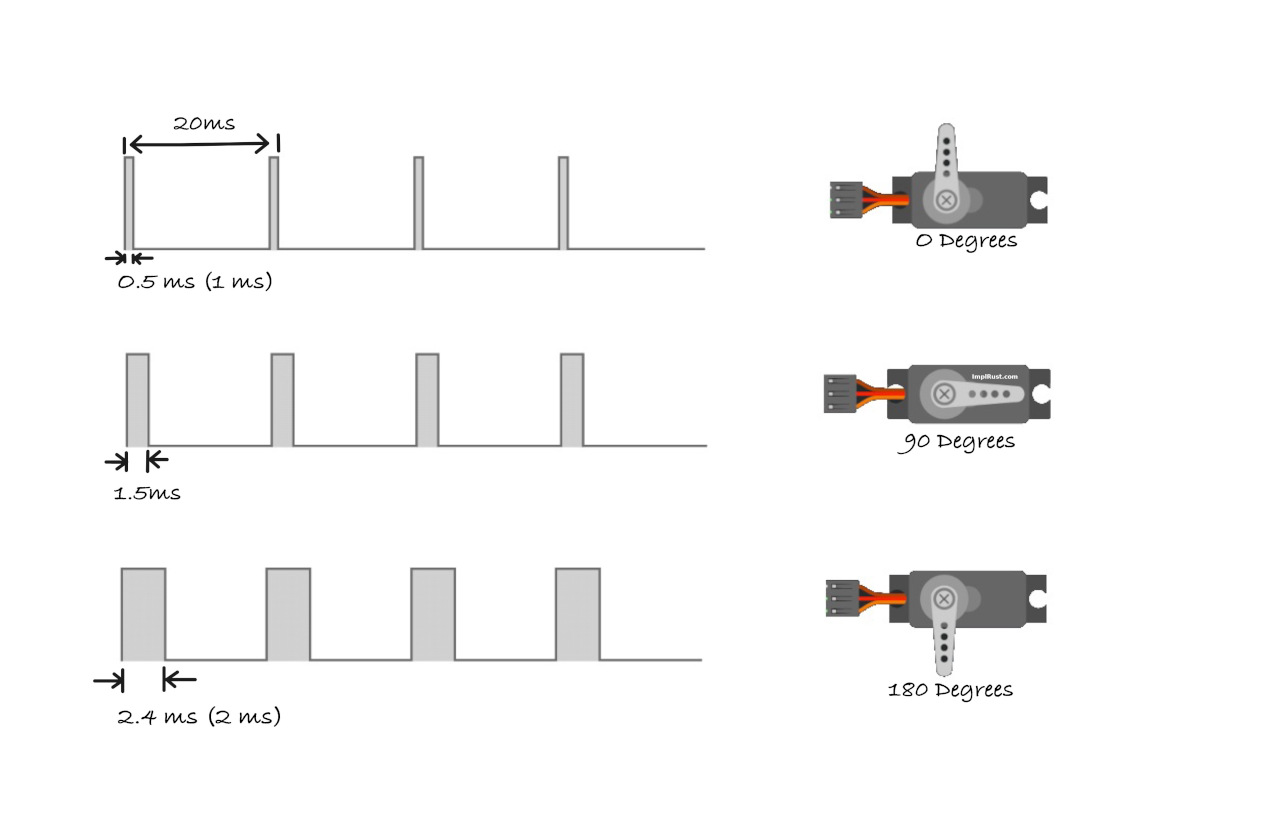
Standard vs. Reality
You’ll often see these “standard†values referenced: 1.0ms pulse for 0°, 1.5ms pulse for 90°, and 2.0ms pulse for 180°. However, cheap servos rarely follow these numbers exactly. Manufacturing variations mean each servo has its own characteristics.
For example, my servo required 0.5ms for minimum position, 1.5ms for center, and 2.4ms for maximum position. This is completely normal and expected.
Treat published pulse widths as starting points, not absolute values. Always test and calibrate your specific servo. A logic analyzer or oscilloscope helps, but simple trial and error works fine too. The examples in this guide use values that worked for my servo, so you may need to adjust them for yours.
Calculating Duty Cycle
The duty cycle represents the percentage of time the signal stays high during each 20ms cycle. Understanding this helps you configure PWM correctly in your code.
Example Calculations
For a 0.5ms pulse (0° position), the duty cycle is calculated as:
A 0.5ms pulse means the signal is “high†for 0.5 milliseconds within each 20ms cycle. The servo interprets this as a command to move to the 0-degree position.
\[ \text{Duty Cycle (%)} = \frac{0.5 \text{ms}}{20 \text{ms}} \times 100 = 2.5\% \]
This means that for just 2.5% of each 20ms cycle, the signal stays “high†causing the servo to rotate to the 0-degree position.
For a 1.5ms pulse (90° position), the calculation gives us:
A 1.5ms pulse means the signal is “high†for 1.5 milliseconds in the 20ms cycle. The servo moves to its neutral position, around 90 degrees (middle position).
\[ \text{Duty Cycle (%)} = \frac{1.5 \text{ms}}{20 \text{ms}} \times 100 = 7.5\% \]
Here, the signal stays “high†for 7.5% of the cycle, which positions the servo at 90 degrees (neutral).
For a 2.4ms pulse (180° position), we get:
A 2.4ms pulse means the signal is “high†for 2.4 milliseconds in the 20ms cycle. The servo will move to its maximum position, typically 180 degrees (full rotation to one side).
\[ \text{Duty Cycle (%)} = \frac{2.4 \text{ms}}{20 \text{ms}} \times 100 = 12\% \]
In this case, the signal is “high†for 12% of the cycle, which causes the servo to rotate to 180 degrees.
Reference
Servo with Raspberry Pi Pico 2 (RP2350)
The required power supply and pulse width can vary depending on the servo motor you use, so it is always best to check the datasheet or product specifications. The servo I am using operates in the 4.8V to 6V range, so I will power it with 5V.
- Ground (GND): Connect the servo’s GND pin (typically the brown wire, though it may vary) to any ground pin on the Pico 2.
- Power (VCC): Connect the servo’s VCC pin (usually the red wire) to the Pico 2’s 5V power pin(VBUS).
- Signal (PWM): Connect the servo’s control (signal) pin to GPIO15 on the Pico 2, configured for PWM. This is commonly the orange wire (may vary).
| Pico Pin | Wire | Servo Motor | Notes |
|---|---|---|---|
| VBUS |
|
Power (Red Wire) | Supplies 5V power to the servo. |
| GND |
|
Ground (Brown Wire) | Connects to ground. |
| GPIO 15 |
|
Signal (Orange/yellow Wire) | Receives PWM signal to control the servo's position. |
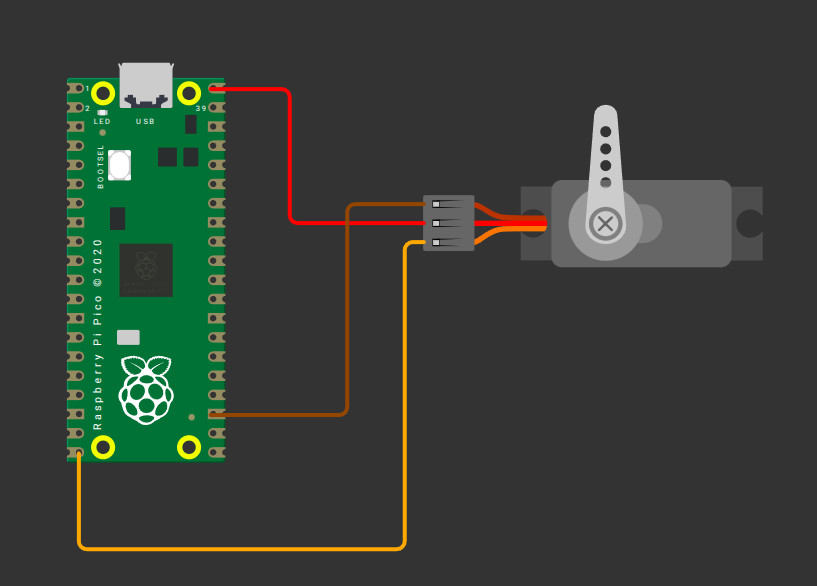
Position and Duty Cycle
Position and Duty Cycle
To control a servo with the Raspberry Pi Pico, we need to set a 50 Hz PWM frequency. There is no straightforward way to set the frequency directly in embassy or rp-hal, at least to my knowledge.
In embassy-rp, PWM is configured using a Config struct with multiple fields. For our use case, we mainly care about the top and divider values. The same applies to rp-hal, where we can set top, div_int, and div_frac separately.
You can either use the manual method to find a suitable TOP value, or use the form to automatically calculate both TOP and the divider for the target frequency of 50 Hz.
Using the manual method, I calculated a TOP value of 46,874 with a divider of 64. Using the form, I got a divider of 45.8125 with a TOP value of 65,483. We can use either of these configurations.
Note
In rp-hal, you have to set the divider integer and fraction separately. So a divider of 64 becomes div_int = 64 and div_frac = 0. A divider of 45.8125 becomes div_int = 45 and div_frac = 13.
Position calculation based on top
Once the TOP value for a 50 Hz PWM signal is known, we can calculate the duty cycle values required to position the servo.
The servo determines its position by measuring the pulse width, which is the amount of time the signal stays high during each 20 ms PWM cycle. The exact pulse widths are not identical for all servos and can vary slightly depending on the specific servo model.
In my case, the values were:
-
0° at about 0.5 ms, which corresponds to a 2.5% duty cycle since 0.5 ms is 2.5% of a 20 ms period.
-
90° at about 1.5 ms, which corresponds to a 7.5% duty cycle since 1.5 ms is 7.5% of a 20 ms period.
-
180° at about 2.4 ms, which corresponds to a 12% duty cycle since 2.4 ms is 12% of a 20 ms period.
In the LED dimming chapter, changing the duty cycle was straightforward. We only cared about brightness, not frequency, so using set_duty_cycle_percent was sufficient. That function accepts a u8 value from 0 to 100, which works well for whole-number percentages.
For servo control, this approach is not suitable because the required duty cycles include fractional values such as 2.5%, 7.5%, and 12%.
We therefore have two alternatives. One option is to calculate the duty value directly from TOP and use set_duty_cycle, which accepts a u16. The other option is to use set_duty_cycle_fraction, which lets you specify the duty cycle as a numerator and denominator.
Option 1: Manual calculation with set_duty_cycle
We first convert the pulse width into a percentage of the period. That percentage is then multiplied by TOP + 1 to obtain the duty value that configures the PWM output.
#![allow(unused)]
fn main() {
const PWM_DIV_INT: u8 = 64;
const PWM_TOP: u16 = 46_874;

const TOP: u16 = PWM_TOP + 1;
// 0.5ms is 2.5% of 20ms; 0 degrees in servo
const MIN_DUTY: u16 = (TOP as f64 * (2.5 / 100.)) as u16;
// 1.5ms is 7.5% of 20ms; 90 degrees in servo
const HALF_DUTY: u16 = (TOP as f64 * (7.5 / 100.)) as u16;
// 2.4ms is 12% of 20ms; 180 degree in servo
const MAX_DUTY: u16 = (TOP as f64 * (12. / 100.)) as u16;
}
Once the duty value is calculated, it can be applied like this:
#![allow(unused)]
fn main() {
servo.set_duty_cycle(MIN_DUTY)
            .expect("invalid min duty cycle");
}
Option 2: Using set_duty_cycle_fraction
Another option is to use set_duty_cycle_fraction. This will help us to set percentage with fraction.
In fact, set_duty_cycle_percent is a convenience method provided by embedded-hal that internally calls set_duty_cycle_fraction. It simply divides the input percentage by 100 and forwards the result as a fraction.
From embedded-hal:
#![allow(unused)]
fn main() {
 /// Set the duty cycle to `percent / 100`
///
/// The caller is responsible for ensuring that `percent` is less than or equal to 100.
#[inline]
fn set_duty_cycle_percent(&mut self, percent: u8) -> Result<(), Self::Error> {
    self.set_duty_cycle_fraction(u16::from(percent), 100)
}

/// Set the duty cycle to `num / denom`.
///
/// The caller is responsible for ensuring that `num` is less than or equal to `denom`,
/// and that `denom` is not zero.
fn set_duty_cycle_fraction(&mut self, num: u16, denom: u16) -> Result<(), Self::Error> {
    debug_assert!(denom != 0);
    debug_assert!(num <= denom);
    let duty = u32::from(num) * u32::from(self.max_duty_cycle()) / u32::from(denom);

    // This is safe because we know that `num <= denom`, so `duty <= self.max_duty_cycle()` (u16)
    #[allow(clippy::cast_possible_truncation)]
    {
        self.set_duty_cycle(duty as u16)
    }
}
}
This function does not accept floating-point values. Instead, it takes a numerator and a denominator, both as u16. To represent fractional percentages, we simply scale them into integers.
Remember that 2.5% can be written as the fraction 2.5/100. Since we can’t use decimals in the numerator, we multiply both the numerator and denominator by 10 to get equivalent integer fractions:
#![allow(unused)]
fn main() {
2.5/100 = (2.5 × 10)/(100 × 10) = 25/1000
}
Now we have an equivalent fraction using only integers. We can apply the same conversion to our other percentages:
For example:
- 2.5% can be written as 25 / 1000 (in other words, 25 is 2.5% of 1000)
- 7.5% can be written as 75 / 1000 (in other words, 75 is 7.5% of 1000)
- 12% can be written as 120 / 1000 (in other words, 120 is 12% of 1000)
So in our code, we can apply it like this:
#![allow(unused)]
fn main() {
// Move servo to 0° position (2.5% duty cycle = 25/1000)
servo.set_duty_cycle_fraction(25, 1000)
    .expect("invalid duty cycle");

// 90° position (7.5% duty cycle)
servo.set_duty_cycle_fraction(75, 1000)
    .expect("invalid duty cycle");

// 180° position (12% duty cycle)
servo.set_duty_cycle_fraction(120, 1000)
    .expect("invalid duty cycle");
}
Servo Motor Control on Raspberry Pi Pico Using Embassy and Rust
In this section, we will create a simple program that moves the servo horn from 0 to 90 to 180 and then back to 0. This basic movement is enough to understand how PWM controls a servo. Once you are comfortable with the idea, you can experiment further and build more interesting applications.
We will start by creating a new project using the Embassy framework. After that, we wll build the same project again using rp-hal. As usual, generate the project from the template with cargo-generate:
cargo generate --git https://github.com/ImplFerris/pico2-template.git --tag v0.3.1
When prompted, give your project a name like “servo-motor†and choose “embassy†as the HAL. Enable defmt logging, if you have a debug probe so you can view logs also.
Additional Imports
In addition to the usual boilerplate imports, you’ll need to add these specific imports to your project.
#![allow(unused)]
fn main() {
// For PWM
use embassy_rp::pwm::{Config as PwmConfig, Pwm, SetDutyCycle};
}
PWM Config
In the LED dimming chapter, we left the PWM configuration at its default values. That was sufficient there, because only the duty cycle mattered.
This time, we cannot do that. For servo control, we have to configure the TOP value and the divider ourselves so that the PWM frequency comes out to 50 Hz, based on the values we calculated earlier.
Here, I am using the manually calculated TOP and divider values directly in the code instead of using the calculator form. The divider I am using is a whole number, so I can simply convert it using the into() method. If the divider had a fractional part, I would need to use the fixed crate, which we already looked at earlier. To keep things simple, I am sticking to the integer version for now.
#![allow(unused)]
fn main() {
const PWM_DIV_INT: u8 = 64;
const PWM_TOP: u16 = 46_874;
}
Note
You can also try this with a fractional divider. We already looked at the code snippet for that earlier, so you can reuse it and experiment with fractional values if you want.
Once we have those values, we just apply them to the PWM configuration like this.
#![allow(unused)]
fn main() {
let mut servo_config: PwmConfig = Default::default();
servo_config.top = PWM_TOP;
servo_config.divider = PWM_DIV_INT.into();
}
Initialize PWM
Once the PWM configuration is ready, the next step is to create a PWM output and bind it to the GPIO pin connected to the servo signal wire.
In our case, we are using the GPIO 15. Feel free to change these if your wiring is different.
#![allow(unused)]
fn main() {
let mut servo = Pwm::new_output_b(p.PWM_SLICE7, p.PIN_15, servo_config);
}
Main loop
Now we move on to the main loop. Here, we simply change the duty cycle value, wait for a short delay, and then move to the next position.
#![allow(unused)]
fn main() {
loop {
    // Move servo to 0° position (2.5% duty cycle = 25/1000)
    servo
        .set_duty_cycle_fraction(25, 1000)
        .expect("invalid min duty cycle");

    Timer::after_millis(1000).await;

    // 90° position (7.5% duty cycle)
    servo
        .set_duty_cycle_fraction(75, 1000)
        .expect("invalid half duty cycle");

    Timer::after_millis(1000).await;

    // 180° position (12% duty cycle)
    servo
        .set_duty_cycle_fraction(120, 1000)
        .expect("invalid max duty cycle");

    Timer::after_millis(1000).await;
}
}
If everything works, you should see the servo horn move to the first position, pause briefly, move to the next position, and then move to the final position before returning back again.
Clone the existing project
You can clone (or refer) project I created and navigate to the servo-motor folder.
git clone https://github.com/ImplFerris/pico2-embassy-projects
cd pico2-embassy-projects/servo-motor
Debugging
If your servo is not moving, start by checking the wiring. Make sure the signal wire is connected to the correct GPIO pin, the servo has a proper power source, and the ground is shared with the Pico.
Next, double check that the code was flashed correctly and that the program is actually running on the board. If you are using a debug probe with defmt enabled, the log output can help confirm this.
If everything looks correct and the servo still does not move as expected, the most likely reason is that your servo uses slightly different pulse widths for each position. In that case, refer to the datasheet for your specific servo model, or check the manufacturer or vendor website if they provide timing information. You may need to adjust the duty cycle values to match your servo.
Do not worry if this does not work perfectly the first time. This is one of the things I struggled with when I started as well. I have tried my best to explain the calculations and the reasoning behind them clearly. I hope this helps.
The Full Code
#![no_std]
#![no_main]

use embassy_executor::Spawner;
use embassy_rp as hal;
use embassy_rp::block::ImageDef;
use embassy_time::Timer;

//Panic Handler
use panic_probe as _;
// Defmt Logging
use defmt_rtt as _;

// PWM
use embassy_rp::pwm::{Config as PwmConfig, Pwm, SetDutyCycle};

/// Tell the Boot ROM about our application
#[unsafe(link_section = ".start_block")]
#[used]
pub static IMAGE_DEF: ImageDef = hal::block::ImageDef::secure_exe();

const PWM_DIV_INT: u8 = 64;
const PWM_TOP: u16 = 46_874;

// Alternative method:
// const TOP: u16 = PWM_TOP + 1;
// const MIN_DUTY: u16 = (TOP as f64 * (2.5 / 100.)) as u16;
// const HALF_DUTY: u16 = (TOP as f64 * (7.5 / 100.)) as u16;
// const MAX_DUTY: u16 = (TOP as f64 * (12. / 100.)) as u16;

#[embassy_executor::main]
async fn main(_spawner: Spawner) {
    let p = embassy_rp::init(Default::default());

    let mut servo_config: PwmConfig = Default::default();
    servo_config.top = PWM_TOP;
    servo_config.divider = PWM_DIV_INT.into();

    let mut servo = Pwm::new_output_b(p.PWM_SLICE7, p.PIN_15, servo_config);

    loop {
        // Move servo to 0° position (2.5% duty cycle = 25/1000)
        servo
            .set_duty_cycle_fraction(25, 1000)
            .expect("invalid min duty cycle");
        Timer::after_millis(1000).await;

        // 90° position (7.5% duty cycle)
        servo
            .set_duty_cycle_fraction(75, 1000)
            .expect("invalid half duty cycle");
        Timer::after_millis(1000).await;

        // 180° position (12% duty cycle)
        servo
            .set_duty_cycle_fraction(120, 1000)
            .expect("invalid max duty cycle");
        Timer::after_millis(1000).await;
    }

    // Alternative method
    // loop {
    //     servo
    //         .set_duty_cycle(MIN_DUTY)
    //         .expect("invalid min duty cycle");
    //     Timer::after_millis(1000).await;

    //     servo
    //         .set_duty_cycle(HALF_DUTY)
    //         .expect("invalid half duty cycle");
    //     Timer::after_millis(1000).await;

    //     servo
    //         .set_duty_cycle(MAX_DUTY)
    //         .expect("invalid max duty cycle");
    //     Timer::after_millis(1000).await;
    // }
}

// Program metadata for `picotool info`.
// This isn't needed, but it's recomended to have these minimal entries.
#[unsafe(link_section = ".bi_entries")]
#[used]
pub static PICOTOOL_ENTRIES: [embassy_rp::binary_info::EntryAddr; 4] = [
    embassy_rp::binary_info::rp_program_name!(c"servo-motor"),
    embassy_rp::binary_info::rp_program_description!(c"your program description"),
    embassy_rp::binary_info::rp_cargo_version!(),
    embassy_rp::binary_info::rp_program_build_attribute!(),
];

// End of file
Servo Motor Control on Raspberry Pi Pico Using rp-hal
In this exercise, we repeat the same servo control example, but this time using rp hal instead of Embassy. The overall idea stays exactly the same. The main difference here is that we will use a fractional divider instead of a whole number divider.
For this, we will rely on the calculator form to generate the TOP value and both the integer and fractional parts of the divider.
cargo generate --git https://github.com/ImplFerris/pico2-template.git --tag v0.3.1
When prompted, give your project a name like “servo-motor†and choose “rp-hal†as the HAL. Enable defmt logging, if you have a debug probe so you can view logs also.
Additional Imports
Along with the usual rp hal boilerplate, we need to bring in the trait that allows us to update the PWM duty cycle.
#![allow(unused)]
fn main() {
// For PWM
use embedded_hal::pwm::SetDutyCycle;
}
Initialize PWM Slice
Next, we initialize the PWM peripheral and select the slice we want to use. In our case, we are using PWM slice 7 (since we are using GPIO 15).
#![allow(unused)]
fn main() {
let mut pwm_slices = hal::pwm::Slices::new(pac.PWM, &mut pac.RESETS);
let pwm = &mut pwm_slices.pwm7;
}
Configure Divider and TOP
Now we apply the TOP value and the divider that were generated using the calculator form. This time, we explicitly set both the integer and fractional parts of the divider.
#![allow(unused)]
fn main() {
pwm.set_div_int(45);
pwm.set_div_frac(13);
pwm.set_top(65483);
pwm.enable();
}
Attach PWM Channel to GPIO
#![allow(unused)]
fn main() {
let servo = &mut pwm.channel_b;
servo.output_to(pins.gpio15);
}
Main Loop
Finally, inside the main loop, we update the duty cycle to move the servo between different positions. Just like in the Embassy example, we use set_duty_cycle_fraction.
#![allow(unused)]
fn main() {
loop {
    // Move servo to 0° position (2.5% duty cycle = 25/1000)
    servo
        .set_duty_cycle_fraction(25, 1000)
        .expect("invalid min duty cycle");
    timer.delay_ms(1000);

    // 90° position (7.5% duty cycle)
    servo
        .set_duty_cycle_fraction(75, 1000)
        .expect("invalid half duty cycle");
    timer.delay_ms(1000);

    // 180° position (12% duty cycle)
    servo
        .set_duty_cycle_fraction(120, 1000)
        .expect("invalid max duty cycle");
    timer.delay_ms(1000);
}
}
Clone the existing project
You can clone (or refer) project I created and navigate to the servo-motor folder.
git clone https://github.com/ImplFerris/pico2-rp-projects
cd pico2-projects/servo-motor
The Full Code
#![no_std]
#![no_main]

use embedded_hal::delay::DelayNs;
use hal::block::ImageDef;
use rp235x_hal as hal;

use embedded_hal::pwm::SetDutyCycle;

//Panic Handler
use panic_probe as _;
// Defmt Logging
use defmt_rtt as _;

/// Tell the Boot ROM about our application
#[unsafe(link_section = ".start_block")]
#[used]
pub static IMAGE_DEF: ImageDef = hal::block::ImageDef::secure_exe();
/// External high-speed crystal on the Raspberry Pi Pico 2 board is 12 MHz.
/// Adjust if your board has a different frequency
const XTAL_FREQ_HZ: u32 = 12_000_000u32;

#[hal::entry]
fn main() -> ! {
    // Grab our singleton objects
    let mut pac = hal::pac::Peripherals::take().unwrap();

    // Set up the watchdog driver - needed by the clock setup code
    let mut watchdog = hal::Watchdog::new(pac.WATCHDOG);

    // Configure the clocks
    //
    // The default is to generate a 125 MHz system clock
    let clocks = hal::clocks::init_clocks_and_plls(
        XTAL_FREQ_HZ,
        pac.XOSC,
        pac.CLOCKS,
        pac.PLL_SYS,
        pac.PLL_USB,
        &mut pac.RESETS,
        &mut watchdog,
    )
    .ok()
    .unwrap();

    // The single-cycle I/O block controls our GPIO pins
    let sio = hal::Sio::new(pac.SIO);

    // Set the pins up according to their function on this particular board
    let pins = hal::gpio::Pins::new(
        pac.IO_BANK0,
        pac.PADS_BANK0,
        sio.gpio_bank0,
        &mut pac.RESETS,
    );

    let mut timer = hal::Timer::new_timer0(pac.TIMER0, &mut pac.RESETS, &clocks);

    let mut pwm_slices = hal::pwm::Slices::new(pac.PWM, &mut pac.RESETS);
    let pwm = &mut pwm_slices.pwm7;

    pwm.set_div_int(45);
    pwm.set_div_frac(13);
    pwm.set_top(65483);
    pwm.enable();

    let servo = &mut pwm.channel_b;
    servo.output_to(pins.gpio15);

    loop {
        // Move servo to 0° position (2.5% duty cycle = 25/1000)
        servo
            .set_duty_cycle_fraction(25, 1000)
            .expect("invalid min duty cycle");
        timer.delay_ms(1000);

        // 90° position (7.5% duty cycle)
        servo
            .set_duty_cycle_fraction(75, 1000)
            .expect("invalid half duty cycle");
        timer.delay_ms(1000);

        // 180° position (12% duty cycle)
        servo
            .set_duty_cycle_fraction(120, 1000)
            .expect("invalid max duty cycle");
        timer.delay_ms(1000);
    }
}

// Program metadata for `picotool info`.
// This isn't needed, but it's recomended to have these minimal entries.
#[unsafe(link_section = ".bi_entries")]
#[used]
pub static PICOTOOL_ENTRIES: [hal::binary_info::EntryAddr; 5] = [
    hal::binary_info::rp_cargo_bin_name!(),
    hal::binary_info::rp_cargo_version!(),
    hal::binary_info::rp_program_description!(c"your program description"),
    hal::binary_info::rp_cargo_homepage_url!(),
    hal::binary_info::rp_program_build_attribute!(),
];

// End of file
Buzzinga
In this section, we will explore some fun activities using a buzzer. I chose the title Buzzinga just for fun (just playful reference to Sheldon’s “Bazinga†from The Big Bang Theory). It is not a technical term.
What is a Buzzer?
A buzzer is a small electronic component that produces sound when powered or driven by an electrical signal. It is used to generate beeps, alerts, or simple melodies, providing audible feedback in electronic systems.
Buzzers are commonly found in alarms, timers, notification systems, computers, and simple user interfaces, where they help confirm user actions or signal events.
Common Types of Buzzers
There are two types you will commonly encounter in embedded projects:
Active Buzzer:
This type has a built-in oscillator. You only need to supply power, and it will start making sound immediately. Active buzzers are very easy to use but offer limited control over pitch.

How to identify:
An active buzzer usually has a white covering on top and a smooth black casing at the bottom. The simplest way to identify it is to connect it directly to a battery. If it produces sound without any additional circuitry, it is an active buzzer.
Passive Buzzer:
A passive buzzer does not generate sound on its own. You must drive it using a PWM or square wave signal. This allows you to control the frequency, making it possible to generate different tones or even simple melodies.
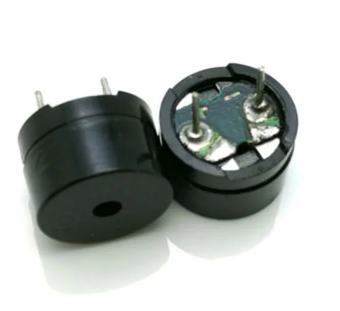
How to identify:
A passive buzzer typically has no white covering on top and often looks like a small PCB with a blue or green base. When connected directly to a battery, it will not produce any sound.
Which One to Choose?
Choose an active buzzer if you only need a simple, fixed tone or beep. It works well for basic alerts, alarms, or confirming user input, and it requires minimal setup.
Choose a passive buzzer if you want more control over sound. Since it must be driven by a PWM or square-wave signal, you can generate different tones, melodies, or sound patterns.
For our exercises, a passive buzzer is recommended because it lets us control the output frequency directly(play better tone). However, if you only have an active buzzer, you can still follow along. In fact, I personally used an active buzzer at first for this.
Hardware requirements
- Passive buzzer
- Jumper wires
A buzzer typically has two pins: a positive pin used for the signal and a ground pin. The positive side is often marked with a “+†symbol and is usually the longer pin, while the negative side is shorter, similar to an LED.
That said, some passive buzzers are non-polarized. In those cases, either pin can be connected to the signal or ground. Always check the markings or the datasheet if you are unsure.
Reference
Connecting Buzzer with Raspberry Pi Pico
We will connect GPIO 15 to the buzzer’s positive (signal) pin and the Pico’s GND to the buzzer’s ground pin. You are free to use a different GPIO pin if needed.
| Pico Pin | Wire | Buzzer Pin | Notes |
|---|---|---|---|
| GPIO 15 |
|
Positive Pin | Receives PWM signals to produce sound. |
| GND |
|
Ground Pin | Connects to ground. |
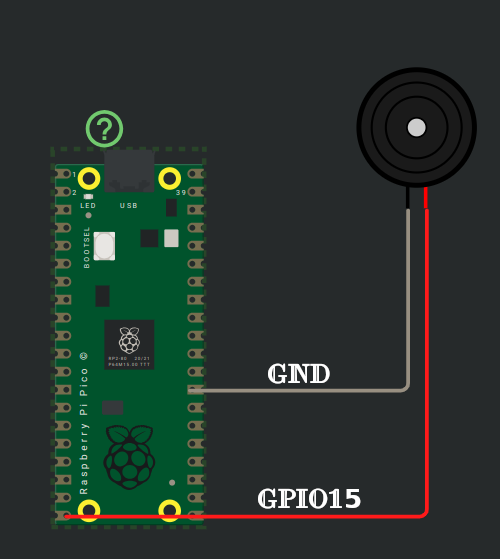
Buzzer Beep Using PWM on Raspberry Pi Pico with Embedded Rust
In this exercise, we will generate a beep sound using a buzzer. The idea is similar to blinking an LED, but instead of toggling a GPIO HIGH and LOW, we control the PWM duty cycle.
We will repeatedly switch the PWM duty cycle between 50 percent and 0 percent, with a delay in between. When the duty cycle is 50 percent, the buzzer produces sound. When it is 0 percent, the sound stops. Repeating this creates a clear beep.
You can try this without changing the PWM frequency. In this example, we set the PWM frequency to 440.0 Hz, which corresponds to the A4 musical note. You do not need to know anything about musical notes for this. The important point is that we generate a fixed-frequency tone and turn the sound on and off by changing the duty cycle.
Create Project from template
We will start by creating a new project using the Embassy framework. As usual, generate the project from the template with cargo-generate:
cargo generate --git https://github.com/ImplFerris/pico2-template.git --tag v0.3.1
When prompted, give your project a name like “buzzer-beep†and choose “embassy†as the HAL. Enable defmt logging, if you have a debug probe so you can view logs also.
Additional imports
As we have done before, we import the SetDutyCycle trait and the Pwm and Config types for PWM configuration.
#![allow(unused)]
fn main() {
use embassy_rp::pwm::{Config as PwmConfig, Pwm, SetDutyCycle};
}
Calculate TOP
You can either calculate the TOP value manually or use the calculator form shown in the previous chapter. This time, we will take a different approach.
We will keep the divider fixed at 64 and use a const fn to calculate the TOP value. Since we are not using phase-correct mode or the fractional divider, the calculation is simple.
#![allow(unused)]
fn main() {
const fn get_top(freq: f64, div_int: u8) -> u16 {
    assert!(div_int != 0, "Divider must not be 0");

    let result = 150_000_000. / (freq * div_int as f64);

    assert!(result >= 1.0, "Frequency too high");
    assert!(
        result <= 65535.0,
        "Frequency too low: TOP exceeds 65534 max"
    );

    result as u16 - 1
}

const PWM_DIV_INT: u8 = 64;
const PWM_TOP: u16 = get_top(440., PWM_DIV_INT);
}
Main logic
First, we configure the PWM with the calculated TOP value and the fixed divider. Then we create a PWM output for the buzzer. Inside the loop, we switch the duty cycle between 50 percent and 0 percent with a delay in between, which produces a repeating beep sound.
#![allow(unused)]
fn main() {
let mut pwm_config = PwmConfig::default();
pwm_config.top = PWM_TOP;
pwm_config.divider = PWM_DIV_INT.into();

let mut buzzer = Pwm::new_output_b(p.PWM_SLICE7, p.PIN_15, pwm_config);

loop {
    buzzer
        .set_duty_cycle_percent(50)
        .expect("50 is valid duty percentage");
    Timer::after_millis(1000).await;

    buzzer
        .set_duty_cycle_percent(0)
        .expect("0 is valid duty percentage");
    Timer::after_millis(1000).await;
}
}
If you want the beep to be shorter or faster, you can adjust the delay values.
Clone the existing project
You can clone (or refer to) the project I created and navigate to the buzzer-beep folder.
git clone https://github.com/ImplFerris/pico2-embassy-projects
cd pico2-embassy-projects/buzzer-beep
rp-hal version
If you want to see the same example implemented using rp-hal, you can find it here.
git clone https://github.com/ImplFerris/pico2-rp-projects
cd pico2-rp-projects/buzzer-beep
Playing Songs on a Passive Buzzer Using Rust and Raspberry Pi Pico
In this section, we will play songs on a buzzer using the Raspberry Pi Pico.
If you are not familiar with musical notes or sheet music, you can check the basic theory explained here. This part is optional and only meant to give enough background to follow the example.
For clarity, the code is split into Rust modules. You can also keep everything in a single file, as we have done so far, but splitting it makes the example easier to follow:
A passive buzzer is recommended for this exercise, though you can use either a passive or an active buzzer.
PWM
We will use PWM to control the frequency of the signal sent to the buzzer. Each frequency corresponds to a musical note. The frequency (musical note) is held for a specific duration before switching to the next note, based on the music data.
For example, the note A4 is 440 Hz. To play this note, we configure the PWM output to 440 Hz and keep it active for the required duration before moving to the next note.
If you are not familiar with PWM on the Pico, I recommend reading the PWM section before continuing.
Song Repository
In this exercise, we will play a theme on the buzzer as a demonstration.
You can also refer to the rust-embedded-songs repository and try other songs:
https://github.com/ImplFerris/rust-embedded-songs/
Submodules
Update main.rs to define the submodules, then create the corresponding source files.
#![allow(unused)]
fn main() {
pub mod music;
pub mod got;
}
Music notes
Introduction to Music Notes and Sheet Music
This is a brief guide to music notes and sheet music. While it may not cover everything, it provides a quick reference for key concepts.
Music Sheet
The notes for the music are based on the following sheet. You can refer to this Musescore link for more details.

In music, note durations are represented by the following types, which define how long each note is played:
- Whole note: The longest note duration, lasting for 4 beats.
- Half note: A note that lasts for 2 beats.
- Quarter note: A note that lasts for 1 beat.
- Eighth note: A note that lasts for half a beat, or 1/8th of the duration of a whole note.
- Sixteenth note: A note that lasts for a quarter of a beat, or 1/16th of the duration of a whole note.
Dotted Notes
A dotted note is a note that has a dot next to it. The dot increases the note’s duration by half of its original value. For example:
- Dotted half note: A half note with a dot lasts for 3 beats (2 + 1).
- Dotted quarter note: A quarter note with a dot lasts for 1.5 beats (1 + 0.5).
Tempo and BPM (Beats Per Minute)
Tempo refers to the speed at which a piece of music is played. It is usually measured in beats per minute (BPM), indicating how many beats occur in one minute.
Music module(music.rs)
In the music module, we define constants for musical notes and their frequency values.
Each note is stored as an f64 value so it can be used directly when configuring PWM frequency. A special REST value is also defined to represent silence between notes.
#![allow(unused)]
fn main() {
// Note frequencies in Hertz as f64
pub const NOTE_B0: f64 = 31.0;
pub const NOTE_C1: f64 = 33.0;
pub const NOTE_CS1: f64 = 35.0;
pub const NOTE_D1: f64 = 37.0;
pub const NOTE_DS1: f64 = 39.0;
pub const NOTE_E1: f64 = 41.0;
pub const NOTE_F1: f64 = 44.0;
pub const NOTE_FS1: f64 = 46.0;
pub const NOTE_G1: f64 = 49.0;
pub const NOTE_GS1: f64 = 52.0;
pub const NOTE_A1: f64 = 55.0;
pub const NOTE_AS1: f64 = 58.0;
pub const NOTE_B1: f64 = 62.0;
pub const NOTE_C2: f64 = 65.0;
pub const NOTE_CS2: f64 = 69.0;
pub const NOTE_D2: f64 = 73.0;
pub const NOTE_DS2: f64 = 78.0;
pub const NOTE_E2: f64 = 82.0;
pub const NOTE_F2: f64 = 87.0;
pub const NOTE_FS2: f64 = 93.0;
pub const NOTE_G2: f64 = 98.0;
pub const NOTE_GS2: f64 = 104.0;
pub const NOTE_A2: f64 = 110.0;
pub const NOTE_AS2: f64 = 117.0;
pub const NOTE_B2: f64 = 123.0;
pub const NOTE_C3: f64 = 131.0;
pub const NOTE_CS3: f64 = 139.0;
pub const NOTE_D3: f64 = 147.0;
pub const NOTE_DS3: f64 = 156.0;
pub const NOTE_E3: f64 = 165.0;
pub const NOTE_F3: f64 = 175.0;
pub const NOTE_FS3: f64 = 185.0;
pub const NOTE_G3: f64 = 196.0;
pub const NOTE_GS3: f64 = 208.0;
pub const NOTE_A3: f64 = 220.0;
pub const NOTE_AS3: f64 = 233.0;
pub const NOTE_B3: f64 = 247.0;
pub const NOTE_C4: f64 = 262.0;
pub const NOTE_CS4: f64 = 277.0;
pub const NOTE_D4: f64 = 294.0;
pub const NOTE_DS4: f64 = 311.0;
pub const NOTE_E4: f64 = 330.0;
pub const NOTE_F4: f64 = 349.0;
pub const NOTE_FS4: f64 = 370.0;
pub const NOTE_G4: f64 = 392.0;
pub const NOTE_GS4: f64 = 415.0;
pub const NOTE_A4: f64 = 440.0;
pub const NOTE_AS4: f64 = 466.0;
pub const NOTE_B4: f64 = 494.0;
pub const NOTE_C5: f64 = 523.0;
pub const NOTE_CS5: f64 = 554.0;
pub const NOTE_D5: f64 = 587.0;
pub const NOTE_DS5: f64 = 622.0;
pub const NOTE_E5: f64 = 659.0;
pub const NOTE_F5: f64 = 698.0;
pub const NOTE_FS5: f64 = 740.0;
pub const NOTE_G5: f64 = 784.0;
pub const NOTE_GS5: f64 = 831.0;
pub const NOTE_A5: f64 = 880.0;
pub const NOTE_AS5: f64 = 932.0;
pub const NOTE_B5: f64 = 988.0;
pub const NOTE_C6: f64 = 1047.0;
pub const NOTE_CS6: f64 = 1109.0;
pub const NOTE_D6: f64 = 1175.0;
pub const NOTE_DS6: f64 = 1245.0;
pub const NOTE_E6: f64 = 1319.0;
pub const NOTE_F6: f64 = 1397.0;
pub const NOTE_FS6: f64 = 1480.0;
pub const NOTE_G6: f64 = 1568.0;
pub const NOTE_GS6: f64 = 1661.0;
pub const NOTE_A6: f64 = 1760.0;
pub const NOTE_AS6: f64 = 1865.0;
pub const NOTE_B6: f64 = 1976.0;
pub const NOTE_C7: f64 = 2093.0;
pub const NOTE_CS7: f64 = 2217.0;
pub const NOTE_D7: f64 = 2349.0;
pub const NOTE_DS7: f64 = 2489.0;
pub const NOTE_E7: f64 = 2637.0;
pub const NOTE_F7: f64 = 2794.0;
pub const NOTE_FS7: f64 = 2960.0;
pub const NOTE_G7: f64 = 3136.0;
pub const NOTE_GS7: f64 = 3322.0;
pub const NOTE_A7: f64 = 3520.0;
pub const NOTE_AS7: f64 = 3729.0;
pub const NOTE_B7: f64 = 3951.0;
pub const NOTE_C8: f64 = 4186.0;
pub const NOTE_CS8: f64 = 4435.0;
pub const NOTE_D8: f64 = 4699.0;
pub const NOTE_DS8: f64 = 4978.0;
pub const REST: f64 = 0.0; // No sound, for pauses
}
Song structure
We define a small helper struct to represent a song and handle note timing.
#![allow(unused)]
fn main() {
pub struct Song {
    whole_note: u64,
}
}
The whole_note field stores how long a whole note lasts, measured in milliseconds. All other note lengths are calculated from this value. Using milliseconds makes it easy to apply delays when playing notes on a buzzer.
Creating a song
When creating a Song, we calculate the duration of a whole note from the tempo.
#![allow(unused)]
fn main() {
impl Song {
    pub fn new(tempo: u16) -> Self {
        let whole_note = (60_000 * 4) / tempo as u64;
        Self { whole_note }
    }
}
}
Tempo is given in beats per minute. One minute has 60,000 milliseconds, and a whole note is equal to four beats. Dividing by the tempo gives the time, in milliseconds, that one whole note should last.
For example, at 120 BPM, one beat lasts 500 ms, so a whole note lasts 2000 ms.
Calculating note duration
This method converts a note value into a time duration.
#![allow(unused)]
fn main() {
pub fn calc_note_duration(&self, divider: i16) -> u64 {
    if divider > 0 {
        self.whole_note / divider as u64
    } else {
        let duration = self.whole_note / divider.unsigned_abs() as u64;
        (duration as f64 * 1.5) as u64
    }
}
}
The divider tells the code how the note relates to a whole note. A value of 1 means a whole note. A value of 2 means a half note. A value of 4 means a quarter note. The duration is calculated by dividing the whole note duration by this value.
Negative values are used to represent dotted notes. A dotted note lasts one and a half times longer than the normal version of the same note. When the divider is negative, the code first calculates the normal duration using the absolute value, then multiplies it by 1.5.
This positive and negative logic is a custom approach (based on an Arduino example I referred to) to differentiate dotted notes. It is not part of standard musical notation.
Melody Example: Game of Thrones Theme
This section contains code snippets for the Rust module got.
Importing music definitions
The got module uses note constants and helper types defined in the music module. We bring them into scope using the following import:
#![allow(unused)]
fn main() {
use crate::music::*;
}
This allows the melody to use note constants like NOTE_E4 and NOTE_A4 directly, without writing the module name each time.
Tempo
We declare the tempo for the song. You can change this value and observe how it affects playback speed.
#![allow(unused)]
fn main() {
pub const TEMPO: u16 = 85;
}
Melody Array
We define the melody of the Game of Thrones theme as an array of notes and durations. Each entry is a tuple containing a note frequency and its duration.
The duration is represented by an integer. Positive values represent normal notes. Negative values represent dotted notes.
#![allow(unused)]
fn main() {
pub const MELODY: [(f64, i16); 92] = [
    // Game of Thrones Theme
    (NOTE_G4, 8),
    (NOTE_C4, 8),
    (NOTE_DS4, 16),
    (NOTE_F4, 16),
    (NOTE_G4, 8),
    (NOTE_C4, 8),
    (NOTE_DS4, 16),
    (NOTE_F4, 16),
    (NOTE_G4, 8),
    (NOTE_C4, 8),
    (NOTE_DS4, 16),
    (NOTE_F4, 16),
    (NOTE_G4, 8),
    (NOTE_C4, 8),
    (NOTE_DS4, 16),
    (NOTE_F4, 16),
    (NOTE_G4, 8),
    (NOTE_C4, 8),
    (NOTE_E4, 16),
    (NOTE_F4, 16),
    (NOTE_G4, 8),
    (NOTE_C4, 8),
    (NOTE_E4, 16),
    (NOTE_F4, 16),
    (NOTE_G4, 8),
    (NOTE_C4, 8),
    (NOTE_E4, 16),
    (NOTE_F4, 16),
    (NOTE_G4, 8),
    (NOTE_C4, 8),
    (NOTE_E4, 16),
    (NOTE_F4, 16),
    (NOTE_G4, -4),
    (NOTE_C4, -4),
    (NOTE_DS4, 16),
    (NOTE_F4, 16),
    (NOTE_G4, 4),
    (NOTE_C4, 4),
    (NOTE_DS4, 16),
    (NOTE_F4, 16),
    (NOTE_D4, -1),
    (NOTE_F4, -4),
    (NOTE_AS3, -4),
    (NOTE_DS4, 16),
    (NOTE_D4, 16),
    (NOTE_F4, 4),
    (NOTE_AS3, -4),
    (NOTE_DS4, 16),
    (NOTE_D4, 16),
    (NOTE_C4, -1),
    // Repeat
    (NOTE_G4, -4),
    (NOTE_C4, -4),
    (NOTE_DS4, 16),
    (NOTE_F4, 16),
    (NOTE_G4, 4),
    (NOTE_C4, 4),
    (NOTE_DS4, 16),
    (NOTE_F4, 16),
    (NOTE_D4, -1),
    (NOTE_F4, -4),
    (NOTE_AS3, -4),
    (NOTE_DS4, 16),
    (NOTE_D4, 16),
    (NOTE_F4, 4),
    (NOTE_AS3, -4),
    (NOTE_DS4, 16),
    (NOTE_D4, 16),
    (NOTE_C4, -1),
    (NOTE_G4, -4),
    (NOTE_C4, -4),
    (NOTE_DS4, 16),
    (NOTE_F4, 16),
    (NOTE_G4, 4),
    (NOTE_C4, 4),
    (NOTE_DS4, 16),
    (NOTE_F4, 16),
    (NOTE_D4, -2),
    (NOTE_F4, -4),
    (NOTE_AS3, -4),
    (NOTE_D4, -8),
    (NOTE_DS4, -8),
    (NOTE_D4, -8),
    (NOTE_AS3, -8),
    (NOTE_C4, -1),
    (NOTE_C5, -2),
    (NOTE_AS4, -2),
    (NOTE_C4, -2),
    (NOTE_G4, -2),
    (NOTE_DS4, -2),
    (NOTE_DS4, -4),
    (NOTE_F4, -4),
    (NOTE_G4, -1),
];
}
Code
Playing the Game of Thrones Melody
In this section, we put everything together and work in the main.rs file.
By this point, we already have the note frequencies, song timing logic, and melody data. Here, we just wire them together using PWM and timers.
Imports
Add the required imports for PWM, timers, and song handling.
#![allow(unused)]
fn main() {
// For PWM
use embassy_rp::pwm::{Config as PwmConfig, Pwm, SetDutyCycle};

use crate::music::Song;
}
Create the Song object
Create a Song using the tempo defined for the Game of Thrones theme.
#![allow(unused)]
fn main() {
let song = Song::new(got::TEMPO);
}
Playing the notes
The melody is played by looping through the MELODY array. Each entry contains a note frequency and a duration value.
#![allow(unused)]
fn main() {
// One time play the song
for (note, duration_type) in got::MELODY {
    let top = get_top(note, PWM_DIV_INT);
    pwm_config.top = top;
    buzzer.set_config(&pwm_config);

    let note_duration = song.calc_note_duration(duration_type);
    let pause_duration = note_duration / 10; // 10% of note_duration

    buzzer
        .set_duty_cycle_percent(50)
        .expect("50 is valid duty percentage"); // Set duty cycle to 50% to play the note

    Timer::after_millis(note_duration - pause_duration).await; // Play 90%

    buzzer
        .set_duty_cycle_percent(0)
        .expect("50 is valid duty percentage"); // Stop tone
    Timer::after_millis(pause_duration).await; // Pause for 10%
}
}
For each note, the PWM frequency is updated by setting a new top value. This makes the buzzer produce the correct pitch.
The note duration is calculated from the song tempo. Most of that time is spent playing the note, and a small part is left silent. That short silence helps separate notes so the melody sounds cleaner.
The buzzer is played by setting the duty cycle to 50 percent and stopped by setting it to zero.
Keeping the Program Running
After the melody finishes, this is just to keep the program alive.
#![allow(unused)]
fn main() {
loop {
    Timer::after_millis(100).await;
}
}
Clone the existing project
You can clone (or refer to) the project I created and navigate to the buzzer-song folder.
git clone https://github.com/ImplFerris/pico2-embassy-projects
cd pico2-embassy-projects/buzzer-song
rp-hal version
If you want to see the same example implemented using rp-hal, you can find it here.
git clone https://github.com/ImplFerris/pico2-rp-projects
cd pico2-rp-projects/got-buzzer
Active Beep
Beeping with an Active Buzzer
Since you already know how an active buzzer works, we can make it beep by simply turning a GPIO pin on and off. In this exercise, we use a GPIO pin to power the buzzer, wait for a short time, turn it off, and repeat. This creates a clear beeping sound.
Note
This example is meant for an active buzzer. If you use a passive buzzer instead, the sound may be strange or inconsistent. Try this exercise only with an active buzzer.
Hardware Requirements
- Active buzzer
- Jumper wires (female-to-male or male-to-male, depending on your setup)
Project from template
Create a new project:
To set up the project, run:
cargo generate --git https://github.com/ImplFerris/pico2-template.git --tag v0.3.1
When prompted, give your project a name, like “active-beep†and select embassy as the HAL.
Main logic
Ensure the buzzer is connected to GPIO 15. The pin is toggled every 500 milliseconds to turn the buzzer on and off.
#![allow(unused)]
fn main() {
let mut buzzer = Output::new(p.PIN_15, Level::Low);

loop {
    buzzer.set_high();
    Timer::after_millis(500).await;

    buzzer.set_low();
    Timer::after_millis(500).await;
}
}
Clone the existing project
You can clone (or refer) project I created and navigate to the active-beep folder.
git clone https://github.com/ImplFerris/pico2-embassy-projects
cd pico2-embassy-projects/active-beep
Voltage Divider
A voltage divider is a simple circuit that reduces a higher input voltage to a lower output voltage using two resistors connected in series. You might need a voltage divider from time to time when working with sensors or modules that output higher voltages than your microcontroller can safely handle.
The resistor connected to the input voltage is called \( R_{1} \), and the resistor connected to ground is called \( R_{2} \). The output voltage \( V_{out} \) is measured at the point between \( R_{1} \) and \( R_{2} \), and it will be a fraction of the input voltage \( V_{in} \).
Circuit
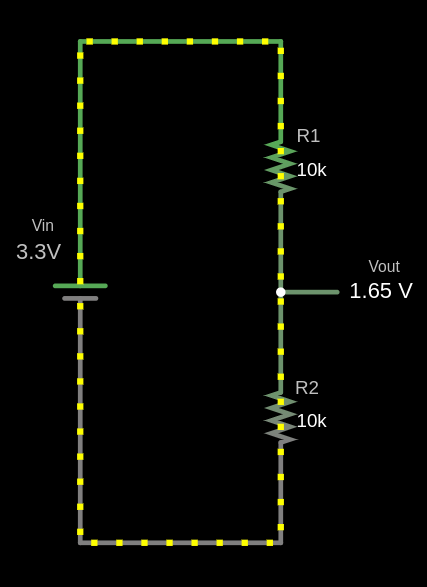
The output voltage (Vout) is calculated using this formula:
\[ V_{out} = V_{in} \times \frac{R_2}{R_1 + R_2} \]
Example Calculation for \( V_{out} \)
Given:
- \( V_{in} = 3.3V \)
- \( R_1 = 10 k\Omega \)
- \( R_2 = 10 k\Omega \)
Substitute the values:
\[ V_{out} = 3.3V \times \frac{10 k\Omega}{10 k\Omega + 10 k\Omega} = 3.3V \times \frac{10}{20} = 3.3V \times 0.5 = 1.65V \]
The output voltage \( V_{out} \) is 1.65V.
fn main() {
    // You can edit the code
    // You can modify values and run the code
    let vin: f64 = 3.3;
    let r1: f64 = 10000.0;
    let r2: f64 = 10000.0;

    let vout = vin * (r2 / (r1 + r2));

    println!("The output voltage Vout is: {:.2} V", vout);
}
Use cases
Voltage dividers are used in applications like potentiometers, where the resistance changes as the knob is rotated, adjusting the output voltage. They are also used to measure resistive sensors such as light sensors and thermistors, where a known voltage is applied, and the microcontroller reads the voltage at the center node to determine sensor values like temperature.
Voltage Divider Simulation
Formula: Vout = Vin × (R2 / (R1 + R2))
Filled Formula: Vout = 3.3 × (10000 / (10000 + 10000))
Output Voltage (Vout): 1.65 V
Simulator in Falstad website
I used the website https://www.falstad.com/circuit/ to create the diagram. It’s a great tool for drawing circuits. You can download the file I created, voltage-divider.circuitjs.txt, and import it to experiment with the circuit.
Bat Beacon: Distance Sensor Project 🦇
If you’ve seen the Batman Begins movie, you’ll remember the scene where Batman uses a device that emits ultrasonic signals to summon a swarm of bats. It’s one of the coolest gadgets in his arsenal! While we won’t be building a bat-summoning beacon today, we will be working with the similar ultrasonic technology.
Ultrasonic
Ultrasonic waves are sound waves with frequencies above 20,000 Hz, beyond what human ears can detect. But many animals can. Bats use ultrasonic waves to fly in the dark and avoid obstacles. Dolphins use them to communicate and to sense objects underwater.
Ultrasonic Technology Around You
Humans have borrowed this natural sonar principle for everyday inventions:
- Car parking sensors use ultrasonic sensors to detect obstacles when you reverse. As you get closer to an object, the beeping gets faster.
- Submarines use sonar to navigate and detect underwater objects
- Medical ultrasound allows doctors to see inside the human body
- Automatic doors and robot navigation rely on ultrasonic distance sensing
Today, you’ll build your own distance sensor using an ultrasonic module; sending out sound waves, measuring how long they take to bounce back, and calculating distance.
Meet the Hardware
The HC-SR04+ is a simple and low cost ultrasonic distance sensor. It can measure distances from about 2 cm up to 400 cm. It works by sending out a short burst of ultrasonic sound and then listening for the echo. By measuring how long the echo takes to return, the sensor can calculate how far the object is.
Tip
The HC-SR04 normally operates at 5V, which can be problematic for the Raspberry Pi Pico. If possible, purchase the HC-SR04+ version, which works with both 3.3V and 5V, making it more suitable for the Pico.
Why This Matters: The HC-SR04’s Echo pin outputs a 5V signal, but the Pico’s GPIO pins can only safely handle 3.3V. Connecting 5V directly to the Pico could damage it.
Your Options:
- Buy the HC-SR04+ variant (recommended and easiest solution)
- Use a voltage divider on the Echo pin to reduce the 5V signal to 3.3V
- Use a logic level converter to safely step down the voltage
- Power the HC-SR04 with 3.3V (not recommended, as it may work unreliably or not at all)
In this project, we’ll build a proximity detector that gradually brightens an LED as objects get closer. When the sensor detects something within 30 cm, the LED will glow brighter using PWM. You can change the distance value if you want to try different ideas.

Prerequisites
Before starting, get familiar with yourself on these topics
Hardware Requirements
To complete this project, you will need:
- HC-SR04+ or HC-SR04 Ultrasonic Sensor
- Breadboard
- Jumper wires
- External LED (You can also use the onboard LED, but you’ll need to modify the code accordingly)
- If you are using the standard HC-SR04 module that operates at 5V, you will need two resistors (1kΩ and 2kΩ or 2.2kΩ) to form a voltage divider.
The HC-SR04 Sensor module has a transmitter and receiver. The module has Trigger and Echo pins which can be connected to the GPIO pins of a pico. When the receiver detects the returning sound wave, the Echo pin goes HIGH for a duration equal to the time it takes for the wave to return to the sensor.
Datasheet
Most electronic components come with a datasheet. It’s a technical document that tells you everything you need to know about how the component works, its electrical characteristics, and how to use it properly.
For the HC-SR04 ultrasonic sensor, you can find the datasheet here: https://cdn.sparkfun.com/datasheets/Sensors/Proximity/HCSR04.pdf
Datasheets can look intimidating at first with all their technical specifications and diagrams, but you don’t need to understand everything in them.
How Does an Ultrasonic Sensor Work?
Ultrasonic sensors work by emitting sound waves at a frequency too high (40kHz) for humans to hear. These sound waves travel through the air and bounce back when they hit an object. The sensor calculates the distance by measuring how long it takes for the sound waves to return.

- Transmitter: Sends out ultrasonic sound waves.
- Receiver: Detects the sound waves that bounce back from an object.
Formula to calculate distance:
Distance = (Time x Speed of Sound) / 2
The speed of sound is approximately 0.0343 cm/µs (or 343 m/s) at normal air pressure and a temperature of 20°C.
Example Calculation:
Let’s say the ultrasonic sensor detects that the sound wave took 2000 µs to return after hitting an object.
Step 1: Calculate the total distance traveled by the sound wave:
Total distance = Time x Speed of Sound
Total distance = 2000 µs x 0.0343 cm/µs = 68.6 cm
Step 2: Since the sound wave traveled to the object and back, the distance to the object is half of the total distance:
Distance to object = 68.6 cm / 2 = 34.3 cm
Thus, the object is 34.3 cm away from the sensor.
HC-SR04 Pinout
The module has four pins: VCC, Trig, Echo, and GND.
| Pin | Function |
|---|---|
| VCC | Power Supply |
| Trig | Trigger Signal |
| Echo | Echo Signal |
| GND | Ground |
Measuring Distance with the HC-SR04 module
The HC-SR04 module has a transmitter and receiver, responsible for sending ultrasonic waves and detecting the reflected waves. We will use the Trig pin to send sound waves. And read from the Echo pin to measure the distance.
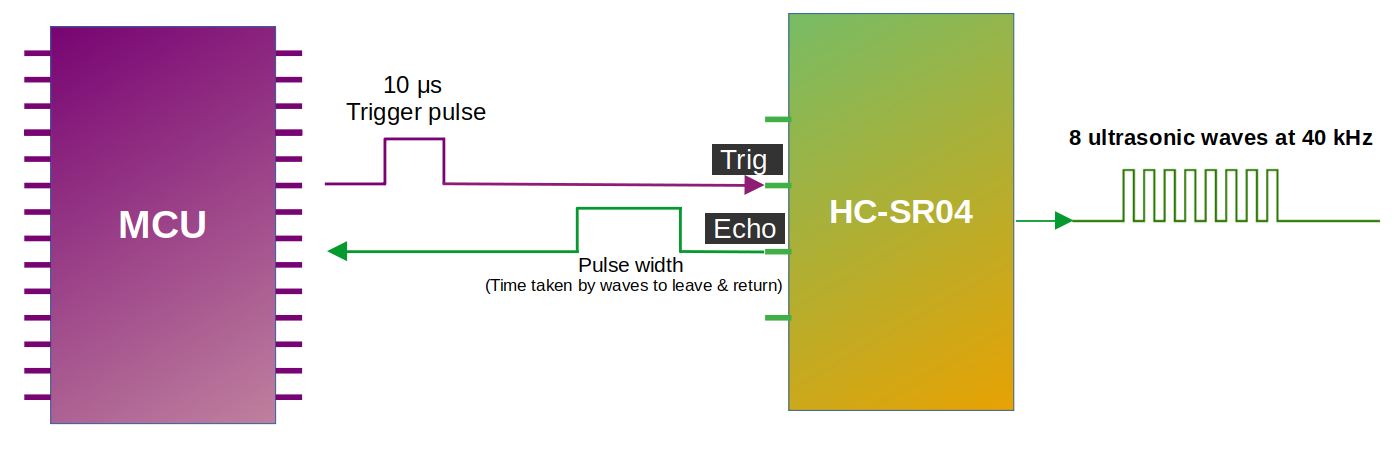
As you can see in the diagram, we connect the Trig and Echo pins to the GPIO pins of the microcontroller (we also connect VCC and GND but left them out to keep the illustration simple). We send ultrasonic waves by setting the Trig pin HIGH for 10 microseconds and then setting it back to LOW. This triggers the module to send 8 consecutive ultrasonic waves at a frequency of 40 kHz. It is recommended to have a minimum gap of 50ms between each trigger.
When the sensor’s waves hit an object, they bounce back to the module. As you can see in the diagram, the Echo pin changes the signal sent to the microcontroller, with the length of time the signal stays HIGH (pulse width) corresponding to the distance. In the microcontroller, we measure how long the Echo pin stays HIGH; Then, we can use this time duration to calculate the distance to the object.
Pulse width and the distance:
The pulse width (amount of time it stays high) produced by the Echo pin will range from about 150µs to 25,000µs(25ms); this is only if it hits an object. If there is no object, it will produce a pulse width of around 38ms.
Wiring the HC-SR04 to the Pico 2 Using a Voltage Divider
If you are using the regular HC-SR04 like I am, you will need to create a voltage divider for the Echo pin. In this section we will look at how to set up the circuit. However, if you are lucky and you bought the HC-SR04 Plus, you can skip to the next page. The circuit becomes much simpler because you can power the sensor with 3.3 V instead of 5 V.
Common resistor combination
Below are some resistor pairs you can use to bring the HC-SR04 Echo signal down to about 3.3 V. R1 is the resistor connected to the Echo pin, and R2 is the resistor connected to ground.
| R1 (With Echo) | R2 (With Gnd) | Output Voltage |
|---|---|---|
| 330 Ω | 470 Ω | 2.94 V |
| 330 Ω | 680 Ω | 3.37 V |
| 470 Ω | 680 Ω | 2.96 V |
| 680 Ω | 1 kΩ | 2.98 V |
| 1 kΩ | 1.8 kΩ | 3.21 V |
| 1 kΩ | 2 kΩ | 3.33 V |
| 1 kΩ | 2.2 kΩ | 3.44 V |
| 1.5 kΩ | 2.2 kΩ | 2.97 V |
| 2.2 kΩ | 3.3 kΩ | 3.00 V |
| 3.3 kΩ | 4.7 kΩ | 2.94 V |
| 4.7 kΩ | 6.8 kΩ | 2.96 V |
| 6.8 kΩ | 10 kΩ | 2.98 V |
| 22 kΩ | 33 kΩ | 3.00 V |
| 33 kΩ | 47 kΩ | 2.94 V |
| 47 kΩ | 68 kΩ | 2.96 V |
You can choose any resistor pair from the table because all of them bring the 5 V Echo signal down to a safe level near 3.3 V. In practice it is best to use the values you already have in your kit.
Connection for the Raspberry Pi Pico 2 and Ultrasonic Sensor
| Pico 2 Pin | Wire | HC-SR04 Pin |
|---|---|---|
| VBUS (Pin 40) |
|
VCC |
| GPIO 17 |
|
Trig |
| GPIO 16 (via Voltage Divider) |
|
Echo (through 1kΩ/2.2kΩ divider) |
| GND |
|
GND |
- VCC: Connect the VCC pin on the HC-SR04 to VBUS (Pin 40) on the Pico 2. The HC-SR04 requires 5V power, and VBUS provides 5V from the USB connection.
- Trig: Connect to GPIO 17 on the Pico 2 to trigger the ultrasonic sound pulses.
- Echo: Connect to GPIO 16 on the Pico 2 through a voltage divider (1kΩ resistor from Echo pin, 2kΩ or 2.2kΩ resistor to ground). The junction between the resistors connects to GPIO 16. This divider steps down the 5V Echo signal to ~3.4V, protecting the Pico’s 3.3V GPIO pins.
- GND: Connect to any ground pin on the Pico 2.

Connection for the Pico 2 and LED
| Pico 2 Pin | Wire | Component |
|---|---|---|
| GPIO 3 |
|
Resistor (220Ω-330Ω) |
| Resistor |
|
Anode (long leg) of LED |
| GND |
|
Cathode (short leg) of LED |
Circuit for HC-SR04+
Skip this step if you are using the 5V-only variant of the HC-SR04.
Connection for the Pico and Ultrasonic:
| Pico Pin | Wire | HC-SR04+ Pin |
|---|---|---|
| 3.3V |
|
VCC |
| GPIO 17 |
|
Trig |
| GPIO 16 |
|
Echo |
| GND |
|
GND |
- VCC: Connect the VCC pin on the HC-SR04+ to the 3.3V pin on the Pico.
- Trig: Connect to GPIO 17 on the Pico to start the ultrasonic sound pulses.
- Echo: Connect to GPIO 16 on the Pico; this pin sends a pulse when it detects the reflected signal, and the pulse length shows how long the signal took to return.
- GND: Connect to the ground pin on the Pico.
- LED: Connect the anode (long leg) of the LED to GPIO 3.
Connection for the Pico and LED:
| Pico Pin | Wire | Component |
|---|---|---|
| GPIO 3 |
|
Resistor |
| Resistor |
|
Anode (long leg) of LED |
| GND |
|
Cathode (short leg) of LED |

Rust Tutorial: Using the HC-SR04 Sensor with the Pico 2
We will start by creating a new project using the Embassy framework. After that, we wll build the same project again using rp-hal. As usual, generate the project from the template with cargo-generate:
cargo generate --git https://github.com/ImplFerris/pico2-template.git --tag v0.3.1
When prompted, give your project a name like “bat-beacon†and choose “embassy†as the HAL. Enable defmt logging, if you have a debug probe so you can view logs also.
Additional Imports
In addition to the usual boilerplate imports, you’ll need to add these specific imports to your project. Your code editor should provide auto-import suggestions for most of these, with the exception of the SetDutyCycle trait which you’ll need to add manually.
#![allow(unused)]
fn main() {
// For GPIO
use embassy_rp::gpio::{Input, Level, Output, Pull};

// For PWM
use embassy_rp::pwm::{Pwm, SetDutyCycle};

// For time calculation
use embassy_time::Instant;
}
We need GPIO types to control our trigger and echo pins, PWM to control the LED brightness, and timing utilities to measure the ultrasonic pulse duration.
Mapping GPIO Pins
By now, you should be familiar with PWM from the Dimming LED section. We will create a similar dimming effect here. But there’s a key difference. In the Dimming LED chapter, we made the LED fade in and out repeatedly using conditions. Here, we will increase the LED brightness only when an object gets closer to the sensor.
#![allow(unused)]
fn main() {
// For Onboard LED
// let mut led = Pwm::new_output_b(p.PWM_SLICE4, p.PIN_25, Default::default());

// For external LED connected on GPIO 3
let mut led = Pwm::new_output_b(p.PWM_SLICE1, p.PIN_3, Default::default());
}
You can use either the onboard LED or an external LED. I prefer using the external LED. You can see the gradual brightness changes much better.
Next, let’s initialize the LED to be off and get its maximum duty cycle value:
#![allow(unused)]
fn main() {
led.set_duty_cycle(0)
    .expect("duty cycle is within valid range");

let max_duty = led.max_duty_cycle();
// defmt::info!("Max duty cycle {}", max_duty);
}
The duty cycle determines LED brightness; 0 is completely off, and max_duty is fully on.
Configuring Trigger and Echo Pins
As you know, we have to send a signal to the trigger pin from the Pico, so we’ll configure GPIO pin 17 (connected to the trigger pin) as an Output with an initial Low state. The sensor indicates distance through pulses on the echo pin, meaning it sends signals to the Pico (input to the Pico). So we’ll configure GPIO pin 16 (connected to the echo pin) as an Input.
#![allow(unused)]
fn main() {
let mut trigger = Output::new(p.PIN_17, Level::Low);
let echo = Input::new(p.PIN_16, Pull::Down);
}
Converting Distance to LED Brightness
We need a function that converts distance measurements into appropriate duty cycle values. The closer an object is, the higher the duty cycle (brighter the LED):
#![allow(unused)]
fn main() {
const MAX_DISTANCE_CM: f64 = 30.0;

fn calculate_duty_cycle(distance: f64, max_duty: u16) -> u16 {
    if distance < MAX_DISTANCE_CM && distance >= 2.0 {
        let normalized = (MAX_DISTANCE_CM - distance) / MAX_DISTANCE_CM;
        // defmt::info!("duty cycle :{}", (normalized * max_duty as f64) as u16);
        (normalized * max_duty as f64) as u16
    } else {
        0
    }
}
}
This function takes the measured distance and the maximum duty cycle value. If the distance is between 2cm (the sensor’s minimum range) and 30cm, we normalize it to a 0-1 range and multiply by the maximum duty cycle. Objects closer than 2cm or farther than 30cm result in the LED turning off (duty cycle of 0).
Measuring Distance with the Sensor
We’ll measure distance by sending an ultrasonic pulse and timing how long it takes to return:
#![allow(unused)]
fn main() {
const ECHO_TIMEOUT: Duration = Duration::from_millis(100);

async fn measure_distance(trigger: &mut Output<'_>, echo: &Input<'_>) -> Option<f64> {
    // Send trigger pulse
    trigger.set_low();
    Timer::after_micros(2).await;
    trigger.set_high();
    Timer::after_micros(10).await;
    trigger.set_low();

    // Wait for echo HIGH (sensor responding)
    let timeout = Instant::now();
    while echo.is_low() {
        if timeout.elapsed() > ECHO_TIMEOUT {
            defmt::warn!("Timeout waiting for HIGH");
            return None; // Return early on timeout
        }
    }

    let start = Instant::now();

    // Wait for echo LOW (pulse complete)
    let timeout = Instant::now();
    while echo.is_high() {
        if timeout.elapsed() > ECHO_TIMEOUT {
            defmt::warn!("Timeout waiting for LOW");
            return None; // Return early on timeout
        }
    }

    let end = Instant::now();

    // Calculate distance
    let time_elapsed = end.checked_duration_since(start)?.as_micros();
    let distance = time_elapsed as f64 * 0.0343 / 2.0;

    Some(distance)
}
}
We begin by setting the trigger pin low for a brief moment, then raising it high for 10 microseconds. This creates the trigger pulse that instructs the sensor to emit an ultrasonic burst. After that, we wait for the Echo pin to rise. The time the Echo pin stays high represents the round-trip travel time of the sound wave. Using this duration, we compute the final distance value and return it.
We have also added a timeout while waiting for the echo pin to change state so the code does not get stuck indefinitely. When the pin fails to respond within the allowed time, we treat the attempt as a failed reading and return None, which lets the rest of the program continue running normally.
The main loop
Finally, let’s create our main loop that continuously reads the sensor and updates the LED:
#![allow(unused)]
fn main() {
loop {
    Timer::after_millis(10).await;

    let distance = match measure_distance(&mut trigger, &echo).await {
        Some(d) => d,
        None => {
            Timer::after_secs(5).await;
            continue; // Skip to next iteration
        }
    };

    let duty_cycle = calculate_duty_cycle(distance, max_duty);
    led.set_duty_cycle(duty_cycle)
        .expect("duty cycle is within valid range");
}
}
Every 10 milliseconds, we measure the distance. If the measurement succeeds, we calculate the appropriate LED brightness and apply it. If it fails (due to timeout or sensor issues), we wait 5 seconds before trying again.
The Full code
Here’s everything put together:
#![no_std]
#![no_main]

use embassy_executor::Spawner;
use embassy_rp as hal;
use embassy_rp::block::ImageDef;
use embassy_time::{Duration, Timer};

//Panic Handler
use panic_probe as _;
// Defmt Logging
use defmt_rtt as _;

// For GPIO
use embassy_rp::gpio::{Input, Level, Output, Pull};

// For PWM
use embassy_rp::pwm::{Pwm, SetDutyCycle};

// For time calculation
use embassy_time::Instant;

/// Tell the Boot ROM about our application
#[unsafe(link_section = ".start_block")]
#[used]
pub static IMAGE_DEF: ImageDef = hal::block::ImageDef::secure_exe();

#[embassy_executor::main]
async fn main(_spawner: Spawner) {
    let p = embassy_rp::init(Default::default());

    // For Onboard LED
    // let mut led = Pwm::new_output_b(p.PWM_SLICE4, p.PIN_25, Default::default());

    // For external LED connected on GPIO 3
    let mut led = Pwm::new_output_b(p.PWM_SLICE1, p.PIN_3, Default::default());

    let mut trigger = Output::new(p.PIN_17, Level::Low);
    let echo = Input::new(p.PIN_16, Pull::None);

    led.set_duty_cycle(0)
        .expect("duty cycle is within valid range");

    let max_duty = led.max_duty_cycle();
    // defmt::info!("Max duty cycle {}", max_duty);

    loop {
        Timer::after_millis(10).await;

        let distance = match measure_distance(&mut trigger, &echo).await {
            Some(d) => d,
            None => {
                Timer::after_secs(5).await;
                continue; // Skip to next iteration
            }
        };

        let duty_cycle = calculate_duty_cycle(distance, max_duty);
        led.set_duty_cycle(duty_cycle)
            .expect("duty cycle is within valid range");
    }
}

const ECHO_TIMEOUT: Duration = Duration::from_millis(100);

async fn measure_distance(trigger: &mut Output<'_>, echo: &Input<'_>) -> Option<f64> {
    // Send trigger pulse
    trigger.set_low();
    Timer::after_micros(2).await;
    trigger.set_high();
    Timer::after_micros(10).await;
    trigger.set_low();

    // Wait for echo HIGH (sensor responding)
    let timeout = Instant::now();
    while echo.is_low() {
        if timeout.elapsed() > ECHO_TIMEOUT {
            defmt::warn!("Timeout waiting for HIGH");
            return None; // Return early on timeout
        }
    }

    let start = Instant::now();

    // Wait for echo LOW (pulse complete)
    let timeout = Instant::now();
    while echo.is_high() {
        if timeout.elapsed() > ECHO_TIMEOUT {
            defmt::warn!("Timeout waiting for LOW");
            return None; // Return early on timeout
        }
    }

    let end = Instant::now();

    // Calculate distance
    let time_elapsed = end.checked_duration_since(start)?.as_micros();
    let distance = time_elapsed as f64 * 0.0343 / 2.0;

    Some(distance)
}

const MAX_DISTANCE_CM: f64 = 30.0;

fn calculate_duty_cycle(distance: f64, max_duty: u16) -> u16 {
    if distance < MAX_DISTANCE_CM && distance >= 2.0 {
        let normalized = (MAX_DISTANCE_CM - distance) / MAX_DISTANCE_CM;
        // defmt::info!("duty cycle :{}", (normalized * max_duty as f64) as u16);
        (normalized * max_duty as f64) as u16
    } else {
        0
    }
}

// Program metadata for `picotool info`.
// This isn't needed, but it's recomended to have these minimal entries.
#[unsafe(link_section = ".bi_entries")]
#[used]
pub static PICOTOOL_ENTRIES: [embassy_rp::binary_info::EntryAddr; 4] = [
    embassy_rp::binary_info::rp_program_name!(c"ultrasonic"),
    embassy_rp::binary_info::rp_program_description!(c"your program description"),
    embassy_rp::binary_info::rp_cargo_version!(),
    embassy_rp::binary_info::rp_program_build_attribute!(),
];

// End of file
Clone the existing project
You can clone (or refer) project I created and navigate to the ultrasonic folder.
git clone https://github.com/ImplFerris/pico2-embassy-projects
cd pico2-embassy-projects/ultrasonic
Writing Rust Code Use HC-SR04 Ultrasonic Sensor with Pico 2
We’ll start by generating the project using the template, then modify the code to fit the current project’s requirements.
Generating From template
Refer to the Template section for details and instructions.
To generate the project, run:
cargo generate --git https://github.com/ImplFerris/pico2-template.git --tag v0.3.1
When prompted, choose a name for your project-let’s go with “bat-beaconâ€. Don’t forget to select rp-hal as the HAL.
Then, navigate into the project folder:
cd PROJECT_NAME
# For example, if you named your project "bat-beacon":
# cd bat-beacon
Setup the LED Pin
You should understand this code by now. If not, please complete the Blink LED section first.
Quick recap: Here, we’re configuring the PWM for the LED, which allows us to control the brightness by adjusting the duty cycle.
#![allow(unused)]
fn main() {
let pwm = &mut pwm_slices.pwm1;  // Access PWM slice 1
pwm.set_ph_correct();            // Set phase-correct mode for smoother transitions
pwm.enable();                    // Enable the PWM slice
let led = &mut pwm.channel_b; // Select PWM channel B
led.output_to(pins.gpio3);   // Set GPIO 3 as the PWM output pin
}
Setup the Trigger Pin
The Trigger pin on the ultrasonic sensor is used to start the ultrasonic pulse. It needs to be set as an output so we can control it to send the pulse.
#![allow(unused)]
fn main() {
let mut trigger = pins.gpio17.into_push_pull_output();
}
Setup the Echo Pin
The Echo pin on the ultrasonic sensor receives the returning signal, which allows us to measure the time it took for the pulse to travel to an object and back. It’s set as an input to detect the returning pulse.
#![allow(unused)]
fn main() {
let mut echo = pins.gpio16.into_pull_down_input();
}
🦇 Light it Up
Step 1: Send the Trigger Pulse
First, we need to send a short pulse to the trigger pin to start the ultrasonic measurement.
#![allow(unused)]
fn main() {
// Ensure the Trigger pin is low before starting
trigger.set_low().ok().unwrap();
timer.delay_us(2);

// Send a 10-microsecond high pulse
trigger.set_high().ok().unwrap();
timer.delay_us(10);
trigger.set_low().ok().unwrap();
}
Step 2: Measure the Echo Time
Next, we will use two loops. The first loop will run as long as the echo pin state is LOW. Once it goes HIGH, we will record the current time in a variable. Then, we start the second loop, which will continue as long as the echo pin remains HIGH. When it returns to LOW, we will record the current time in another variable. The difference between these two times gives us the pulse width.
#![allow(unused)]
fn main() {
let mut time_low = 0;
let mut time_high = 0;

// Wait for the Echo pin to go high and note down the time
while echo.is_low().ok().unwrap() {
    time_low = timer.get_counter().ticks();
}

// Wait for the Echo pin to go low and note down the time
while echo.is_high().ok().unwrap() {
    time_high = timer.get_counter().ticks();
}

// Calculate the time taken for the signal to return
let time_passed = time_high - time_low;

}
Step 3: Calculate Distance
To calculate the distance, we need to use the pulse width. The pulse width tells us how long it took for the ultrasonic waves to travel to an obstacle and return. Since the pulse represents the round-trip time, we divide it by 2 to account for the journey to the obstacle and back.
The speed of sound in air is approximately 0.0343 cm per microsecond. By multiplying the time (in microseconds) by this value and dividing by 2, we obtain the distance to the obstacle in centimeters.
#![allow(unused)]
fn main() {
let distance = time_passed as f64 * 0.0343 / 2.0;
}
Step 4: PWM Duty cycle for LED
Finally, we adjust the LED brightness based on the measured distance.
The duty cycle percentage is calculated using our own logic, you can modify it to suit your needs. When the object is closer than 30 cm, the LED brightness will increase. The closer the object is to the ultrasonic module, the higher the calculated ratio will be, which in turn adjusts the duty cycle. This results in the LED brightness gradually increasing as the object approaches the sensor.
#![allow(unused)]
fn main() {
let duty_cycle = if distance < 30.0 {
    let step = 30.0 - distance;
    (step * 1500.) as u16 + 1000
} else {
    0
};

// Change the LED brightness
led.set_duty_cycle(duty_cycle).unwrap();
}
Complete Logic of the loop
Note: This code snippet highlights the loop section and does not include the entire code.
#![allow(unused)]
fn main() {
loop {
    timer.delay_ms(5);

    trigger.set_low().ok().unwrap();
    timer.delay_us(2);
    trigger.set_high().ok().unwrap();
    timer.delay_us(10);
    trigger.set_low().ok().unwrap();

    let mut time_low = 0;
    let mut time_high = 0;
    while echo.is_low().ok().unwrap() {
        time_low = timer.get_counter().ticks();
    }
    while echo.is_high().ok().unwrap() {
        time_high = timer.get_counter().ticks();
    }
    let time_passed = time_high - time_low;

    let distance = time_passed as f64 * 0.0343 / 2.0;

    let duty_cycle = if distance < 30.0 {
        let step = 30.0 - distance;
        (step * 1500.) as u16 + 1000
    } else {
        0
    };
    led.set_duty_cycle(duty_cycle).unwrap();
}
}
Clone the existing project
You can clone (or refer) project I created and navigate to the ultrasonic folder.
git clone https://github.com/ImplFerris/pico2-rp-projects
cd pico2-rp-projects/ultrasonic
Your Challenge
- Use Embassy framework instead of rp-hal
- Use the onboard LED instead
Interrupts
Just give me a minute, my partner is calling.
Yes honey. Sure, I will do.
Ok, I am back. So, where was I?
When an interrupt occurs, the processor pauses its current execution.
Just a moment, someone is ringing the doorbell.
Nice, the Pico W arrived.
Anyway, let me get back to the explanation.
It continues from the exact instruction where it was interrupted.
That phone call and the doorbell were interrupts.
I (acting as the processor) paused my explanation, handled those interrupts, and then continued.
That was a simple attempt to explain interrupts using an analogy. I hope you get the idea. An interrupt is a signal that causes the processor to pause normal execution so an event can be handled. The idea is inspired by a great explanation by Patrick on YouTube. The original video is even more fun and very educational. It is worth watching.
Why We Need Interrupts
In a simple program, the processor executes instructions one after another in a straight line. This works fine if your program is simple. But embedded systems often need to respond to external events: a button press, data from a sensor, a timer expiring.
Without interrupts, the only way to detect these events is through polling: continuously checking a status register or input pin in a loop to see if something has happened. It’s like repeatedly asking:
“Did a button change?â€
“Did the timer expire?â€
“Is new data available?â€
Most of the time, the answer is no. The processor wastes CPU time checking again and again, even when nothing is happening. This makes the system inefficient and less responsive.
Instead, peripherals can raise an interrupt to get the processor’s attention. When an interrupt occurs, the processor temporarily pauses the current code, jumps to a specific piece of code called an interrupt handler, handles the event, and then resumes execution from the exact place where it was interrupted.
Tip
Think of it like the difference between standing in front of the washing machine checking every minute if it’s done versus doing other things while it runs and having it beep when the cycle finishes.
With interrupts, the processor runs its main code freely and only stops when something actually needs attention.
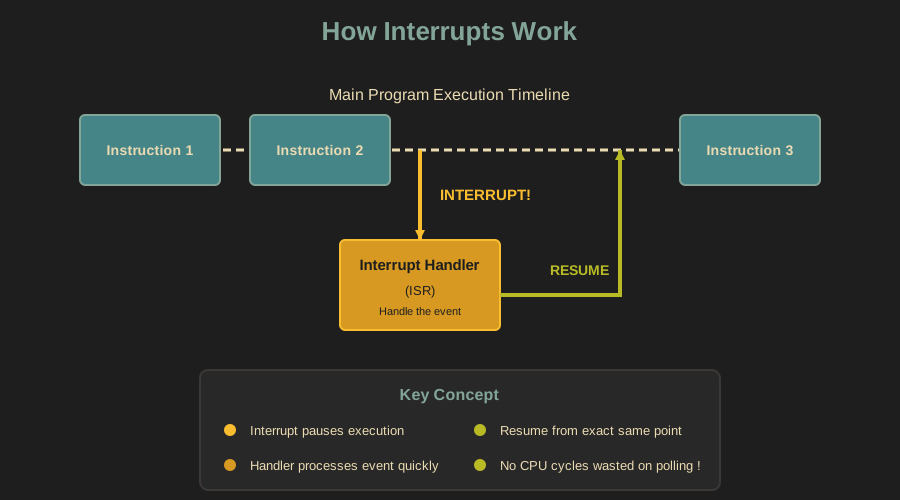
How the processor remembers what it was doing
When an interrupt happens, the processor must be able to resume execution later without losing its place.
To do this, the processor saves its current state. This includes information such as the program counter and important registers.
On most microcontrollers, this state is pushed onto the stack automatically by the hardware. The interrupt handler then runs. When the handler finishes, the saved state is restored from the stack and execution continues as if nothing happened.
Interrupt Service Routines
The code that runs in response to an interrupt is called an Interrupt Service Routine (ISR).
An ISR should be short and fast. While an ISR is running, normal program execution is paused. Long or blocking operations inside an ISR can cause missed events and timing problems.
The Interrupt Vector Table
When an interrupt occurs, how does the processor know which interrupt service routine (ISR) to run? The answer is the interrupt vector table.
The interrupt vector table is a table stored in memory that contains the addresses of interrupt handler functions. Each interrupt source is assigned a fixed position in this table, called a vector number. When an interrupt fires, the processor uses that number to look up the corresponding entry in the table and jumps to the handler address stored there.
The vector table is not limited to peripheral interrupts. It also contains entries for system exceptions such as reset, hardware faults, and system timers. From the processor point of view, these events are handled in the same way as interrupts, by jumping to the address listed in the vector table.
On ARM Cortex-M processors such as the RP2350, the vector table is typically located at the start of flash memory at boot. The first entry contains the initial stack pointer, and the second entry contains the reset handler, which is the first code executed when the processor starts.

Interrupt priority levels
Microcontrollers allow interrupts to have priority levels. A higher-priority interrupt can preempt a lower-priority one. This ensures that time-critical events are handled first.
The NVIC: Interrupt Controller
The Nested Vectored Interrupt Controller (NVIC) is the hardware component in ARM Cortex-M processors that manages interrupts.
The NVIC is responsible for enabling and disabling individual interrupts, enforcing priority levels, and handling situations where multiple interrupts occur at once. When a higher-priority interrupt arrives, the NVIC can pause a lower-priority handler to deal with the more urgent event first.
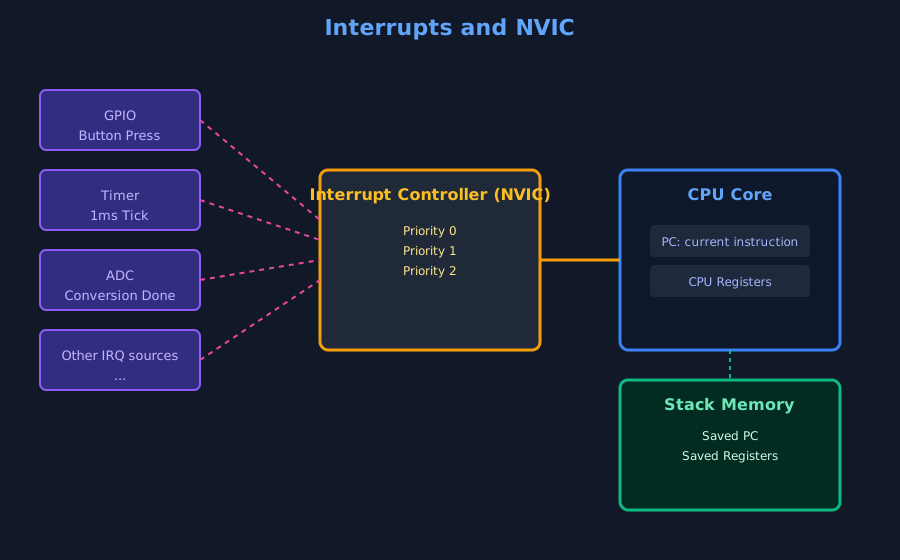
Priority numbers in ARM Cortex-M work in reverse order: lower numbers mean higher priority. Among configurable interrupts, Priority 0 is the most urgent, while higher numbers like Priority 15 are less urgent. This means a Priority 0 interrupt can preempt a Priority 2 handler, but not the other way around.
Critical Sections
A critical section is a small sequence of code that must not be interrupted, in order to preserve the consistency of data or hardware state.
Consider a situation where the main code is updating a shared variable or configuring a peripheral using multiple steps. If an interrupt occurs in the middle of that sequence, and the interrupt handler accesses the same data or hardware, the system can end up in an inconsistent state.
In embedded systems, this is usually handled by temporarily disabling interrupts before entering the critical section and re-enabling them immediately after.
The goal is not to block interrupts for long periods of time, but to protect very small and sensitive pieces of code where consistency matters.
In the embedded Rust ecosystem, the critical-section crate provides a universal, portable API for entering critical sections across many platforms and environments. It defines functions like acquire, release, and with that libraries and applications can use to run code with interrupts disabled or otherwise protected.
Example:
#![allow(unused)]
fn main() {
use core::cell::Cell;
use critical_section::Mutex;

static MY_VALUE: Mutex<Cell<u32>> = Mutex::new(Cell::new(0));

critical_section::with(|cs| {
    // This code runs within a critical section.

    // `cs` is a token that you can use to "prove" that to some API,
    // for example to a `Mutex`:
    MY_VALUE.borrow(cs).set(42);
});
}
Types of interrupts
In microcontrollers, interrupts usually come from a few common sources.
External interrupts
These are triggered by external signals, such as a button press or a change on a GPIO pin. They are often used for user input or reacting to external hardware events.
Timer interrupts
Timers can generate interrupts at fixed intervals. These are widely used for delays, scheduling tasks, blinking LEDs, or keeping time. Yup, we have actually been using timer interrupts already. Whenever we call Timer::after_millis(100).await in Embassy, that’s exactly what happens behind the scenes. The timer peripheral is configured to fire an interrupt after 100 milliseconds. Our task goes to sleep, and when the timer interrupt fires, it wakes the task back up. The CPU doesn’t sit there counting, it’s free to do other things or sleep while waiting.
Peripheral interrupts
Many peripherals can generate interrupts. For example:
- SPI and I2C peripherals can raise interrupts to signal transfer completion or error conditions.
- ADC peripherals can generate interrupts when a conversion finishes.
System exceptions
Some interrupts are generated by the processor itself, such as faults or system timers. These are usually reserved for system-level tasks.
Interrupts in the RP2350
In the previous chapter, we looked at what interrupts are and the role of the NVIC. Now, lets look at which interrupts are actually available on the RP2350.
Interrupts fall into two groups: system exceptions and external interrupts.
System exceptions are defined by the CPU architecture itself. These include reset, fault handlers, and the system timer. They behave the same way across most Cortex-M chips.
External interrupts come from peripherals on the RP2350. Each peripheral that can generate an interrupt has an IRQ number and a vector name. These are the names you will see in code.
The table below shows the external interrupts on the RP2350, numbered from 0 to 51. They cover common peripherals such as timers, GPIO, DMA, and communication interfaces like I2C, SPI, and UART.
You do not need to memorize this table. Its purpose is to help you recognize where names like I2C0_IRQ or UART0_IRQ come from when you see them in examples or documentation.
The full details are in the RP2350 datasheet, section 3.2 on page 82.
In the next chapter, we will see how Embassy uses these interrupts without requiring you to write interrupt handlers manually.
RP2350 External Interrupts
Important
Some interrupt descriptions are simplified here for a beginner-friendly overview. For more accurate and detailed information, refer to the RP2350 datasheet.
Timers
Timer alarms used for delays and scheduling.
| IRQ | Vector | Description |
|---|---|---|
| 0 | TIMER0_IRQ_0 | Timer 0 alarm interrupt |
| 1 | TIMER0_IRQ_1 | Timer 0 alarm interrupt |
| 2 | TIMER0_IRQ_2 | Timer 0 alarm interrupt |
| 3 | TIMER0_IRQ_3 | Timer 0 alarm interrupt |
| 4 | TIMER1_IRQ_0 | Timer 1 alarm interrupt |
| 5 | TIMER1_IRQ_1 | Timer 1 alarm interrupt |
| 6 | TIMER1_IRQ_2 | Timer 1 alarm interrupt |
| 7 | TIMER1_IRQ_3 | Timer 1 alarm interrupt |
PWM
PWM counter wrap events.
| IRQ | Vector | Description |
|---|---|---|
| 8 | PWM_IRQ_WRAP_0 | PWM wrap interrupt |
| 9 | PWM_IRQ_WRAP_1 | PWM wrap interrupt |
DMA
DMA transfer events.
| IRQ | Vector | Description |
|---|---|---|
| 10 | DMA_IRQ_0 | DMA transfer interrupt |
| 11 | DMA_IRQ_1 | DMA transfer interrupt |
| 12 | DMA_IRQ_2 | DMA transfer interrupt |
| 13 | DMA_IRQ_3 | DMA transfer interrupt |
USB
USB controller events.
| IRQ | Vector | Description |
|---|---|---|
| 14 | USBCTRL_IRQ | USB controller interrupt |
PIO
PIO state machine events.
| IRQ | Vector | Description |
|---|---|---|
| 15 | PIO0_IRQ_0 | PIO 0 interrupt |
| 16 | PIO0_IRQ_1 | PIO 0 interrupt |
| 17 | PIO1_IRQ_0 | PIO 1 interrupt |
| 18 | PIO1_IRQ_1 | PIO 1 interrupt |
| 19 | PIO2_IRQ_0 | PIO 2 interrupt |
| 20 | PIO2_IRQ_1 | PIO 2 interrupt |
GPIO and Core I/O
GPIO and core signaling events.
| IRQ | Vector | Description |
|---|---|---|
| 21 | IO_IRQ_BANK0 | GPIO interrupt |
| 22 | IO_IRQ_BANK0_NS | GPIO interrupt |
| 23 | IO_IRQ_QSPI | QSPI GPIO interrupt |
| 24 | IO_IRQ_QSPI_NS | QSPI GPIO interrupt |
| 25 | SIO_IRQ_FIFO | Inter-core FIFO interrupt |
| 26 | SIO_IRQ_BELL | Inter-core doorbell interrupt |
| 27 | SIO_IRQ_FIFO_NS | Inter-core FIFO interrupt |
| 28 | SIO_IRQ_BELL_NS | Inter-core doorbell interrupt |
| 29 | SIO_IRQ_MTIMECMP | System timer interrupt |
Communication Peripherals
Communication interface events.
| IRQ | Vector | Description |
|---|---|---|
| 30 | CLOCKS_IRQ | Clock system interrupt |
| 31 | SPI0_IRQ | SPI interrupt |
| 32 | SPI1_IRQ | SPI interrupt |
| 33 | UART0_IRQ | UART interrupt |
| 34 | UART1_IRQ | UART interrupt |
| 35 | ADC_IRQ_FIFO | ADC FIFO interrupt |
| 36 | I2C0_IRQ | I2C interrupt |
| 37 | I2C1_IRQ | I2C interrupt |
System and Power
System and power management events.
| IRQ | Vector | Description |
|---|---|---|
| 38 | OTP_IRQ | OTP interrupt |
| 39 | TRNG_IRQ | Random number generator interrupt |
| 40 | Reserved | Reserved |
| 41 | Reserved | Reserved |
| 42 | PLL_SYS_IRQ | System PLL interrupt |
| 43 | PLL_USB_IRQ | USB PLL interrupt |
| 44 | POWMAN_IRQ_POW | Power manager interrupt |
| 45 | POWMAN_IRQ_TIMER | Power manager timer interrupt |
Software IRQs
Interrupts that can be triggered by software.
| IRQ | Vector | Description |
|---|---|---|
| 46 | SPAREIRQ_IRQ_0 | Software interrupt |
| 47 | SPAREIRQ_IRQ_1 | Software interrupt |
| 48 | SPAREIRQ_IRQ_2 | Software interrupt |
| 49 | SPAREIRQ_IRQ_3 | Software interrupt |
| 50 | SPAREIRQ_IRQ_4 | Software interrupt |
| 51 | SPAREIRQ_IRQ_5 | Software interrupt |
Using Interrupts with Embassy
In the previous chapter, we looked at what interrupts are and how the NVIC fits into the picture. Now lets see how interrupts are actually used in Embassy.
In Embassy, you normally do not write interrupt handlers yourself. Async drivers use interrupts internally to wait for hardware events and to wake tasks when those events happen. Your code just awaits an operation and continues when it is ready.
For some peripherals, Embassy needs a small amount of setup so it knows which hardware interrupt belongs to which driver. This is where bind_interrupts! comes in.
Why bind_interrupts! Is Needed
Async peripherals like I2C, SPI do not finish their work in one step. While an operation is in progress, the task goes to sleep and the hardware generates interrupts as things move forward.
Embassy already provides the interrupt handlers for these peripherals. What it needs from you is the connection between the hardware interrupt and the handler it should use. The bind_interrupts! macro is how you make that connection.
You are not writing an interrupt handler here. You are just wiring things up so the async driver can work.
Binding an Interrupt for I2C
Here is a simple example for I2C:
#![allow(unused)]
fn main() {
use embassy_rp::{bind_interrupts, i2c};
use embassy_rp::peripherals::I2C0;

bind_interrupts!(struct Irqs {
    I2C0_IRQ => i2c::InterruptHandler<I2C0>;
});
}
This tells Embassy that the I2C0_IRQ interrupt should be handled by the I2C driver for I2C0. Once this is in place, async I2C operations can sleep and wake correctly.
Using Async I2C
After the interrupt is bound, using async I2C looks normal:
#![allow(unused)]
fn main() {
use embassy_rp::i2c::{I2c, Config as I2cConfig};
use embassy_rp::peripherals::I2C0;

let sda = p.PIN_16;
let scl = p.PIN_17;

let mut i2c = I2c::new_async(
    p.I2C0,
    scl,
    sda,
    Irqs,
    I2cConfig::default(),
);
}
When you later call an async operation like:
#![allow(unused)]
fn main() {
i2c.write(0x3C, &[0x00]).await;
}
your task pauses and lets other code run. Meanwhile, the I2C hardware does its work. When the hardware finishes, an interrupt fires and Embassy wakes your task back up. The interrupt happens behind the scenes, you just see your code continue after the .await.
Inter-Integrated Circuit (I2C)
So far, we’ve been toggling output pins between High and Low states to control an LED and reading the same two levels from a button. But working with interesting devices like display modules, RFID readers, and SD card readers requires something more. Simple pin toggling won’t work here. We need a proper communication mechanism, and that’s where communication protocols come in. The most common ones are I2C, SPI, and UART. Each one has its own advantages and disadvantages.
Since we will be using an OLED display in the next chapter, and it communicates over I2C, this is the first protocol we are going to explore. OLED displays are one of the modules I enjoy the most. I’ve used them to make small games and a bunch of fun personal projects.
What Is I2C?
I2C stands for Inter-Integrated Circuit, also written as I²C. It’s one of the popular communication methods used by microcontrollers to talk to sensors, displays (like OLEDs), and other chips. It is a serial, half-duplex, and synchronous interface. Let’s break down what that means.
-
Serial means data is transferred one bit at a time over a single data line. Think of it like a one-lane bridge where cars (bits of data) pass through one after another in a straight line.
-
Half-duplex means data travels in only one direction at a time. Imagine using a walkie-talkie - only one person can talk while the other listens, and then they switch roles.
-
Synchronous means both devices rely on a shared clock signal to coordinate communication. Picture two people throwing a ball to each other, but only when a referee blows a whistle. That whistle acts like a clock signal, ensuring timing stays in sync.
Controller and Target
I2C uses a controller-target model. The controller (formerly known as master) is the device that initiates communication and provides the clock signal. The target (formerly known as slave) responds to the controller’s commands.
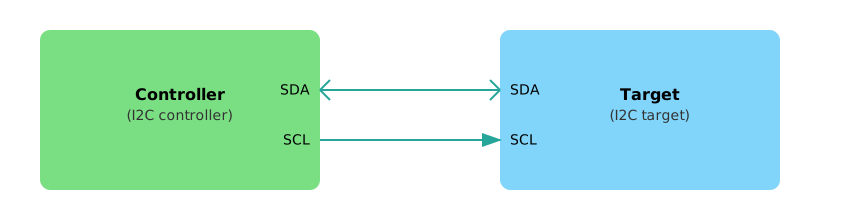
Figure: Single Controller and Single Target
In typical embedded projects, the microcontroller(e.g: Pico) acts as the controller, and connected devices like displays(eg: OLED) or sensors act as targets.
I2C makes it easy to connect many devices on the same two wires. You can connect multiple targets to a single controller, which is the most common setup. I2C also supports multiple controllers on the same bus, so more than one controller can talk to one or more targets.
I2C Bus
The I2C bus uses just two lines, which are shared by all connected devices:
-
SCL (Serial Clock Line): Carries the clock signal from the controller. Sometimes devices label them as SCK.
-
SDA (Serial Data Line): Transfers the data in both directions. Sometimes devices label them as SDI.
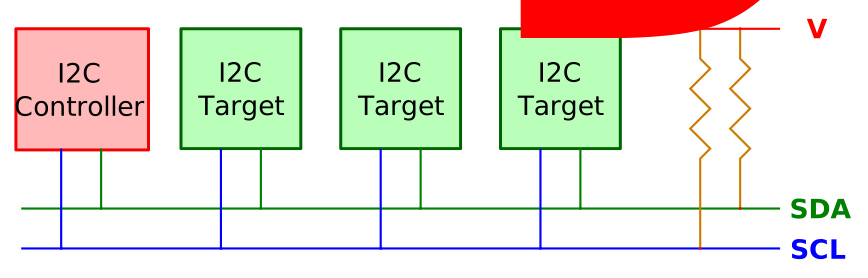
Figure: Single Controller and Multiple Target
All connected devices share the same two wires. The controller selects which target to communicate with by sending that device’s unique address.
I2C Addresses
Each I2C target device has a 7-bit or 10-bit address. The most common is 7-bit, which allows for up to 128 possible addresses.
Many devices have a fixed address defined by the manufacturer, but others allow configuring the lower bits of the address using pins or jumpers. For example, a sensor might use pins labeled A0 and A1 to change its address, allowing you to use multiple copies of the same chip on the same bus.
When the controller wants to talk to a target, it starts by sending a START condition, followed by the device address and a read/write bit. The matching device responds with an ACK (acknowledge) signal, and communication continues.
Speed Modes
I2C supports different speed modes depending on how fast data needs to be transferred. Standard mode goes up to 100 kbps, fast mode reaches 400 kbps, and Fast Mode Plus allows up to 1 Mbps. For even faster communication, High-Speed mode supports up to 3.4 Mbps. There is also an Ultra-Fast mode (5 Mbps). The speed you can use depends on what speed modes are supported by both the microcontroller’s I2C interface and the connected target devices.
Why I2C?
I2C is ideal when you want to connect several devices using just two wires. It is well-suited for applications where speed is not critical but wiring simplicity is important.
The good news is that in Embedded Rust, you don’t need to implement the I2C protocol yourself. The embedded-hal crate defines common I2C traits, and the HAL for your chip takes care of the low-level details. In the next section, we will see more on it.
Resources
- Basics of the I2C Communication Protocol: Refer this if you want in-depth understanding how the controller communincates with target.
Raspberry Pi Pico 2(RP2350)’s I2C
Now that you understand the basics of the I2C protocol, let us look at how it works on the Raspberry Pi Pico 2. The RP2350 has two separate I2C controllers, named I2C0 and I2C1. Think of these as two independent communication channels that can operate simultaneously. This helps when two devices share the same I2C address, because you can place them on separate controllers.
Available I2C Pins
Both I2C controllers support multiple pin options for SDA and SCL. You only choose one pair for each controller.
| I2C Controller | GPIO Pins |
|---|---|
| I2C0 - SDA | GP0, GP4, GP8, GP12, GP16, GP20 |
| I2C0 - SCL | GP1, GP5, GP9, GP13, GP17, GP21 |
| I2C1 - SDA | GP2, GP6, GP10, GP14, GP18, GP26 |
| I2C1 - SCL | GP3, GP7, GP11, GP15, GP19, GP27 |
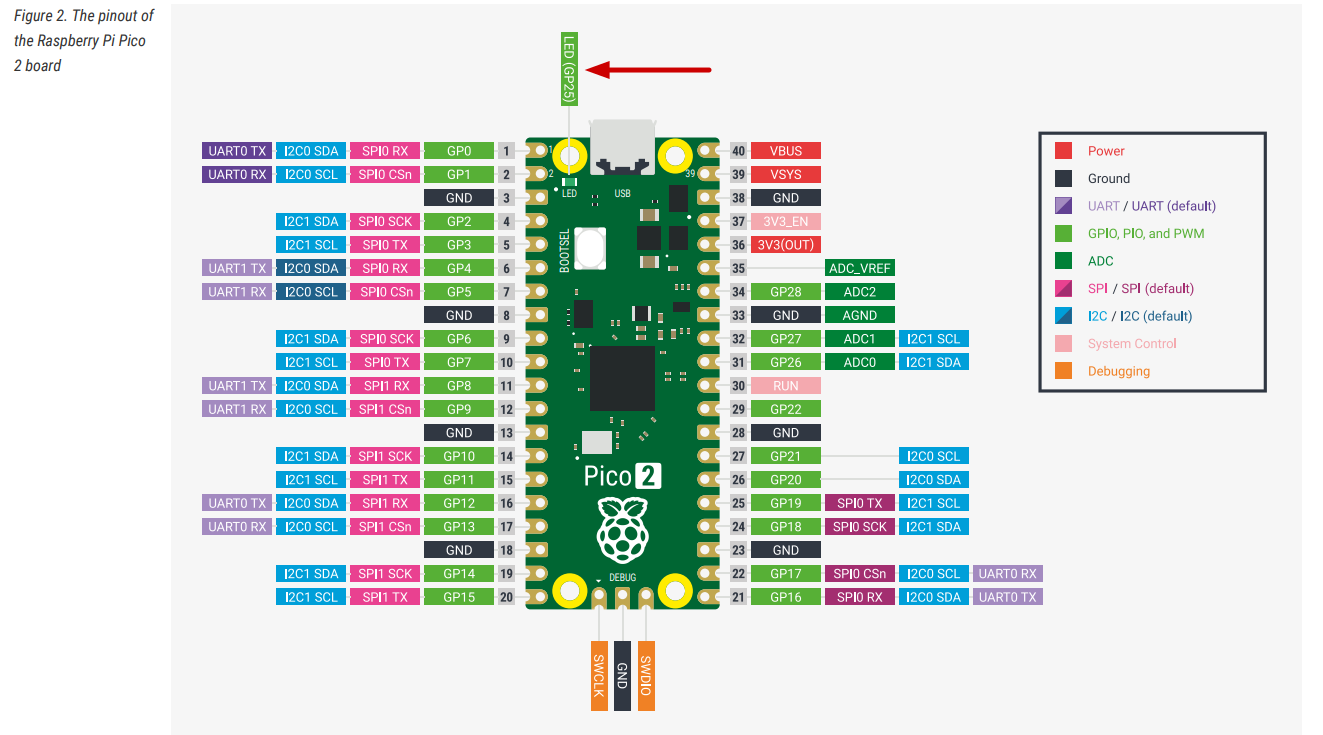
On the Pico 2 board layout, pins that support I2C functionality are labeled with SDA and SCL, and are also highlighted in blue to make them easy to identify.
Speed Options
The RP2350’s I2C controllers support three different speed modes, allowing you to match the capabilities of whatever devices you’re connecting:
- Standard mode: Up to 100 kb/s (kilobits per second) - the slowest but most universally compatible
- Fast mode: Up to 400 kb/s - a good balance for most sensors and displays
- Fast mode plus: Up to 1000 kb/s - for when you need quicker data transfer
It’s worth noting that the RP2350 doesn’t support the ultra-high-speed modes (High-speed at 3.4 Mb/s or Ultra-Fast at 5 Mb/s) that some specialized devices use. However, most common sensors, displays, and peripherals work perfectly fine within the supported speed ranges.
Controller or Target mode
The RP2350 can only be a Controller (master) or a Target (slave) at any given time—not both simultaneously on the same controller. For typical projects where the Pico 2 is controlling sensors and displays, you’ll always use controller mode.
For the complete technical specifications, you can refer to page 983 of the RP2350 Datasheet.
Using I2C with the Embedded Rust Ecosystem
In the previous section, we learned the basics of I2C communication and how the controller-target (master-slave) model works. Now, let’s see how these concepts apply in the Embedded Rust ecosystem, where modular and reusable design is a key principle.
The Role of embedded-hal
The embedded-hal crate defines a standard set of traits for embedded hardware abstraction, including I2C. These traits allow driver code (like for displays or sensors) to be written generically so that it can run on many different microcontrollers without needing platform-specific changes.
The core I2C trait looks like this:
#![allow(unused)]
fn main() {
pub trait I2c<A: AddressMode = SevenBitAddress>: ErrorType {
    // This method must be implemented by HAL authors
    fn transaction(...);
    // These are default methods built on top of `transaction`
    fn read(...);
    fn write(...);
    fn write_read(...);
}
}
The only method that the HAL is required to implement is transaction. The trait provides default implementations of read, write, and write_read using this method.
The generic type parameter A specifies the address mode and has a default type parameter of SevenBitAddress. So, in most cases you don’t need to specify it manually. For 10-bit addressing, you can use TenBitAddress instead.
Microcontroller-specific HAL crates (like esp-hal, stm32-hal, or nrf-hal) implement this trait for their I2C peripherals. For example, the esp-hal crate implements I2C. If you are curious, you can look at the implementation here.
In addition to the regular embedded-hal crate, there is an async version called embedded-hal-async. It defines similar traits, but they are designed to work with async code, which is useful when writing non-blocking drivers or tasks in embedded systems.
Platform-Independent Drivers
Imagine you are writing a driver for a sensor or a display that communicates over I2C. You don’t want to tie your code to a specific microcontroller like the Raspberry Pi Pico or ESP32. Instead, you can write the driver in a generic way using the embedded-hal trait.
As long as your driver only depends on the I2C trait, it can run on any platform that provides an implementation of this trait-such as STM32, nRF, or ESP32.
Sharing the I2C Bus
Many embedded projects connect multiple I2C devices (like an OLED display, an LCD, and various sensors) to the same SDA and SCL lines. However, only one device can control the bus at a time.
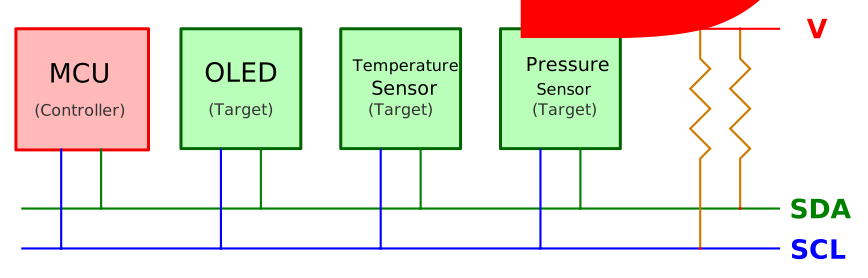
Figure: Microcontroller(Pico) and Multiple Devices
If you give exclusive access to one driver, other devices cannot communicate. This is where the embedded-hal-bus crate helps.
It provides wrapper types like AtomicDevice, CriticalSectionDevice, and RefCellDevice that allow multiple drivers to safely share access to the same I2C bus. These wrappers themselves implement the I2c trait, so drivers can use them as if they were the original bus.
You can use I2C in two ways:
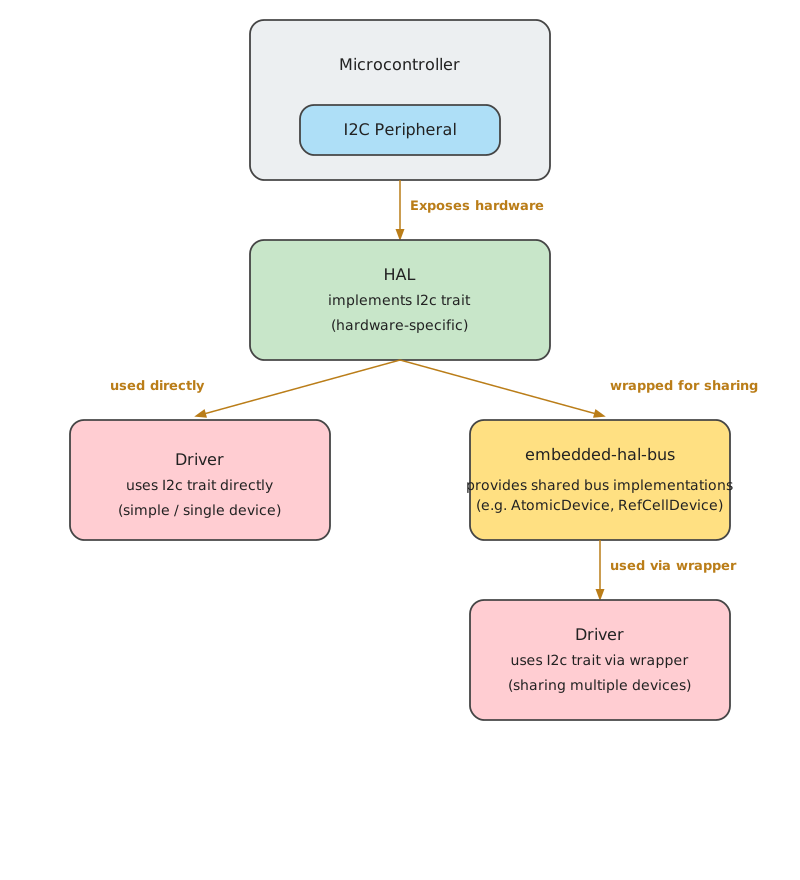
-
Without sharing: If your application only talks to one I2C device, you can pass the I2C bus instance provided by the HAL (which implements the I2c trait) directly to the driver.
-
With sharing: If your application needs to communicate with multiple I2C devices on the same bus, you can wrap the I2C bus instance (provided by the HAL) using one of the sharing types from the embedded-hal-bus crate, such as AtomicDevice or CriticalSectionDevice. This allows safe, coordinated access across multiple drivers.
Resources
- embedded-hal docs on I2C: This documentation provides in-depth details on how I2C traits are structured and how they are intended to be used across different platforms.
I2C in Embassy RP
Let’s see how to initialize and use I2C with Embassy on the Raspberry Pi Pico 2.
Blocking mode
Embassy provides a simple way to set up I2C in blocking mode:
#![allow(unused)]
fn main() {
let sda = p.PIN_16;
let scl = p.PIN_17;

info!("set up i2c ");
let mut i2c = i2c::I2c::new_blocking(p.I2C0, scl, sda, Config::default());
}
We use the new_blocking method to create an I2C instance that waits for each operation to finish before continuing. First we choose which I2C peripheral we want to work with, either I2C0 or I2C1. Once we select the peripheral, we must pair it with the correct GPIO pins for SCL and SDA.
For the configuration, the default implementation gives us standard 100 kHz communication and also enables internal pullups.
Customizing Config
The Config struct lets us control how the I2C bus behaves. We can adjust the communication speed and whether the internal pullups on the SDA and SCL lines are enabled.
If we want to increase the bus speed, we can change the frequency field:
#![allow(unused)]
fn main() {
let mut config = Config::default();
config.frequency = 400_000;
}
If our circuit already includes external pullup resistors, we can disable the internal ones:
#![allow(unused)]
fn main() {
let mut config = Config::default();
config.sda_pullup = false;
config.scl_pullup = false;
}
Sending Data
Many I2C devices require us to send commands or configuration bytes. For example, imagine we are configuring a sensor and need to write two bytes to it:
#![allow(unused)]
fn main() {
const SENSOR_ADDR: u8 = 0x68;
let config_data = [0x6B, 0x00];

i2c.write(SENSOR_ADDR, &config_data)?;
}
Here, we’re sending two bytes to the device at address 0x68. The first byte 0x6B typically tells the device which register we’re writing to, and 0x00 is the value we want to write. Different devices use this pattern differently, so you’ll need to check your device’s datasheet to know what bytes to send.
Reading from a Register
Most I2C devices store their data in registers. To read a specific register, we use write_read. Let’s say we want to read the temperature from a sensor:
#![allow(unused)]
fn main() {
const TEMP_REGISTER: u8 = 0x41;
let mut buffer = [0u8; 2];

i2c.write_read(SENSOR_ADDR, &[TEMP_REGISTER], &mut buffer)?;
}
We first tell the device “I want to read from register 0x41†(the write part), then the device sends us back 2 bytes of temperature data (the read part). The write_read method does both operations in a single I2C transaction. After this, our buffer will contain the raw temperature bytes that we can then convert to an actual temperature value.
Reading Continuously
Some devices automatically advance their internal pointer and keep producing data. For these cases we can use a simple read:
#![allow(unused)]
fn main() {
let mut buffer = [0u8; 5];
i2c.read(SENSOR_ADDR, &mut buffer)?;
}
This reads bytes starting from the device’s current internal position. It is less common than write_read, but useful for sensors that stream data continuously.
Using Async Mode
If we’re building a more complex application that needs to handle multiple things at once, we can use async mode. This lets our program do other work while waiting for I2C operations to complete:
#![allow(unused)]
fn main() {
bind_interrupts!(struct Irqs {
    I2C0_IRQ => i2c::InterruptHandler<I2C0>;
});


let mut i2c = I2c::new_async(
    p.I2C0,
    scl,
    sda,
    Irqs,
    I2cConfig::default(),
);

let mut buffer = [0u8; 2];

i2c.write_read(SENSOR_ADDR, &[TEMP_REGISTER], &mut buffer).await?;
}
Some of the details here, like interrupts, may not be familiar yet. We will introduce interrupts later in the book, so do not worry if this part feels unfamiliar for now.
Target (Slave) mode
The Pico can also act as an I2C target device (also known as a slave device), where it responds to requests from another controller. However, for most of our projects in this book, we’ll be using the Pico as the controller that talks to sensors and other peripherals, so we won’t cover target mode here.
OLED Display
OLED Display
In this section, we’ll learn how to connect an OLED display module to the Raspberry Pi Pico 2. OLED displays are one of the most fun components to work with because they open up so many creative possibilities. You can build games, create dashboards, or display sensor readings in a visual way.

To give you an idea of what is possible, I have built a few games using an OLED display. One of them is Pico Rex, a tiny dinosaur jumping game inspired by Chrome’s offline dino. You can check it out here.
I have also made a small flappy-style game and a shooter game, which you can find along with other examples here.
As you learn how to use the display, feel free to experiment and build your own ideas. Even simple animations or text updates can be surprisingly fun to create.
In next few chapters, we’ll create simple projects like displaying text and an image (display Ferris 🦀 image) on the OLED. We’ll use the I2C protocol to connect the OLED display to the Pico.
Meet the Hardware
OLED, short for Organic Light-Emitting Diode, is a popular display module. These displays come in various sizes and can support different colors. They communicate using either the I²C or SPI protocol.
For this exercise, we’ll use a 0.96-inch OLED monochrome module with a resolution of 128 x 64. It operates at 3.3V. We can communicate using I2C communication protocol.
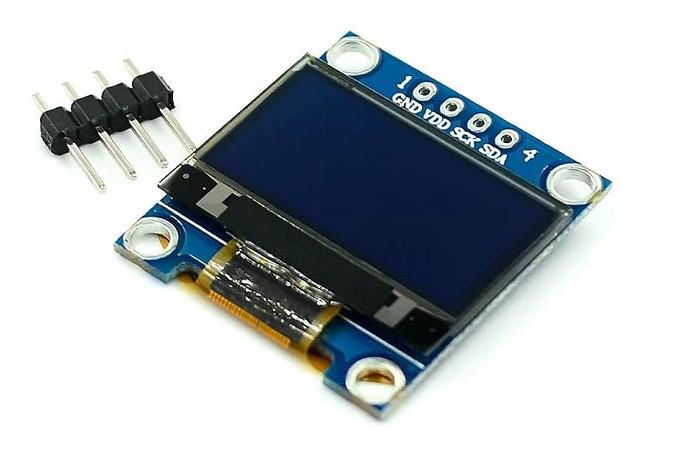
Tip
Most of the time, OLED displays come with pin headers included but not soldered. Soldering is a valuable skill to learn, but it requires care and preparation. Before attempting it, watch plenty of tutorials and do your research. It may feel challenging at first, but with practice, it gets easier. If you’re not comfortable soldering yet, consider looking for a pre-soldered version of the display, though it may cost slightly more.
SSD1306
The SSD1306 is the integrated controller chip that powers many small OLED displays including the module we are going to use(0.96-inch 128x64 module). This controller handles the communication between the Pico and the OLED panel, enabling the display to show text, graphics, and more.
DataSheet: You can find the datasheet for SSD1306 here.
How OLED module works?
We won’t dive into the details of how OLED technology works; instead, we’ll focus on what’s relevant for our exercises. The module has a resolution of 128x64, giving it a total of 128 × 64 = 8192 pixels. Each pixel can be turned on or off independently.
Don’t worry if these concepts are unclear for now - you can always research them later. These details are more relevant if you plan to write your own driver for the SSD1306 or work on more advanced tasks. For now, we already have a good crates that handles these aspects and simplifies the process.
In the datasheet, the 128 columns are referred to as segments, while the 64 rows are called commons (be careful not to confuse “commons†with “columns†due to their similar spelling).
Memory
The OLED display’s pixels are arranged in a page structure within GDDRAM (Graphics Display DRAM). GDDRAM is divided into 8 pages (From Page 0 to Page 7), each consisting of 128 columns (segments) and 8 rows(commons).
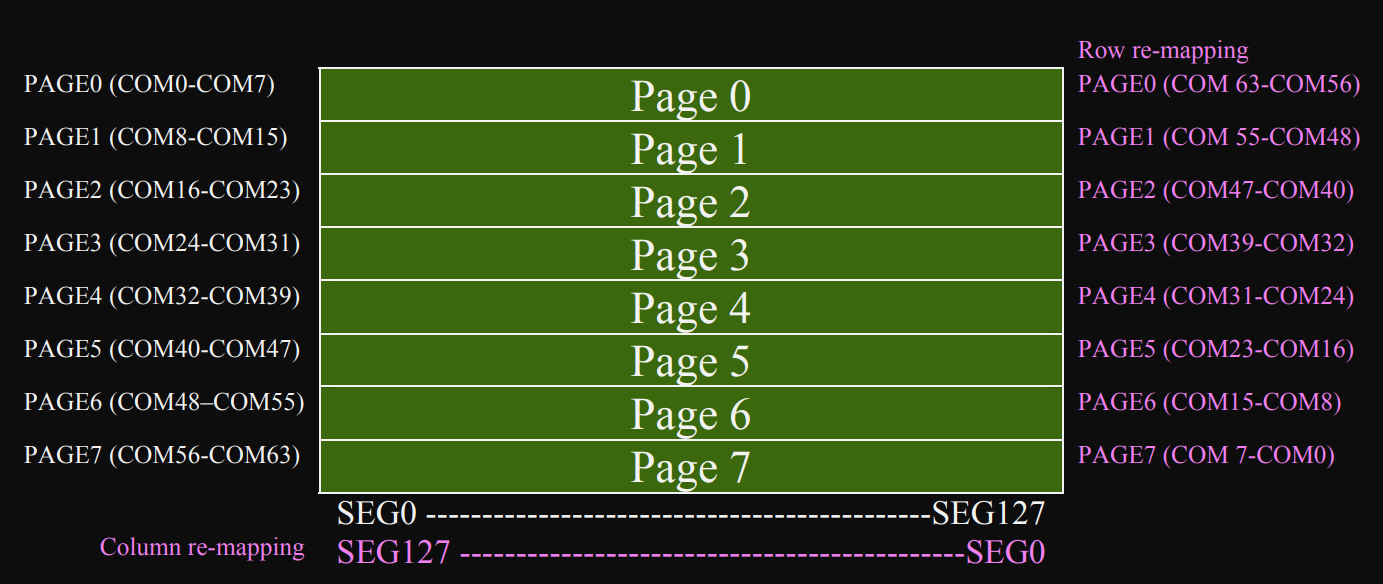 (This image is taken from the datasheet)
A segment is 8 bits of data (one byte), with each bit representing a single pixel. When writing data, you will write an entire segment, meaning the entire byte is written at once.
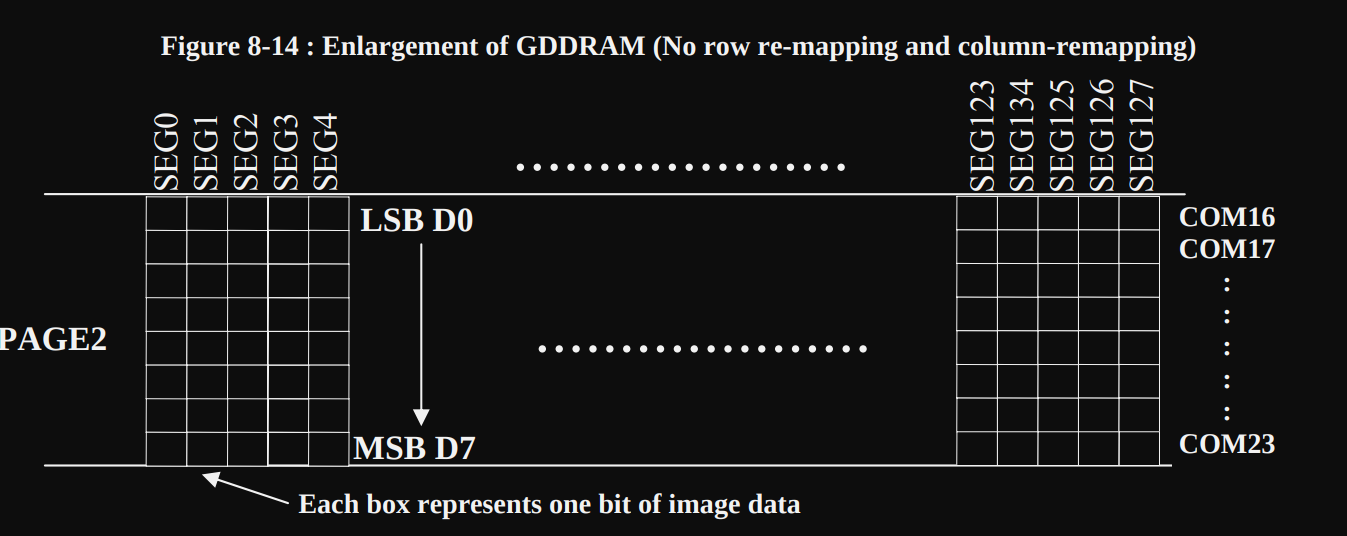 (This image is taken from the datasheet)
We can re-map both segments and commons through software for mechanical flexibility. You can find more details on page 25 of the ssd1306 datasheet.
Pages and Segments
I created an image to show how 128x64 pixels are divided into 8 pages. I then focused on a single page, which contains 128 segments (columns) and 8 rows. Finally, I zoomed in on a single segment to demonstrate how it represents 8 vertically stacked pixels, with each pixel corresponding to one bit.

Circuit
The OLED display requires four connections to the Raspberry Pi Pico. This example uses I2C0 with GPIO 16 and 17, but you can use any valid I2C pin pair on your Pico.
| Pico Pin | Wire | OLED Pin |
|---|---|---|
| GPIO 16 |
|
SDA |
| GPIO 17 |
|
SCL |
| 3.3V |
|
VCC |
| GND |
|
GND |

Crates You Will Use
Now that you understand what the SSD1306 is and how I2C communication works, let’s explore how we actually draw graphics on the display. You might wonder if you need to send raw commands for every pixel. The good news is that you do not. The Rust ecosystem provides us with great tools that make this much easier.
Drawing on the Display
When working with the SSD1306 display in Rust, you’ll use two main crates that work together:
- embedded-graphics - A drawing library that lets you create shapes, text, and images
- ssd1306 - A driver that controls the actual hardware
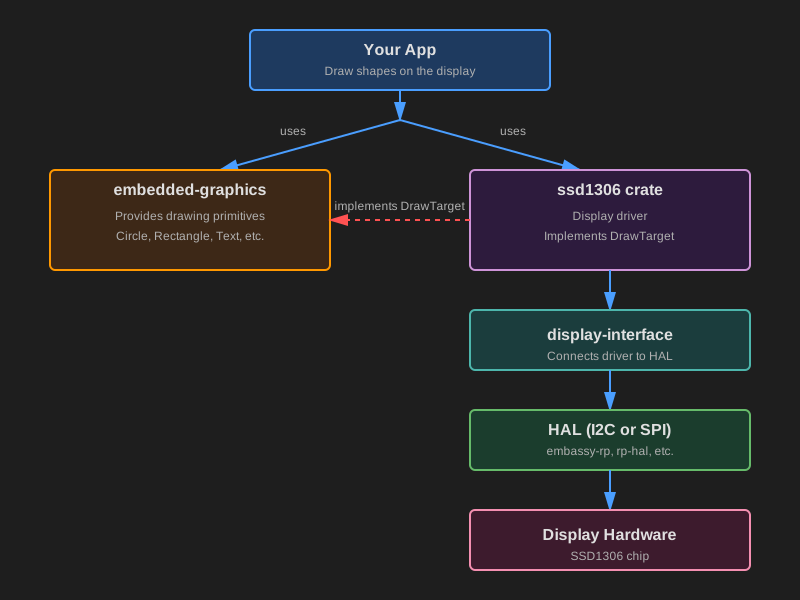
What is embedded-graphics?
embedded graphics is a lightweight 2D drawing library made for memory limited embedded systems. Instead of setting individual pixels yourself, you use high level drawing commands. For example:
#![allow(unused)]
fn main() {
Circle::new(Point::new(20, 20), 30)
    .into_styled(PrimitiveStyle::with_stroke(BinaryColor::On, 1))
    .draw(&mut display)?; // display implements DrawTarget
}
This draws a circle without you needing to calculate any pixel positions or understand how the display stores its data internally.
What embedded-graphics provides:
- Drawing primitives such as circles, rectangles, lines, and triangles
- Text rendering - display text with different fonts
- Image and icon support through compatible image crates
- Style options for color, stroke width, and fill
The Key Design Principle
embedded-graphics is completely display-independent. It doesn’t know anything about your specific hardware (whether it’s an SSD1306, ST7789, or any other display). It simply knows how to describe what should be drawn. The actual display driver then handles the hardware-specific details of turning those instructions into real pixels.
This design means you can write drawing code once and use it with many different displays, just by changing the driver.
You can explore more in the official documentation: https://docs.rs/embedded-graphics/latest/embedded_graphics/
What is the ssd1306 Crate?
The ssd1306 crate is a hardware driver for displays that use the SSD1306 controller chip. It handles all the low-level work needed to communicate with your display. This includes initializing the screen, sending the correct I2C or SPI commands, managing an internal buffer when required, and updating the pixels on the hardware.
Graphics Mode
The ssd1306 driver supports multiple modes, but for drawing graphics, you’ll use BufferedGraphicsMode. You enter this mode by calling:
#![allow(unused)]
fn main() {
let display = ssd1306::Ssd1306::new(i2c, size, rotation)
    .into_buffered_graphics_mode();
}
In this mode, the driver maintains an internal buffer in RAM and implements the DrawTarget trait from embedded-graphics-core. This is what allows the two crates to work together.
How They Work Together: The DrawTarget Trait
If you are here, you probably already understand Rust traits. A trait basically describes what something can do, and the implementation decides how it actually does it.
DrawTarget is the trait that allows embedded graphics to send drawing commands to a display driver. When the ssd1306 driver implements this trait, it is essentially saying:
“I can accept the pixels that embedded graphics produces, and I know how to put those pixels onto an SSD1306 screen.â€
Here is what actually happens when you draw something:
- You create shapes, text, or images using embedded-graphics primitives.
- You call .draw(&mut display) to render them.
- embedded graphics generates the pixels that need to be drawn.
- The ssd1306 driver takes those pixels and stores them in its internal buffer.
- When you call display.flush(), the driver sends the updated pixels to the OLED hardware.
Here’s a simple example:
#![allow(unused)]
fn main() {
// Create a circle using embedded-graphics
let circle = Circle::new(Point::new(64, 32), 20)
    .into_styled(PrimitiveStyle::with_fill(BinaryColor::On));

// Draw it onto the display driver
circle.draw(&mut display)?; // Write pixel data into the driver's buffer

display.flush()?; // Send buffer to the actual screen
}
Async mode
The ssd1306 crate also supports async operation when you enable the async feature. This is useful if you’re using Embassy.
To use async mode, add the feature to your Cargo.toml:
ssd1306 = { version = "0.10.0", features = ["async"] }
When the async feature is enabled, the driver uses embedded-hal-async traits instead of the regular blocking embedded-hal traits. This allows the I2C/SPI communication to happen asynchronously, which is helpful when you want to do other tasks while waiting for display updates.
The main difference is that methods like .init() and .flush() become async and need to be .awaited:
#![allow(unused)]
fn main() {
// Async version
let mut display = Ssd1306Async::new(interface, DisplaySize128x64, DisplayRotation::Rotate0)
    .into_buffered_graphics_mode();

display.init().await?;  // Note the .await

// Drawing still works the same way
circle.draw(&mut display)?;

display.flush().await?;  // This is now async too
}
Hello OLED
We are going to keep things simple. We will just display “Hello, Rust!†on the OLED display. We will first use Embassy, then we will do the same using rp-hal.
Create Project
As usual, generate the project from the template with cargo-generate:
cargo generate --git https://github.com/ImplFerris/pico2-template.git --tag v0.3.1
When prompted, give your project a name like “hello-oled†and choose “embassy†as the HAL. Enable defmt logging, if you have a debug probe so you can view logs also.
Update Dependencies
Add the following lines to your Cargo.toml under dependencies:
embedded-graphics = "0.8.1"
ssd1306 = { version = "0.10.0", features = ["async"] }
We will enable the async feature so the ssd1306 driver can be used with Embassy async I2C. You can also use it without this feature and use Embassy I2C in blocking mode.
Additional imports
Add these imports at the top of your main.rs:
#![allow(unused)]
fn main() {
// Interrupt Binding
use embassy_rp::peripherals::I2C0;
use embassy_rp::{bind_interrupts, i2c};

// I2C
use embassy_rp::i2c::{Config as I2cConfig, I2c};

// OLED
use ssd1306::{I2CDisplayInterface, Ssd1306Async, prelude::*};

// Embedded Graphics
use embedded_graphics::{
    mono_font::{MonoTextStyleBuilder, ascii::FONT_6X10},
    pixelcolor::BinaryColor,
    prelude::Point,
    prelude::*,
    text::{Baseline, Text},
};
}
Bind I2C Interrupt
We discussed this in detail in the interrupts section, so you should already be familiar with what it does. This binds the I2C0_IRQ interrupt to the Embassy I2C interrupt handler for I2C0.
#![allow(unused)]
fn main() {
bind_interrupts!(struct Irqs {
    I2C0_IRQ => i2c::InterruptHandler<I2C0>;
});
}
Initialize I2C
First, we need to set up the I2C bus to communicate with the display.
#![allow(unused)]
fn main() {
let sda = p.PIN_16;
let scl = p.PIN_17;

let mut i2c_config = I2cConfig::default();
i2c_config.frequency = 400_000; //400kHz

let i2c_bus = I2c::new_async(p.I2C0, scl, sda, Irqs, i2c_config);
}
We have connected the OLED’s SDA line to Pin 16 and the SCL line to Pin 17. Throughout this chapter we will keep using these same pins. If you have connected your display to a different valid I2C pair, adjust the code to match your wiring.
We are using the new_async method to create an I2C instance in async mode. This allows I2C transfers to await instead of blocking the CPU. We use a 400 kHz bus speed, which is commonly supported by SSD1306 displays.
Initialize Display
Now we create the display interface and initialize it:
#![allow(unused)]
fn main() {
let i2c_interface = I2CDisplayInterface::new(i2c_bus);

let mut display = Ssd1306Async::new(i2c_interface, DisplaySize128x64, DisplayRotation::Rotate0)
    .into_buffered_graphics_mode();
}
I2CDisplayInterface::new(i2c_bus) wraps the async I2C bus so it can be used by the SSD1306 driver. It uses the default I2C address 0x3C, which is standard for most SSD1306 modules.
We create the display instance by specifying a 128x64 display and the default orientation. We also enable buffered graphics mode so we can draw into a RAM buffer using embedded-graphics.
#![allow(unused)]
fn main() {
display
    .init()
    .await
    .expect("failed to initialize the display");
}
Finally, display.init() sends initialization commands to the display hardware. This wakes up the display and configures it properly.
Writing Text
Before we can draw text, we need to define how the text should look:
#![allow(unused)]
fn main() {
 let text_style = MonoTextStyleBuilder::new()
        .font(&FONT_6X10)
        .text_color(BinaryColor::On)
        .build();
}
This creates a text style using FONT_6X10, a built-in monospaced font that’s 6 pixels wide and 10 pixels tall. We set BinaryColor::On to display white pixels on our black background since the OLED is monochrome.
Now let’s draw the text to the display’s buffer:
#![allow(unused)]
fn main() {
defmt::info!("sending text to display");
Text::with_baseline("Hello, Rust!", Point::new(0, 16), text_style, Baseline::Top)
    .draw(&mut display)
    .expect("failed to draw text to display");
}
We’re rendering “Hello, Rust!†at position (0, 16), which is 16 pixels down from the top of the screen. We use the text style we defined earlier and align the text using its top edge with Baseline::Top.
The .draw(&mut display) call renders the text into the display’s internal buffer. At this point, the text exists in RAM but is not yet visible on the physical screen.
Displaying Text
Finally, we send the buffer contents to the actual OLED hardware:
#![allow(unused)]
fn main() {
display
    .flush()
    .await
    .expect("failed to flush data to display");
}
This is when the I2C communication happens. The driver sends the bytes from RAM to the display controller, and you’ll see “Hello, Rust!†appear on your OLED screen!
Complete Code
Here’s everything put together:
#![no_std]
#![no_main]

use embassy_executor::Spawner;
use embassy_rp as hal;
use embassy_rp::block::ImageDef;
use embassy_time::Timer;

//Panic Handler
use panic_probe as _;
// Defmt Logging
use defmt_rtt as _;

// Interrupt Binding
use embassy_rp::peripherals::I2C0;
use embassy_rp::{bind_interrupts, i2c};

// I2C
use embassy_rp::i2c::{Config as I2cConfig, I2c};

// OLED
use ssd1306::{I2CDisplayInterface, Ssd1306Async, prelude::*};

// Embedded Graphics
use embedded_graphics::{
    mono_font::{MonoTextStyleBuilder, ascii::FONT_6X10},
    pixelcolor::BinaryColor,
    prelude::Point,
    prelude::*,
    text::{Baseline, Text},
};

/// Tell the Boot ROM about our application
#[unsafe(link_section = ".start_block")]
#[used]
pub static IMAGE_DEF: ImageDef = hal::block::ImageDef::secure_exe();

bind_interrupts!(struct Irqs {
    I2C0_IRQ => i2c::InterruptHandler<I2C0>;
});

#[embassy_executor::main]
async fn main(_spawner: Spawner) {
    let p = embassy_rp::init(Default::default());

    let sda = p.PIN_16;
    let scl = p.PIN_17;

    let mut i2c_config = I2cConfig::default();
    i2c_config.frequency = 400_000; //400kHz

    let i2c_bus = I2c::new_async(p.I2C0, scl, sda, Irqs, i2c_config);

    let i2c_interface = I2CDisplayInterface::new(i2c_bus);

    let mut display = Ssd1306Async::new(i2c_interface, DisplaySize128x64, DisplayRotation::Rotate0)
        .into_buffered_graphics_mode();

    display
        .init()
        .await
        .expect("failed to initialize the display");

    let text_style = MonoTextStyleBuilder::new()
        .font(&FONT_6X10)
        .text_color(BinaryColor::On)
        .build();

    defmt::info!("sending text to display");
    Text::with_baseline("Hello, Rust!", Point::new(0, 16), text_style, Baseline::Top)
        .draw(&mut display)
        .expect("failed to draw text to display");

    display
        .flush()
        .await
        .expect("failed to flush data to display");

    loop {
        Timer::after_millis(100).await;
    }
}

// Program metadata for `picotool info`.
// This isn't needed, but it's recomended to have these minimal entries.
#[unsafe(link_section = ".bi_entries")]
#[used]
pub static PICOTOOL_ENTRIES: [embassy_rp::binary_info::EntryAddr; 4] = [
    embassy_rp::binary_info::rp_program_name!(c"hello-oled"),
    embassy_rp::binary_info::rp_program_description!(c"Hello OLED"),
    embassy_rp::binary_info::rp_cargo_version!(),
    embassy_rp::binary_info::rp_program_build_attribute!(),
];

// End of file
Clone the existing project
You can clone (or refer) project I created and navigate to the hello-oled folder.
git clone https://github.com/ImplFerris/pico2-embassy-projects
cd pico2-embassy-projects/oled/hello-oled
Hello Rust on OLED
The same hello world we will do with rp-hal also.
Generating From template
To generate the project, run:
cargo generate --git https://github.com/ImplFerris/pico2-template.git --tag v0.3.1
When prompted, choose a name for your project-let’s go with “oh-ledâ€. Don’t forget to select rp-hal as the HAL.
Then, navigate into the project folder:
cd PROJECT_NAME
# For example, if you named your project "oh-led":
# cd oh-led
Add Additional Dependencies
Since we are using the SSD1306 OLED display, we need to include the SSD1306 driver. To add this dependency, use the following Cargo command:
cargo add ssd1306@0.10.0
We will use the embedded_graphics crate to handle graphical rendering on the OLED display, to draw images, shapes, and text.
cargo add embedded-graphics@0.8.1
Additional imports
In addition to the imports from the template, you’ll need the following additional dependencies for this task.
#![allow(unused)]
fn main() {
// Embedded Graphics
use embedded_graphics::mono_font::MonoTextStyleBuilder;
use embedded_graphics::mono_font::ascii::FONT_6X10;
use embedded_graphics::pixelcolor::BinaryColor;
use embedded_graphics::prelude::*;
use embedded_graphics::text::{Baseline, Text};

// For setting the Frequency
use hal::fugit::RateExtU32;
use hal::gpio::{FunctionI2C, Pin};

// SSD1306 Display
use ssd1306::{I2CDisplayInterface, Ssd1306, prelude::*};
}
Pin Configuration
We start by configuring the GPIO pins for the I2C communication. In this case, GPIO18 is set as the SDA pin, and GPIO19 is set as the SCL pin. We then configure the I2C peripheral to work in controller mode.
#![allow(unused)]
fn main() {
// Configure two pins as being I²C, not GPIO
let sda_pin: Pin<_, FunctionI2C, _> = pins.gpio16.reconfigure();
let scl_pin: Pin<_, FunctionI2C, _> = pins.gpio17.reconfigure();

// Create the I²C drive, using the two pre-configured pins. This will fail
// at compile time if the pins are in the wrong mode, or if this I²C
// peripheral isn't available on these pins!
let i2c = hal::I2C::i2c0(
    pac.I2C0,
    sda_pin,
    scl_pin,
    400.kHz(),
    &mut pac.RESETS,
    &clocks.system_clock,
);
}
Prepare Display
We create an interface for the OLED display using the I2C.
#![allow(unused)]
fn main() {
//helper struct is provided by the ssd1306 crate
let interface = I2CDisplayInterface::new(i2c);
// initialize the display
let mut display = Ssd1306::new(interface, DisplaySize128x64, DisplayRotation::Rotate0)
    .into_buffered_graphics_mode();
display.init().expect("failed to initialize the display");
}
Set Text Style and Draw
Next, we define the text style and use it to display “Hello Rust†on the screen:
#![allow(unused)]
fn main() {
// Embedded graphics
let text_style = MonoTextStyleBuilder::new()
    .font(&FONT_6X10)
    .text_color(BinaryColor::On)
    .build();

Text::with_baseline(
    "Hello, Rusty!",
    Point::new(0, 16),
    text_style,
    Baseline::Top,
)
.draw(&mut display)
.expect("failed to draw text to display");
}
Here, we are writing the message at coordinates (x=0, y=16).
Write out data to a display
#![allow(unused)]
fn main() {
display.flush().expect("failed to flush data to display");
}
Complete code
#![no_std]
#![no_main]

use embedded_hal::delay::DelayNs;
use hal::block::ImageDef;
use rp235x_hal as hal;

//Panic Handler
use panic_probe as _;
// Defmt Logging
use defmt_rtt as _;

// Embedded Graphics
use embedded_graphics::mono_font::MonoTextStyleBuilder;
use embedded_graphics::mono_font::ascii::FONT_6X10;
use embedded_graphics::pixelcolor::BinaryColor;
use embedded_graphics::prelude::*;
use embedded_graphics::text::{Baseline, Text};

// For setting the Frequency
use hal::fugit::RateExtU32;
use hal::gpio::{FunctionI2C, Pin};

// SSD1306 Display
use ssd1306::{I2CDisplayInterface, Ssd1306, prelude::*};

/// Tell the Boot ROM about our application
#[unsafe(link_section = ".start_block")]
#[used]
pub static IMAGE_DEF: ImageDef = hal::block::ImageDef::secure_exe();
/// External high-speed crystal on the Raspberry Pi Pico 2 board is 12 MHz.
/// Adjust if your board has a different frequency
const XTAL_FREQ_HZ: u32 = 12_000_000u32;

#[hal::entry]
fn main() -> ! {
    // Grab our singleton objects
    let mut pac = hal::pac::Peripherals::take().unwrap();

    // Set up the watchdog driver - needed by the clock setup code
    let mut watchdog = hal::Watchdog::new(pac.WATCHDOG);

    // Configure the clocks
    //
    // The default is to generate a 125 MHz system clock
    let clocks = hal::clocks::init_clocks_and_plls(
        XTAL_FREQ_HZ,
        pac.XOSC,
        pac.CLOCKS,
        pac.PLL_SYS,
        pac.PLL_USB,
        &mut pac.RESETS,
        &mut watchdog,
    )
    .ok()
    .unwrap();

    // The single-cycle I/O block controls our GPIO pins
    let sio = hal::Sio::new(pac.SIO);

    // Set the pins up according to their function on this particular board
    let pins = hal::gpio::Pins::new(
        pac.IO_BANK0,
        pac.PADS_BANK0,
        sio.gpio_bank0,
        &mut pac.RESETS,
    );

    let mut timer = hal::Timer::new_timer0(pac.TIMER0, &mut pac.RESETS, &clocks);

    // Configure two pins as being I²C, not GPIO
    let sda_pin: Pin<_, FunctionI2C, _> = pins.gpio18.reconfigure();
    let scl_pin: Pin<_, FunctionI2C, _> = pins.gpio19.reconfigure();

    // Create the I²C drive, using the two pre-configured pins. This will fail
    // at compile time if the pins are in the wrong mode, or if this I²C
    // peripheral isn't available on these pins!
    let i2c = hal::I2C::i2c1(
        pac.I2C1,
        sda_pin,
        scl_pin,
        400.kHz(),
        &mut pac.RESETS,
        &clocks.system_clock,
    );

    //helper struct is provided by the ssd1306 crate
    let interface = I2CDisplayInterface::new(i2c);
    // initialize the display
    let mut display = Ssd1306::new(interface, DisplaySize128x64, DisplayRotation::Rotate0)
        .into_buffered_graphics_mode();
    display.init().expect("failed to initialize the display");

    // Embedded graphics
    let text_style = MonoTextStyleBuilder::new()
        .font(&FONT_6X10)
        .text_color(BinaryColor::On)
        .build();

    Text::with_baseline(
        "Hello, Rusty!",
        Point::new(0, 16),
        text_style,
        Baseline::Top,
    )
    .draw(&mut display)
    .expect("failed to draw text to display");

    display.flush().expect("failed to flush data to display");

    loop {
        timer.delay_ms(100);
    }
}

// Program metadata for `picotool info`.
// This isn't needed, but it's recomended to have these minimal entries.
#[unsafe(link_section = ".bi_entries")]
#[used]
pub static PICOTOOL_ENTRIES: [hal::binary_info::EntryAddr; 5] = [
    hal::binary_info::rp_cargo_bin_name!(),
    hal::binary_info::rp_cargo_version!(),
    hal::binary_info::rp_program_description!(c"your program description"),
    hal::binary_info::rp_cargo_homepage_url!(),
    hal::binary_info::rp_program_build_attribute!(),
];

// End of file
Clone the existing project
You can clone (or refer) project I created and navigate to the hello-oled folder.
git clone https://github.com/ImplFerris/pico2-rp-projects
cd pico2-projects/hello-oled
Draw Raw Image on OLED Display with ESP32
In this exercise, we will draw a raw image using only byte arrays. We will create the Ohm (Ω) symbol in a 1BPP (1 Bit Per Pixel) format.
1BPP Image
The 1BPP (1 bit per pixel) format uses a single bit for each pixel. It can represent only two colors, typically black and white. If the bit value is 0, it will typically be full black. If the bit value is 1, it will typically be full white.
We will create the ohm symbol using an 8x5 pixel grid in 1bpp format. I have highlighted the 1’s in the byte array to show how they turn on the pixels to form the ohm symbol.
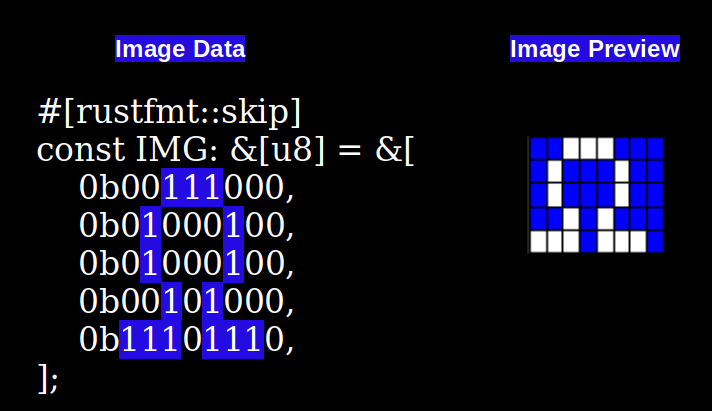
I chose 8 as the width to keep the example simple. This makes it easy to represent the 8 pixels width using a single byte (8 bits). But if you increase the width, it won’t fit in one byte anymore, so it will need to be spread across multiple elements in the byte array. I will explain this in later chapters. For now, let’s keep it simple.
Ohm symbol on the OLED Display (128x64)
Let me show you how it looks when the Ohm symbol is positioned on the OLED display (128x64 resolution) at position zero(x is 0 and y is also 0).

This is an enlarged illustration. When you see the symbol on the actual display module, it will be small.
Reference
- Embedded Graphics’ ImageRaw Documentation
- Image2Bytes: Convert image to Hex byte array
Using Single Byte
Drawing a Single Byte Image in Embedded Rust using embedded-graphics
By now, i hope you understand how the image is represented in the byte array. Now, let’s move on to the coding part.
Create Project
As usual, generate the project from the template with cargo-generate:
cargo generate --git https://github.com/ImplFerris/pico2-template.git --tag v0.3.1
When prompted, give your project a name like “byte-oled†and choose “embassy†as the HAL. Enable defmt logging, if you have a debug probe so you can view logs also.
Update Dependencies
Add the following lines to your Cargo.toml under dependencies:
embedded-graphics = "0.8.1"
ssd1306 = { version = "0.10.0", features = ["async"] }
Additional imports
Add these imports at the top of your main.rs:
#![allow(unused)]
fn main() {
// Interrupt Binding
use embassy_rp::peripherals::I2C0;
use embassy_rp::{bind_interrupts, i2c};

// I2C
use embassy_rp::i2c::{Config as I2cConfig, I2c};

// OLED
use ssd1306::{I2CDisplayInterface, Ssd1306Async, prelude::*};

// Embedded Graphics
use embedded_graphics::{
    image::{Image, ImageRaw},
    pixelcolor::BinaryColor,
    prelude::Point,
    prelude::*,
};
}
Boilerplate codes
We have already explained this part in the previous chapter.
Bind I2C Interrupt
#![allow(unused)]
fn main() {
bind_interrupts!(struct Irqs {
    I2C0_IRQ => i2c::InterruptHandler<I2C0>;
});
}
Initialize I2C and Display instance
#![allow(unused)]
fn main() {
let sda = p.PIN_16;
let scl = p.PIN_17;

let mut i2c_config = I2cConfig::default();
i2c_config.frequency = 400_000; // 400kHz

let i2c_bus = I2c::new_async(p.I2C0, scl, sda, Irqs, i2c_config);

let i2c_interface = I2CDisplayInterface::new(i2c_bus);

let mut display = Ssd1306Async::new(i2c_interface, DisplaySize128x64, DisplayRotation::Rotate0)
    .into_buffered_graphics_mode();

display
    .init()
    .await
    .expect("failed to initialize the display");
}
Create Your Image
We store our image as a byte array. Each byte represents one row of pixels.
#![allow(unused)]
fn main() {
// 8x5 pixels
#[rustfmt::skip]
const IMG_DATA: &[u8] = &[
    0b00111000,
    0b01000100,
    0b01000100,
    0b00101000,
    0b11101110,
];
}
This creates an Ohm symbol (Ω) that’s 8 pixels wide and 5 pixels tall. Each 0b means we’re writing in binary using 1s and 0s. A 1 means the pixel is ON (white), and a 0 means the pixel is OFF (black). Each line represents one row of the image from top to bottom.
Draw the Image
Now let’s put the image on the display:
#![allow(unused)]
fn main() {
let raw_image = ImageRaw::<BinaryColor>::new(IMG_DATA, 8);
let image = Image::new(&raw_image, Point::zero());
}
The first line creates a raw image from our byte data. We tell it the image is 8 pixels wide, and it figures out the height by itself. The second line places the image at position (0, 0), which is the top-left corner of the screen.
Display the Image
Just like in the previous chapter, we need to draw the image to the display buffer and then send it to the screen:
#![allow(unused)]
fn main() {
image.draw(&mut display).expect("failed to draw text to display");
display.flush().await.expect("failed to flush data to display");
}
Clone the existing project
You can also clone (or refer) project I created and navigate to the byte-oled folder.
git clone https://github.com/ImplFerris/pico2-embassy-projects
cd pico2-embassy-projects/oled/byte-oled
The Complete Code
#![no_std]
#![no_main]

use embassy_executor::Spawner;
use embassy_rp as hal;
use embassy_rp::block::ImageDef;
use embassy_time::Timer;

//Panic Handler
use panic_probe as _;
// Defmt Logging
use defmt_rtt as _;

// Interrupt Binding
use embassy_rp::peripherals::I2C0;
use embassy_rp::{bind_interrupts, i2c};

// I2C
use embassy_rp::i2c::{Config as I2cConfig, I2c};

// OLED
use ssd1306::{I2CDisplayInterface, Ssd1306Async, prelude::*};

// Embedded Graphics
use embedded_graphics::{
    image::{Image, ImageRaw},
    pixelcolor::BinaryColor,
    prelude::Point,
    prelude::*,
};

/// Tell the Boot ROM about our application
#[unsafe(link_section = ".start_block")]
#[used]
pub static IMAGE_DEF: ImageDef = hal::block::ImageDef::secure_exe();

bind_interrupts!(struct Irqs {
    I2C0_IRQ => i2c::InterruptHandler<I2C0>;
});

// 8x5 pixels
#[rustfmt::skip]
const IMG_DATA: &[u8] = &[
    0b00111000,
    0b01000100,
    0b01000100,
    0b00101000,
    0b11101110,
];

#[embassy_executor::main]
async fn main(_spawner: Spawner) {
    let p = embassy_rp::init(Default::default());

    let sda = p.PIN_16;
    let scl = p.PIN_17;

    let mut i2c_config = I2cConfig::default();
    i2c_config.frequency = 400_000; // 400kHz

    let i2c_bus = I2c::new_async(p.I2C0, scl, sda, Irqs, i2c_config);

    let i2c_interface = I2CDisplayInterface::new(i2c_bus);

    let mut display = Ssd1306Async::new(i2c_interface, DisplaySize128x64, DisplayRotation::Rotate0)
        .into_buffered_graphics_mode();

    display
        .init()
        .await
        .expect("failed to initialize the display");

    let raw_image = ImageRaw::<BinaryColor>::new(IMG_DATA, 8);

    let image = Image::new(&raw_image, Point::zero());

    image
        .draw(&mut display)
        .expect("failed to draw text to display");

    display
        .flush()
        .await
        .expect("failed to flush data to display");

    loop {
        Timer::after_millis(100).await;
    }
}

// Program metadata for `picotool info`.
// This isn't needed, but it's recomended to have these minimal entries.
#[unsafe(link_section = ".bi_entries")]
#[used]
pub static PICOTOOL_ENTRIES: [embassy_rp::binary_info::EntryAddr; 4] = [
    embassy_rp::binary_info::rp_program_name!(c"byte-oled"),
    embassy_rp::binary_info::rp_program_description!(c"your program description"),
    embassy_rp::binary_info::rp_cargo_version!(),
    embassy_rp::binary_info::rp_program_build_attribute!(),
];

// End of file
Multi Byte
Using Multiple Bytes to Represent Wider Pixel Widths
In the previous example, we kept it simple by using an 8-pixel wide image. This made things easy because each row fit perfectly into a single byte. However, real images often need more pixels. So how do we represent them when one byte isn’t enough? The answer is simple: we use multiple bytes. But this creates a problem. If we’re using multiple bytes, how does the system know where one row ends and the next one begins?
This is exactly why we need to tell the embedded graphics crate the exact width of our image. When we specify the width, the system knows how many bytes to use for each row. Once it knows the width and the image format, it can figure out the height automatically.
Understanding the Math
Let’s look at an example with an image that’s 31 pixels wide and 7 pixels tall. The width is 31 pixels, and each pixel takes up 1 bit of space. To figure out how many bytes we need for each row, we do some simple math. Since a byte holds 8 bits, we divide 31 by 8. This gives us 3 complete bytes, which covers 24 pixels. But we still have 7 pixels left over, so we need one more byte to hold them. In total, we need 4 bytes to represent each row of 31 pixels. If the image has 7 rows then the total data length is 4 times 7, which is 28 bytes.

How the System Calculates Height
The embedded graphics crate uses code like this internally to calculate the height. You don’t need to add this to your own code. I’m showing it here just so you can see how it works behind the scenes:
#![allow(unused)]
fn main() {
let height = data.len() / bytes_per_row(width, C::Raw::BITS_PER_PIXEL);
//...
//...
const fn bytes_per_row(width: u32, bits_per_pixel: usize) -> usize {
    (width as usize * bits_per_pixel + 7) / 8
}
}
In our example, the data array has 28 entries, each pixel uses 1 bit, and the image width is 31. When you run this calculation, you get 4 bytes per row and a height of 7 pixels.
Try It Yourself
You can run this code right here or in the Rust Playground to see how the calculation works:
// 31x7 pixel
#[rustfmt::skip]
const IMG_DATA: &[u8] = &[
    // 1st row
    0b00000001,0b11111111,0b11111111,0b00000000,
    // 2nd row
    0b00000001,0b11111111,0b11111111,0b00000000,
    //3rd row
    0b00000001,0b10000000,0b00000011,0b00000000,
    //4th row
    0b11111111,0b10000000,0b00000011,0b11111110,
    //5th row
    0b00000001,0b10000000,0b00000011,0b00000000,
    //6th row
    0b00000001,0b11111111,0b11111111,0b00000000,
    //7th row
    0b00000001,0b11111111,0b11111111,0b00000000,
];

const fn bytes_per_row(width: u32, bits_per_pixel: usize) -> usize {
    (width as usize * bits_per_pixel + 7) / 8
}

fn main(){
    const BITS_PER_PIXEL: usize = 1;
    let width = 31;
    let data = IMG_DATA;

    println!("Bytes Per Row:{}", bytes_per_row(width,BITS_PER_PIXEL));
    let height = data.len() / bytes_per_row(width, BITS_PER_PIXEL);
    println!("Height: {}", height);
}
You dont need to manually create these byte array, you can use an online tool like imag2bytes to generate the byte array for you.
Using Multi Byte
Drawing a Multi-Byte Image in Embedded Rust using embedded-graphics
Now let’s write the code to display a wider image on our OLED screen. The main changes from the previous example are the image data and the width value. This time, we’ll display a resistor symbol in the IEC-60617 style.
Project base
We will copy the byte-oled project and work on top of that.
git clone https://github.com/ImplFerris/pico2-embassy-projects
cp -r pico2-embassy-projects/oled/byte-oled ~/YOUR_PROJECT_FOLDER/oled-rawimg
or you can simply create a fresh project from the template and follow the same steps we used earlier.
Image Data
Here’s the byte array for the resistor symbol. Notice how each row needs multiple bytes because the image is 31 pixels wide.
#![allow(unused)]
fn main() {
// 31x7 pixel
#[rustfmt::skip]
const IMG_DATA: &[u8] = &[
    // 1st row
    0b00000001,0b11111111,0b11111111,0b00000000,
    // 2nd row
    0b00000001,0b11111111,0b11111111,0b00000000,
    //3rd row
    0b00000001,0b10000000,0b00000011,0b00000000,
    //4th row
    0b11111111,0b10000000,0b00000011,0b11111110,
    //5th row
    0b00000001,0b10000000,0b00000011,0b00000000,
    //6th row
    0b00000001,0b11111111,0b11111111,0b00000000,
    //7th row
    0b00000001,0b11111111,0b11111111,0b00000000,
];
}
Creating and Positioning the Image
We need to set the width to 31 pixels. We’ll draw the image at position (x=35, y=35). There’s no special reason for these coordinates. I just wanted to show you that you can place images anywhere on the screen, not just at point zero. Feel free to try different position values and see what happens.
#![allow(unused)]
fn main() {
let raw_image = ImageRaw::<BinaryColor>::new(IMG_DATA, 31);

let image = Image::new(&raw_image, Point::new(35, 35));
}
Clone the existing project
You can also clone (or refer) project I created and navigate to the oled-rawimg folder.
git clone https://github.com/ImplFerris/pico2-embassy-projects
cd pico2-embassy-projects/oled/oled-rawimg
The full code
#![no_std]
#![no_main]

use embassy_executor::Spawner;
use embassy_rp as hal;
use embassy_rp::block::ImageDef;
use embassy_time::Timer;

//Panic Handler
use panic_probe as _;
// Defmt Logging
use defmt_rtt as _;

// Interrupt Binding
use embassy_rp::peripherals::I2C0;
use embassy_rp::{bind_interrupts, i2c};

// I2C
use embassy_rp::i2c::{Config as I2cConfig, I2c};

// OLED
use ssd1306::{I2CDisplayInterface, Ssd1306Async, prelude::*};

// Embedded Graphics
use embedded_graphics::{
    image::{Image, ImageRaw},
    pixelcolor::BinaryColor,
    prelude::Point,
    prelude::*,
};

/// Tell the Boot ROM about our application
#[unsafe(link_section = ".start_block")]
#[used]
pub static IMAGE_DEF: ImageDef = hal::block::ImageDef::secure_exe();

bind_interrupts!(struct Irqs {
    I2C0_IRQ => i2c::InterruptHandler<I2C0>;
});

// 31x7 pixel
#[rustfmt::skip]
const IMG_DATA: &[u8] = &[
    // 1st row
    0b00000001,0b11111111,0b11111111,0b00000000,
    // 2nd row
    0b00000001,0b11111111,0b11111111,0b00000000,
    //3rd row
    0b00000001,0b10000000,0b00000011,0b00000000,
    //4th row
    0b11111111,0b10000000,0b00000011,0b11111110,
    //5th row
    0b00000001,0b10000000,0b00000011,0b00000000,
    //6th row
    0b00000001,0b11111111,0b11111111,0b00000000,
    //7th row
    0b00000001,0b11111111,0b11111111,0b00000000,
];

#[embassy_executor::main]
async fn main(_spawner: Spawner) {
    let p = embassy_rp::init(Default::default());

    let sda = p.PIN_16;
    let scl = p.PIN_17;

    let mut i2c_config = I2cConfig::default();
    i2c_config.frequency = 400_000; // 400kHz

    let i2c_bus = I2c::new_async(p.I2C0, scl, sda, Irqs, i2c_config);

    let i2c_interface = I2CDisplayInterface::new(i2c_bus);

    let mut display = Ssd1306Async::new(i2c_interface, DisplaySize128x64, DisplayRotation::Rotate0)
        .into_buffered_graphics_mode();

    display
        .init()
        .await
        .expect("failed to initialize the display");

    let raw_image = ImageRaw::<BinaryColor>::new(IMG_DATA, 31);

    let image = Image::new(&raw_image, Point::new(35, 35));

    image
        .draw(&mut display)
        .expect("failed to draw text to display");

    display
        .flush()
        .await
        .expect("failed to flush data to display");

    loop {
        Timer::after_millis(100).await;
    }
}

// Program metadata for `picotool info`.
// This isn't needed, but it's recomended to have these minimal entries.
#[unsafe(link_section = ".bi_entries")]
#[used]
pub static PICOTOOL_ENTRIES: [embassy_rp::binary_info::EntryAddr; 4] = [
    embassy_rp::binary_info::rp_program_name!(c"oled-rawimg"),
    embassy_rp::binary_info::rp_program_description!(c"Multi Byte Image on OLED"),
    embassy_rp::binary_info::rp_cargo_version!(),
    embassy_rp::binary_info::rp_program_build_attribute!(),
];

// End of file
Using Bitmap Image file
You can use BMP (.bmp) files directly instead of raw image data by utilizing the tinybmp crate. tinybmp is a lightweight BMP parser designed for embedded environments. While it is mainly intended for drawing BMP images to embedded_graphics DrawTargets, it can also be used to parse BMP files for other applications.
BMP file
The crate requires the image to be in BMP format. If your image is in another format, you will need to convert it to BMP. For example, you can use the following command on Linux to convert a PNG image to a monochrome BMP:
convert ferris.png -monochrome ferris.bmp
I have created the Ferris BMP file, which you can use for this exercise. Download it from here.

Project base
We will copy the oled-rawimg project and work on top of that.
git clone https://github.com/ImplFerris/pico2-embassy-projects
cp -r pico2-embassy-projects/oled/oled-rawimg ~/YOUR_PROJECT_FOLDER/oled-bmp
or you can simply create a fresh project from the template and follow the same steps we used earlier.
Update Cargo.toml
We need one more crate called “tinybmp†to load the bmp image.
tinybmp = "0.6.0"
Using the BMP File
Place the “ferris.bmp†file inside the src folder. The code is pretty straightforward: load the image as bytes and pass it to the from_slice function of the Bmp. Then, you can use it with the Image.
#![allow(unused)]
fn main() {
// the usual boilerplate code goes here...

// Include the BMP file data.
let bmp_data = include_bytes!("../ferris.bmp");

// Parse the BMP file.
let bmp = Bmp::from_slice(bmp_data).unwrap();

// usual code:
let image = Image::new(&bmp, Point::new(32, 0));

image
    .draw(&mut display)
    .expect("failed to draw text to display");

defmt::info!("Displaying image");
display.flush().await.expect("failed to flush data to display");
}
Clone the existing project
You can also clone (or refer) project I created and navigate to the oled-bmp folder.
git clone https://github.com/ImplFerris/pico2-embassy-projects
cd pico2-embassy-projects/oled/oled-bmp
Full code
#![no_std]
#![no_main]

use embassy_executor::Spawner;
use embassy_rp as hal;
use embassy_rp::block::ImageDef;
use embassy_time::Timer;

//Panic Handler
use panic_probe as _;
// Defmt Logging
use defmt_rtt as _;

// Interrupt Binding
use embassy_rp::peripherals::I2C0;
use embassy_rp::{bind_interrupts, i2c};

// I2C
use embassy_rp::i2c::{Config as I2cConfig, I2c};

// OLED
use ssd1306::{I2CDisplayInterface, Ssd1306Async, prelude::*};

// Embedded Graphics
use embedded_graphics::{image::Image, prelude::Point, prelude::*};
use tinybmp::Bmp;

/// Tell the Boot ROM about our application
#[unsafe(link_section = ".start_block")]
#[used]
pub static IMAGE_DEF: ImageDef = hal::block::ImageDef::secure_exe();

bind_interrupts!(struct Irqs {
    I2C0_IRQ => i2c::InterruptHandler<I2C0>;
});

#[embassy_executor::main]
async fn main(_spawner: Spawner) {
    let p = embassy_rp::init(Default::default());

    let sda = p.PIN_16;
    let scl = p.PIN_17;

    let mut i2c_config = I2cConfig::default();
    i2c_config.frequency = 400_000; // 400kHz

    let i2c_bus = I2c::new_async(p.I2C0, scl, sda, Irqs, i2c_config);

    let i2c_interface = I2CDisplayInterface::new(i2c_bus);

    let mut display = Ssd1306Async::new(i2c_interface, DisplaySize128x64, DisplayRotation::Rotate0)
        .into_buffered_graphics_mode();

    display
        .init()
        .await
        .expect("failed to initialize the display");

    // Include the BMP file data.
    let bmp_data = include_bytes!("../ferris.bmp");

    // Parse the BMP file.
    let bmp = Bmp::from_slice(bmp_data).unwrap();

    // usual code:
    let image = Image::new(&bmp, Point::new(32, 0));

    image
        .draw(&mut display)
        .expect("failed to draw text to display");

    defmt::info!("Displaying image");
    display
        .flush()
        .await
        .expect("failed to flush data to display");

    loop {
        Timer::after_millis(100).await;
    }
}

// Program metadata for `picotool info`.
// This isn't needed, but it's recomended to have these minimal entries.
#[unsafe(link_section = ".bi_entries")]
#[used]
pub static PICOTOOL_ENTRIES: [embassy_rp::binary_info::EntryAddr; 4] = [
    embassy_rp::binary_info::rp_program_name!(c"oled-rawimg"),
    embassy_rp::binary_info::rp_program_description!(c"Multi Byte Image on OLED"),
    embassy_rp::binary_info::rp_cargo_version!(),
    embassy_rp::binary_info::rp_program_build_attribute!(),
];

// End of file
LCD Display
In this section, we will work with Hitachi HD44780 compatible LCD (Liquid Crystal Display) modules. These character LCDs are extremely common and have been used for decades in everyday devices such as printers, digital clocks, microwaves, washing machines, air conditioners, and other home appliances. You will also find them in office equipment like copiers, fax machines, and network routers.
These displays are designed to show ASCII characters, and they also support up to 8 custom characters that you can define yourself.
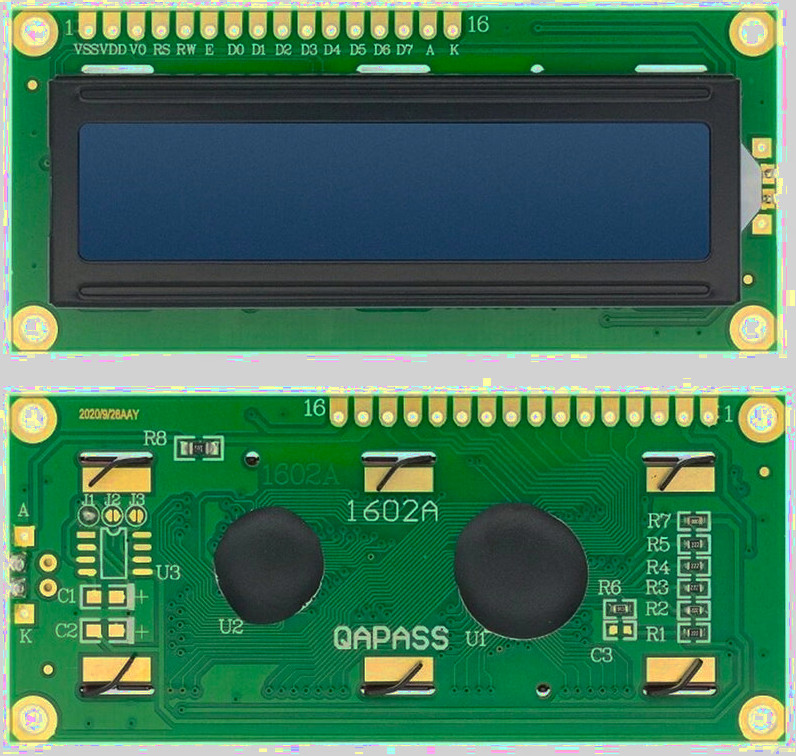
Variants
HD44780-compatible LCDs come in different physical formats. The most common ones are 16x2 displays, which have 16 columns and 2 rows, and 20x4 displays, which have 20 columns and 4 rows. They also differ in backlight color, such as blue, yellow, or green.
LCD Interfaces
HD44780-based LCDs are typically used in one of two ways. The difference is not in the display itself, but in how control signals reach the controller.
At its core, the HD44780 controller uses a parallel interface. This is the native and most direct way to communicate with the LCD. Many modules expose this interface directly through their 16-pin header.
To simplify wiring, some modules include an I2C adapter board. This adapter sits between the microcontroller and the LCD and converts I2C commands into the same parallel signals expected by the HD44780 controller.
Parallel Interface
When we use the parallel interface, we connect multiple GPIO pins from the microcontroller directly to the LCD. These pins carry control signals and data lines, along with power and contrast control.
This approach requires more wiring and uses many GPIO pins, but it closely reflects how the HD44780 controller operates internally. It is useful for understanding the timing, commands, and low-level behavior of the display.
I2C Interface
There are variants that include an I2C adapter mounted on the back, and you can also add one later if needed.
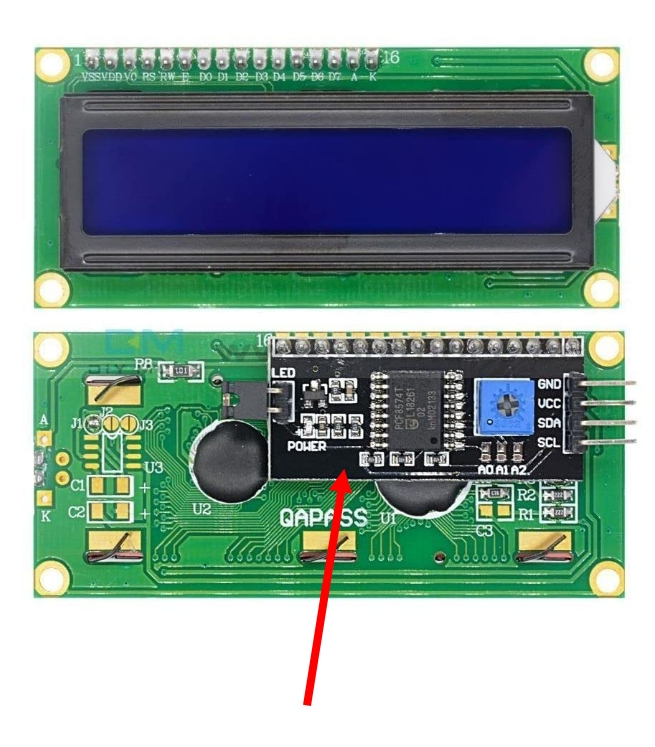
With an I2C adapter, communication happens over just two signal lines. This reduces the number of required connections and makes wiring much simpler. Most I2C adapters include an inbuilt potentiometer for contrast control. Because of this, we do not need an external potentiometer or resistors when using the I2C variant.
The I2C variant is slightly more expensive (obviously) than the parallel version, but it remains affordable and widely available.
In This Book
In this book, we will be using the I2C version. Originally, I was using the parallel interface because I did not know what to buy. However, the wiring quickly became difficult. I had to connect around 12 wires, whereas the I2C version requires only 4 wires.
There is also additional overhead when using the parallel interface, such as setting up a potentiometer or a voltage divider circuit to control the contrast. With the I2C version, this extra setup is not required.
Hardware Requirements
We will need an LCD1602 display. A 16x2 module with an I2C adapter is recommended so you can follow along without adjustments, although other sizes behave the same way.
Datasheet
- You can access the datasheet for the HD44780 from Sparkfun or MIT site
- LCD Driver Data Book
- LCD Module 1602A Datasheet
How it works?
A Liquid Crystal Display (LCD) works by using liquid crystals to control how light passes through the screen. When we apply electricity, the liquid crystals change their orientation. This change either allows light to pass through or blocks it. By controlling which areas allow light and which block it, the LCD can display characters and symbols.
The screen itself does not emit light. Instead, a backlight behind the display provides illumination. The liquid crystals selectively block this backlight to create dark areas, which form the visible characters on the screen.
16x2 LCD Display and 5x8 Pixel Matrix
A 16x2 LCD has 2 rows and 16 columns, so it can display a total of 32 characters at once. Each character on the screen is built from a 5x8 pixel matrix. That means every character is formed using 5 vertical columns and 8 horizontal rows of tiny dots.
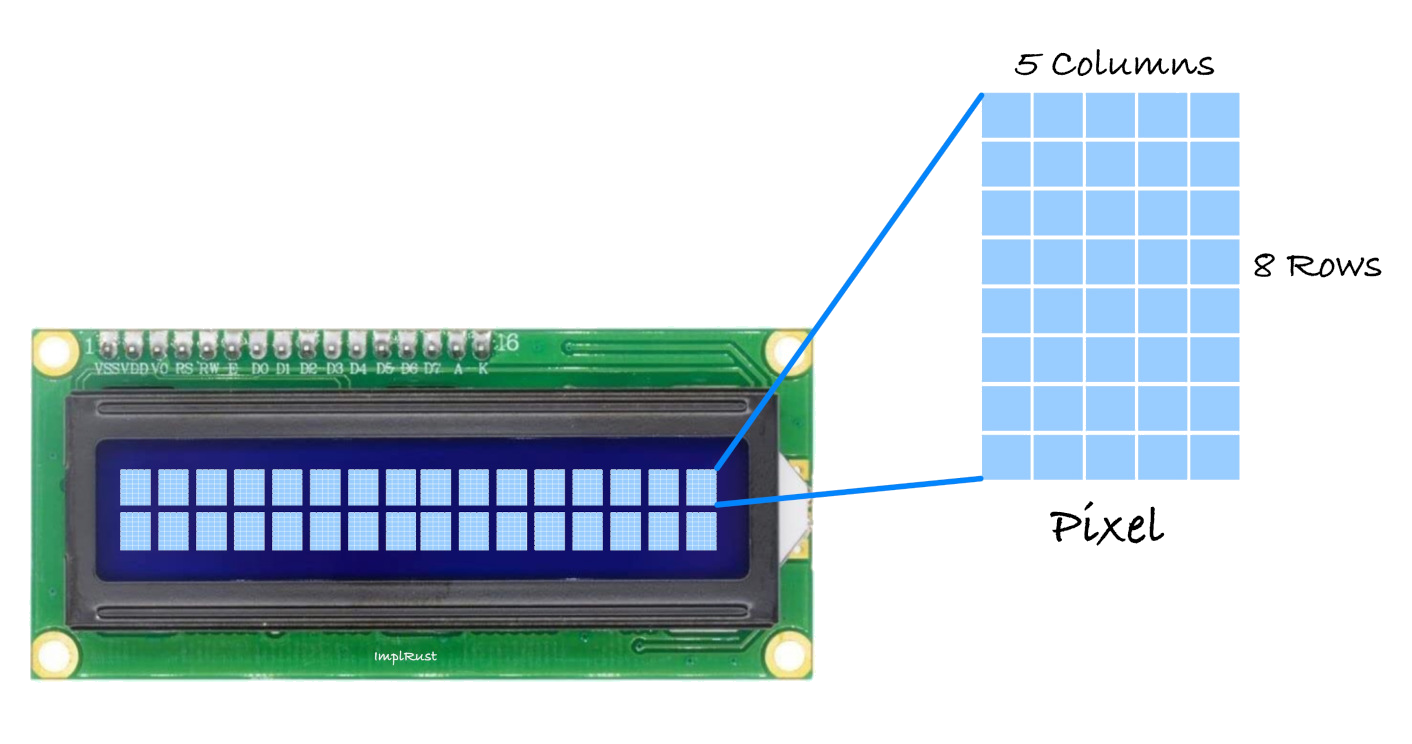
These dots turn on and off to form letters, numbers, and symbols.
Displaying Text and Custom Characters on 16x2 LCD
We do not need to draw individual pixels when displaying normal text. This is handled automatically by the HD44780 controller. When we send an ASCII character, the controller looks up the corresponding 5x8 pattern and displays it on the screen.
If we want to display custom symbols, such as icons or special characters, we can define our own 5x8 pixel patterns. These patterns are stored in the LCD memory, and once defined, we can display them like regular characters. One important limitation is that the LCD can store only 8 custom characters at a time.
Data Transfer Mode
The HD44780 controller supports two data transfer modes: 8-bit mode and 4-bit mode.
When using the parallel interface, 8-bit mode sends a full byte at once using all data pins. This is faster, but it requires many GPIO pins. In 4-bit mode, the same data is sent in two steps using only four data pins. This reduces wiring at the cost of a small performance penalty.
When using an I2C adapter, the adapter board drives the LCD using the 4-bit parallel interface internally. We do not need to configure this ourselves, because the adapter handles it automatically.
To keep wiring simple and practical, we will use 4-bit mode.
Adjust the contrast
When we power on the LCD, we should see the dot matrix on the screen. If the text is not clearly visible after running the program, the contrast needs adjustment.
When using an I2C LCD module, we can adjust the small potentiometer on the I2C adapter board to set the contrast.
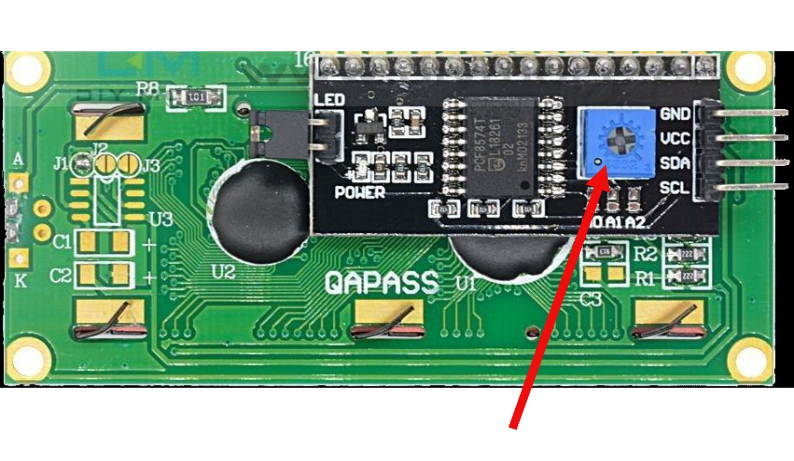
Turning this potentiometer slowly will make the characters clearer or darker until they are easy to read.
Pin Layout
Pin Layout
When using the parallel interface, the LCD exposes a total of 16 pins. These pins provide power, contrast control, control signals, data lines, and backlight connections.
In the I2C interface, these signals are simplified and exposed through fewer pins. We will first look at the I2C variant, followed by the parallel interface.
I2C Pin Layout
The I2C adapter simplifies the connection by converting I2C commands into parallel signals internally. From the microcontroller side, we only need power and the two I2C lines.

| Pin | Label | Description |
|---|---|---|
| 1 | VCC | Power supply (typically 5V) |
| 2 | GND | Ground |
| 3 | SDA | Serial Data Line for I2C communication |
| 4 | SCL | Serial Clock Line for I2C communication |
Parallel Interface Pin Layout
In the parallel interface, the microcontroller talks directly to the HD44780 controller. This gives more control but requires more wiring and careful timing.
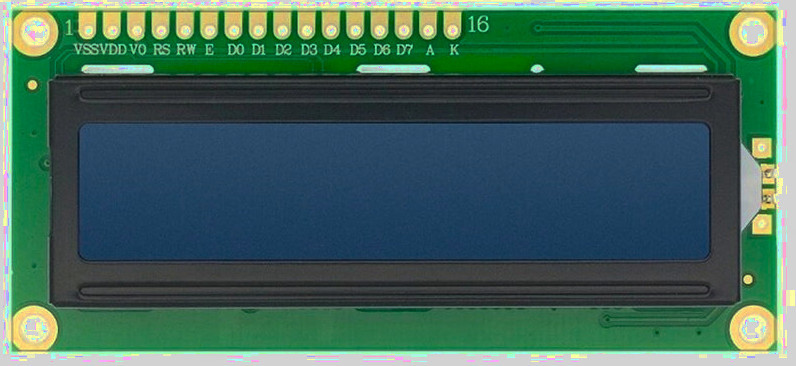
| Pin Position | LCD Pin | Details |
|---|---|---|
| 1 | VSS | Ground (GND). |
| 2 | VDD | Power supply for the LCD logic, typically 5V. |
| 3 | Vo |
Contrast control pin. - This pin expects an analog voltage between GND and VDD. - Recommended: Use a 10k potentiometer as a voltage divider, with the wiper connected to Vo and the other two pins to VDD and GND. - Alternative: Use fixed resistors as a voltage divider between VDD and GND, with the midpoint connected to Vo. |
| 4 | RS |
Register Select: - LOW (RS = 0): Instruction or command register. - HIGH (RS = 1): Data register. |
| 5 | RW |
Read or Write control: - LOW (RW = 0): Write to LCD. - HIGH (RW = 1): Read from LCD. - Commonly tied to GND for write-only operation. |
| 6 | E | Enable pin. Data or commands are latched on the HIGH to LOW transition of this pin. |
| 7–10 | D0–D3 | Lower data bits. Used only in 8-bit mode. Leave unconnected when using 4-bit mode. |
| 11–14 | D4–D7 | Higher data bits. Used for data transfer in both 4-bit and 8-bit modes. In 4-bit mode, all data is sent using only these pins. |
| 15 | A | Backlight anode. Often connected to 5V. Some modules include an onboard current-limiting resistor. |
| 16 | K | Backlight cathode. Connect to GND. |
Contrast Adjustment
The Vo pin controls the contrast of the LCD by setting the voltage difference between VDD and Vo.
Lower Vo values increase contrast, while higher values reduce it.
The recommended approach is to use a potentiometer connected between VDD and GND, with the wiper connected to Vo. This allows easy adjustment while the LCD is powered.
If a potentiometer is not available, fixed resistors can be used as a voltage divider between VDD and GND, with the midpoint connected to Vo.
Register Select Pin (RS)
The RS pin selects whether the LCD interprets incoming values as commands or as character data.
- RS = LOW: command mode
- RS = HIGH: data mode
Enable Pin (E)
The Enable pin controls when data is latched into the LCD.
To send data or a command, place the value on the data pins, set RS appropriately, then pulse E HIGH and bring it back LOW. The LCD reads the data on the HIGH to LOW transition.
Connecting LCD Display (LCD1602) to the Raspberry Pi Pico
We will connect the LCD1602 with an I2C adapter to the Raspberry Pi Pico using the default I2C pins. Only four connections are required: power, ground, SDA, and SCL.
| LCD Pin | Wire | Pico Pin | Notes |
|---|---|---|---|
| GND |
|
GND | Common ground |
| VCC |
|
VBUS | 5V power supply for the LCD |
| SCL |
|
GPIO 17 | I2C clock line (I2C0 SCL) |
| SDA |
|
GPIO 16 | I2C data line (I2C0 SDA) |

“Hello, Rust!†in LCD Display
We will create a simple program that prints “Hello, Rust!†on the LCD screen. This helps us quickly check that the wiring, I2C setup, and LCD configuration are correct before moving on to the next exercise.
HD44780 Drivers
You can find driver crates by searching for the hardware controller name HD44780. Sometimes searching by the display module name, such as lcd1602, also works.
While looking around, I came across several Rust crates that can control this LCD. Some of them even support async. You could also write your own driver by referring to the datasheet, but that is beyond the scope of this chapter.
Tip
If you want to learn how to write your own embedded Rust drivers, you can refer to the Rust Embedded Drivers (RED) book here: [https://red.implrust.com/]
For now, we will use one of the existing crates. You are free to try other crates later. Just read the crate documentation and adapt the code if needed.
In this exercise, we will use this crate: hd44780-driver (https://red.implrust.com/)
Project from template
We will start by creating a new project using the template.
cargo generate --git https://github.com/ImplFerris/pico2-template.git --tag v0.3.1
When prompted, give your project a name, like “hello-lcd†and select embassy as the HAL.
Additional Crates required
Add the following dependency to Cargo.toml along with the existing ones:
#![allow(unused)]
fn main() {
hd44780-driver = "0.4.0"
}
Additional imports
Add the imports required for I2C and the LCD driver.
#![allow(unused)]
fn main() {
// I2C
use embassy_rp::i2c::Config as I2cConfig;
use embassy_rp::i2c::{self}; // for convenience, importing as alias

// LCD Driver
use hd44780_driver::HD44780;

use embassy_time::Delay;
}
I2C Address
LCD1602 I2C adapters typically use address 0x27, though some modules use 0x3F instead depending on the adapter. Check your module’s datasheet or try both addresses if you’re unsure.
#![allow(unused)]
fn main() {
const LCD_I2C_ADDRESS: u8 = 0x27;
}
I2C Setup
We’ll configure the I2C interface using GPIO 16 for SDA and GPIO 17 for SCL, with a frequency of 100 kHz.
#![allow(unused)]
fn main() {
let sda = p.PIN_16;
let scl = p.PIN_17;

let mut i2c_config = I2cConfig::default();
i2c_config.frequency = 100_000; //100kHz

let i2c = i2c::I2c::new_blocking(p.I2C0, scl, sda, i2c_config);
}
LCD Initialization
Now let’s create the LCD driver instance with our I2C interface:
#![allow(unused)]
fn main() {
// LCD Init
let mut lcd =
HD44780::new_i2c(i2c, LCD_I2C_ADDRESS, &mut Delay).expect("failed to initialize lcd");
}Clear the Display
Before we write anything, we’ll reset and clear the screen:
#![allow(unused)]
fn main() {
// Clear the screen
lcd.reset(&mut Delay).expect("failed to reset lcd screen");
lcd.clear(&mut Delay).expect("failed to clear the screen");
}Write Text to the LCD
Finally, let’s write our message to the LCD:
#![allow(unused)]
fn main() {
// Write to the top line
lcd.write_str("Hello, Rust!", &mut Delay)
.expect("failed to write text to LCD");
}Clone the existing project
You can clone (or refer) project I created and navigate to the hello-lcd folder.
git clone https://github.com/ImplFerris/pico2-embassy-projects
cd pico2-embassy-projects/lcd/hello-lcd/
rp-hal version
You can clone (or refer) project I created and navigate to the hello-lcd folder.
git clone https://github.com/ImplFerris/pico2-rp-projects
cd pico2-rp-projects/lcd/hello-lcd/
Supported Characters
Supported Characters
When referring to the HD44780 datasheet, you’ll find two character set tables corresponding to two different ROM versions(A00 and A02). To determine which ROM your display uses, try unique characters from both tables. The one that displays correctly indicates the ROM version. Once identified, you only need to refer to the relevant table.
In my case, the LCD module I’m using is based on ROM version A00. I’ll present the A00 table and explain how to interpret it, though the interpretation logic is the same for both versions.
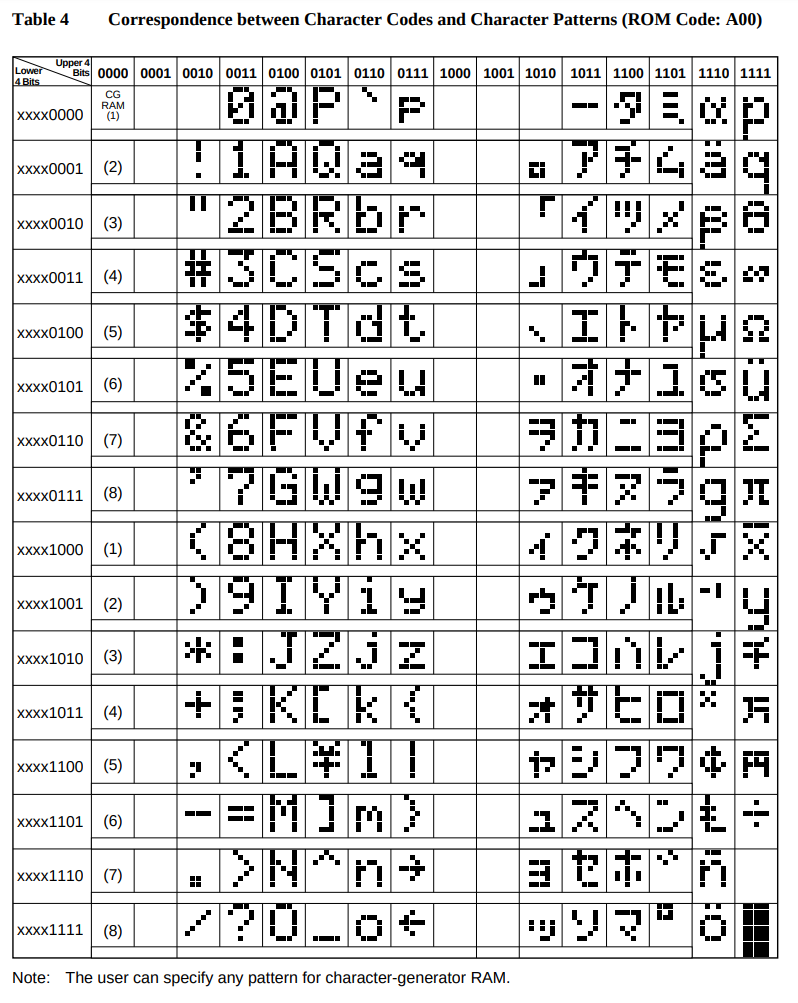
It’s an 8-bit character, where the upper 4 bits come first, followed by the lower 4 bits, to form the complete character byte. In the reference table, the upper 4 bits correspond to the columns, while the lower 4 bits correspond to the rows.
For example, to get the binary representation of the character “#,†the upper 4 bits are 0010, and the lower 4 bits are 0011. Combining them gives the full binary value 00100011. In Rust, you can represent this value either in binary (0b00100011) or as a hexadecimal (0x23).
hd44780-driver crate
In the hd44780-driver crate we are using, we can write characters directly as a single byte or a sequence of bytes.
Write single byte
#![allow(unused)]
fn main() {
lcd.write_byte(0x23, &mut timer).unwrap();
lcd.write_byte(0b00100011, &mut timer).unwrap();
}Write multiple bytes
#![allow(unused)]
fn main() {
lcd.write_bytes(&[0x23, 0x24], &mut timer).unwrap();
}Custom Glyphs
Besides the supported characters, you can create your own custom characters(glyphs), like smileys or heart symbols. The module includes 64 bytes of Character Generator RAM (CGRAM), allowing up to 8 custom glyphs.
The controller provides 64 bytes of Character Generator RAM (CGRAM). Each custom glyph occupies 8 bytes, so you can store up to 8 custom glyphs at a time.
Each glyph is an 8x8 grid, where each row is represented by a single 8-bit value (u8). This makes it 8 bytes per glyph (8 rows × 1 byte per row). That is why, with a total of 64 bytes, you can only store up to 8 custom glyphs (8 glyphs × 8 bytes = 64 bytes).
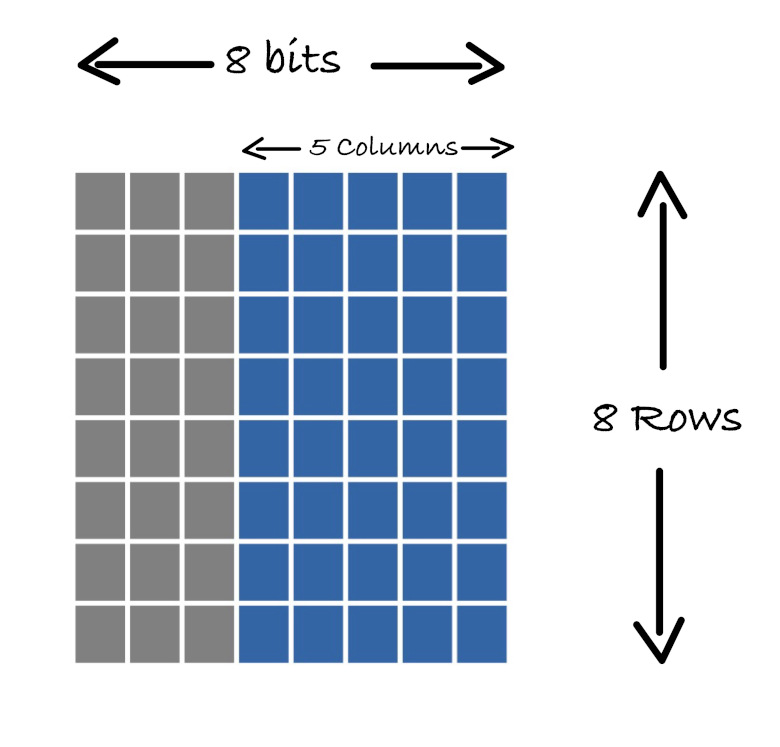
Note: If you recall, in our LCD module, each character is represented as a 5x8 grid. But wait, didn’t we say we need an 8x8 grid for the characters? Yes, that’s correct-we need 8 x 8 (8 bytes) memory, but we only use 5 bits in each row. The 3 high-order bits in each row are left as zeros.
Generator
LCD Custom Character Generator (5x8 Grid)
Select the grids to create a symbol or character. As you select the grid, the corresponding bits in the byte array will be updated.
Generated Array
Display on LCD
Ferris on LCD Display
In this section, we will draw Ferris on a character LCD. This is my attempt at making it look like a crab. If you come up with a better design, feel free to send a pull request.
Although a single custom character is limited to one 5x8 cell, we are not restricted to just one cell. By combining 4 or even 6 adjacent grids, we can display a larger symbol. How far you take this is entirely up to your creativity.
We will use the custom glyph generator from the previous page to design Ferris. The generator produces the byte array that we can directly use in our code.
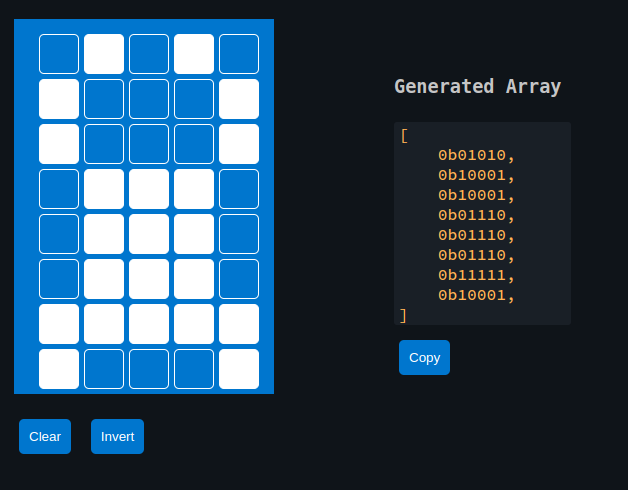
liquid_crystal crate
The hd44780-driver crate that we used earlier does not support defining custom glyphs. To work with custom glyphs stored in CGRAM, we will use the liquid_crystal crate.
This crate supports custom glyphs and also provides an async API, which we will use in this chapter.
Update Cargo.toml
Enable the async feature when adding the dependency:
liquid_crystal = { version = "0.2.0", features = ["async"] }
Additional imports
Add these imports at the top of your main.rs:
#![allow(unused)]
fn main() {
// Interrupt Binding
use embassy_rp::peripherals::I2C0;
use embassy_rp::{bind_interrupts, i2c};
// I2C
use embassy_rp::i2c::{Config as I2cConfig, I2c};
// LCD Driver
use liquid_crystal::I2C;
use liquid_crystal::LiquidCrystal;
use liquid_crystal::prelude::*;
}Bind I2C Interrupt
Bind the I2C0_IRQ interrupt to the Embassy I2C interrupt handler for I2C0:
#![allow(unused)]
fn main() {
bind_interrupts!(struct Irqs {
I2C0_IRQ => i2c::InterruptHandler<I2C0>;
});
}Initialize I2C
First, set up the I2C bus to communicate with the display:
#![allow(unused)]
fn main() {
let sda = p.PIN_16;
let scl = p.PIN_17;
let mut i2c_config = I2cConfig::default();
i2c_config.frequency = 100_000; // 100kHz
let i2c_bus = I2c::new_async(p.I2C0, scl, sda, Irqs, i2c_config);
}Initialize the LCD interface
Once the I2C interface is set up, we initialize the LCD.
#![allow(unused)]
fn main() {
let mut lcd = LiquidCrystal::new(&mut i2c_interface, Bus4Bits, LCD16X2);
lcd.begin(&mut Delay);
}Generated byte array for the custom glyph
#![allow(unused)]
fn main() {
const FERRIS: [u8; 8] = [
0b01010, 0b10001, 0b10001, 0b01110, 0b01110, 0b01110, 0b11111, 0b10001,
];
// Define the character
lcd.custom_char(&mut timer, &FERRIS, 0);
}Displaying
Displaying the character is straightforward. You just need to use the CustomChar enum and pass the index of the custom character. We’ve defined only one custom character, which is at position 0.
#![allow(unused)]
fn main() {
lcd.write(&mut timer, CustomChar(0));
lcd.write(&mut timer, Text(" implRust!"));
}Clone the existing project
You can clone (or refer) project I created and navigate to the custom-glyph folder.
git clone https://github.com/ImplFerris/pico2-embassy-projects
cd pico2-embassy-projects/lcd/custom-glyph/
rp-hal version
You can clone (or refer) project I created and navigate to the custom-glyph folder.
git clone https://github.com/ImplFerris/pico2-rp-projects
cd pico2-projects/lcd/custom-glyph/
The Full code
#![no_std]
#![no_main]
use embassy_executor::Spawner;
use embassy_rp as hal;
use embassy_rp::block::ImageDef;
use embassy_time::Timer;
//Panic Handler
use panic_probe as _;
// Defmt Logging
use defmt_rtt as _;
// Interrupt Binding
use embassy_rp::peripherals::I2C0;
use embassy_rp::{bind_interrupts, i2c};
// I2C
use embassy_rp::i2c::{Config as I2cConfig, I2c};
// LCD Driver
use liquid_crystal::I2C;
use liquid_crystal::LiquidCrystal;
use liquid_crystal::prelude::*;
use embassy_time::Delay;
/// Tell the Boot ROM about our application
#[unsafe(link_section = ".start_block")]
#[used]
pub static IMAGE_DEF: ImageDef = hal::block::ImageDef::secure_exe();
bind_interrupts!(struct Irqs {
I2C0_IRQ => i2c::InterruptHandler<I2C0>;
});
// const LCD_I2C_ADDRESS: u8 = 0x27;
#[embassy_executor::main]
async fn main(_spawner: Spawner) {
let p = embassy_rp::init(Default::default());
let sda = p.PIN_16;
let scl = p.PIN_17;
let mut i2c_config = I2cConfig::default();
i2c_config.frequency = 100_000; //100kHz
let i2c_bus = I2c::new_async(p.I2C0, scl, sda, Irqs, i2c_config);
// LCD Init
let mut i2c_interface = I2C::new(i2c_bus, 0x27);
let mut lcd = LiquidCrystal::new(&mut i2c_interface, Bus4Bits, LCD16X2);
lcd.begin(&mut Delay);
const FERRIS: [u8; 8] = [
0b01010, 0b10001, 0b10001, 0b01110, 0b01110, 0b01110, 0b11111, 0b10001,
];
// Define the character
lcd.custom_char(&mut Delay, &FERRIS, 0);
lcd.write(&mut Delay, CustomChar(0));
// normal text
lcd.write(&mut Delay, Text(" implRust!"));
loop {
Timer::after_millis(100).await;
}
}
// Program metadata for `picotool info`.
// This isn't needed, but it's recomended to have these minimal entries.
#[unsafe(link_section = ".bi_entries")]
#[used]
pub static PICOTOOL_ENTRIES: [embassy_rp::binary_info::EntryAddr; 4] = [
embassy_rp::binary_info::rp_program_name!(c"custom-chars"),
embassy_rp::binary_info::rp_program_description!(c"your program description"),
embassy_rp::binary_info::rp_cargo_version!(),
embassy_rp::binary_info::rp_program_build_attribute!(),
];
// End of fileMulti Generator
Multi-Cell Custom Glyph Generator
This is used when you want to combine multiple grids to create a symbol. You can utilize adjacent grids on the 16x2 LCD display to design a custom symbol or character. You can view the example symbol created with this generator and how to use in Rust in the next page.
Generated Array
Multi Custom
Multi-Cell Custom Glyph
In this section, we create Ferris using six adjacent grids with the generator from the previous page. Below is the Rust code that uses the generated byte arrays to render the glyph on the LCD.

We will focus only on the glyph composition here. Project setup and LCD initialization remain the same as before and are not repeated in this section.
Generated Byte array for the characters
#![allow(unused)]
fn main() {
const SYMBOL1: [u8; 8] = [
0b00110, 0b01000, 0b01110, 0b01000, 0b00100, 0b00011, 0b00100, 0b01000,
];
const SYMBOL2: [u8; 8] = [
0b00000, 0b00000, 0b00000, 0b10001, 0b10001, 0b11111, 0b00000, 0b00000,
];
const SYMBOL3: [u8; 8] = [
0b01100, 0b00010, 0b01110, 0b00010, 0b00100, 0b11000, 0b00100, 0b00010,
];
const SYMBOL4: [u8; 8] = [
0b01000, 0b01000, 0b00100, 0b00011, 0b00001, 0b00010, 0b00101, 0b01000,
];
const SYMBOL5: [u8; 8] = [
0b00000, 0b00000, 0b00000, 0b11111, 0b01010, 0b10001, 0b00000, 0b00000,
];
const SYMBOL6: [u8; 8] = [
0b00010, 0b00010, 0b00100, 0b11000, 0b10000, 0b01000, 0b10100, 0b00010,
];
}Declare them as character
Each glyph is stored in a separate CGRAM slot. We use slots 0 through 5 for this example.
#![allow(unused)]
fn main() {
lcd.custom_char(&mut timer, &SYMBOL1, 0);
lcd.custom_char(&mut timer, &SYMBOL2, 1);
lcd.custom_char(&mut timer, &SYMBOL3, 2);
lcd.custom_char(&mut timer, &SYMBOL4, 3);
lcd.custom_char(&mut timer, &SYMBOL5, 4);
lcd.custom_char(&mut timer, &SYMBOL6, 5);
}Display
We write the first three glyphs on the first row, followed by the remaining three glyphs on the second row, aligning them to form a single composite symbol.
#![allow(unused)]
fn main() {
lcd.set_cursor(&mut timer, 0, 4)
.write(&mut timer, CustomChar(0))
.write(&mut timer, CustomChar(1))
.write(&mut timer, CustomChar(2));
lcd.set_cursor(&mut timer, 1, 4)
.write(&mut timer, CustomChar(3))
.write(&mut timer, CustomChar(4))
.write(&mut timer, CustomChar(5));
}Clone the existing project
You can clone (or refer) project I created and navigate to the mutli-glyph folder.
git clone https://github.com/ImplFerris/pico2-embassy-projects
cd pico2-embassy-projects/lcd/mutli-glyph/
rp-hal version
A version using rp-hal is also available:
git clone https://github.com/ImplFerris/pico2-rp-projects
cd pico2-projects/lcd/mutli-glyph/
Symbols Index
Here is a list of custom symbols with their corresponding byte arrays. If you’ve designed an interesting symbol and want to add to this list, feel free to submit a pull request. Please use the custom character generator provided here to ensure consistency.
| Title | Preview | Byte Array |
|---|---|---|
| Heart |  |
[ 0b00000, 0b01010, 0b11111, 0b11111, 0b01110, 0b00100, 0b00000, 0b00000,] |
| Lock |  |
[ 0b01110, 0b10001, 0b10001, 0b11111, 0b11011, 0b11011, 0b11011, 0b11111, ] |
| Hollow Heart |  |
[ 0b00000, 0b01010, 0b10101, 0b10001, 0b10001, 0b01010, 0b00100, 0b00000, ] |
| Battery |  |
[ 0b01110, 0b11011, 0b10001, 0b10001, 0b10001, 0b11111, 0b11111, 0b11111, ] |
| Bus |  |
[ 0b01110, 0b11111, 0b10001, 0b10001, 0b11111, 0b10101, 0b11111, 0b01010, ] |
| Bell |  |
[ 0b00100, 0b01110, 0b01110, 0b01110, 0b11111, 0b00000, 0b00100, 0b00000, ] |
| Hour Glass |  |
[ 0b00000, 0b11111, 0b10001, 0b01010, 0b00100, 0b01010, 0b10101, 0b11111, ] |
| Charger |  |
[ 0b01010, 0b01010, 0b11111, 0b10001, 0b10001, 0b01110, 0b00100, 0b00100, ] |
| Tick Mark |  |
[ 0b00000, 0b00000, 0b00001, 0b00011, 0b10110, 0b11100, 0b01000, 0b00000, ] |
| Music Note |  |
[ 0b00011, 0b00010, 0b00010, 0b00010, 0b00010, 0b01110, 0b11110, 0b01110, ] |
LDR
LDR (Light Dependent Resistor)
In this section, we will use an LDR (Light Dependent Resistor) with the Raspberry Pi Pico 2. An LDR changes its resistance based on the amount of light falling on it. The brighter the light, the lower the resistance, and the dimmer the light, the higher the resistance. This makes it ideal for applications like light sensing, automatic lighting, or monitoring ambient light levels.
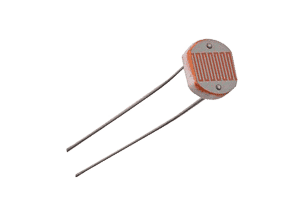
Components Needed:
- LDR (Light Dependent Resistor)
- Resistor (typically 10kΩ); needed to create voltage divider
- Jumper wires (as usual)
Prerequisite
To work with this, you should get familiar with what a voltage divider is and how it works. You also need to understand what ADC is and how it functions.
What is LDR
How LDR works?
We have already given an introduction to what an LDR is. Let me repeat it again: an LDR changes its resistance based on the amount of light falling on it. The brighter the light, the lower the resistance, and the dimmer the light, the higher the resistance.
Dracula: Think of the LDR as Dracula. In sunlight, he gets weaker (just like the resistance gets lower). But in the dark, he gets stronger (just like the resistance gets higher).
We will not cover what kind of semiconductor materials are used to make an LDR, nor why it behaves this way in depth. I recommend you read this article and do further research if you are interested.
Simulation of LDR in Voltage Divider
I have created a voltage divider circuit with an LDR(a resistor symbol with arrows, kind of indicating light shining on it) in Falstad . You can import the circuit file I created, voltage-divider-ldr.circuitjs.txt, import into the Falstad site and play around.
You can adjust the brightness value and observe how the resistance of R2 (which is the LDR) changes. Also, you can watch how the \( V_{out} \) voltage changes as you increase or decrease the brightness.
Example output for full brightness
The resistance of the LDR is low when exposed to full brightness, causing the output voltage(\( V_{out} \)) to be significantly lower.
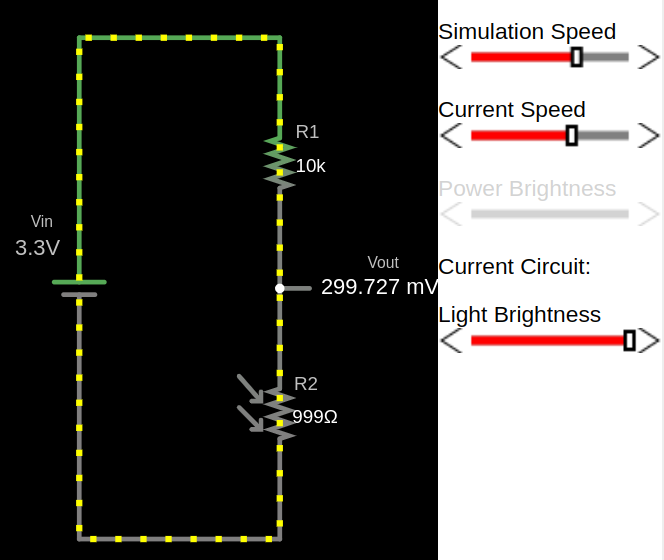
Example output for low light
With less light, the resistance of the LDR increases and the output voltage increase.
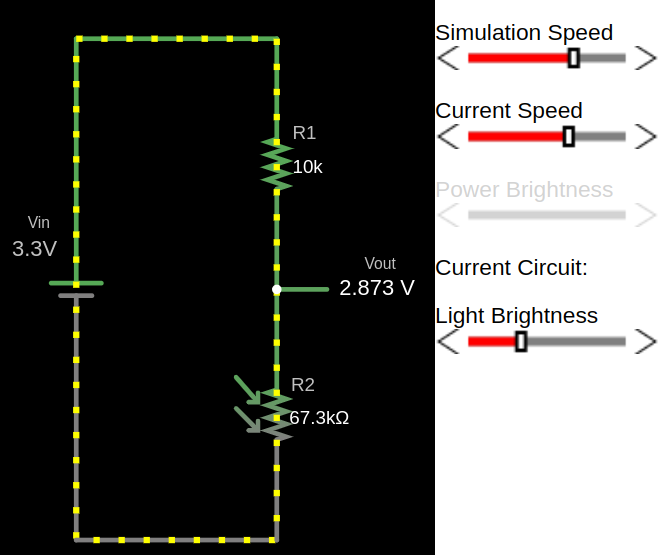
Example output for full darkness
In darkness, the LDR’s resistance is high, resulting in a higher output voltage (\( V_{out} \)).
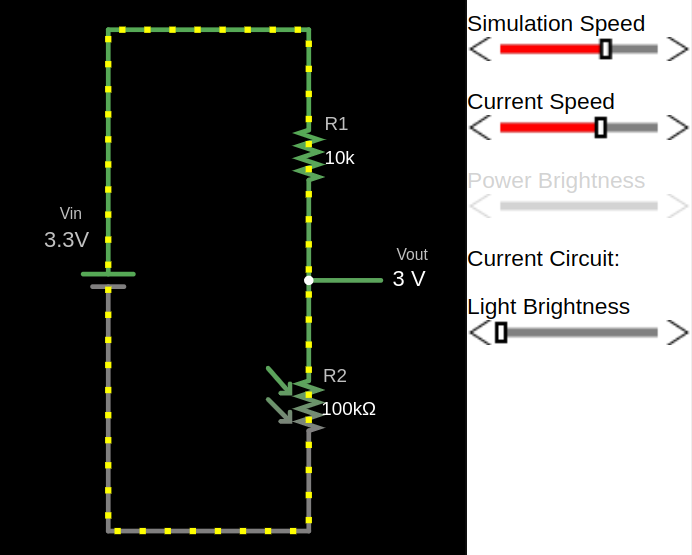
LDR and LED
Turn on LED(or Lamp) in low Light with Pico
In this exercise, we’ll control an LED based on ambient light levels. The goal is to automatically turn on the LED in low light conditions.
You can try this in a closed room by turning the room light on and off. When you turn off the room-light, the LED should turn on, given that the room is dark enough, and turn off again when the room-light is switched back on. Alternatively, you can adjust the sensitivity threshold or cover the light sensor (LDR) with your hand or some object to simulate different light levels.
Note: You may need to adjust the ADC threshold based on your room’s lighting conditions and the specific LDR you are using.
Setup
Hardware Requirements
- LED – Any standard LED (choose your preferred color).
- LDR (Light Dependent Resistor) – Used to detect light intensity.
- Resistors
- 330Ω – For the LED to limit current and prevent damage. (You might have to choose based on your LED)
- 10kΩ – For the LDR, forming a voltage divider in the circuit. (You might have to choose based on your LDR)
- Jumper Wires – For connecting components on a breadboard or microcontroller.
Circuit to connect LED, LDR with Pico
- One side of the LDR is connected to AGND (Analog Ground).
- The other side of the LDR is connected to GPIO26 (ADC0), which is the analog input pin of the pico2
- A resistor is connected in series with the LDR to create a voltage divider between the LDR and ADC_VREF (the reference voltage for the ADC).
- From the datasheet: “ADC_VREF is the ADC power supply (and reference) voltage, and is generated on Pico 2 by filtering the 3.3V supply. This pin can be used with an external reference if better ADC performance is requiredâ€

Action
We’ll use the Embassy HAL for this exercise.
Project from template
To set up the project, run:
cargo generate --git https://github.com/ImplFerris/pico2-template.git --tag v0.1.0
When prompted, give your project a name, like “dracula-ldr†and select embassy as the HAL.
Then, navigate into the project folder:
cd PROJECT_NAME
# For example, if you named your project "dracula-ldr":
# cd dracula-ldr
Interrupt Handler
Let’s set up interrupt handling for the ADC.
#![allow(unused)]
fn main() {
use embassy_rp::adc::InterruptHandler;
bind_interrupts!(struct Irqs {
ADC_IRQ_FIFO => InterruptHandler;
});
}In simple terms, when the ADC completes a conversion and the result is ready, it triggers an interrupt. This tells the pico that the new data is available, so it can process the ADC value. The interrupt ensures that the pico doesn’t need to constantly check the ADC, allowing it to respond only when new data is ready.
Read more about RP2350 interreupts in the datasheet (82th page).
Initialize the Embassy HAL
#![allow(unused)]
fn main() {
let p = embassy_rp::init(Default::default());
}Initialize the ADC
#![allow(unused)]
fn main() {
let mut adc = Adc::new(p.ADC, Irqs, Config::default());
}Configuring the ADC Pin and LED
We set up the ADC input pin (PIN_26) for reading an analog signal. Then we set up an output pin (PIN_15) to control an LED. The LED starts in the low state (Level::Low), meaning it will be off initially.
#![allow(unused)]
fn main() {
let mut p26 = Channel::new_pin(p.PIN_26, Pull::None);
let mut led = Output::new(p.PIN_15, Level::Low);
}Main loop
The logic is straightforward: read the ADC value, and if it’s greater than 3800, turn on the LED; otherwise, turn it off.
#![allow(unused)]
fn main() {
loop {
let level = adc.read(&mut p26).await.unwrap();
if level > 3800 {
led.set_high();
} else {
led.set_low();
}
Timer::after_secs(1).await;
}
}The full code
#![no_std]
#![no_main]
use embassy_executor::Spawner;
use embassy_rp::adc::{Adc, Channel, Config, InterruptHandler};
use embassy_rp::bind_interrupts;
use embassy_rp::block::ImageDef;
use embassy_rp::gpio::{Level, Output, Pull};
use embassy_time::Timer;
use {defmt_rtt as _, panic_probe as _};
#[link_section = ".start_block"]
#[used]
pub static IMAGE_DEF: ImageDef = ImageDef::secure_exe();
bind_interrupts!(struct Irqs {
ADC_IRQ_FIFO => InterruptHandler;
});
#[embassy_executor::main]
async fn main(_spawner: Spawner) {
let p = embassy_rp::init(Default::default());
let mut adc = Adc::new(p.ADC, Irqs, Config::default());
let mut p26 = Channel::new_pin(p.PIN_26, Pull::None);
let mut led = Output::new(p.PIN_15, Level::Low);
loop {
let level = adc.read(&mut p26).await.unwrap();
if level > 3800 {
led.set_high();
} else {
led.set_low();
}
Timer::after_secs(1).await;
}
}Clone the existing project
You can clone (or refer) project I created and navigate to the dracula-ldr folder.
git clone https://github.com/ImplFerris/pico2-embassy-projects
cd pico2-embassy-projects/dracula-ldr/
ADC (Analog to Digital Converter)
An Analog-to-Digital Converter (ADC) is a device used to convert analog signals (continuous signals like sound, light, or temperature) into digital signals (discrete values, typically represented as 1s and 0s). This conversion is necessary for digital systems like microcontrollers (e.g., Raspberry Pi, Arduino) to interact with the real world. For example, sensors that measure temperature or sound produce analog signals, which need to be converted into digital format for processing by digital devices.
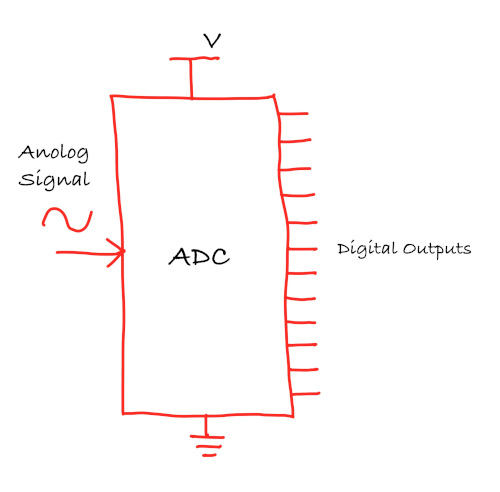
ADC Resolution
The resolution of an ADC refers to how precisely the ADC can measure an analog signal. It is expressed in bits, and the higher the resolution, the more precise the measurements.
- 8-bit ADC produces digital values between 0 and 255.
- 10-bit ADC produces digital values between 0 and 1023.
- 12-bit ADC produces digital values between 0 and 4095.
The resolution of the ADC can be expressed as the following formula: \[ \text{Resolution} = \frac{\text{Vref}}{2^{\text{bits}} - 1} \]
Pico
Based on the Pico datasheet, Raspberry Pi Pico has 12-bit 500ksps Analogue to Digital Converter (ADC). So, it provides values ranging from 0 to 4095 (4096 possible values)
\[ \text{Resolution} = \frac{3.3V}{2^{12} - 1} = \frac{3.3V}{4095} \approx 0.000805 \text{V} \approx 0.8 \text{mV} \]
Pins
The Raspberry Pi Pico has four accessible ADC channels on the following GPIOs:
| GPIO Pin | ADC Channel | Function |
|---|---|---|
| GPIO26 | ADC0 | Can be used to read voltage from peripherals. |
| GPIO27 | ADC1 | Can be used to read voltage from peripherals. |
| GPIO28 | ADC2 | Can be used to read voltage from peripherals. |
| GPIO29 | ADC3 | Measures the VSYS supply voltage on the board. |
In pico, ADC operates with a reference voltage set by the supply voltage, which can be measured on pin 35 (ADC_VREF).
ADC Value and LDR Resistance in a Voltage Divider
In a voltage divider with an LDR (Light-Dependent Resistor, core component of a light/brightness sensor) and a fixed resistor, the output voltage \( V_{\text{out}} \) is given by:
\[ V_{\text{out}} = V_{\text{in}} \times \frac{R_{\text{LDR}}}{R_{\text{LDR}} + R_{\text{fixed}}} \]
It is same formula as explained in the previous chapter, just replaced the \({R_2}\) with \({R_{\text{LDR}}}\) and \({R_1}\) with \({R_{\text{fixed}}}\)
- Bright light (low LDR resistance): \( V_{\text{out}} \) decreases, resulting in a lower ADC value.
- Dim light (high LDR resistance): \( V_{\text{out}} \) increases, leading to a higher ADC value.
Example ADC value calculation:
Bright light:
Let’s say the Resistence value of LDR is \(1k\Omega\) in the bright light (and we have \(10k\Omega\) fixed resistor).
\[ V_{\text{out}} = 3.3V \times \frac{1k\Omega}{1k\Omega + 10k\Omega} \approx 0.3V \]
The ADC value is calculated as: \[ \text{ADC value} = \left( \frac{V_{\text{out}}}{V_{\text{ref}}} \right) \times (2^{12} - 1) \approx \left( \frac{0.3}{3.3} \right) \times 4095 \approx 372 \]
Darkness:
Let’s say the Resistence value of LDR is \(140k\Omega \) in very low light.
\[ V_{\text{out}} = 3.3V \times \frac{140k\Omega}{140k\Omega + 10k\Omega} \approx 3.08V \]
The ADC value is calculated as: \[ \text{ADC value} = \left( \frac{V_{\text{out}}}{V_{\text{ref}}} \right) \times (2^{12} - 1) \approx \left( \frac{3.08}{3.3} \right) \times 4095 = 3822 \]
Converting ADC value back to voltage:
Now, if we want to convert the ADC value back to the input voltage, we can multiply the ADC value by the resolution (0.8mV).
For example, let’s take an ADC value of 3822:
\[ \text{Voltage} = 3822 \times 0.8mV = 3057.6mV \approx 3.06V \]
Reference
Thermistor
In this section, we’ll be using a thermistor with the Raspberry Pi Pico. A thermistor is a variable resistor that changes its resistance based on the temperature. The amount of change in resistance depends on its composition. The term comes from combining “thermal†and “resistor.â€.
Thermistors are categorized into two types:
-
NTC (Negative Temperature Coefficient):
- Resistance decreases as temperature increases.
- They are primarily used for temperature sensing and inrush current limiting.
- We’ll be using the NTC thermistor to measure temperature in our exercise.
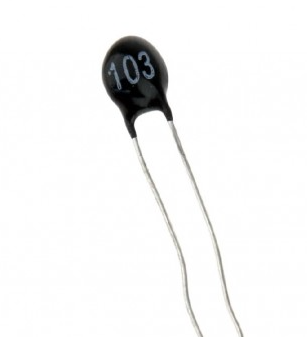
-
PTC (Positive Temperature Coefficient):
- Resistance increases as temperature rises.
- They primarily protect against overcurrent and overtemperature conditions as resettable fuses and are commonly used in air conditioners, medical devices, battery chargers, and welding equipment.
Reference
NTC and Voltage Divider
NTC and Voltage Divider
I have created a circuit on the Falstad website, and you can download the voltage-divider-thermistor.circuitjs.txt ile to import and experiment with. This setup is similar to what we covered in the voltage divider chapter of the LDR section. If you haven’t gone through that section, I highly recommend completing the theory there before continuing.
This circuit includes a 10kΩ thermistor with a resistance of 10kΩ at 25°C. The input voltage \( V_{in} \) is set to 3.3V.
Themistor at 25°C
The thermistor has a resistance of 10kΩ at 25°C, resulting in an output voltage (\( V_{out} \)) of 1.65V.
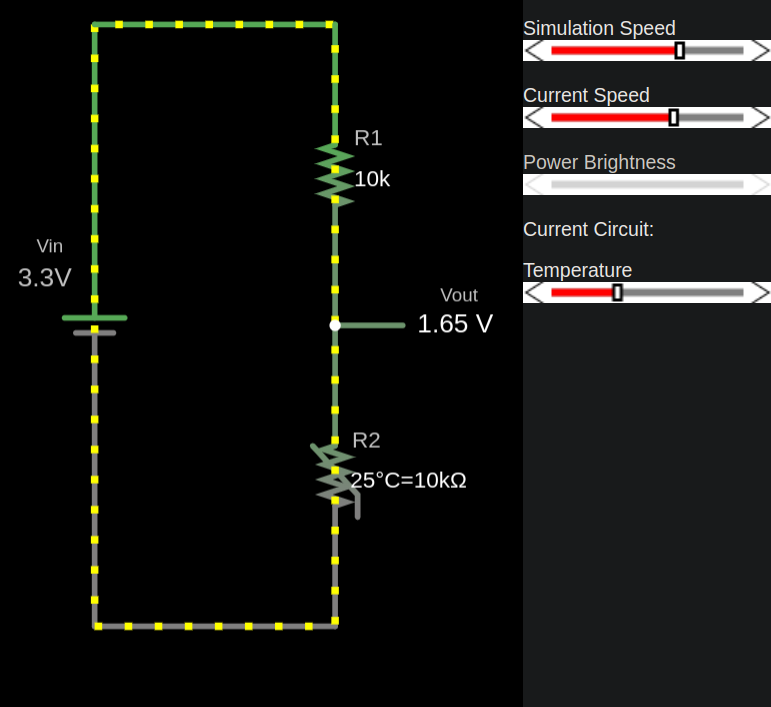
Thermistor at 38°C
The thermistor’s resistance decreases due to its negative temperature coefficient, altering the voltage divider’s output.
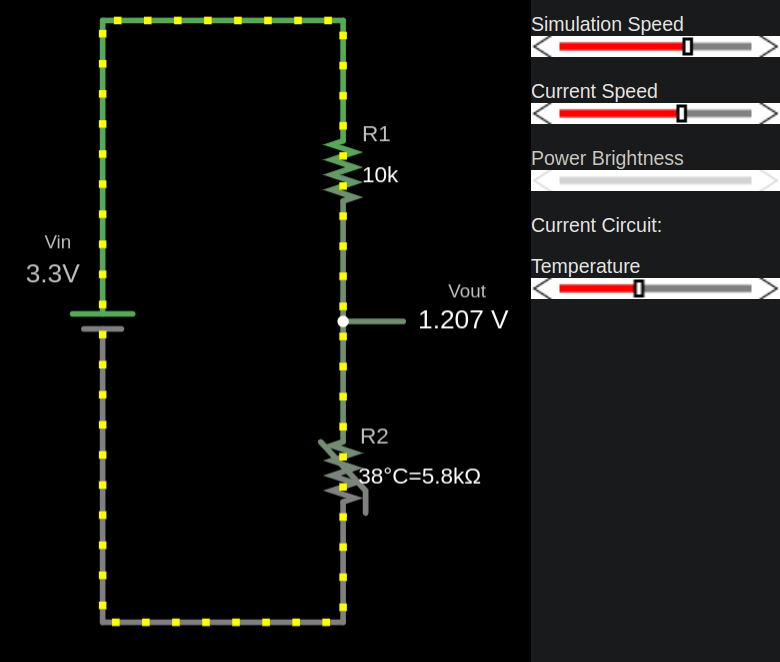
Thermistor at 10°C
The thermistor’s resistance increases, resulting in a higher output voltage (\( V_{out} \)).
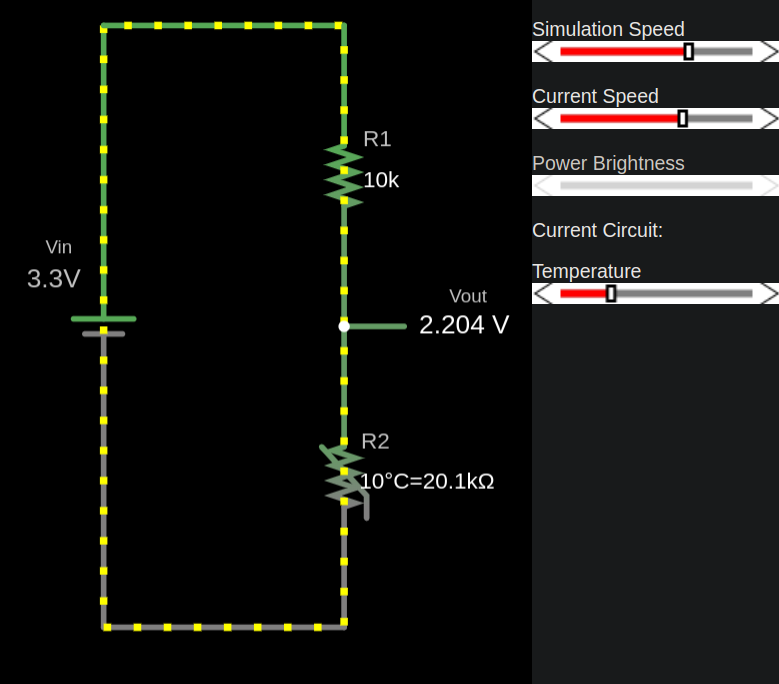
ADC
ADC
When setting up the thermistor with the Pico, we don’t get the voltage directly. Instead, we receive an ADC value (refer to the ADC explanation in the LDR section). In the LDR exercise, we didn’t calculate the resistance corresponding to the ADC value since we only needed to check whether the ADC value increased. However, in this exercise, to determine the temperature, we must convert the ADC value into resistence.
ADC to Resistance
We need resistance value from the adc value for the thermistor temperature calculation(that will be discussed in the next chapters).
We will use this formula to calculate the resistance value from the ADC reading. If you need how it is derived, refer the Deriving Resistance from ADC Value.
\[ R_2 = \frac{R_1}{\left( \frac{\text{ADC_MAX}}{\text{adc_value}} - 1 \right)} \]
Note: If you connected the thermistor to power supply instead of GND. You will need opposite. since thermistor becomes R1.
\[ R_1 = {R_2} \times \left(\frac{\text{ADC_MAX}}{\text{adc_value}} - 1\right) \]
Where:
- R2: The resistance based on the ADC value.
- R1: Reference resistor value (typically 10kΩ)
- ADC_MAX: The maximum ADC value is 4095 (\( 2^{12}\) -1 ) for a 12-bit ADC
- adc_value: ADC reading (a value between 0 and ADC_MAX).
Rust Function
const ADC_MAX: u16 = 4095;
const REF_RES: f64 = 10_000.0;
fn adc_to_resistance(adc_value: u16, ref_res:f64) -> f64 {
let x: f64 = (ADC_MAX as f64/adc_value as f64) - 1.0;
// ref_res * x // If you connected thermistor to power supply
ref_res / x
}
fn main() {
let adc_value = 2000; // Our example ADC value;
let r2 = adc_to_resistance(adc_value, REF_RES);
println!("Calculated Resistance (R2): {} Ω", r2);
}Maths
Derivations
You can skip this section if you’d like. It simply explains the math behind deriving the resistance from the ADC value.
ADC to Voltage
The formula to convert an ADC value to voltage is:
\[ V_{\text{out}} = {{V_{in}}} \times \frac{\text{adc_value}}{\text{adc_max}} \]
Where:
- adc_value: The value read from the ADC.
- v_in: The reference input voltage (3.3V for the Pico).
- adc_max: The maximum ADC value is 4095 (\( 2^{12}\) -1 ) for a 12-bit ADC.
Deriving Resistance from ADC Value
We combine the voltage divider formula with ADC Resolution formula to find the Resistance(R2).
Note: It is assumed here that one side of the thermistor is connected to Ground (GND). I noticed that some online articles do the opposite, connecting one side of the thermistor to the power supply instead, which initially caused me some confusion.
Votlage Divider Formula \[ V_{out} = V_{in} \times \frac{R_2}{R_1 + R_2} \]
Step 1:
We can substitue the Vout and make derive it like this
\[ {V_{in}} \times \frac{\text{adc_value}}{\text{adc_max}} = V_{in} \times \frac{R_2}{R_1 + R_2} \]
\[ \require{cancel} \cancel{V_{in}} \times \frac{\text{adc_value}}{\text{adc_max}} = \cancel {V_{in}} \times \frac{R_2}{R_1 + R_2} \]
Step 2:
Lets temperoarily assign the adc_value/adc_max to x for ease of derivation and finally subsitue
\[ x = \frac{\text{adc_value}}{\text{adc_max}} \]
Substituting x into the equation:
\[ x = \frac{R_2}{R_1 + R_2} \]
Rearrange to Solve \( R_2 \)
\[ R_2 = x \times (R_1 + R_2) \]
Expand the right-hand side:
\[ R_2 = x \times R_1 + x \times R_2 \]
Rearrange to isolate \( R_2 \) terms:
\[ R_2 - x \times R_2 = R_1 \times x \]
\[ R_2 \times (1 - x) = R_1 \times x \]
\[ R_2 = R_1 \times \frac{{x}}{{1-x}} \]
\[ R_2 = R_1 \times \frac{1}{\left( \frac{1}{x} - 1 \right)} \]
Step 3
Let’s subsitute the x value back. We need 1/x, lets convert it. \[ \frac{1}{x} = \frac{\text{adc_max}}{\text{adc_value}} \]
Final Formula
\[ R_2 = R_1 \times \frac{1}{\left( \frac{\text{adc_max}}{\text{adc_value}} - 1 \right)} \]
Non-Linear
Non-Linear
Thermistors have a non-linear relationship between resistance and temperature, meaning that as the temperature changes, the resistance doesn’t change in a straight-line pattern. The behavior of thermistors can be described using the Steinhart-Hart equation or the B equation.

The B equation is simple to calculate using the B value, which you can easily find online. On the other hand, the Steinhart equation uses A, B, and C coefficients. Some manufacturers provide these coefficients, but you’ll still need to calibrate and find them yourself since the whole reason for using the Steinhart equation is to get accurate temperature readings.
In the next chapters, we will see in detail how to use B equation and Steinhart-Hart equation to determine the temperature.
Referemce
- The B parameter vs. Steinhart-Hart equation
- Characterising Thermistors – A Quick Primer, Beta Value & Steinhart-Hart Coefficients
B Equation
B Equation
The B equation is simpler but less precise. \[ \frac{1}{T} = \frac{1}{T_0} + \frac{1}{B} \ln \left( \frac{R}{R_0} \right) \]
Where:
- T is the temperature in Kelvin.
- \( T_0 \) is the reference temperature (usually 298.15K or 25°C), where the thermistor’s resistance is known (typically 10kΩ).
- R is the resistance at temperature T.
- \( R_0 \) is the resistance at the reference temperature \( T_0 \) (often 10kΩ).
- B is the B-value of the thermistor.
The B value is a constant usually provided by the manufacturers, changes based on the material of a thermistor. It describes the gradient of the resistive curve over a specific temperature range between two points(i.e \( T_0 \) vs \( R_0 \) and T vs R). You can even rewrite the above formula to get B value yourself by calibrating the resistance at two temperatures.
Example Calculation:
Given:
- Reference temperature \( T_0 = 298.15K \) (i.e., 25°C + 273.15 to convert to Kelvin)
- Reference resistance \( R_0 = 10k\Omega \)
- B-value B = 3950 (typical for many thermistors)
- Measured resistance at temperature T: 10475Ω
Step 1: Apply the B-parameter equation
Substitute the given values:
\[ \frac{1}{T} = \frac{1}{298.15} + \frac{1}{3950} \ln \left( \frac{10,475}{10,000} \right) \]
\[ \frac{1}{T} = 0.003354016 + \frac{1}{3950} \ln(1.0475) \]
\[ \frac{1}{T} = 0.003354016 + (0.000011748) \]
\[ \frac{1}{T} = 0.003365764 \]
Step 2: Calculate the temperature (T)
\[ T = \frac{1}{0.003365764} = 297.10936358 (Kelvin) \]
Convert to Celsius:
\[ T_{Celsius} = 297.10936358 - 273.15 \approx 23.95936358°C \]
Result:
The temperature corresponding to a resistance of 10475Ω is approximately 23.96°C.
Rust function
fn calculate_temperature(current_res: f64, ref_res: f64, ref_temp: f64, b_val: f64) -> f64 {
let ln_value = (current_res/ref_res).ln();
// let ln_value = libm::log(current_res / ref_res); // use this crate for no_std
let inv_t = (1.0 / ref_temp) + ((1.0 / b_val) * ln_value);
1.0 / inv_t
}
fn kelvin_to_celsius(kelvin: f64) -> f64 {
kelvin - 273.15
}
fn celsius_to_kelvin(celsius: f64) -> f64 {
celsius + 273.15
}
const B_VALUE: f64 = 3950.0;
const V_IN: f64 = 3.3; // Input voltage
const REF_RES: f64 = 10_000.0; // Reference resistance in ohms (10kΩ)
const REF_TEMP: f64 = 25.0; // Reference temperature 25°C
fn main() {
let t0 = celsius_to_kelvin(REF_TEMP);
let r = 9546.0; // Measured resistance in ohms
let temperature_kelvin = calculate_temperature(r, REF_RES, t0, B_VALUE);
let temperature_celsius = kelvin_to_celsius(temperature_kelvin);
println!("Temperature: {:.2} °C", temperature_celsius);
}
Steinhart Equation
Steinhart Hart equation
The Steinhart-Hart equation provides a more accurate temperature-resistance relationship over a wide temperature range. \[ \frac{1}{T} = A + B \ln R + C (\ln R)^3 \]
Where:
- T is the temperature in Kelvins. (Formula to calculate kelvin from degree Celsius, K = °C + 273.15)
- R is the resistance at temperature T in Ohms.
- A, B, and C are constants specific to the thermistor’s material, often provided by the manufacturer. For better accuracy, you may need to calibrate and determine these values yourself. Some datasheets provide resistance values at various temperatures, which can also be used to calculate this.
Calibration
To determine the accurate values for A, B, and C, place the thermistor in three temperature conditions: room temperature, ice water, and boiling water. For each condition, measure the thermistor’s resistance using the ADC value and use a reliable thermometer to record the actual temperature. Using the resistance values and corresponding temperatures, calculate the coefficients:
- Assign A to the ice water temperature,
- B to the room temperature, and
- C to the boiling water temperature.
Calculating Steinhart-Hart Coefficients
With three resistance and temperature data points, we can find the A, B and C.
$$ \begin{bmatrix} 1 & \ln R_1 & \ln^3 R_1 \\ 1 & \ln R_2 & \ln^3 R_2 \\ 1 & \ln R_3 & \ln^3 R_3 \end{bmatrix}\begin{bmatrix} A \\ B \\ C \end{bmatrix} = \begin{bmatrix} \frac{1}{T_1} \\ \frac{1}{T_2} \\ \frac{1}{T_3} \end{bmatrix} $$
Where:
- \( R_1, R_2, R_3 \) are the resistance values at temperatures \( T_1, T_2, T_3 \).
Let’s calculate the coefficients
Compute the natural logarithms of resistances: $$ L_1 = \ln R_1, \quad L_2 = \ln R_2, \quad L_3 = \ln R_3 $$
Intermediate calculations: $$ Y_1 = \frac{1}{T_1}, \quad Y_2 = \frac{1}{T_2}, \quad Y_3 = \frac{1}{T_3} $$
$$ \gamma_2 = \frac{Y_2 - Y_1}{L_2 - L_1}, \quad \gamma_3 = \frac{Y_3 - Y_1}{L_3 - L_1} $$
So, finally: $$ C = \left( \frac{ \gamma_3 - \gamma_2 }{ L_3 - L_2} \right) \left(L_1 + L_2 + L_3\right)^{-1} \ $$ $$ B = \gamma_2 - C \left(L_1^2 + L_1 L_2 + L_2^2\right) \ $$ $$ A = Y_1 - \left(B + L_1^2 C\right) L_1 $$
Good news, Everyone! You don’t need to calculate the coefficients manually. Simply provide the resistance and temperature values for cold, room, and hot environments, and use the form below to determine A, B and C
ADC value and Resistance Calculation
Note: if you already have the temperature and corresponding resistance, you can directly use the second table to input those values.
If you have the ADC value and want to calculate the resistance, use this table to find the corresponding resistance at different temperatures. As you enter the ADC value for each temperature, the calculated resistance will be automatically updated in the second table.
To perform this calculation, you’ll need the base resistance of the thermistor, which is essential for determining the resistance at a given temperature based on the ADC value.
Please note that the ADC bits may need to be adjusted if you’re using a different microcontroller. In our case, for the the Raspberry Pi Pico, the ADC resolution is 12 bits.
Coefficients Finder
Adjust the temperature by entering a value in either Fahrenheit or Celsius; the form will automatically convert it to the other format. Provide the resistance corresponding to each temperature, and then click the “Calculate Coefficients†button.
Calculate Temperature from Resistance
Now, with these coefficients, you can calculate the temperature for any given resistance:
Rust function
fn steinhart_temp_calc(
resistance: f64, // Resistance in Ohms
a: f64, // Coefficient A
b: f64, // Coefficient B
c: f64, // Coefficient C
) -> Result<(f64, f64), String> {
if resistance <= 0.0 {
return Err("Resistance must be a positive number.".to_string());
}
// Calculate temperature in Kelvin using Steinhart-Hart equation:
// 1/T = A + B*ln(R) + C*(ln(R))^3
let ln_r = resistance.ln();
let inverse_temperature = a + b * ln_r + c * ln_r.powi(3);
if inverse_temperature == 0.0 {
return Err("Invalid coefficients or resistance leading to division by zero.".to_string());
}
let temperature_kelvin = 1.0 / inverse_temperature;
let temperature_celsius = temperature_kelvin - 273.15;
let temperature_fahrenheit = (temperature_celsius * 9.0 / 5.0) + 32.0;
Ok((temperature_celsius, temperature_fahrenheit))
}
fn main() {
// Example inputs
let a = 2.10850817e-3;
let b = 7.97920473e-5;
let c = 6.53507631e-7;
let resistance = 10000.0;
match steinhart_temp_calc(resistance, a, b, c) {
Ok((celsius, fahrenheit)) => {
println!("Temperature in Celsius: {:.2}", celsius);
println!("Temperature in Fahrenheit: {:.2}", fahrenheit);
}
Err(e) => println!("Error: {}", e),
}
}Referemce
- Thermistor Calculator
- Thermistor Steinhart-Hart Coefficients for Calculating Motor Temperature
- Calibrate Steinhart-Hart Coefficients for Thermistors
- Cooking Thermometer With Steinhart-Hart Correction
Temperature on OLED
In this section, we will measure the temperature in your room and display it on the OLED screen.
Hardware Requirments
- An OLED display: (0.96 Inch I2C/IIC 4-Pin, 128x64 resolution, SSD1306 chip)
- Jumper wires
- NTC 103 Thermistor: 10K OHM, 5mm epoxy coated disc
- 10kΩ Resistor: Used with the thermistor to form a voltage divider
Circuit to connect OLED, Thermistor with Raspberry Pi Pico

- One side of the Thermistor is connected to AGND (Analog Ground).
- The other side of the Thermistor is connected to GPIO26 (ADC0), which is the analog input pin of the pico2
- A resistor is connected in series with the Thermistor to create a voltage divider between the Thermistor and ADC_VREF (the reference voltage for the ADC).
Note:Here, one side of the thermistor is connected to ground, as shown. If you’ve connected it to the power supply instead, you’ll need to use the alternate formula mentioned earlier.
The Flow
- We read the ADC value
- Get resisance value from ADC value
- Calculate temperature using B parameter equation
- Display the ADC, Resistance, Temperature(in Celsius) in the OLED
Action
We’ll use the Embassy HAL for this exercise.
Project from template
To set up the project, run:
cargo generate --git https://github.com/ImplFerris/pico2-template.git --tag v0.1.0
When prompted, give your project a name, like “thermistor†and select embassy as the HAL.
Then, navigate into the project folder:
cd PROJECT_NAME
# For example, if you named your project "thermistor":
# cd thermistor
Additional Crates required
Update your Cargo.toml to add these additional crate along with the existing dependencies.
#![allow(unused)]
fn main() {
ssd1306 = "0.9.0"
heapless = "0.8.0"
libm = "0.2.11"
}ssd1306: Driver for controlling SSD1306 OLED display.heapless: In ano_stdenvironment, Rust’s standardStringtype (which requires heap allocation) is unavailable. This provides stack-allocated, fixed-size data structures. We will be using to store dynamic text, such as ADC, resistance, and temperature values, for display on the OLED screenlibm: Provides essential mathematical functions for embedded environments. We need this to calculate natural logarithm.
Additional imports
#![allow(unused)]
fn main() {
use heapless::String;
use ssd1306::mode::DisplayConfig;
use ssd1306::prelude::DisplayRotation;
use ssd1306::size::DisplaySize128x64;
use ssd1306::{I2CDisplayInterface, Ssd1306};
use embassy_rp::adc::{Adc, Channel};
use embassy_rp::peripherals::I2C1;
use embassy_rp::{adc, bind_interrupts, i2c};
use embassy_rp::gpio::Pull;
use core::fmt::Write;
}Interrupt Handler
We have set up only the ADC interrupt handler for the LDR exercises so far. For this exercise, we also need to set up an interrupt handler for I2C to enable communication with the OLED display.
#![allow(unused)]
fn main() {
bind_interrupts!(struct Irqs {
ADC_IRQ_FIFO => adc::InterruptHandler;
I2C1_IRQ => i2c::InterruptHandler<I2C1>;
});
}ADC related functions
We can hardcode 4095 for the Pico, but here’s a simple function to calculate ADC_MAX based on ADC bits:
#![allow(unused)]
fn main() {
const fn calculate_adc_max(adc_bits: u8) -> u16 {
(1 << adc_bits) - 1
}
const ADC_BITS: u8 = 12; // 12-bit ADC in Pico
const ADC_MAX: u16 = calculate_adc_max(ADC_BITS); // 4095 for 12-bit ADC
}Thermistor specific values
The thermistor I’m using has a 10kΩ resistance at 25°C and a B value of 3950.
#![allow(unused)]
fn main() {
const B_VALUE: f64 = 3950.0;
const REF_RES: f64 = 10_000.0; // Reference resistance in ohms (10kΩ)
const REF_TEMP: f64 = 25.0; // Reference temperature 25°C
}Helper functions
#![allow(unused)]
fn main() {
// We have already covered about this formula in ADC chpater
fn adc_to_resistance(adc_value: u16, ref_res: f64) -> f64 {
let x: f64 = (ADC_MAX as f64 / adc_value as f64) - 1.0;
// ref_res * x // If you connected thermistor to power supply
ref_res / x
}
// B Equation to convert resistance to temperature
fn calculate_temperature(current_res: f64, ref_res: f64, ref_temp: f64, b_val: f64) -> f64 {
let ln_value = libm::log(current_res / ref_res); // Use libm for `no_std`
let inv_t = (1.0 / ref_temp) + ((1.0 / b_val) * ln_value);
1.0 / inv_t
}
fn kelvin_to_celsius(kelvin: f64) -> f64 {
kelvin - 273.15
}
fn celsius_to_kelvin(celsius: f64) -> f64 {
celsius + 273.15
}
}Base setups
First, we set up the Embassy HAL, configure the ADC on GPIO 26, and prepare the I2C interface for communication with the OLED display
#![allow(unused)]
fn main() {
let p = embassy_rp::init(Default::default());
// ADC to read the Vout value
let mut adc = Adc::new(p.ADC, Irqs, adc::Config::default());
let mut p26 = Channel::new_pin(p.PIN_26, Pull::None);
// Setting up I2C send text to OLED display
let sda = p.PIN_18;
let scl = p.PIN_19;
let i2c = i2c::I2c::new_async(p.I2C1, scl, sda, Irqs, i2c::Config::default());
let interface = I2CDisplayInterface::new(i2c);
}Setting Up an SSD1306 OLED Display in Terminal Mode
Next, create a display instance, specifying the display size and orientation. And enable terminal mode.
#![allow(unused)]
fn main() {
let mut display =
Ssd1306::new(interface, DisplaySize128x64, DisplayRotation::Rotate0).into_terminal_mode();
display.init().unwrap();
}Heapless String
This is a heapless string set up with a capacity of 64 characters. The string is allocated on the stack, allowing it to hold up to 64 characters. We use this variable to display the temperature, ADC, and resistance values on the screen.
#![allow(unused)]
fn main() {
let mut buff: String<64> = String::new();
}Convert the Reference Temperature to Kelvin
We defined the reference temperature as 25°C for the thermistor. However, for the equation, we need the temperature in Kelvin. To handle this, we use a helper function to perform the conversion. Alternatively, you could directly hardcode the Kelvin value (298.15 K, which is 273.15 + 25°C) to skip using the function.
#![allow(unused)]
fn main() {
let ref_temp = celsius_to_kelvin(REF_TEMP);
}Loop
In a loop that runs every 1 second(adjust as you require), we read the ADC value, calculate the resistance from ADC, then derive the temperature from resistance, and display the results on the OLED.
Read ADC
We read the ADC value; we also put into the buffer.
#![allow(unused)]
fn main() {
let adc_value = adc.read(&mut p26).await.unwrap();
writeln!(buff, "ADC: {}", adc_value).unwrap();
}ADC To Resistance
We convert the ADC To resistance; we put this also into the buffer.
#![allow(unused)]
fn main() {
let current_res = adc_to_resistance(adc_value, REF_RES);
writeln!(buff, "R: {:.2}", current_res).unwrap();
}Calculate Temperature from Resistance
We use the measured resistance to calculate the temperature in Kelvin using the B-parameter equation.Afterward, we convert the temperature from Kelvin to Celsius.
#![allow(unused)]
fn main() {
let temperature_kelvin = calculate_temperature(current_res, REF_RES, ref_temp, B_VALUE);
let temperature_celsius = kelvin_to_celsius(temperature_kelvin);
}Write the Buffer to Display
#![allow(unused)]
fn main() {
writeln!(buff, "Temp: {:.2} °C", temperature_celsius).unwrap();
display.write_str(&buff).unwrap();
Timer::after_secs(1).await;
}Clear the Buffer and Screen
#![allow(unused)]
fn main() {
buff.clear();
display.clear().unwrap();
}Final code
#![no_std]
#![no_main]
use embassy_executor::Spawner;
use embassy_rp as hal;
use embassy_rp::block::ImageDef;
use embassy_rp::gpio::Pull;
use embassy_time::Timer;
use heapless::String;
use ssd1306::mode::DisplayConfig;
use ssd1306::prelude::DisplayRotation;
use ssd1306::size::DisplaySize128x64;
use ssd1306::{I2CDisplayInterface, Ssd1306};
use {defmt_rtt as _, panic_probe as _};
use embassy_rp::adc::{Adc, Channel};
use embassy_rp::peripherals::I2C1;
use embassy_rp::{adc, bind_interrupts, i2c};
use core::fmt::Write;
/// Tell the Boot ROM about our application
#[link_section = ".start_block"]
#[used]
pub static IMAGE_DEF: ImageDef = hal::block::ImageDef::secure_exe();
bind_interrupts!(struct Irqs {
ADC_IRQ_FIFO => adc::InterruptHandler;
I2C1_IRQ => i2c::InterruptHandler<I2C1>;
});
const fn calculate_adc_max(adc_bits: u8) -> u16 {
(1 << adc_bits) - 1
}
const ADC_BITS: u8 = 12; // 12-bit ADC in Pico
const ADC_MAX: u16 = calculate_adc_max(ADC_BITS); // 4095 for 12-bit ADC
const B_VALUE: f64 = 3950.0;
const REF_RES: f64 = 10_000.0; // Reference resistance in ohms (10kΩ)
const REF_TEMP: f64 = 25.0; // Reference temperature 25°C
// We have already covered about this formula in ADC chpater
fn adc_to_resistance(adc_value: u16, ref_res: f64) -> f64 {
let x: f64 = (ADC_MAX as f64 / adc_value as f64) - 1.0;
// ref_res * x // If you connected thermistor to power supply
ref_res / x
}
// B Equation to convert resistance to temperature
fn calculate_temperature(current_res: f64, ref_res: f64, ref_temp: f64, b_val: f64) -> f64 {
let ln_value = libm::log(current_res / ref_res); // Use libm for `no_std`
let inv_t = (1.0 / ref_temp) + ((1.0 / b_val) * ln_value);
1.0 / inv_t
}
fn kelvin_to_celsius(kelvin: f64) -> f64 {
kelvin - 273.15
}
fn celsius_to_kelvin(celsius: f64) -> f64 {
celsius + 273.15
}
#[embassy_executor::main]
async fn main(_spawner: Spawner) {
let p = embassy_rp::init(Default::default());
// ADC to read the Vout value
let mut adc = Adc::new(p.ADC, Irqs, adc::Config::default());
let mut p26 = Channel::new_pin(p.PIN_26, Pull::None);
// Setting up I2C send text to OLED display
let sda = p.PIN_18;
let scl = p.PIN_19;
let i2c = i2c::I2c::new_async(p.I2C1, scl, sda, Irqs, i2c::Config::default());
let interface = I2CDisplayInterface::new(i2c);
let mut display =
Ssd1306::new(interface, DisplaySize128x64, DisplayRotation::Rotate0).into_terminal_mode();
display.init().unwrap();
let mut buff: String<64> = String::new();
let ref_temp = celsius_to_kelvin(REF_TEMP);
loop {
buff.clear();
display.clear().unwrap();
let adc_value = adc.read(&mut p26).await.unwrap();
writeln!(buff, "ADC: {}", adc_value).unwrap();
let current_res = adc_to_resistance(adc_value, REF_RES);
writeln!(buff, "R: {:.2}", current_res).unwrap();
let temperature_kelvin = calculate_temperature(current_res, REF_RES, ref_temp, B_VALUE);
let temperature_celsius = kelvin_to_celsius(temperature_kelvin);
writeln!(buff, "Temp: {:.2} °C", temperature_celsius).unwrap();
display.write_str(&buff).unwrap();
Timer::after_secs(1).await;
}
}
// Program metadata for `picotool info`.
// This isn't needed, but it's recomended to have these minimal entries.
#[link_section = ".bi_entries"]
#[used]
pub static PICOTOOL_ENTRIES: [embassy_rp::binary_info::EntryAddr; 4] = [
embassy_rp::binary_info::rp_program_name!(c"Blinky Example"),
embassy_rp::binary_info::rp_program_description!(
c"This example tests the RP Pico on board LED, connected to gpio 25"
),
embassy_rp::binary_info::rp_cargo_version!(),
embassy_rp::binary_info::rp_program_build_attribute!(),
];
// End of fileClone the existing project
You can clone (or refer) project I created and navigate to the thermistor folder.
git clone https://github.com/ImplFerris/pico2-embassy-projects
cd pico2-embassy-projects/thermistor/
USB Serial Communication
In this section, we’ll explore how to establish communication between our device (Pico) and a computer(Linux). We’ll demonstrate how to send a simple string from the device(Pico) to the computer, as well as how to send input from the computer to the device.
CDC ACM
The Communication Device Class (CDC) is a standard USB device class defined by the USB Implementers Forum (USB-IF). The Abstract Control Model (ACM) in CDC allows a device to act like a traditional serial port (like old COM ports). It’s commonly used for applications that previously relied on serial COM or UART communication.
Tools for Linux
When you flash the code in this exercise, the device will appear as /dev/ttyACM0 in your computer. To interact with the USB serial port on Linux, you can use tools like minicom, tio (or cat ) to read and send data to and from the device
- minicom: Minicom is a text-based serial port communications program. It is used to talk to external RS-232 devices such as mobile phones, routers, and serial console ports.
- tio: tio is a serial device tool which features a straightforward command-line and configuration file interface to easily connect to serial TTY devices for basic I/O operations.
Rust Crates
We will be using the example taken from the RP-HAL repository. It use two crates: usb-device, an USB stack for embedded devices in Rust, and usbd-serial, which implements the USB CDC-ACM serial port class. The SerialPort class in usbd-serial implements a stream-like buffered serial port and can be used in a similar way to UART.
References
- CDC: Communication Device Class (ACM)
- USB Device CDC ACM Class
- What is the difference between /dev/ttyUSB and /dev/ttyACM?
- Defined Class Codes
Pico to PC
The example provided in the RP-HAL repository sends a simple “Hello, World!†message from the Pico to the computer once the timer ticks reach 2,000,000. To ensure the message is only sent once, we add a check that sends it only on the first occurrence. Also, it polls for any incoming data to the device (Pico). If data is received, it converts it to uppercase and send it back(This is just show communication is working, not just echoing).
We’ll slightly modify the code to make it more fun. Instead of sending “Hello, World!â€, we’ll send “Hello, Rust!†to the computer. Wait, I know that’s not the fun part. Here it comes: if you type ‘r’ in the terminal connected via USB serial, the onboard LED will turn on. Type anything else, and the LED will turn off.
Project from template
To set up the project, run:
cargo generate --git https://github.com/ImplFerris/pico2-template.git --tag v0.1.0
When prompted, give your project a name, like “usb-fun†and select RP-HAL as the HAL.
Then, navigate into the project folder:
cd PROJECT_NAME
# For example, if you named your project "usb-fun":
# cd usb-fun
Additional Crates required
Update your Cargo.toml to add these additional crate along with the existing dependencies.
#![allow(unused)]
fn main() {
usbd-serial = "0.2.2"
usb-device = "0.3.2"
}Additional imports
#![allow(unused)]
fn main() {
// USB Device support
use usb_device::{class_prelude::*, prelude::*};
// USB Communications Class Device support
use usbd_serial::SerialPort;
}Set up the USB driver
#![allow(unused)]
fn main() {
let usb_bus = UsbBusAllocator::new(hal::usb::UsbBus::new(
pac.USB,
pac.USB_DPRAM,
clocks.usb_clock,
true,
&mut pac.RESETS,
));
}Set up the USB Communications Class Device driver
#![allow(unused)]
fn main() {
let mut serial = SerialPort::new(&usb_bus);
}Create a USB device with a fake VID and PID
#![allow(unused)]
fn main() {
let mut usb_dev = UsbDeviceBuilder::new(&usb_bus, UsbVidPid(0x16c0, 0x27dd))
.strings(&[StringDescriptors::default()
.manufacturer("implRust")
.product("Ferris")
.serial_number("TEST")])
.unwrap()
.device_class(2) // 2 for the CDC, from: https://www.usb.org/defined-class-codes
.build();
}Sending Message to PC
This part sends “Hello, Rust!†to the PC when the timer count exceeds 2,000,000 by writing the text to the serial port. We ensure the message is sent only once.
#![allow(unused)]
fn main() {
if !said_hello && timer.get_counter().ticks() >= 2_000_000 {
said_hello = true;
// Writes bytes from `data` into the port and returns the number of bytes written.
let _ = serial.write(b"Hello, Rust!\r\n");
}
}Polling for data
Here is the fun part. When you type characters on your computer, they are sent to the Pico via USB serial. On the Pico, we check if the received character matches the letter ‘r’. If it matches, the onboard LED turns on. For any other character, the LED turns off.
#![allow(unused)]
fn main() {
if usb_dev.poll(&mut [&mut serial]) {
let mut buf = [0u8; 64];
if let Ok(count) = serial.read(&mut buf) {
for &byte in &buf[..count] {
if byte == b'r' {
led.set_high().unwrap();
} else {
led.set_low().unwrap();
}
}
}
}
}The Full code
#![no_std]
#![no_main]
use embedded_hal::digital::OutputPin;
use hal::block::ImageDef;
use panic_halt as _;
use rp235x_hal as hal;
use usb_device::{class_prelude::*, prelude::*};
use usbd_serial::SerialPort;
#[link_section = ".start_block"]
#[used]
pub static IMAGE_DEF: ImageDef = hal::block::ImageDef::secure_exe();
const XTAL_FREQ_HZ: u32 = 12_000_000u32;
#[hal::entry]
fn main() -> ! {
let mut pac = hal::pac::Peripherals::take().unwrap();
let mut watchdog = hal::Watchdog::new(pac.WATCHDOG);
let clocks = hal::clocks::init_clocks_and_plls(
XTAL_FREQ_HZ,
pac.XOSC,
pac.CLOCKS,
pac.PLL_SYS,
pac.PLL_USB,
&mut pac.RESETS,
&mut watchdog,
)
.ok()
.unwrap();
let timer = hal::Timer::new_timer0(pac.TIMER0, &mut pac.RESETS, &clocks);
let sio = hal::Sio::new(pac.SIO);
let pins = hal::gpio::Pins::new(
pac.IO_BANK0,
pac.PADS_BANK0,
sio.gpio_bank0,
&mut pac.RESETS,
);
let mut led = pins.gpio25.into_push_pull_output();
let usb_bus = UsbBusAllocator::new(hal::usb::UsbBus::new(
pac.USB,
pac.USB_DPRAM,
clocks.usb_clock,
true,
&mut pac.RESETS,
));
let mut serial = SerialPort::new(&usb_bus);
let mut usb_dev = UsbDeviceBuilder::new(&usb_bus, UsbVidPid(0x16c0, 0x27dd))
.strings(&[StringDescriptors::default()
.manufacturer("implRust")
.product("Ferris")
.serial_number("TEST")])
.unwrap()
.device_class(2) // 2 for the CDC, from: https://www.usb.org/defined-class-codes
.build();
let mut said_hello = false;
loop {
// Send data to the PC
if !said_hello && timer.get_counter().ticks() >= 2_000_000 {
said_hello = true;
// Writes bytes from `data` into the port and returns the number of bytes written.
let _ = serial.write(b"Hello, Rust!\r\n");
}
// Read data from PC
if usb_dev.poll(&mut [&mut serial]) {
let mut buf = [0u8; 64];
if let Ok(count) = serial.read(&mut buf) {
for &byte in &buf[..count] {
if byte == b'r' {
led.set_high().unwrap();
} else {
led.set_low().unwrap();
}
}
}
}
}
}
#[link_section = ".bi_entries"]
#[used]
pub static PICOTOOL_ENTRIES: [hal::binary_info::EntryAddr; 5] = [
hal::binary_info::rp_cargo_bin_name!(),
hal::binary_info::rp_cargo_version!(),
hal::binary_info::rp_program_description!(c"USB Fun"),
hal::binary_info::rp_cargo_homepage_url!(),
hal::binary_info::rp_program_build_attribute!(),
];
Clone the existing project
You can clone (or refer) project I created and navigate to the usb-fun folder.
git clone https://github.com/ImplFerris/pico2-rp-projects
cd pico2-projects/usb-fun/
How to Run ?
The method to flash (run the code) on the Pico is the same as usual. However, we need to set up tio to interact with the Pico through the serial port (/dev/ttyACM0). This allows us to read data from the Pico or send data to it.
tio
Make sure you have tio installed on your system. If not, you can install it using:
apt install tio
Connecting to the Serial Port
Run the following command to connect to the Pico’s serial port:
tio /dev/ttyACM0
This will open a terminal session for communicating with the Pico.
Flashing and Running the Code
Open another terminal, navigate to the project folder, and flash the code onto the Pico as usual:
cargo run
If everything is set up correctly, you should see a “Connected†message in the tio terminal, followed by the “Hello, Rust!†message sent from the Pico.
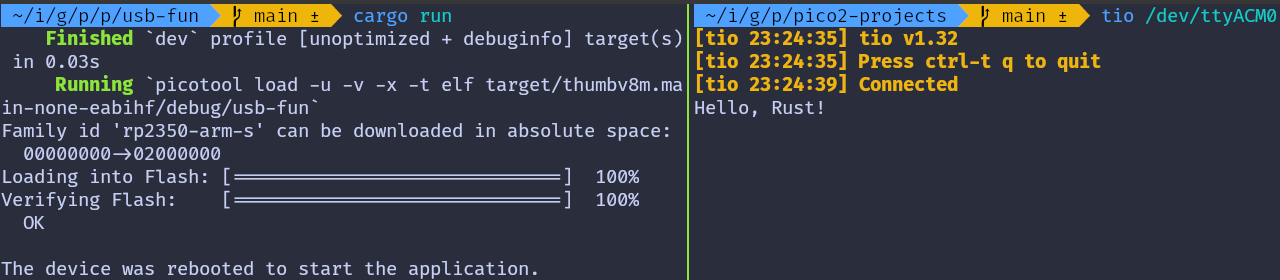
Send data to Pico
In the terminal where tio is running, you type that will be sent to the Pico. You won’t see what you type (since we’re not echoing back the input).
If you press the letter ‘r’, the onboard LED will be turned on. If you press any other character, the LED will be turned off.
Embassy version
You can also refer to this project, which demonstrates using USB Serial with the Embassy framework.
git clone https://github.com/ImplFerris/pico2-embassy-projects
cd pico2-embassy-projects/usb-serial/
RFID
In this section, we will use the RFID Card Reader (RC522) module to read data from RFID tags and key fob tags.
What is RFID?
You’ve probably used them without even realizing it; on your apartment key, at the office, in parking lots, or with a contactless credit card. If you’ve got a toll pass in your car or used a hotel keycard, then yep, you’ve already seen them in action.
RFID (Radio Frequency Identification) is a technology that uses radio waves to identify and track objects, animals. It wirelessly transmits the stored data from a tag (containing a chip and antenna) to a reader when in range.
Categories By Range
RFID systems can be categorized by their operating frequency. The three main types are:
-
Low Frequency (LF): Operates at ~125 kHz with a short range (up to 10cm). It’s slower and commonly used in access control and livestock tracking.
-
High Frequency (HF): Operates at 13.56 MHz with a range of 10cm to 1m. It offers moderate speed and is widely used in access control systems, such as office spaces, apartments, hotel keycards, as well as in ticketing, payments, and data transfer. We are going to use this one (RC522 module which operates at 13.56MHz)
-
Ultra-High Frequency (UHF): Operates at 860–960 MHz with a range of up to 12m. It’s faster and commonly used in retail inventory management, anti-counterfeiting, and logistics.
Categories By Power source
RFID tags can either be active or passive, depending on how they are powered.
- Active tags: They have their own battery and can send signals on their own. These are typically used on large objects like rail cars, big reusable containers, and assets that need to be tracked over long distances.
- Passive tags: Unlike active tags, passive tags don’t have a battery. They rely on the electromagnetic fields emitted by the RFID reader to power up. Once energized, they transmit data using radio waves. These are the most common type of RFID tags and are likely the ones you’ve encountered in everyday life. If you guessed it correctly, yes the RC522 is the passive tags.
Components:
RFID systems consist of an RFID Reader, technically referred to as the PCD (Proximity Coupling Device). In passive RFID tags, the reader powers the tag using an electromagnetic field. The tags themselves are called RFID Tags or, in technical terms, PICCs (Proximity Integrated Circuit Cards). It is good to know its technical terms also, it will come in handy if you want to refer the datasheet and other documents.
Reader typically include memory components like FIFO buffers and EEPROM. They also incorporate cryptographic features to ensure secure communication with Tags, allowing only authenticated RFID readers to interact with them. For example, RFID readers from NXP Semiconductors use the Crypto-1 cipher for authentication.
Each RFID tag has a hardcoded UID (Unique Identifier), which can be 4, 7, or 10 bytes in size.
References
Meet the module
We will be using the RC522 RFID Card Reader Module, which is built on the MFRC522 IC (designed by NXP), operates at 13.56 MHz . This module is widely available online at an affordable price and typically comes with an RFID tag (MIFARE Classic 1K) and key fob, each containing 1KB of memory. MFRC522 Datasheet can be found here.
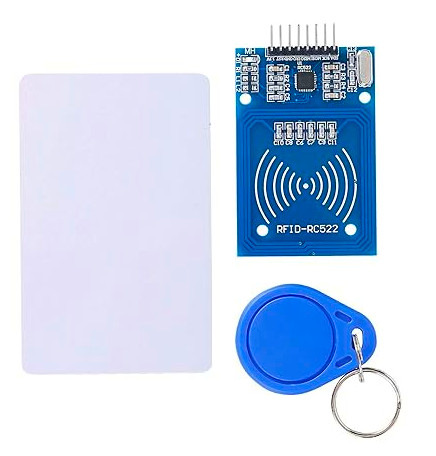
The microcontroller can communicate with the reader using SPI, UART, I2C. It also has an IRQ (Interrupt Request) pin that can trigger interrupts, so the microcontroller(pico) knows when the tag is nearby, instead of constantly asking the reader (kind of like “Are we there yet?â€).
Unfortunately, the library we’re going to use doesn’t support this feature yet, so we won’t be using it for now. We’ll update this section once support is added. So, are we there yet?
Additional Information about the Module:
- Supported Standards: ISO/IEC 14443 A / MIFARE
- Card Reading Distance: 0~50 mm
- Idle Current: 10–13 mA
- Operating Current: 13–26 mA
- Operating Voltage: DC 3.3V (âš ï¸ Do not use 5V or higher, it will cause damage).
MIFARE
MIFARE is a series of integrated circuit (IC) chips used in contactless smart cards and proximity cards, developed by NXP Semiconductors. MIFARE cards follow ISO/IEC 14443A standards and use encryption methods such as Crypto-1 algorithm. The most common family is MIFARE Classic, with a subtype called MIFARE Classic EV1.
Memory Layout
The MIFARE Classic 1K card is divided into 16 sectors, with each sector containing 4 blocks. Each block can hold up to 16 bytes, resulting in a total memory capacity of 1KB.
16 sectors × 4 blocks/sector × 16 bytes/block = 1024 bytes = 1KB
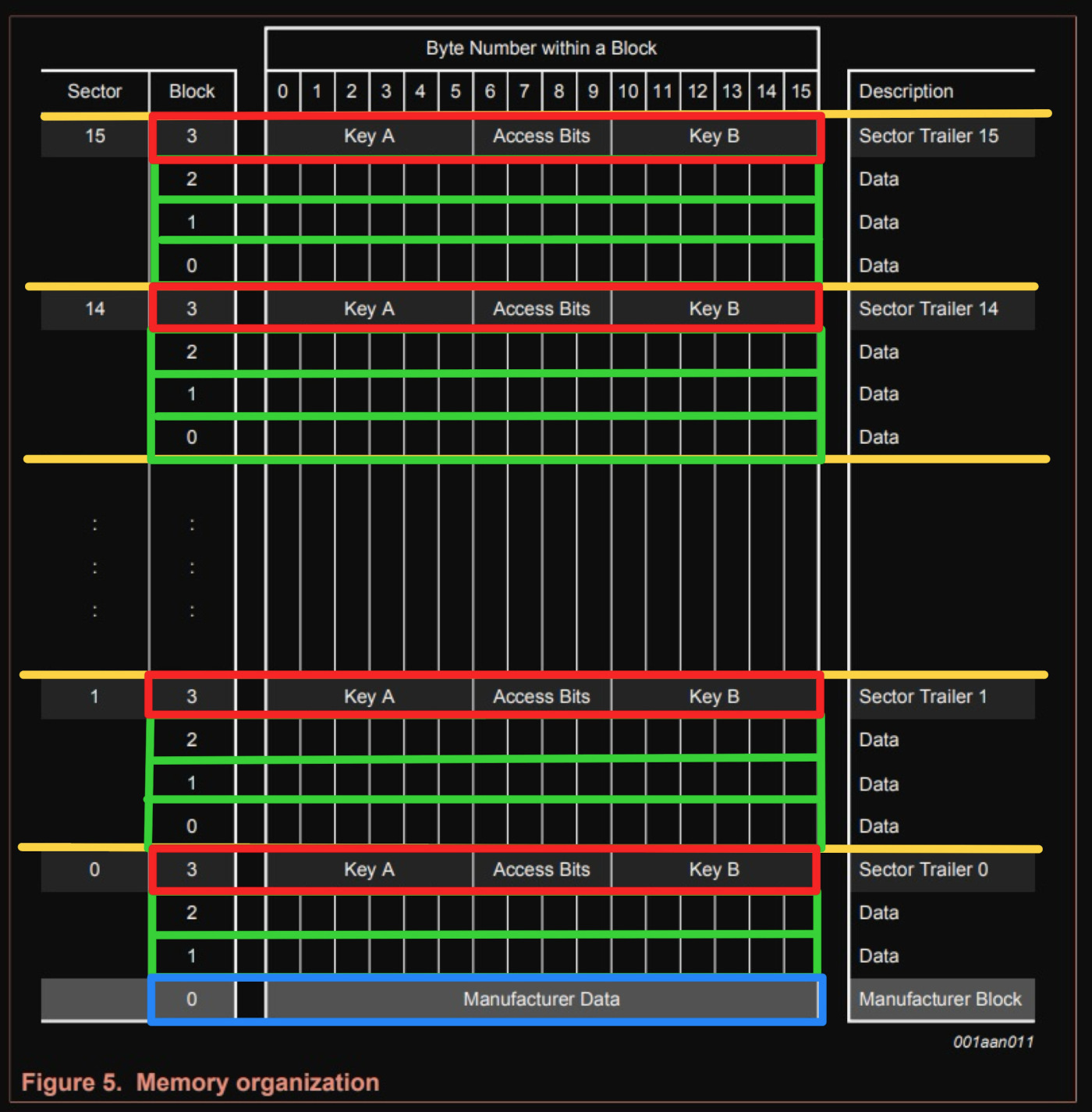
Sector Trailer
The last block of each sector, known as the “trailer†holds two secret keys and programmable access conditions for the blocks within that sector. Each sector has its own pair of keys (KeyA and KeyB), enabling support for multiple applications with a key hierarchy.
Note
Default Keys: The MIFARE Classic 1K card is pre-configured with the default key FF FF FF FF FF FF for both KeyA and KeyB. When reading the trailer block, KeyA values are returned as all zeros (00 00 00 00 00 00), while KeyB returned as it is.
By default, the access bytes (6, 7, and 8 of the trailer) are set to FF 07 80h. You can refer the 10th page for the datasheet for more information. And the 9th byte can be used for storing data.
| Byte Number | ||||||||||||||||
|---|---|---|---|---|---|---|---|---|---|---|---|---|---|---|---|---|
| 0 | 1 | 2 | 3 | 4 | 5 | 6 | 7 | 8 | 9 | 10 | 11 | 12 | 13 | 14 | 15 | |
| Description | KEY A | Access Bits | USER Data | KEY B | ||||||||||||
| Default Data | FF | FF | FF | FF | FF | FF | FF | 07 | 80 | 69 | FF | FF | FF | FF | FF | FF |
Manufacturer Block
The first block (block 0) of the first sector(sector 0) contains IC manufacturer’s data including the UID. This block is write-protected.
Data Block
Each sector has a trailer block, so only 3 blocks can be used for data storage in each sector. However, the first sector only has 2 usable blocks because the first block stores manufacturer data.
To read or write the data, you first need to authenticate with either Key A or Key B of that sector.
The data blocks can be further classified into two categories based on the access bits(we will explain about it later).
- read/write block: These are standard data blocks that allow basic operations such as reading and writing data.
- value block: These blocks are ideal for applications like electronic purses, where they are commonly used to store numeric values, such as account balances. So, you can perform incrementing (e.g., adding $10 to a balance) or decrementing (e.g., deducting $5 for a transaction).
Reference
- Datasheet: MIFARE Classic EV1 1K - Mainstream contactless smart card IC for fast and easy solution development
Flow
When you bring the tag near the reader, it goes into a state where it waits for either a REQA (Request) or WUPA (Wake Up) command.
To check if any tag is nearby, we send the REQA command in a loop. If the tag is nearby, it responds with an ATQA (Answer to Request).
Once we get the response, we select the card, and it sends back its UID (we won’t dive into the full technical details involved in this process). After that, we authenticate the sector we want to read or write from. Once we’re done with our operation, we send a HLTA command to put the card in the HALT state.
Note: Once the card is in the HALT state, only the WUPA command (reminds me of Chandler from Friends saying “WOOPAAHâ€) can wake it up and let us do more operations.
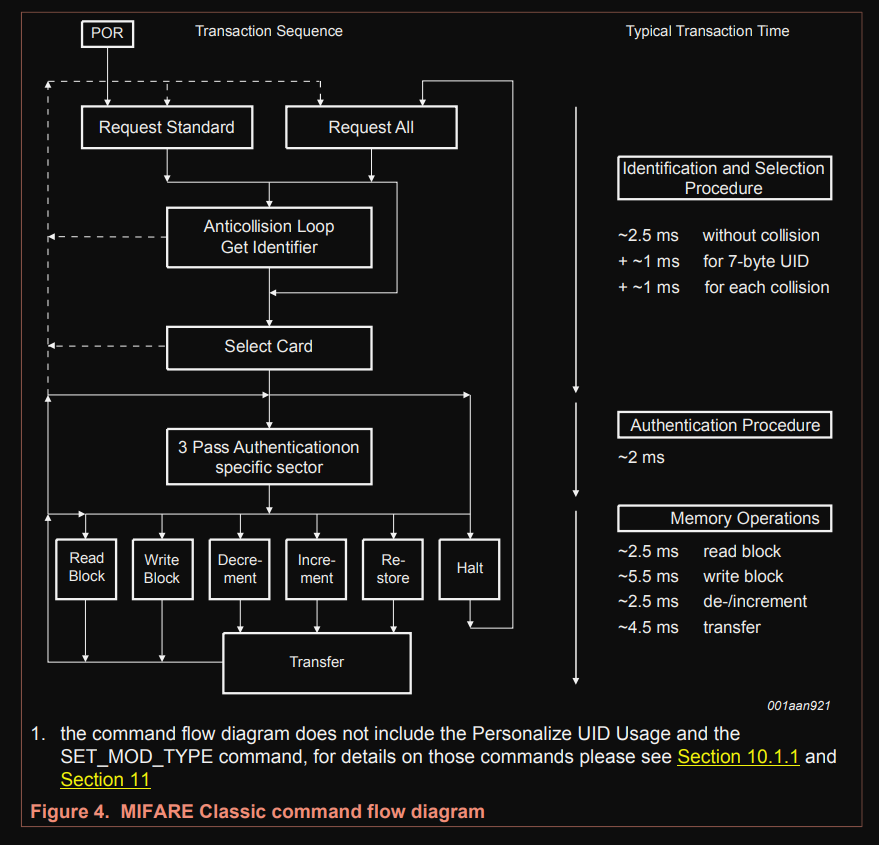
Circuit
Circuit
The introduction has become quite lengthy, so we will move the circuit diagram for connecting the Pico to the RFID reader to a separate page. Additionally, there are more pins that involved in this than any of the previous components we’ve used so far.
Pinout diagram of RC522
There are 8 pins in the RC522 RFID module.
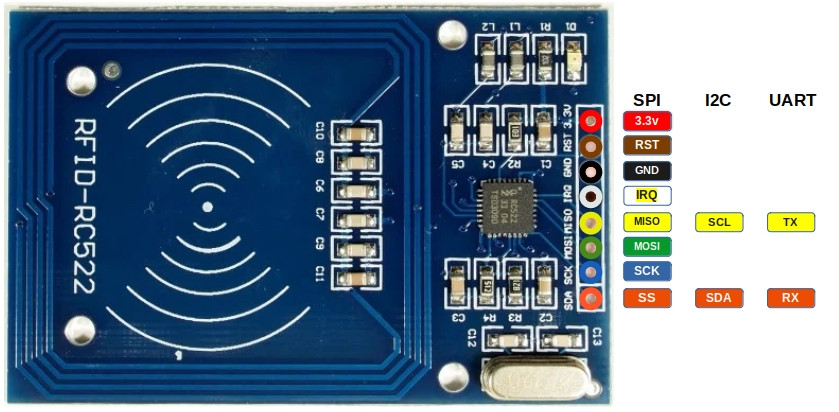
| Pin | SPI Function | I²C Function | UART Function | Description |
|---|---|---|---|---|
| 3.3V | Power | Power | Power | Power supply (3.3V). |
| GND | Ground | Ground | Ground | Ground connection. |
| RST | Reset | Reset | Reset | Reset the module. |
| IRQ | Interrupt (optional) | Interrupt (optional) | Interrupt (optional) | Interrupt Request (IRQ) informs the microcontroller when an RFID tag is detected. Without using IRQ, the microcontroller would need to constantly poll the module. |
| MISO | Master-In-Slave-Out | SCL | TX | In SPI mode, it acts as Master-In-Slave-Out (MISO). In I²C mode, it functions as the clock line (SCL). In UART mode, it acts as the transmit pin (TX). |
| MOSI | Master-Out-Slave-In | - | - | In SPI mode, it acts as Master-Out-Slave-In (MOSI). |
| SCK | Serial Clock | - | - | In SPI mode, it acts as the clock line that synchronizes data transfer. |
| SDA | Slave Select (SS) | SDA | RX | In SPI mode, it acts as the Slave select (SS, also referred as Chip Select). In I²C mode, it serves as the data line (SDA). In UART mode, it acts as the receive pin (RX). |
Connecting the RFID Reader to the Raspberry Pi Pico
To establish communication between the Raspberry Pi Pico and the RFID Reader, we will use the SPI (Serial Peripheral Interface) protocol. The SPI interface can handle data speed up to 10 Mbit/s. We wont be utilizing the following Pins: RST, IRQ at the moment.
| Pico Pin | Wire | RFID Reader Pin |
|---|---|---|
| 3.3V |
|
3.3V |
| GND |
|
GND |
| GPIO 4 |
|
MISO |
| GPIO 5 |
|
SDA |
| GPIO 6 |
|
SCK |
| GPIO 7 |
|
MOSI |

Read UID
Alright, let’s get to the fun part and dive into some action! We’ll start by writing a simple program to read the UID of the RFID tag.
mfrc522 Driver
We will be using the awesome crate “mfrc522â€. It is still under development. However, it has everything what we need for purposes.
USB Serial
To display the tag data, we’ll use USB serial, which we covered in the last chapter. This will allow us to read from the RFID tag and display the UID on the computer.
Project from template
To set up the project, run:
cargo generate --git https://github.com/ImplFerris/pico2-template.git --tag v0.1.0
When prompted, give your project a name, like “rfid-uid†and select RP-HAL as the HAL.
Then, navigate into the project folder:
cd PROJECT_NAME
# For example, if you named your project "rfid-uid":
# cd rfid-uid
Additional Crates required
Update your Cargo.toml to add these additional crate along with the existing dependencies.
#![allow(unused)]
fn main() {
usbd-serial = "0.2.2"
usb-device = "0.3.2"
heapless = "0.8.0"
mfrc522 = "0.8.0"
embedded-hal-bus = "0.2.0"
}We have added embedded-hal-bus, which provides the necessary traits for SPI and I2C buses. This is required for interfacing the Pico with the RFID reader.
Additional imports
#![allow(unused)]
fn main() {
use hal::fugit::RateExtU32;
use core::fmt::Write;
// to prepare buffer with data before writing into USB serial
use heapless::String;
// for setting up USB Serial
use usb_device::{class_prelude::*, prelude::*};
use usbd_serial::SerialPort;
// Driver for the MFRC522
use mfrc522::{comm::blocking::spi::SpiInterface, Mfrc522};
use embedded_hal_bus::spi::ExclusiveDevice;
}Make sure to check out the USB serial tutorial for setting up the USB serial. We won’t go over the setup here to keep it simple.
Helper Function to Print UID in Hex
We’ll use this helper function to convert the u8 byte array (in this case UID) into a printable hex string. You could also just use raw bytes and enable hex mode in tio(requires latest version) or minicom, but I find this approach easier. In hex mode, it prints everything in hex, including normal text.
#![allow(unused)]
fn main() {
fn print_hex_to_serial<B: UsbBus>(data: &[u8], serial: &mut SerialPort<B>) {
let mut buff: String<64> = String::new();
for &d in data.iter() {
write!(buff, "{:02x} ", d).unwrap();
}
serial.write(buff.as_bytes()).unwrap();
}
}Setting Up the SPI for the RFID Reader
Now, let’s configure the SPI bus and the necessary pins to communicate with the RFID reader.
#![allow(unused)]
fn main() {
let spi_mosi = pins.gpio7.into_function::<hal::gpio::FunctionSpi>();
let spi_miso = pins.gpio4.into_function::<hal::gpio::FunctionSpi>();
let spi_sclk = pins.gpio6.into_function::<hal::gpio::FunctionSpi>();
let spi_bus = hal::spi::Spi::<_, _, _, 8>::new(pac.SPI0, (spi_mosi, spi_miso, spi_sclk));
let spi_cs = pins.gpio5.into_push_pull_output();
let spi = spi_bus.init(
&mut pac.RESETS,
clocks.peripheral_clock.freq(),
1_000.kHz(),
embedded_hal::spi::MODE_0,
);
}Getting the SpiDevice from SPI Bus
To work with the mfrc522 crate, we need an SpiDevice. Since we only have the SPI bus from RP-HAL, we’ll use the embedded_hal_bus crate to get the SpiDevice from the SPI bus.
#![allow(unused)]
fn main() {
let spi = ExclusiveDevice::new(spi, spi_cs, timer).unwrap();
}Initialize the mfrc522
#![allow(unused)]
fn main() {
let itf = SpiInterface::new(spi);
let mut rfid = Mfrc522::new(itf).init().unwrap();
}Read the UID and Print
The main logic for reading the UID is simple. We continuously send the REQA command. If a tag is present, it send us the ATQA response. We then use this response to select the tag and retrieve the UID.
Once we have the UID, we use our helper function to print the UID bytes in hex format via USB serial.
#![allow(unused)]
fn main() {
loop {
// to estabilish USB serial
let _ = usb_dev.poll(&mut [&mut serial]);
if let Ok(atqa) = rfid.reqa() {
if let Ok(uid) = rfid.select(&atqa) {
serial.write("\r\nUID: \r\n".as_bytes()).unwrap();
print_hex_to_serial(uid.as_bytes(), &mut serial);
timer.delay_ms(500);
}
}
}
}Clone the existing project
You can clone (or refer) project I created and navigate to the rfid-uid folder.
git clone https://github.com/ImplFerris/pico2-rp-projects
cd pico2-projects/rfid-uid/
How to Run ?
The method to flash (run the code) on the Pico is the same as usual. However, we need to set up tio to interact with the Pico through the serial port (/dev/ttyACM0). This allows us to read data from the Pico or send data to it.
tio
Make sure you have tio installed on your system. If not, you can install it using:
apt install tio
Connecting to the Serial Port
Run the following command to connect to the Pico’s serial port:
tio /dev/ttyACM0
This will open a terminal session for communicating with the Pico.
Flashing and Running the Code
Open another terminal, navigate to the project folder, and flash the code onto the Pico as usual:
cargo run
If everything is set up correctly, you should see a “Connected†message in the tio terminal.
Reading the UID
Now, bring the RFID tag near the reader. You should see the UID bytes displayed in hex format on the USB serial terminal.

LED on UID Match
Turn on LED on UID Match
In this section, we’ll use the UID obtained in the previous chapter and hardcode it into our program. The LED will turn on only when the matching RFID tag is nearby; otherwise, it will remain off. When you bring the RFID tag close, the LED will light up. If you bring a different tag, like a key fob or any other RFID tag, the LED will turn off.
Logic
It is very simple straightforward logic.
#![allow(unused)]
fn main() {
let mut led = pins.gpio25.into_push_pull_output();
// Replace the UID Bytes with your tag UID
const TAG_UID: [u8; 4] = [0x13, 0x37, 0x73, 0x31];
loop {
led.set_low().unwrap();
if let Ok(atqa) = rfid.reqa() {
if let Ok(uid) = rfid.select(&atqa) {
if *uid.as_bytes() == TAG_UID {
led.set_high().unwrap();
timer.delay_ms(500);
}
}
}
}
}Clone the existing project
You can clone (or refer) project I created and navigate to the rfid-led folder.
git clone https://github.com/ImplFerris/pico2-rp-projects
cd pico2-projects/rfid-led/
Light it Up
Lets flash the pico with our program.
cargo run
Now bring the RFID tag near the RFID reader, the onboard LED on the Pico should turn on. Next, try bringing the key fob closer to the reader, and the LED will turn off. Alternatively, you can first read the key fob UID and hardcode it into the program to see the opposite behavior.
Read the data
In this section, we’ll read all the blocks from the first sector (sector 0). As we mentioned earlier, to read or write to a specific block on the RFID tag, we first need to authenticate with the corresponding sector.
Authentication
Most tags come with a default key, typically 0xFF repeated six times. You may need to check the documentation to find the default key or try other common keys. For the RFID reader we are using, the default key is 0xFF repeated six times.
For authentication, we need:
- The tag’s UID (obtained using the REQA and Select commands).
- The block number within the sector.
- The key (hardcoded in this case).
Read the block
After successful authentication, we can read data from each block using the mf_read function from the mfrc522 crate. If the read operation succeeds, the function returns 16 bytes of data from the block. This data will then be converted into a hex string and sent to the USB serial output.
The first sector (sector 0) consists of 4 blocks, with absolute block numbers ranging from 0 to 3. For higher sectors, the absolute block numbers increase accordingly (e.g., for sector 1, the blocks are 4, 5, 6, 7).
#![allow(unused)]
fn main() {
fn read_sector<E, COMM: mfrc522::comm::Interface<Error = E>, B: UsbBus>(
uid: &mfrc522::Uid,
sector: u8,
rfid: &mut Mfrc522<COMM, mfrc522::Initialized>,
serial: &mut SerialPort<B>,
) -> Result<(), &'static str> {
const AUTH_KEY: [u8; 6] = [0xFF; 6];
let block_offset = sector * 4;
rfid.mf_authenticate(uid, block_offset, &AUTH_KEY)
.map_err(|_| "Auth failed")?;
for abs_block in block_offset..block_offset + 4 {
let data = rfid.mf_read(abs_block).map_err(|_| "Read failed")?;
print_hex_to_serial(&data, serial);
serial
.write("\r\n".as_bytes())
.map_err(|_| "Write failed")?;
}
Ok(())
}
}The main loop
The main loop operates similarly to what we covered in the previous chapter. After selecting a tag, we proceed to read its blocks. Once the block data is read, the loop sends the HLTA and stop_crypto1 commands to put the card in HALT state.
#![allow(unused)]
fn main() {
loop {
let _ = usb_dev.poll(&mut [&mut serial]);
if let Ok(atqa) = rfid.reqa() {
if let Ok(uid) = rfid.select(&atqa) {
if let Err(e) = read_sector(&uid, 0, &mut rfid, &mut serial) {
serial.write(e.as_bytes()).unwrap();
}
rfid.hlta().unwrap();
rfid.stop_crypto1().unwrap();
}
}
}
}Clone the existing project
You can clone (or refer) project I created and navigate to the rfid-read folder.
git clone https://github.com/ImplFerris/pico2-rp-projects
cd pico2-projects/rfid-read/
How to Run ?
The method to flash (run the code) on the Pico is the same as usual. However, we need to set up tio to interact with the Pico through the serial port (/dev/ttyACM0). This allows us to read data from the Pico or send data to it.
Connecting to the Serial Port
Run the following command to connect to the Pico’s serial port:
tio /dev/ttyACM0
This will open a terminal session for communicating with the Pico.
Flashing and Running the Code
Open another terminal, navigate to the project folder, and flash the code onto the Pico as usual:
cargo run
If everything is set up correctly, you should see a “Connected†message in the tio terminal.
Reading the UID
Bring the RFID tag close to the reader, and the USB serial terminal will display the data bytes read from the blocks of the first sector (sector 0).

Dump Memory
Dump Entire Memory
You’ve learned how to read the data from each block of the first sector(sector 0) by authenticating into it. Now, we will loop through each sector. Re-Authentication is required every time we move to a new sector. For each sector, we will display the 16-byte data from every 4 blocks.
To make it clearer, we’ll add some formatting and labels, indicating which sector and block we’re referring to (both absolute and relative block numbers to the sector), as well as whether the block is a sector trailer or a data block.
Loop through the sector
We will create a separate function to loop through all 16 sectors (sectors 0 to 15), read all the blocks within each sector, and print their data.
#![allow(unused)]
fn main() {
fn dump_memory<E, COMM: mfrc522::comm::Interface<Error = E>, B: UsbBus>(
uid: &mfrc522::Uid,
rfid: &mut Mfrc522<COMM, mfrc522::Initialized>,
serial: &mut SerialPort<B>,
) -> Result<(), &'static str> {
let mut buff: String<64> = String::new();
for sector in 0..16 {
// Printing the Sector number
write!(buff, "\r\n-----------SECTOR {}-----------\r\n", sector).unwrap();
serial.write(buff.as_bytes()).unwrap();
buff.clear();
read_sector(uid, sector, rfid, serial)?;
}
Ok(())
}
}Labels
The read_sector function follows the same logic as before, but with added formatting and labels. It now prints the absolute block number, the block number relative to the sector, and labels for the manufacturer data (MFD) block and sector trailer blocks.
#![allow(unused)]
fn main() {
fn read_sector<E, COMM: mfrc522::comm::Interface<Error = E>, B: UsbBus>(
uid: &mfrc522::Uid,
sector: u8,
rfid: &mut Mfrc522<COMM, mfrc522::Initialized>,
serial: &mut SerialPort<B>,
) -> Result<(), &'static str> {
const AUTH_KEY: [u8; 6] = [0xFF; 6];
let mut buff: String<64> = String::new();
let block_offset = sector * 4;
rfid.mf_authenticate(uid, block_offset, &AUTH_KEY)
.map_err(|_| "Auth failed")?;
for abs_block in block_offset..block_offset + 4 {
let rel_block = abs_block - block_offset;
let data = rfid.mf_read(abs_block).map_err(|_| "Read failed")?;
// Prining the Block absolute and relative numbers
write!(buff, "\r\nBLOCK {} (REL: {}) | ", abs_block, rel_block).unwrap();
serial.write(buff.as_bytes()).unwrap();
buff.clear();
// Printing the block data
print_hex_to_serial(&data, serial);
// Printing block type
let block_type = get_block_type(sector, rel_block);
write!(buff, "| {} ", block_type).unwrap();
serial.write(buff.as_bytes()).unwrap();
buff.clear();
}
serial
.write("\r\n".as_bytes())
.map_err(|_| "Write failed")?;
Ok(())
}
}We will create a small helper function to determine the block type based on the sector and its relative block number.
#![allow(unused)]
fn main() {
fn get_block_type(sector: u8, rel_block: u8) -> &'static str {
match rel_block {
0 if sector == 0 => "MFD",
3 => "TRAILER",
_ => "DATA",
}
}
}The main loop
There isn’t much change in the main loop. We just call the dump_memory function instead of read_sector.
#![allow(unused)]
fn main() {
loop {
let _ = usb_dev.poll(&mut [&mut serial]);
if let Ok(atqa) = rfid.reqa() {
if let Ok(uid) = rfid.select(&atqa) {
if let Err(e) = dump_memory(&uid, &mut rfid, &mut serial) {
serial.write(e.as_bytes()).unwrap();
}
rfid.hlta().unwrap();
rfid.stop_crypto1().unwrap();
}
}
}
}Clone the existing project
You can clone (or refer) project I created and navigate to the rfid-dump folder.
git clone https://github.com/ImplFerris/pico2-rp-projects
cd pico2-projects/rfid-dump/
Dump
When you run the program and bring your tag or key fob close, you should see output like this. If you notice the 0x40..0x43 bytes in the block 18 (the block 2 of the sector 4) and wonder why it’s there; good catch! That’s the custom data I wrote to the tag.
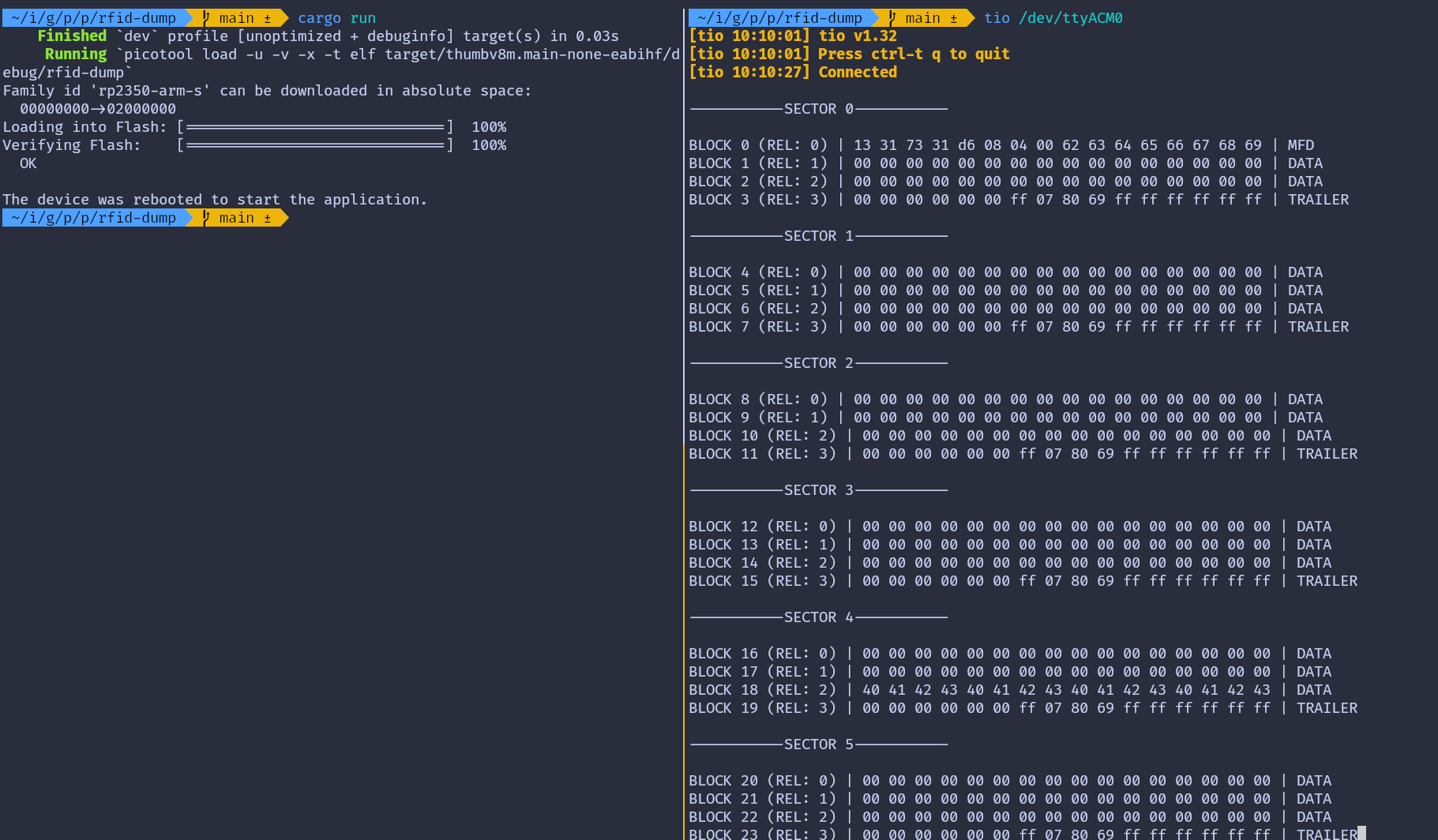
Write Data
We will write data into block 2 of sector 4. First, we will print the data in the block before writing to it, and then again after writing. To perform the write operation, we will use the mf_write function from the mfrc522 crate.
Caution
Accidentally writing to the wrong block and overwriting the trailer block may alter the authentication key or access bits, which could make the sector unusable.
Write function
We will use this function to write data to the block. The mf_write function requires the absolute block number, which we will calculate using the sector number and its relative block number.
#![allow(unused)]
fn main() {
fn write_block<E, COMM: mfrc522::comm::Interface<Error = E>>(
uid: &mfrc522::Uid,
sector: u8,
rel_block: u8,
data: [u8; 16],
rfid: &mut Mfrc522<COMM, mfrc522::Initialized>,
) -> Result<(), &'static str> {
const AUTH_KEY: [u8; 6] = [0xFF; 6];
let block_offset = sector * 4;
let abs_block = block_offset + rel_block;
rfid.mf_authenticate(uid, block_offset, &AUTH_KEY)
.map_err(|_| "Auth failed")?;
rfid.mf_write(abs_block, data).map_err(|_| "Write failed")?;
Ok(())
}
}The main loop
The main loop begins by reading and printing the current content of a specified block before writing new data to it. The write_block function is used to write the constant DATA, which must fill the entire 16-byte block. Any unused bytes are padded with null bytes (0x00).
#![allow(unused)]
fn main() {
let target_sector = 4;
let rel_block = 2;
const DATA: [u8; 16] = [
b'i', b'm', b'p', b'l', b'R', b'u', b's', b't', // "implRust"
0x00, 0x00, 0x00, 0x00, 0x00, 0x00, 0x00, 0x00, // Remaining bytes as 0x00
];
loop {
let _ = usb_dev.poll(&mut [&mut serial]);
if let Ok(atqa) = rfid.reqa() {
if let Ok(uid) = rfid.select(&atqa) {
serial
.write("\r\n----Before Write----\r\n".as_bytes())
.unwrap();
if let Err(e) = read_sector(&uid, target_sector, &mut rfid, &mut serial) {
serial.write(e.as_bytes()).unwrap();
}
if let Err(e) = write_block(&uid, target_sector, rel_block, DATA, &mut rfid) {
serial.write(e.as_bytes()).unwrap();
}
serial
.write("\r\n----After Write----\r\n".as_bytes())
.unwrap();
if let Err(e) = read_sector(&uid, target_sector, &mut rfid, &mut serial) {
serial.write(e.as_bytes()).unwrap();
}
rfid.hlta().unwrap();
rfid.stop_crypto1().unwrap();
}
}
}
}Clone the existing project
You can clone (or refer) project I created and navigate to the rfid-write folder.
git clone https://github.com/ImplFerris/pico2-rp-projects
cd pico2-projects/rfid-write/
Output
When you run the program, the output will display the hex representation of “implRust†visible in the third row.

Change Auth Key
Changing the Authentication Key
Let’s change the authentication key (KeyA) for sector 1. By default, it is set to FF FF FF FF FF FF. We’ll update it to 52 75 73 74 65 64 which is hex for “Rusted.†To do this, we need to modify the trailer block (block 3) of sector 1 while leaving the rest of the sector untouched.
Before proceeding, it is a good idea to verify the current contents of this block. Run the Dump Memory or Read Data program to check.
Note
Default Keys: The MIFARE Classic 1K card is pre-configured with the default key FF FF FF FF FF FF for both KeyA and KeyB. When reading the trailer block, KeyA values are returned as all zeros (00 00 00 00 00 00), while KeyB returned as it is.
We’ll also modify the KeyB contents to verify that the write was successful. We’ll set KeyB to the hex bytes of “Ferris†(46 65 72 72 69 73).
Before writing, the access bytes and KeyB values in your block should mostly match what I have, but double-checking is always better than guessing.
Here’s the plan:
- In the program, we hardcode the default key (
FF FF FF FF FF FF) into a variable namedcurrent_key. - Set the
new_keytoRusted(in hex bytes). This is necessary to print the block content after writing; otherwise, we’ll get an auth error. - The program will print the block’s contents both before and after writing.
Once the key is updated, bring the tag nearby again. You will likely see an “Auth failed†error. If you’re wondering why, congrats-you figured it out! The new key was successfully written, so the hardcoded current_key no longer works. To verify, modify the read-data program to use the new key (Rusted) and try again.
Key and Data
The DATA array contains the new KeyA (“Rusted†in hex), access bits, and KeyB (“Ferris†in hex). The current_key is set to the default FF FF FF FF FF FF, and new_key is the first 6 bytes of DATA, which is “Rustedâ€.
#![allow(unused)]
fn main() {
let target_sector = 1;
let rel_block = 3;
const DATA: [u8; 16] = [
0x52, 0x75, 0x73, 0x74, 0x65, 0x64, // Key A: "Rusted"
0xFF, 0x07, 0x80, 0x69, // Access bits and trailer byte
0x46, 0x65, 0x72, 0x72, 0x69, 0x73, // Key B: "Ferris"
];
let current_key = &[0xFF; 6];
let new_key: &[u8; 6] = &DATA[..6].try_into().unwrap();
}Write Block function
We have slighly modified the write_block function to accept key as argument.
#![allow(unused)]
fn main() {
fn write_block<E, COMM: mfrc522::comm::Interface<Error = E>>(
uid: &mfrc522::Uid,
sector: u8,
rel_block: u8,
data: [u8; 16],
key: &[u8; 6],
rfid: &mut Mfrc522<COMM, mfrc522::Initialized>,
) -> Result<(), &'static str> {
let block_offset = sector * 4;
let abs_block = block_offset + rel_block;
rfid.mf_authenticate(uid, block_offset, key)
.map_err(|_| "Auth failed")?;
rfid.mf_write(abs_block, data).map_err(|_| "Write failed")?;
Ok(())
}
}Read Sector function
We have done similar modification for the read_sector function also.
#![allow(unused)]
fn main() {
fn read_sector<E, COMM: mfrc522::comm::Interface<Error = E>, B: UsbBus>(
uid: &mfrc522::Uid,
sector: u8,
key: &[u8; 6],
rfid: &mut Mfrc522<COMM, mfrc522::Initialized>,
serial: &mut SerialPort<B>,
) -> Result<(), &'static str> {
let block_offset = sector * 4;
rfid.mf_authenticate(uid, block_offset, key)
.map_err(|_| "Auth failed")?;
for abs_block in block_offset..block_offset + 4 {
let data = rfid.mf_read(abs_block).map_err(|_| "Read failed")?;
print_hex_to_serial(&data, serial);
serial
.write("\r\n".as_bytes())
.map_err(|_| "Write failed")?;
}
Ok(())
}
}The main loop
There’s nothing new in the main loop. All the read and write functions are ones you’ve already seen. We’re just printing the sector content before and after changing the key.
#![allow(unused)]
fn main() {
loop {
let _ = usb_dev.poll(&mut [&mut serial]);
if let Ok(atqa) = rfid.reqa() {
if let Ok(uid) = rfid.select(&atqa) {
serial
.write("\r\n----Before Write----\r\n".as_bytes())
.unwrap();
if let Err(e) = read_sector(&uid, target_sector, current_key, &mut rfid, &mut serial) {
serial.write(e.as_bytes()).unwrap();
}
if let Err(e) =
write_block(&uid, target_sector, rel_block, DATA, current_key, &mut rfid)
{
serial.write(e.as_bytes()).unwrap();
}
serial
.write("\r\n----After Write----\r\n".as_bytes())
.unwrap();
if let Err(e) = read_sector(&uid, target_sector, new_key, &mut rfid, &mut serial) {
serial.write(e.as_bytes()).unwrap();
}
rfid.hlta().unwrap();
rfid.stop_crypto1().unwrap();
}
}
}
}Clone the existing project
You can clone (or refer) project I created and navigate to the rfid-change-key folder.
git clone https://github.com/ImplFerris/pico2-rp-projects
cd pico2-projects/rfid-change-key/
Output
As you can see in the output, when you run the program, it will display the contents of the target block before and after writing. After we change the key, bringing the tag back to the reader will result in an “auth failed†message because the current_key has been changed; The new key is 52 75 73 74 65 64 (Rusted).
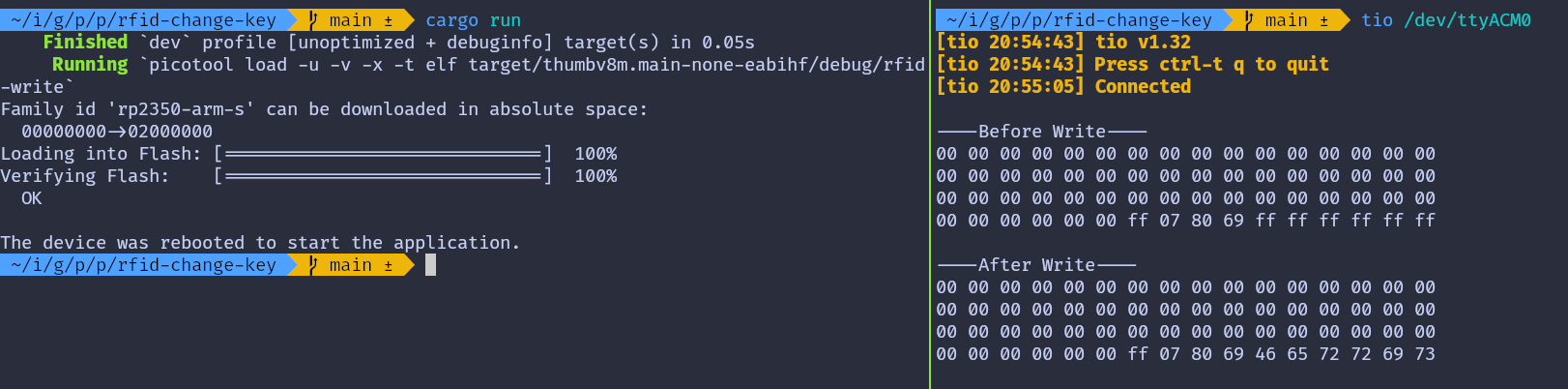
You can also modify the read data program we used earlier with the new key to verify it.
Access Control
The tag includes access bits that enable access control for the data stored in the tag. This chapter will explore how these access bits function. This section might feel a bit overwhelming, so I’ll try to make it as simple and easy to understand as possible.
Caution
Modifying Access Bits: Be careful when writing the access bits, as incorrect values can make the sector unusable.
Permissions
These are the fundamental permissions that will be used to define access conditions. The table explains each permission operation and specifies the blocks to which it is applicable: normal data blocks (read/write), value blocks, or sector trailers.
| Operation | Description | Applicable for Block Type |
|---|---|---|
| Read | Reads one memory block | Read/Write, Value, Sector Trailer |
| Write | Writes one memory block | Read/Write, Value, Sector Trailer |
| Increment | Increments the contents of a block and stores the result in the internal Transfer Buffer | Value |
| Decrement | Decrements the contents of a block and stores the result in the internal Transfer Buffer | Value |
| Restore | Reads the contents of a block into the internal Transfer Buffer | Value |
| Transfer | Writes the contents of the internal Transfer Buffer to a block | Value, Read/Write |
Access conditions
Let’s address the elephant in the room: The access conditions. During my research, I found that many people struggled to make sense of the access condition section in the datasheet. Here is my attempt to explain it for easy to understand 🤞.
You can use just 3 bit-combinations per block to control its permissions. In the official datasheet, this is represented using a notation like CXY (C1₀, C1₂… C3₃) for the access bits. The first number (X) in this notation refers to the access bit number, which ranges from 1 to 3, each corresponding to a specific permission type. However, the meaning of these permissions varies depending on whether the block is a data block or a trailer block. The second number (Y) in the subscript denotes the relative block number, which ranges from 0 to 3.
Table 1: Access conditions for the sector trailer
In the original datasheet, the subscript number is not specified in the table. I have added the subscript “3â€, as the sector trailer is located at Block 3.
Important
Readable Key: If you can read the key, it cannot be used as an authentication key. Therefore, in this table, whenever Key B is readable, it cannot serve as the authentication key. If you’ve noticed, yes, the Key A can never be read.
| Access Bits | Access Condition for | Remark | |||||||
|---|---|---|---|---|---|---|---|---|---|
| Key A | Access Bits | Key B | |||||||
| C13 | C23 | C33 | Read | Write | Read | Write | Read | Write | |
| 0 | 0 | 0 | never | key A | key A | never | key A | key A | Key B may be read |
| 0 | 1 | 0 | never | never | key A | never | key A | never | Key B may be read |
| 1 | 0 | 0 | never | key B | key A|B | never | never | key B | |
| 1 | 1 | 0 | never | never | key A|B | never | never | never | |
| 0 | 0 | 1 | never | key A | key A | key A | key A | key A | Key B may be read; Default configuration |
| 0 | 1 | 1 | never | key B | key A|B | key B | never | key B | |
| 1 | 0 | 1 | never | never | key A|B | key B | never | never | |
| 1 | 1 | 1 | never | never | key A|B | never | never | never | |
How to make sense out of this table?
It is a simple table showing the correlation between bit combinations and permissions.
For example: Let’s say you select “1 0 0†(3rd row in the table), then you can’t read KeyA, KeyB. However, you can modify the KeyA as well as KeyB value with KeyB. You can Read Access Bits with either KeyA or KeyB. But, you can never modify the Access Bits.
Now, where should these bits be stored? We will place them in the 6th, 7th, and 8th bytes at a specific location, which will be explained shortly.
Table 2: Access conditions for data blocks
This applies to all data blocks. The original datasheet does not include the subscript “Yâ€, I have added it for context. Here, “Y†represents the block number (ranging from 0 to 2).
The default config here indicates that both Key A and Key B can perform all operations. However, as seen in the previous table, Key B is readable (in default config), making it unusable for authentication. Therefore, only Key A can be used.
| Access Bits | Access Condition for | Application | |||||
|---|---|---|---|---|---|---|---|
| C1Y | C2Y | C3Y | Read | Write | Increment | Decrement,Transfer/Restore | |
| 0 | 0 | 0 | key A|B | key A|B | key A|B | key A|B | Default configuration |
| 0 | 1 | 0 | key A|B | never | never | never | read/write block |
| 1 | 0 | 0 | key A|B | key B | never | never | read/write block |
| 1 | 1 | 0 | key A|B | key B | key B | key A|B | value block |
| 0 | 0 | 1 | key A|B | never | never | key A|B | value block |
| 0 | 1 | 1 | key B | key B | never | never | read/write block |
| 1 | 0 | 1 | key B | never | never | never | read/write block |
| 1 | 1 | 1 | never | never | never | never | read/write block |
How to make sense out of this table?
It’s similar to the previous one; it shows the relationship between bit combinations and permissions.
For example: If you select “0 1 0†(2nd row in the table) and use this permission for block 1, you can use either KeyA or KeyB to read block 1. However, no other operations can be performed on block 1.
The notation for this is as follows: the block number is written as a subscript to the bit labels (e.g., C11, C21, C31). Here, the subscript “1†represents block 1. For the selected combination “0 1 0â€, this means:
- C11 = 0
- C21 = 1
- C31 = 0
These bits will also be placed in the 6th, 7th, and 8th bytes at a specific location, which will be explained shortly.
Table 3: Access conditions table
Let’s colorize the original table to better visualize what each bit represents. The 7th and 3rd bits in each byte are related to the sector trailer. The 6th and 2nd bits correspond to Block 2. The 5th and 1st bits are associated with Block 1. The 4th and 0th bits are related to Block 0.
The overline on the notation indicates inverted values. This means that if the CXy value is 0, then CXy becomes 1.
| Byte | 7 | 6 | 5 | 4 | 3 | 2 | 1 | 0 |
|---|---|---|---|---|---|---|---|---|
| Byte 6 | C23 | C22 | C21 | C20 | C13 | C12 | C11 | C10 |
| Byte 7 | C13 | C12 | C11 | C10 | C33 | C32 | C31 | C30 |
| Byte 8 | C33 | C32 | C31 | C30 | C23 | C22 | C21 | C20 |
The default access bit “FF 07 80â€. Let’s try to understand what it means.
| Byte | 7 | 6 | 5 | 4 | 3 | 2 | 1 | 0 |
|---|---|---|---|---|---|---|---|---|
| Byte 6 | 1 | 1 | 1 | 1 | 1 | 1 | 1 | 1 |
| Byte 7 | 0 | 0 | 0 | 0 | 0 | 1 | 1 | 1 |
| Byte 8 | 1 | 0 | 0 | 0 | 0 | 0 | 0 | 0 |
We can derive the CXY values from the table above. Notice that only C33 is set to 1, while all other values are 0. Now, refer to Table 1 and Table 2 to understand which permission this corresponds to.
| Block | C1Y | C2Y | C3Y | Access |
|---|---|---|---|---|
| Block 0 | 0 | 0 | 0 | All permissions with Key A |
| Block 1 | 0 | 0 | 0 | All permissions with Key A |
| Block 2 | 0 | 0 | 0 | All permissions with Key A |
| Block 3 (Trailer) | 0 | 0 | 1 | You can write Key A using Key A. Access Bits and Key B can only be read and written using Key A. |
Since Key B is readable, you cannot use it for authentication.
Calculator on next page
Still confused? Use the calculator on the next page to experiment with different combinations. Adjust the permissions for each block and observe how the Access Bits values change accordingly.
Reference
MIFARE Classic 1K Access Bits Calculator
Decode: You can modify the “Access bits†and the Data Block and Sector Trailer tables will automatically update.
Encode: Click the “Edit†button in each row of the table to select your preferred access conditions. This will update the Access Bits.
Caution
Writing an incorrect value to the access condition bits can make the sector inaccessible.
Access Bits
Data Block Access Conditions:
| Block | C1Y | C2Y | C3Y | Read | Write | Increment | Decrement/Transfer/Restore | Remarks | Action |
|---|---|---|---|---|---|---|---|---|---|
| Block 0 | 0 | 0 | 0 | key A|B | key A|B | key A|B | key A|B | Default configuration | |
| Block 1 | 0 | 0 | 0 | key A|B | key A|B | key A|B | key A|B | Default configuration | |
| Block 2 | 0 | 0 | 0 | key A|B | key A|B | key A|B | key A|B | Default configuration |
| C1Y | C2Y | C3Y | Read | Write | Increment | Decrement/Transfer/Restore | Remarks |
|---|---|---|---|---|---|---|---|
| 0 | 0 | 0 | key A|B | key A|B | key A|B | key A|B | Default configuration |
| 0 | 1 | 0 | key A|B | never | never | never | read/write block |
| 1 | 0 | 0 | key A|B | key B | never | never | read/write block |
| 1 | 1 | 0 | key A|B | key B | key B | key A|B | value block |
| 0 | 0 | 1 | key A|B | never | never | key A|B | value block |
| 0 | 1 | 1 | key B | key B | never | never | read/write block |
| 1 | 0 | 1 | key B | never | never | never | read/write block |
| 1 | 1 | 1 | never | never | never | never | read/write block |
Sector Trailer (Block 3) Access Conditions:
| C13 | C23 | C33 | Read Key A | Write Key A | Read Access Bits | Write Access Bits | Read Key B | Write Key B | Remarks | Action |
|---|---|---|---|---|---|---|---|---|---|---|
| 0 | 0 | 1 | never | key A | key A | key A | key A | key A | Key B may be read; Default configuration |
| C13 | C23 | C33 | Read Key A | Write Key A | Read Access Bits | Write Access Bits | Read Key B | Write Key B | Remarks |
|---|---|---|---|---|---|---|---|---|---|
| 0 | 0 | 0 | never | key A | key A | never | key A | key A | Key B may be read |
| 0 | 1 | 0 | never | never | key A | never | key A | never | Key B may be read |
| 1 | 0 | 0 | never | key B | key A|B | never | never | key B | |
| 1 | 1 | 0 | never | never | key A|B | never | never | never | |
| 0 | 0 | 1 | never | key A | key A | key A | key A | key A | Key B may be read; Default configuration |
| 0 | 1 | 1 | never | key B | key A|B | key B | never | key B | |
| 1 | 0 | 1 | never | never | key A|B | key B | never | never | |
| 1 | 1 | 1 | never | never | key A|B | never | never | never |
References
- This UI is inspired from this calculator: Mifarecalc
- MIFARE-Classic-1K-Access-Bits-Calculator
SD Card (SDC/MMC)
In this section, we will explore how to use the SD Card reader module. Depending on your project, you can use the SD card to store collected data from sensors, save game ROMs and progress, or store other types of information.
MMC
The MultiMediaCard (MMC) was introduced as an early type of flash memory storage, preceding the SD Card. It was commonly used in devices such as camcorders, digital cameras, and portable music players. MMCs store data as electrical charges in flash memory cells, unlike optical disks, which rely on laser-encoded data on reflective surfaces.
SD (Secure Digital) Card
The Secure Digital Card (SDC), commonly referred to as an SD Card, is an evolution of the MMC. SD Cards are widely used as external storage in electronic devices such as cameras, smartphones. A smaller variant, the microSD card, is commonly used in smartphones, drones, and other devices.
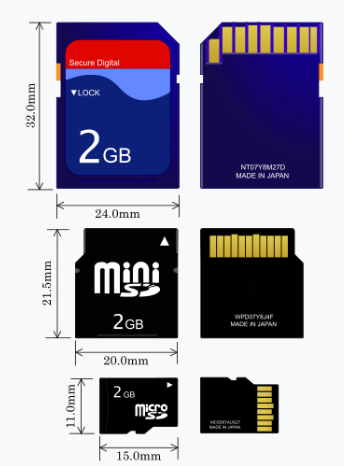
Image credit: Based on SD card by Tkgd2007, licensed under the GFDL and CC BY-SA 3.0, 2.5, 2.0, 1.0.

SD cards read and write data in blocks, typically 512 bytes in size, allowing them to function as block devices; this makes SD cards behave much like hard drives.
Protocol
To communicate with an SD card, we can use the SD Bus protocol, SPI protocol, or UHS-II Bus protocol. The Raspberry Pi (but not the Raspberry Pi Pico) uses the SD Bus protocol, which is more complex than SPI. The full specs of the SD Bus protocol are not accessible to the public and are only available through the SD Association. We will be using the SPI protocol, as the Rust driver we will be using is designed to work with it.
Hardware Requirements
We’ll be using the Micro SD Card adapter module. You can search for either “Micro SD Card Reader Module†or “Micro SD Card Adapter†to find them.
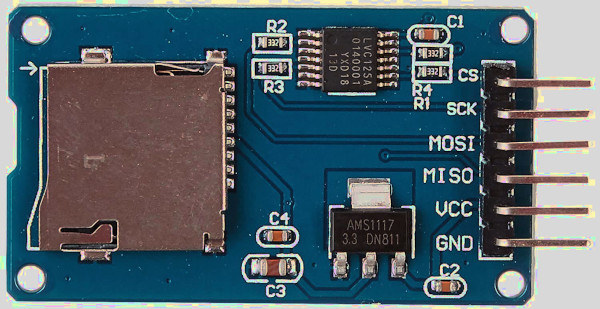
And of course, you’ll need a microSD card. The SD card should be formatted with FAT32; Depending on your computer’s hardware, you might need a separate SD card adapter (not the one mentioned above) to format the microSD card. Some laptops comes with direct microSD card support.
References:
- I highly recommend watching Jonathan Pallant’s talk at Euro Rust 2024 on writing an SD card driver in Rust. He wrote the driver we are going to use (originally he created it to run MS-DOS on ARM). It is not intended for production systems.
- If you want to understand how it works under the hood in SPI mode, you can refer to this article: How to Use MMC/SDC
- Wikipedia
Circuit
Circuit
microSD Card Pin Mapping for SPI Mode
We’ll focus only on the microSD card since that’s what we’re using. The microSD has 8 pins, but we only need 6 for SPI mode. You may have noticed that the SD card reader module we have also has only 6 pins, with markings for the SPI functions. The table below shows the microSD card pins and their corresponding SPI functions.
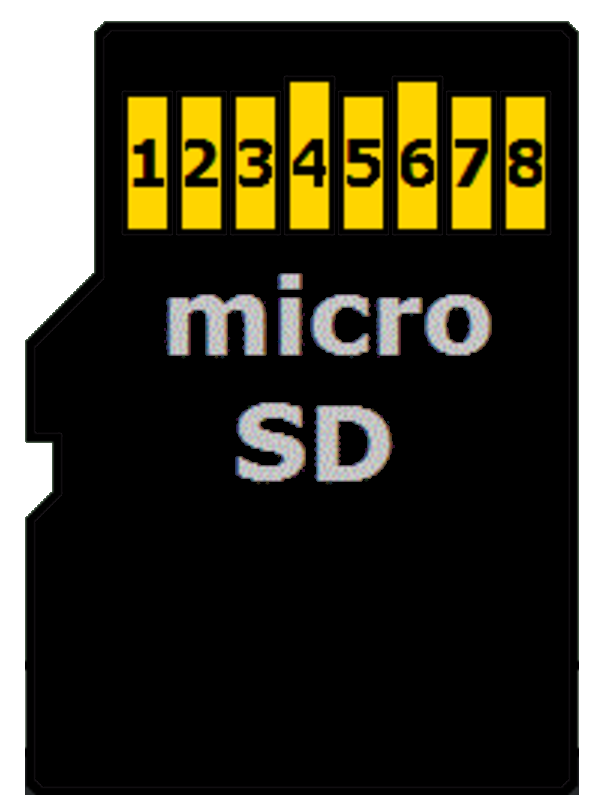
| microSD Card Pin | SPI Function |
|---|---|
| 1 | - |
| 2 | Chip Select (CS); also referred as Card Select |
| 3 | Data Input (DI) - corresponds to MOSI. To receive data from the microcontroller. |
| 4 | VDD - Power supply (3.3V) |
| 5 | Serial Clock (SCK) |
| 6 | Ground (GND) |
| 7 | Data Output (DO) - corresponds to MISO. To send data from the microSD card to the microcontroller. |
| 8 | - |
Connecting the Raspberry Pi Pico to the SD Card Reader
The microSD card operates at 3.3V, so using 5V to power it could damage the card. However, the reader module comes with an onboard voltage regulator and logic shifter, allowing it to safely be connected to the 5V power supply of the Pico.
| Pico Pin | Wire | SD Card Pin |
|---|---|---|
| GPIO 1 |
|
CS |
| GPIO 2 |
|
SCK |
| GPIO 3 |
|
MOSI |
| GPIO 4 |
|
MISO |
| 5V |
|
VCC |
| GND |
|
GND |
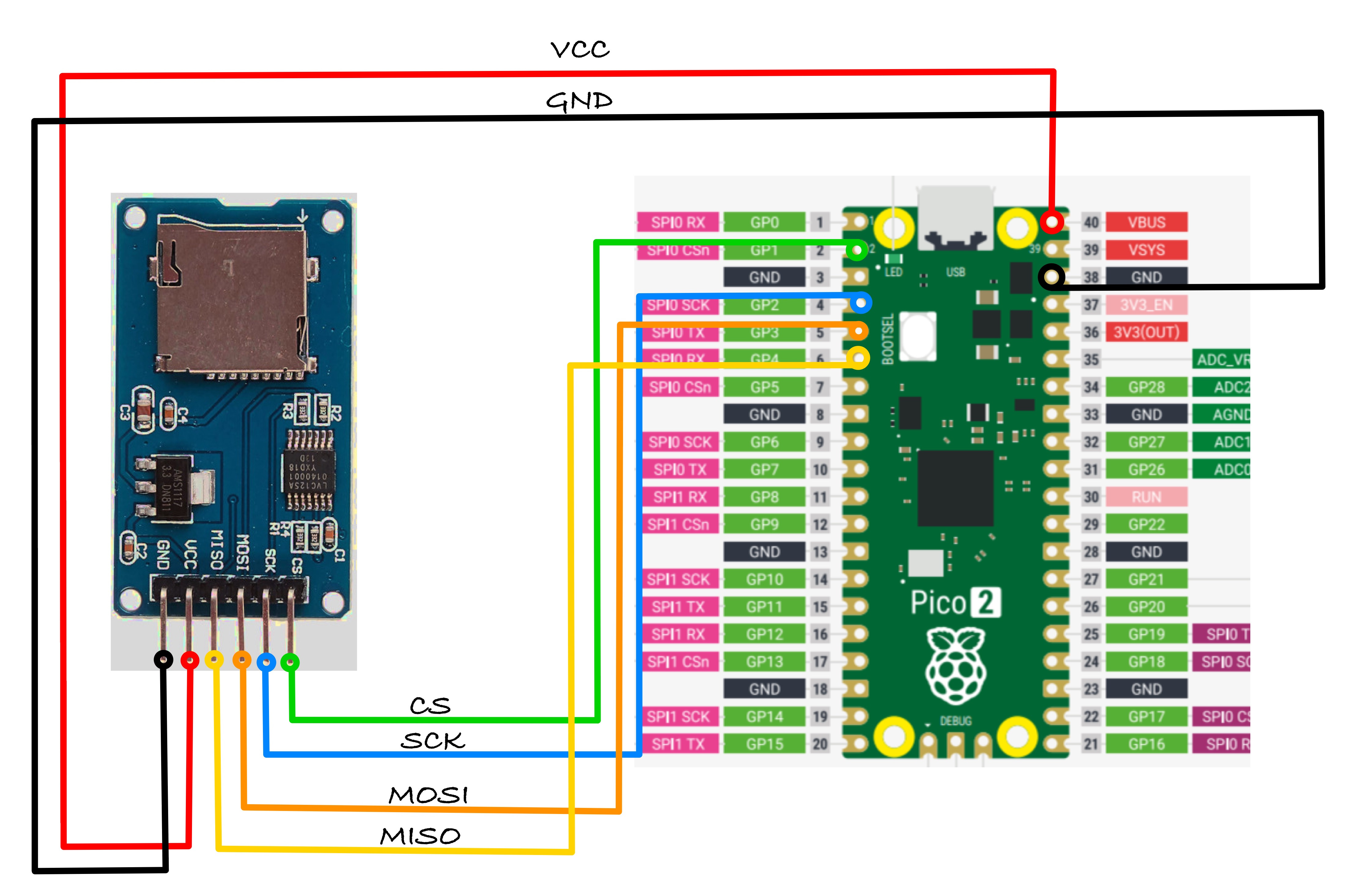
Read SD Card with Raspberry Pi Pico
Let’s create a simple program that reads a file from the SD card and outputs its content over USB serial. Make sure the SD card is formatted with FAT32 and contains a file to read (for example, “RUST.TXT†with the content “Ferrisâ€).
Project from template
To set up the project, run:
cargo generate --git https://github.com/ImplFerris/pico2-template.git --tag v0.1.0
When prompted, give your project a name, like “read-sdcard†and select RP-HAL as the HAL.
Then, navigate into the project folder:
cd PROJECT_NAME
# For example, if you named your project "read-sdcard":
# cd read-sdcard
Additional Crates required
Update your Cargo.toml to add these additional crate along with the existing dependencies.
#![allow(unused)]
fn main() {
// USB serial communication
usbd-serial = "0.2.2"
usb-device = "0.3.2"
heapless = "0.8.0"
// To convert Spi bus to SpiDevice
embedded-hal-bus = "0.2.0"
// sd card driver
embedded-sdmmc = "0.8.1"
}Except for the embedded-sdmmc crate, we have already used all these crates in previous exercises.
- The usbd-serial and usb-device crates are used for sending or receiving data to and from a computer via USB serial. The heapless crate acts as a helper, providing a buffer before printing data to USB serial.
- The embedded-hal-bus crate offers the necessary traits for SPI and I²C buses, which are essential for interfacing the Pico with the SD card reader.
- The embedded-sdmmc crate is a driver for reading and writing files on FAT-formatted SD cards.
Additional imports
#![allow(unused)]
fn main() {
use usb_device::{class_prelude::*, prelude::*};
use usbd_serial::SerialPort;
use hal::fugit::RateExtU32;
use heapless::String;
use core::fmt::Write;
use embedded_hal_bus::spi::ExclusiveDevice;
use embedded_sdmmc::{SdCard, TimeSource, Timestamp, VolumeIdx, VolumeManager};
}Make sure to check out the USB serial tutorial for setting up the USB serial. We won’t go over the setup here to keep it simple.
Dummy Timesource
The TimeSource is needed to retrieve timestamps and manage file metadata. Since we won’t be using this functionality, we’ll create a DummyTimeSource that implements the TimeSource trait. This is necessary for compatibility with the embedded-sdmmc crate.
#![allow(unused)]
fn main() {
/// Code from https://github.com/rp-rs/rp-hal-boards/blob/main/boards/rp-pico/examples/pico_spi_sd_card.rs
/// A dummy timesource, which is mostly important for creating files.
#[derive(Default)]
pub struct DummyTimesource();
impl TimeSource for DummyTimesource {
// In theory you could use the RTC of the rp2040 here, if you had
// any external time synchronizing device.
fn get_timestamp(&self) -> Timestamp {
Timestamp {
year_since_1970: 0,
zero_indexed_month: 0,
zero_indexed_day: 0,
hours: 0,
minutes: 0,
seconds: 0,
}
}
}
}Setting Up the SPI for the SD Card Reader
Now, let’s configure the SPI bus and the necessary pins to communicate with the SD Card reader.
#![allow(unused)]
fn main() {
let spi_cs = pins.gpio1.into_push_pull_output();
let spi_sck = pins.gpio2.into_function::<hal::gpio::FunctionSpi>();
let spi_mosi = pins.gpio3.into_function::<hal::gpio::FunctionSpi>();
let spi_miso = pins.gpio4.into_function::<hal::gpio::FunctionSpi>();
let spi_bus = hal::spi::Spi::<_, _, _, 8>::new(pac.SPI0, (spi_mosi, spi_miso, spi_sck));
let spi = spi_bus.init(
&mut pac.RESETS,
clocks.peripheral_clock.freq(),
400.kHz(), // card initialization happens at low baud rate
embedded_hal::spi::MODE_0,
);
}Getting the SpiDevice from SPI Bus
To work with the embedded-sdmmc crate, we need an SpiDevice. Since we only have the SPI bus from RP-HAL, we’ll use the embedded_hal_bus crate to get the SpiDevice from the SPI bus.
#![allow(unused)]
fn main() {
let spi = ExclusiveDevice::new(spi, spi_cs, timer).unwrap();
}Setup SD Card driver
#![allow(unused)]
fn main() {
let sdcard = SdCard::new(spi, timer);
let mut volume_mgr = VolumeManager::new(sdcard, DummyTimesource::default());
}Print the size of the SD Card
#![allow(unused)]
fn main() {
match volume_mgr.device().num_bytes() {
Ok(size) => {
write!(buff, "card size is {} bytes\r\n", size).unwrap();
serial.write(buff.as_bytes()).unwrap();
}
Err(e) => {
write!(buff, "Error: {:?}", e).unwrap();
serial.write(buff.as_bytes()).unwrap();
}
}
}Open the directory
Let’s open the volume with the volume manager then open the root directory.
#![allow(unused)]
fn main() {
let Ok(mut volume0) = volume_mgr.open_volume(VolumeIdx(0)) else {
let _ = serial.write("err in open_volume".as_bytes());
continue;
};
let Ok(mut root_dir) = volume0.open_root_dir() else {
serial.write("err in open_root_dir".as_bytes()).unwrap();
continue;
};
}Open the file in read-only mode
#![allow(unused)]
fn main() {
let Ok(mut my_file) = root_dir.open_file_in_dir("RUST.TXT", embedded_sdmmc::Mode::ReadOnly) else {
serial.write("err in open_file_in_dir".as_bytes()).unwrap();
continue;
};
}Read the file content and print
#![allow(unused)]
fn main() {
while !my_file.is_eof() {
let mut buffer = [0u8; 32];
let num_read = my_file.read(&mut buffer).unwrap();
for b in &buffer[0..num_read] {
write!(buff, "{}", *b as char).unwrap();
}
}
serial.write(buff.as_bytes()).unwrap();
}Full code
#![no_std]
#![no_main]
use embedded_hal::delay::DelayNs;
use hal::block::ImageDef;
use panic_halt as _;
use rp235x_hal::{self as hal, Clock};
use usb_device::{class_prelude::*, prelude::*};
use usbd_serial::SerialPort;
use hal::fugit::RateExtU32;
use heapless::String;
use core::fmt::Write;
use embedded_hal_bus::spi::ExclusiveDevice;
use embedded_sdmmc::{SdCard, TimeSource, Timestamp, VolumeIdx, VolumeManager};
#[link_section = ".start_block"]
#[used]
pub static IMAGE_DEF: ImageDef = hal::block::ImageDef::secure_exe();
const XTAL_FREQ_HZ: u32 = 12_000_000u32;
/// A dummy timesource, which is mostly important for creating files.
#[derive(Default)]
pub struct DummyTimesource();
impl TimeSource for DummyTimesource {
// In theory you could use the RTC of the rp2040 here, if you had
// any external time synchronizing device.
fn get_timestamp(&self) -> Timestamp {
Timestamp {
year_since_1970: 0,
zero_indexed_month: 0,
zero_indexed_day: 0,
hours: 0,
minutes: 0,
seconds: 0,
}
}
}
#[hal::entry]
fn main() -> ! {
let mut pac = hal::pac::Peripherals::take().unwrap();
let mut watchdog = hal::Watchdog::new(pac.WATCHDOG);
let clocks = hal::clocks::init_clocks_and_plls(
XTAL_FREQ_HZ,
pac.XOSC,
pac.CLOCKS,
pac.PLL_SYS,
pac.PLL_USB,
&mut pac.RESETS,
&mut watchdog,
)
.ok()
.unwrap();
let mut timer = hal::Timer::new_timer0(pac.TIMER0, &mut pac.RESETS, &clocks);
let sio = hal::Sio::new(pac.SIO);
let pins = hal::gpio::Pins::new(
pac.IO_BANK0,
pac.PADS_BANK0,
sio.gpio_bank0,
&mut pac.RESETS,
);
let usb_bus = UsbBusAllocator::new(hal::usb::UsbBus::new(
pac.USB,
pac.USB_DPRAM,
clocks.usb_clock,
true,
&mut pac.RESETS,
));
let mut serial = SerialPort::new(&usb_bus);
let mut usb_dev = UsbDeviceBuilder::new(&usb_bus, UsbVidPid(0x16c0, 0x27dd))
.strings(&[StringDescriptors::default()
.manufacturer("implRust")
.product("Ferris")
.serial_number("TEST")])
.unwrap()
.device_class(2) // 2 for the CDC, from: https://www.usb.org/defined-class-codes
.build();
let spi_cs = pins.gpio1.into_push_pull_output();
let spi_sck = pins.gpio2.into_function::<hal::gpio::FunctionSpi>();
let spi_mosi = pins.gpio3.into_function::<hal::gpio::FunctionSpi>();
let spi_miso = pins.gpio4.into_function::<hal::gpio::FunctionSpi>();
let spi_bus = hal::spi::Spi::<_, _, _, 8>::new(pac.SPI0, (spi_mosi, spi_miso, spi_sck));
let spi = spi_bus.init(
&mut pac.RESETS,
clocks.peripheral_clock.freq(),
400.kHz(), // card initialization happens at low baud rate
embedded_hal::spi::MODE_0,
);
let spi = ExclusiveDevice::new(spi, spi_cs, timer).unwrap();
let sdcard = SdCard::new(spi, timer);
let mut buff: String<64> = String::new();
let mut volume_mgr = VolumeManager::new(sdcard, DummyTimesource::default());
let mut is_read = false;
loop {
let _ = usb_dev.poll(&mut [&mut serial]);
if !is_read && timer.get_counter().ticks() >= 2_000_000 {
is_read = true;
serial
.write("Init SD card controller and retrieve card size...".as_bytes())
.unwrap();
match volume_mgr.device().num_bytes() {
Ok(size) => {
write!(buff, "card size is {} bytes\r\n", size).unwrap();
serial.write(buff.as_bytes()).unwrap();
}
Err(e) => {
write!(buff, "Error: {:?}", e).unwrap();
serial.write(buff.as_bytes()).unwrap();
}
}
buff.clear();
let Ok(mut volume0) = volume_mgr.open_volume(VolumeIdx(0)) else {
let _ = serial.write("err in open_volume".as_bytes());
continue;
};
let Ok(mut root_dir) = volume0.open_root_dir() else {
serial.write("err in open_root_dir".as_bytes()).unwrap();
continue;
};
let Ok(mut my_file) =
root_dir.open_file_in_dir("RUST.TXT", embedded_sdmmc::Mode::ReadOnly)
else {
serial.write("err in open_file_in_dir".as_bytes()).unwrap();
continue;
};
while !my_file.is_eof() {
let mut buffer = [0u8; 32];
let num_read = my_file.read(&mut buffer).unwrap();
for b in &buffer[0..num_read] {
write!(buff, "{}", *b as char).unwrap();
}
}
serial.write(buff.as_bytes()).unwrap();
}
buff.clear();
timer.delay_ms(50);
}
}
#[link_section = ".bi_entries"]
#[used]
pub static PICOTOOL_ENTRIES: [hal::binary_info::EntryAddr; 5] = [
hal::binary_info::rp_cargo_bin_name!(),
hal::binary_info::rp_cargo_version!(),
hal::binary_info::rp_program_description!(c"USB Fun"),
hal::binary_info::rp_cargo_homepage_url!(),
hal::binary_info::rp_program_build_attribute!(),
];Clone the existing project
You can clone (or refer) project I created and navigate to the read-sdcard folder.
git clone https://github.com/ImplFerris/pico2-rp-projects
cd pico2-projects/read-sdcard/
How to Run ?
The method to flash (run the code) on the Pico is the same as usual. However, we need to set up tio to interact with the Pico through the serial port (/dev/ttyACM0). This allows us to read data from the Pico or send data to it.
tio
Make sure you have tio installed on your system. If not, you can install it using:
apt install tio
Connecting to the Serial Port
Run the following command to connect to the Pico’s serial port:
tio /dev/ttyACM0
This will open a terminal session for communicating with the Pico.
Flashing and Running the Code
Open another terminal, navigate to the project folder, and flash the code onto the Pico as usual:
cargo run
If everything is set up correctly, you should see a “Connected†message in the tio terminal. It will then print the card size and the content of the file once the timer’s ticks reach 2,000,000.

Joystick
In this section, we’ll explore how to use the Joystick Module. It is similar to the joysticks found on PS2 (PlayStation 2) controllers. They are commonly used in gaming, as well as for controlling drones, remote-controlled cars, robots, and other devices to adjust position or direction.
Meet the hardware - Joystick module
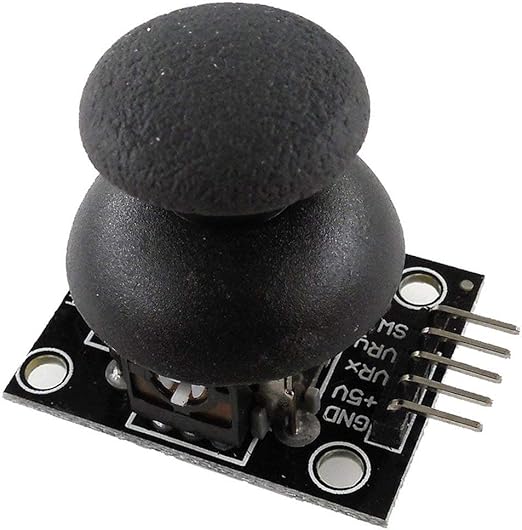
You can move the joystick knob vertically and horizontally, sending its position (X and Y axes) to the MCU (e.g., Pico). Additionally, the knob can be pressed down like a button. The joystick typically operates at 5V, but it can also be connected to 3.3V.
How it works?
The joystick module has two 10K potentiometers: one for the X-axis and another for the Y-axis. It also includes a push button, which is visible.
When you move the joystick from right to left or left to right(X axis), you can observe one of the potentiometers moving accordingly. Similarly, when you move it up and down(Y-axis), you can observe the other potentiometer moving along.

You can also observe the push-button being pressed when you press down on the knob.
Movement and ADC
Joystick Movement and Corresponding ADC Values
When you move the joystick along the X or Y axis, it produces an analog signal with a voltage that varies between 0 and 3.3V(or 5V if we connect it to 5V supply). When the joystick is in its center (rest) position, the output voltage is approximately 1.65V, which is half of the VCC(VCC is 3.3V in our case).
Note
The reason it is 1.65V in the center position is that the potentiometer acts as a voltage divider. When the potentiometer is moved, its resistance changes, causing the voltage divider to output a different voltage accordingly. Refer the voltate divider section.
The joystick has a total of 5 pins, and we will shortly discuss what each of them represents. Out of these, two pins are dedicated to sending the X and Y axis positions, which should be connected to the ADC pins of the microcontroller.
As you may already know, the Raspberry Pi Pico has a 12-bit SAR-type ADC, which converts analog signals (voltage differences) into digital values. Since it is a 12-bit ADC, the analog values will be represented as digital values ranging from 0 to 4095. If you’re not familiar with ADC, refer to the ADC section that we covered earlier.

Note:
The ADC values in the image are just approximations to give you an idea and won’t be exact. For example, I got around 1850 for X and Y at the center position. When I moved the knob toward the pinout side, X went to 0, and when I moved it to the opposite side, it went to 4095. The same applies to the Y axis.So, You might need to calibrate your joystick.
Pin layout
The joystick has a total of 5 pins: power supply, ground, X-axis output, Y-axis output, and switch output pin.

| Joystick Pin | Details |
|---|---|
| GND | Ground pin. Should be connected to the Ground of the circuit. |
| VCC | Power supply pin (typically 5V or 3.3V ). |
| VRX | The X-axis analog output pin varies its voltage based on the joystick's horizontal position, ranging from 0V to VCC as the joystick is moved left and right. |
| VRY | The Y-axis analog output pin varies its voltage based on the joystick's vertical position, ranging from 0V to VCC as the joystick is moved up and down. |
| SW | Switch pin. When the joystick knob is pressed, this pin is typically pulled LOW (to GND). |
Connecting the Joystick to the Raspberry Pi Pico
Let’s connect the joystick to the Raspberry Pi Pico. We need to connect the VRX and VRY pins to the ADC pins of the Pico. The joystick will be powered with 3.3V instead of 5V because the Pico’s GPIO pins are only 3.3V tolerant. Connecting it to 5V could damage the Pico’s pins. Thankfully, the joystick can operate at 3.3V as well.
| Pico Pin | Wire | Joystick Pin |
|---|---|---|
| GND |
|
GND |
| 3.3V |
|
VCC |
| GPIO 27 (ADC1) |
|
VRX |
| GPIO 26 (ADC0) |
|
VRY |
| GPIO 15 |
|
SW |

Print ADC Values
Sending Joystick Movement ADC Values to USB Serial
In this program, we’ll observe how joystick movement affects ADC values in real time. We will connect the Raspberry Pi Pico with the joystick and set up USB serial communication. If you’re not sure how to set up USB Serial, check the USB Serial section.
As you move the joystick, the corresponding ADC values will be printed in the system. You can compare these values with the previous Movement and ADC Diagram;they should approximately match the values shown. Pressing the joystick knob will print “Button Pressed†along with the current coordinates.
Project from template
To set up the project, run:
cargo generate --git https://github.com/ImplFerris/pico2-template.git --tag v0.1.0
When prompted, give your project a name, like “joystick-usb†and select RP-HAL as the HAL.
Then, navigate into the project folder:
cd PROJECT_NAME
# For example, if you named your project "joystick-usb":
# cd joystick-usb
Additional Crates required
Update your Cargo.toml to add these additional crate along with the existing dependencies.
#![allow(unused)]
fn main() {
usb-device = "0.3.2"
usbd-serial = "0.2.2"
heapless = "0.8.0"
embedded_hal_0_2 = { package = "embedded-hal", version = "0.2.5", features = [
"unproven",
] }
}The first three should be familiar by now; they set up USB serial communication so we can send data between the Pico and the computer. heapless is a helper function for buffers.
embedded_hal_0_2 is the new crate. You might already have embedded-hal with version “1.0.0†in your Cargo.toml. So, you may wonder why we need this version. The reason is that Embedded HAL 1.0.0 doesn’t include an ADC trait to read ADC values, and the RP-HAL uses the one from version 0.2. (Don’t remove the existing embedded-hal 1.0.0; just add this one along with it.)
Additional imports
#![allow(unused)]
fn main() {
/// This trait is the interface to an ADC that is configured to read a specific channel at the time
/// of the request (in contrast to continuous asynchronous sampling).
use embedded_hal_0_2::adc::OneShot;
// for USB Serial
use usb_device::{class_prelude::*, prelude::*};
use usbd_serial::SerialPort;
use heapless::String;
}USB Serial
Make sure you’ve completed the USB serial section and added the boilerplate code from there into your project.
#![allow(unused)]
fn main() {
let usb_bus = UsbBusAllocator::new(hal::usb::UsbBus::new(
pac.USB,
pac.USB_DPRAM,
clocks.usb_clock,
true,
&mut pac.RESETS,
));
let mut serial = SerialPort::new(&usb_bus);
let mut usb_dev = UsbDeviceBuilder::new(&usb_bus, UsbVidPid(0x16c0, 0x27dd))
.strings(&[StringDescriptors::default()
.manufacturer("implRust")
.product("Ferris")
.serial_number("12345678")])
.unwrap()
.device_class(2) // 2 for the CDC, from: https://www.usb.org/defined-class-codes
.build();
let mut buff: String<64> = String::new();
}Pin setup
Let’s set up the ADC and configure GPIO 27 and GPIO 26, which are mapped to the VRX and VRY pins of the joystick:
#![allow(unused)]
fn main() {
let mut adc = hal::Adc::new(pac.ADC, &mut pac.RESETS);
//VRX Pin
let mut adc_pin_1 = hal::adc::AdcPin::new(pins.gpio27).unwrap();
// VRY pin
let mut adc_pin_0 = hal::adc::AdcPin::new(pins.gpio26).unwrap();
}We also configure GPIO15 as a pull-up input for the button:
#![allow(unused)]
fn main() {
let mut btn = pins.gpio15.into_pull_up_input();
}Printing Co-ordinates
We want to print the coordinates only when the vrx or vry values change beyond a certain threshold. This avoids continuously printing unnecessary values.
To achieve this, we initialize variables to store the previous values and a flag to determine when to print:
#![allow(unused)]
fn main() {
let mut prev_vrx: u16 = 0;
let mut prev_vry: u16 = 0;
let mut print_vals = true;
}Reading ADC Values:
First, read the ADC values for vrx and vry. If there’s an error during the read operation, we ignore it and continue the loop:
#![allow(unused)]
fn main() {
let Ok(vry): Result<u16, _> = adc.read(&mut adc_pin_0) else {
continue;
};
let Ok(vrx): Result<u16, _> = adc.read(&mut adc_pin_1) else {
continue;
};
}Checking for Threshold Changes:
Next, we check if the absolute difference between the current and previous values of vrx or vry exceeds a threshold (e.g., 100). If so, we update the previous values and set the print_vals flag to true:
#![allow(unused)]
fn main() {
if vrx.abs_diff(prev_vrx) > 100 {
prev_vrx = vrx;
print_vals = true;
}
if vry.abs_diff(prev_vry) > 100 {
prev_vry = vry;
print_vals = true;
}
}Using a threshold filters out small ADC fluctuations, avoids unnecessary prints, and ensures updates only for significant changes.
Printing the Coordinates
If print_vals is true, we reset it to false and print the X and Y coordinates via the USB serial:
#![allow(unused)]
fn main() {
if print_vals {
print_vals = false;
buff.clear();
write!(buff, "X: {} Y: {}\r\n", vrx, vry).unwrap();
let _ = serial.write(buff.as_bytes());
}
}Button Press Detection with State Transition
The button is normally in a high state. When you press the knob button, it switches from high to low. However, since the program runs in a loop, simply checking if the button is low could lead to multiple detections of the press. To avoid this, we only register the press once by detecting a high-to-low transition, which indicates that the button has been pressed.
To achieve this, we track the previous state of the button and compare it with the current state before printing the “button pressed†message. If the button is currently in a low state (pressed) and the previous state was high (not pressed), we recognize it as a new press and print the message. Then, we update the previous state to the current state, ensuring the correct detection of future transitions.
#![allow(unused)]
fn main() {
let btn_state = btn.is_low().unwrap();
if btn_state && !prev_btn_state {
let _ = serial.write("Button Pressed\r\n".as_bytes());
print_vals = true;
}
prev_btn_state = btn_state;
}The Full code
#![no_std]
#![no_main]
use core::fmt::Write;
use embedded_hal::{delay::DelayNs, digital::InputPin};
use embedded_hal_0_2::adc::OneShot;
use hal::block::ImageDef;
use heapless::String;
use panic_halt as _;
use rp235x_hal as hal;
use usb_device::{class_prelude::*, prelude::*};
use usbd_serial::SerialPort;
#[link_section = ".start_block"]
#[used]
pub static IMAGE_DEF: ImageDef = hal::block::ImageDef::secure_exe();
const XTAL_FREQ_HZ: u32 = 12_000_000u32;
#[hal::entry]
fn main() -> ! {
let mut pac = hal::pac::Peripherals::take().unwrap();
let mut watchdog = hal::Watchdog::new(pac.WATCHDOG);
let clocks = hal::clocks::init_clocks_and_plls(
XTAL_FREQ_HZ,
pac.XOSC,
pac.CLOCKS,
pac.PLL_SYS,
pac.PLL_USB,
&mut pac.RESETS,
&mut watchdog,
)
.ok()
.unwrap();
let mut timer = hal::Timer::new_timer0(pac.TIMER0, &mut pac.RESETS, &clocks);
let sio = hal::Sio::new(pac.SIO);
let pins = hal::gpio::Pins::new(
pac.IO_BANK0,
pac.PADS_BANK0,
sio.gpio_bank0,
&mut pac.RESETS,
);
// let mut led = pins.gpio25.into_push_pull_output();
let usb_bus = UsbBusAllocator::new(hal::usb::UsbBus::new(
pac.USB,
pac.USB_DPRAM,
clocks.usb_clock,
true,
&mut pac.RESETS,
));
let mut serial = SerialPort::new(&usb_bus);
let mut usb_dev = UsbDeviceBuilder::new(&usb_bus, UsbVidPid(0x16c0, 0x27dd))
.strings(&[StringDescriptors::default()
.manufacturer("implRust")
.product("Ferris")
.serial_number("12345678")])
.unwrap()
.device_class(2) // 2 for the CDC, from: https://www.usb.org/defined-class-codes
.build();
let mut btn = pins.gpio15.into_pull_up_input();
let mut adc = hal::Adc::new(pac.ADC, &mut pac.RESETS);
//VRX Pin
let mut adc_pin_1 = hal::adc::AdcPin::new(pins.gpio27).unwrap();
// VRY pin
let mut adc_pin_0 = hal::adc::AdcPin::new(pins.gpio26).unwrap();
let mut prev_vrx: u16 = 0;
let mut prev_vry: u16 = 0;
let mut prev_btn_state = false;
let mut buff: String<64> = String::new();
let mut print_vals = true;
loop {
let _ = usb_dev.poll(&mut [&mut serial]);
let Ok(vry): Result<u16, _> = adc.read(&mut adc_pin_0) else {
continue;
};
let Ok(vrx): Result<u16, _> = adc.read(&mut adc_pin_1) else {
continue;
};
if vrx.abs_diff(prev_vrx) > 100 {
prev_vrx = vrx;
print_vals = true;
}
if vry.abs_diff(prev_vry) > 100 {
prev_vry = vry;
print_vals = true;
}
let btn_state = btn.is_low().unwrap();
if btn_state && !prev_btn_state {
let _ = serial.write("Button Pressed\r\n".as_bytes());
print_vals = true;
}
prev_btn_state = btn_state;
if print_vals {
print_vals = false;
buff.clear();
write!(buff, "X: {} Y: {}\r\n", vrx, vry).unwrap();
let _ = serial.write(buff.as_bytes());
}
timer.delay_ms(50);
}
}
#[link_section = ".bi_entries"]
#[used]
pub static PICOTOOL_ENTRIES: [hal::binary_info::EntryAddr; 5] = [
hal::binary_info::rp_cargo_bin_name!(),
hal::binary_info::rp_cargo_version!(),
hal::binary_info::rp_program_description!(c"JoyStick USB"),
hal::binary_info::rp_cargo_homepage_url!(),
hal::binary_info::rp_program_build_attribute!(),
];Clone the existing project
You can clone (or refer) project I created and navigate to the joystick-usb folder.
git clone https://github.com/ImplFerris/pico2-rp-projects
cd pico2-projects/joystick-usb/
How to Run ?
The method to flash (run the code) on the Pico is the same as usual. However, we need to set up tio to interact with the Pico through the serial port (/dev/ttyACM0). This allows us to read data from the Pico or send data to it.
tio
Make sure you have tio installed on your system. If not, you can install it using:
apt install tio
Connecting to the Serial Port
Run the following command to connect to the Pico’s serial port:
tio /dev/ttyACM0
This will open a terminal session for communicating with the Pico.
Flashing and Running the Code
Open another terminal, navigate to the project folder, and flash the code onto the Pico as usual:
cargo run
If everything is set up correctly, you should see a “Connected†message in the tio terminal. As you move the joystick, the coordinates will be printed. Pressing the knob downwards will also display a “Button pressed†message.
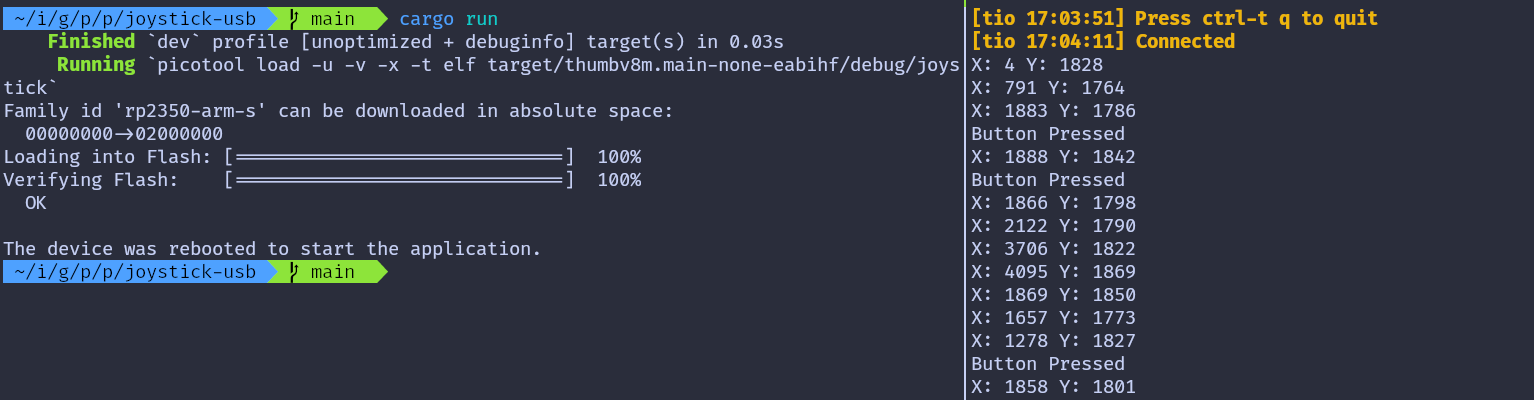
Debugging
Debugging Embedded Rust on Raspberry Pi Pico 2 with GDB
In this chapter, we will look at how to debug Embedded Rust programs on the Raspberry Pi Pico 2 (RP2350) using GDB. You will need a Debug Probe hardware and you must connect it to your Raspberry Pi Pico 2. Make sure you have read this chapter before continuing.
What a Debug Probe Gives You
In the Debug Probe introduction chapter, we saw that it helps you avoid pressing the BOOTSEL button every time you want to flash your program. But the Debug Probe offers much more than that. It allows you to use GDB directly from your computer, so you can debug your program while it is running on the Pico 2.
What is GDB?
If you have never used GDB, here is a simple explanation: GDB is a command line debugger that lets you pause your program, inspect what is happening inside it, read memory, and step through the code to find problems.
For debugging the Pico 2, you need a version of GDB that supports ARM targets. You can install it with:
sudo apt install gdb-multiarch
Enable GDB in Embed.toml
Earlier, we used probe-rs through the cargo embed command. The same tool can also start a GDB server, which lets you connect GDB to the Pico 2 through the Debug Probe.
For this, we need to edit the Embed.toml file in the root of your project. This file is the configuration file used by the cargo embed command. You should add the following section to enable the GDB server:
[default.gdb]
# Whether or not a GDB server should be opened after flashing.
enabled = true
Example Project
For this exercise, I have created a simple LED blink program using rp-hal. It does not use Embassy to keep things simple. The Embed.toml file is already set up, so you can clone the project and start working right away:
git clone https://github.com/ImplFerris/pico-debug
cd pico-debug
If you run the cargo embed command now, the GDB server will start automatically and listen on port 1337 (the default port used by probe-rs).
Connecting GDB to the Remote Server
To connect GDB to the running probe-rs GDB server, open a new terminal and start GDB with the our project binary file:
Note: There is an issue with probe-rs version 0.30. When I try to connect to the GDB server, the connection closes immediately. I downgraded to version 0.28 as suggested in this issue discussion. After downgrading, run cargo embed again.
gdb-multiarch ./target/thumbv8m.main-none-eabihf/debug/pico-debug
Then connect to the server on port 1337:
(gdb) target remote :1337
At this point, GDB is connected to the Pico 2 through the Debug Probe, and you can start using breakpoints, stepping, memory inspection, and other debugging commands.
Resetting to the Start of the Program
When you connect GDB to the running GDB server, the CPU may not be stopped at the start of your program. It might be sitting somewhere deep inside the code.
To ensure you start debugging from a clean state, run:
(gdb) monitor reset halt
This command tells the Debug Probe to reset the Pico 2 and immediately halt the CPU. This puts the program back at the very beginning, right where the processor starts running after a reset.
Finding the Reset Handler and Tracing the Call to main
When the Pico 2 resets, the CPU starts executing from the Reset Handler. To understand how our program starts, we will locate the Reset Handler, disassemble it, and follow the call chain until we reach our actual Rust main.
When the Pico 2 starts up, the CPU does not jump straight into our Rust main function. Instead, it follows a small chain of functions provided by the Cortex-M runtime.
In this section, we will:
-
Find where the chip starts executing after reset
-
See which function that Reset Handler calls
-
Follow the chain until we reach our real Rust main
Read the Reset Vector Entry
The Cortex-M processor starts execution by reading a table at the beginning of flash memory called the vector table.
The first two entries are:
- Word 0 (offset 0x00): Initial stack pointer value
- Word 1 (offset 0x04): Reset handler address
On Pico 2, flash starts at address 0x10000000 so:
- The initial stack pointer value is stored at 0x10000000
- Reset handler address is at 0x10000004
What is the Reset Handler?
The reset handler is the first function that runs when the processor powers on or resets. It performs initialization and eventually calls our main function.
Read it in GDB:
(gdb) x/wx 0x10000004
Example output:
0x10000004 <__RESET_VECTOR>: 0x1000010d
This value is the address the CPU jumps to after reset. The last bit (the “Thumb bitâ€) is always 1, so the actual address is 0x1000010c. But you can use either one of them (0x1000010d or 0x1000010c), GDB can handle it.
Alternatively, you can also use the readelf program to find the entrypoint address:
arm-none-eabi-readelf -h ./target/thumbv8m.main-none-eabihf/debug/pico-debug
Disassemble the Reset Handler
Now Let’s ask GDB to show the instructions at that address:
(gdb) disas 0x1000010d
# or
(gdb) disas 0x1000010c
You will see assembly instructions for the reset handler. Look for a bl (Branch with Link) instruction that calls another function:
...
0x10000140 <+52>: isb sy
0x10000144 <+56>: bl 0x1000031c <main>
0x10000148 <+60>: udf #0
The Reset Handler calls a function located at 0x1000031c, which GDB shows as main. But this is not our Rust main yet.
What is this “main�
The main at 0x1000031c is not our program’s main function. It is a small wrapper created by the cortex-m-rt crate. This wrapper is often called the trampoline because it jumps to the real entry point later.
Its demangled name is usually:
#![allow(unused)]
fn main() {
// NOTE: here, pico_debug prefix is our project's name
pico_debug::__cortex_m_rt_main_trampoline
}Let’s disassemble it.
Disassemble that trampoline
(gdb) disas 0x1000031c
Output:
Dump of assembler code for function main:
0x1000031c <+0>: push {r7, lr}
0x1000031e <+2>: mov r7, sp
0x10000320 <+4>: bl 0x10000164 <_ZN10pico_debug18__cortex_m_rt_main17he0b4d19700c84ad2E>
End of assembler dump.
This is very small. All it does is call the real Rust entrypoint, which is named:
#![allow(unused)]
fn main() {
pico_debug::__cortex_m_rt_main
}Enable Demangled Names
Rust function names are mangled by default and look unreadable.
Enable demangling:
set print asm-demangle on
Now try:
(gdb) disas 0x1000031c
#or
(gdb) disas pico_debug::__cortex_m_rt_main_trampoline
You should now see readable Rust names.
Dump of assembler code for function pico_debug::__cortex_m_rt_main_trampoline:
0x1000031c <+0>: push {r7, lr}
0x1000031e <+2>: mov r7, sp
0x10000320 <+4>: bl 0x10000164 <pico_debug::__cortex_m_rt_main>
End of assembler dump.
Disassemble the Actual Rust main
Now let’s inspect our main function:
disas pico_debug::__cortex_m_rt_main
You will see the program’s logic, starting with the initial setup code followed by the loop that toggles the LED Pin.
#![allow(unused)]
fn main() {
...
0x100002dc <+376>: bl 0x100079a4 <rp235x_hal::timer::Timer<rp235x_hal::timer::CopyableTimer0>::new_timer0>
0x100002e0 <+380>: bl 0x10000b30 <rp235x_hal::gpio::Pin<rp235x_hal::gpio::pin::bank0::Gpio25, rp235x_hal::gpio::func::FunctionNull, rp235x_hal::gpio::pull::PullDown>::into_push_pull_output<rp235x_hal::gpio::pin::bank0::Gpio25, rp235x_hal::gpio::func::FunctionNull, rp235x_hal::gpio::pull::PullDown>>
...
0x100002f8 <+404>: bl 0x10000c48 <rp235x_hal::gpio::eh1::{impl#1}::set_high<rp235x_hal::gpio::pin::bank0::Gpio25, rp235x_hal::gpio::pull::PullDown>>
...
0x10000306 <+418>: bl 0x100006b8 <rp235x_hal::timer::{impl#7}::delay_ms<rp235x_hal::timer::CopyableTimer0>>
...
0x1000030c <+424>: bl 0x10000c38 <rp235x_hal::gpio::eh1::{impl#1}::set_low<rp235x_hal::gpio::pin::bank0::Gpio25, rp235x_hal::gpio::pull::PullDown>>
...
}Breakpoints
Now that we’ve traced the execution path from reset to our main function, let’s set breakpoints in the LED loop and observe how the GPIO registers change when we toggle the LED.
Understanding the LED Loop
Let me show you the disassembled code from the __cortex_m_rt_main function again. We need to look for the bl instructions. The bl stands for “branch and link†- these are instructions that call other functions. Specifically, we’re looking for the calls to set_high and set_low functions.
#![allow(unused)]
fn main() {
...
// This is the set_high() call
0x100002f8 <+404>: bl 0x10000c48 <rp235x_hal::gpio::eh1::{impl#1}::set_high<rp235x_hal::gpio::pin::bank0::Gpio25, rp235x_hal::gpio::pull::PullDown>>
...
// This is the delay_ms() call
0x10000306 <+418>: bl 0x100006b8 <rp235x_hal::timer::{impl#7}::delay_ms<rp235x_hal::timer::CopyableTimer0>>
...
// This is the set_low() call
0x1000030c <+424>: bl 0x10000c38 <rp235x_hal::gpio::eh1::{impl#1}::set_low<rp235x_hal::gpio::pin::bank0::Gpio25, rp235x_hal::gpio::pull::PullDown>>
...
// This is the delay_ms() call
0x10000314 <+432>: bl 0x100006b8 <rp235x_hal::timer::{impl#7}::delay_ms<rp235x_hal::timer::CopyableTimer0>>
...
}Look at those addresses on the left - 0x100002f8 and 0x1000030c. These are memory addresses where the LED control happens. The first address is where set_high gets called, and the second is where set_low gets called. We’re going to put breakpoints at these addresses so our program pauses right before running these instructions.
Setting Breakpoints in the Loop
Let’s set up the first breakpoint. Type this in GDB:
(gdb) break *0x100002f8
You’ll see: Breakpoint 1 at 0x100002f8: file src/main.rs, line 63.
This means GDB created a breakpoint at that address, and it corresponds to line 63 in our main.rs file.
(gdb) break *0x1000030c
You’ll see: Breakpoint 2 at 0x1000030c: file src/main.rs, line 65.
Now let’s reset everything to start fresh:
monitor reset halt
This resets the microcontroller and stops it at the beginning, so we have a clean starting point.
GPIO Register Overview
Before we continue, I need to explain what we’re going to look at. When you call set_high or set_low in your Rust code, what actually happens is that specific memory locations get changed. These memory locations are called registers, and they directly control the hardware.
On the RP2350 chip, there’s a register called GPIO_OUT that controls all the GPIO pins. You can find this in the RP2350 datasheet (chapter 3.1.11, page 55) under the SIO (Single-cycle IO) section.
Here’s where this register lives in memory:
- The SIO peripheral starts at base address 0xd0000000
- The GPIO_OUT register is at offset 0x010 from that base
- So the full address is: 0xd0000000 + 0x010 = 0xd0000010
Think of GPIO_OUT as a 32-bit number where each bit controls one GPIO pin. Bit 0 controls GPIO0, bit 1 controls GPIO1, and so on. Bit 25 controls GPIO25 - that’s where the onboard LED is connected. When bit 25 is 0, the LED is off. When bit 25 is 1, the LED is on.
Running to the First Breakpoint
Let’s run the program until it hits our first breakpoint:
(gdb) continue
When the breakpoint is hit, GDB will show something like:
Continuing.
Thread 1 hit Breakpoint 1, 0x100002f8 in pico_debug::__cortex_m_rt_main () at src/main.rs:63
63 led_pin.set_high().unwrap();
The program stopped right before calling set_high. This is the perfect moment to check what the register looks like before we turn the LED on.
Checking GPIO Registers Before set_high
Let’s look at what’s currently in the GPIO_OUT register:
(gdb) x/x 0xd0000010
The x/x command means “examine this memory address and show me the value in hexadecimal format.â€
You’ll probably get an error message “Cannot access memory at address 0xd0000010â€. This happens because GDB doesn’t automatically know about peripheral registers. We need to tell GDB that it’s allowed to read from this memory region.
Making SIO Peripheral Accessible in GDB
To fix this, we need to tell GDB about the peripheral memory region. According to the RP2350 datasheet, the SIO region actually extends from 0xd0000000 to 0xdfffffff. However, we don’t need to map the entire SIO region - we only need enough to cover the registers we want to access.
So we can type:
(gdb) mem 0xD0000000 0xD0001000 rw nocache
Here, we’re mapping about 4KB of the SIO region (from 0xD0000000 to 0xD0001000), which is more than enough to cover GPIO_OUT and the other SIO registers we’ll be looking at during debugging.
If you want to map even less and be more precise, you can use:
(gdb) mem 0xD0000000 0xD0000100 rw nocache
This gives us just 256 bytes, which covers all the basic SIO registers we need, including GPIO_OUT at 0xD0000010. The key point is that we map enough memory to include the registers we want to read, without needing to map the entire SIO region.
Now try reading GPIO_OUT again:
(gdb) x/x 0xd0000010
0xd0000010: 0x00000000
We get the value 0x00000000. This means all 32 bits are zero, so all GPIO pins are currently off. Our LED is off.
Continue to the Second Breakpoint
Now let’s continue running and see what happens after set_high executes:
(gdb) continue
Continuing.
Thread 1 received signal SIGINT, Interrupt.
rp235x_hal::gpio::eh1::{impl#1}::set_high<rp235x_hal::gpio::pin::bank0::Gpio25, rp235x_hal::gpio::pull::PullDown> (self=0x2007ffbd)
at /home/implrust/.cargo/registry/src/index.crates.io-1949cf8c6b5b557f/rp235x-hal-0.3.1/src/gpio/mod.rs:1549
1549 fn set_high(&mut self) -> Result<(), Self::Error> {
We got interrupted inside the set_high function. Let’s continue again:
(gdb) continue
Continuing.
Thread 1 hit Breakpoint 2, pico_debug::__cortex_m_rt_main () at src/main.rs:65
65 led_pin.set_low().unwrap();
Now the program has run through set_high and the delay, and stopped at our second breakpoint on line 65, right before calling set_low. Let’s check GPIO_OUT again:
(gdb) x/x 0xd0000010
0xd0000010: 0x02000000
The value changed from 0x00000000 to 0x02000000. You should also see the LED turned on by this time.
Let me explain what 0x02000000 means. In binary, this is 00000010 00000000 00000000 00000000. If you count from the right starting at 0, bit 25 is now set to 1. That’s exactly what set_high did - it turned on bit 25 of the GPIO_OUT register, which turned on GPIO25, which lit up the LED.
Continue to See set_low in Action
Now let’s continue one more time to see what happens when set_low executes. But first, let’s note that the LED is currently on and GPIO_OUT shows 0x02000000 with bit 25 set to 1.
Let’s continue:
(gdb) continue
Continuing.
Thread 1 received signal SIGINT, Interrupt.
rp235x_hal::gpio::eh1::{impl#1}::set_low<rp235x_hal::gpio::pin::bank0::Gpio25, rp235x_hal::gpio::pull::PullDown> (self=0x2007ffbd)
at /home/implrust/.cargo/registry/src/index.crates.io-1949cf8c6b5b557f/rp235x-hal-0.3.1/src/gpio/mod.rs:1544
1544 fn set_low(&mut self) -> Result<(), Self::Error> {
We got interrupted inside the set_low function. Let’s continue again:
(gdb) continue
Continuing.
Thread 1 hit Breakpoint 1, 0x100002f8 in pico_debug::__cortex_m_rt_main () at src/main.rs:63
63 led_pin.set_high().unwrap();
The program ran through set_low and the delay, and looped back to our first breakpoint on line 63. Let’s check GPIO_OUT again:
(gdb) x/x 0xd0000010
0xd0000010: 0x00000000
The value is back to 0x00000000. Bit 25 is now 0, which means GPIO25 is off and the LED is off. You should see the LED turned off on your board.
What We Learned
From what we observed:
- When we call
led_pin.set_high(), bit 25 of GPIO_OUT changes from 0 to 1 (0x00000000→0x02000000) - When we call
led_pin.set_low(), bit 25 changes from 1 to 0 (0x02000000→0x00000000)
Atomic GPIO Register
Earlier, we looked only at the GPIO_OUT register. That register holds the full 32-bit output value for all GPIO pins. But in practice, the rp-hal library does not write to GPIO_OUT directly. Instead, it uses the atomic helper registers: GPIO_OUT_SET, GPIO_OUT_CLR, and GPIO_OUT_XOR.
These atomic registers are write-only registers within the SIO block that don’t hold values themselves. When you write to them, the bits you set are used to modify the underlying GPIO_OUT register:
- GPIO_OUT_SET changes specified bits to 1. This register is at address 0xd0000018, as per the datasheet.
- GPIO_OUT_CLR changes specified bits to 0. This register is at address 0xd0000020, as per the datasheet.
- GPIO_OUT_XOR toggles specified bits
Only the bits that we write as 1 are changed. All other bits stay untouched. This makes it safer and prevents accidental changes to other pins.
For example, if we want to control GPIO25:
-
To set GPIO25 high, we write a 1 to bit 25 of GPIO_OUT_SET. So the GPIO_OUT_SET value will be 0b00000010_00000000_00000000_00000000 (or in hex 0x02000000).
-
To set GPIO25 low, we write a 1 to bit 25 of GPIO_OUT_CLR. So the GPIO_OUT_CLR value will be 0b00000010_00000000_00000000_00000000 (or in hex 0x02000000).
These operations modify only bit 25 in GPIO_OUT, leaving all other bits intact.
Inside rp-hal: Setting a Pin High or Low
If we follow what set_high() and set_low() do inside rp-hal, we can see that they never write to GPIO_OUT directly. Instead, they write to the atomic registers GPIO_OUT_SET and GPIO_OUT_CLR.
The code inside rp-hal looks like this:
#![allow(unused)]
fn main() {
#[inline]
pub(crate) fn _set_low(&mut self) {
let mask = self.id.mask();
self.id.sio_out_clr().write(|w| unsafe { w.bits(mask) });
}
#[inline]
pub(crate) fn _set_high(&mut self) {
let mask = self.id.mask();
self.id.sio_out_set().write(|w| unsafe { w.bits(mask) });
}
}When these write() functions run, they eventually call core::ptr::write_volatile(). write_volatile does some pre-checks, and then the compiler’s intrinsic intrinsics::volatile_store performs the final store to the MMIO address. That volatile store is the moment the actual hardware register changes.
Now let’s check how this looks when we step through it in GDB.
Breakpoint at write_volatile
There are many ways to reach write_volatile. One way is to step through set_low() or set_high() using stepi and nexti in GDB. But we will take a shorter path. We will set a breakpoint directly on core::ptr::write_volatile.
There is one thing to keep in mind. If you set this breakpoint right after reset (for example, right after monitor reset halt), GDB will stop many times. This is because write_volatile is used in a lot of places during startup. So we will not set it at the beginning.
Instead, follow the steps from the previous chapter. When the program stops at the first breakpoint in your code, like this:
Continuing.
Thread 1 hit Breakpoint 1, 0x100002f8 in pico_debug::__cortex_m_rt_main () at src/main.rs:63
63 led_pin.set_high().unwrap();
Tip
You can check your breakpoints with
info break. You can delete the breakpoint withdelete <number>.
Now that we’re past the startup code, let’s set our breakpoint on write_volatile:
(gdb) break core::ptr::write_volatile
Then continue execution:
(gdb) continue
You should see output similar to this:
Thread 1 received signal SIGINT, Interrupt.
rp235x_hal::gpio::eh1::{impl#1}::set_high<rp235x_hal::gpio::pin::bank0::Gpio25, rp235x_hal::gpio::pull::PullDown> (self=0x2007ffbd)
at /home/implrust/.cargo/registry/src/index.crates.io-1949cf8c6b5b557f/rp235x-hal-0.3.1/src/gpio/mod.rs:1549
1549 fn set_high(&mut self) -> Result<(), Self::Error> {
Continue again:
(gdb) continue
Now we’ve stopped inside the write_volatile function:
Thread 1 hit Breakpoint 3, core::ptr::write_volatile<u32> (dst=0xd0000018, src=33554432)
at /home/implrust/.rustup/toolchains/stable-x86_64-unknown-linux-gnu/lib/rustlib/src/rust/library/core/src/ub_checks.rs:76
76 if ::core::ub_checks::$kind() {
Did you notice the function arguments here? The destination dst is 0xd0000018, which is the address of the GPIO_OUT_SET register. The source value src is 33554432. If we convert that to hexadecimal, we get 0x02000000. In binary, that’s 0b00000010_00000000_00000000_00000000. This is the exact bit mask for GPIO25.
Let’s disassemble the function to see what’s happening at the assembly level:
(gdb) disas
Dump of assembler code for function _ZN4core3ptr14write_volatile17hc4948e781ca030f6E:
0x10008084 <+0>: push {r7, lr}
0x10008086 <+2>: mov r7, sp
0x10008088 <+4>: sub sp, #24
0x1000808a <+6>: str r2, [sp, #4]
0x1000808c <+8>: str r1, [sp, #8]
0x1000808e <+10>: str r0, [sp, #12]
0x10008090 <+12>: str r0, [sp, #16]
0x10008092 <+14>: str r1, [sp, #20]
=> 0x10008094 <+16>: b.n 0x10008096 <_ZN4core3ptr14write_volatile17hc4948e781ca030f6E+18>
0x10008096 <+18>: ldr r2, [sp, #4]
0x10008098 <+20>: ldr r0, [sp, #12]
0x1000809a <+22>: movs r1, #4
0x1000809c <+24>: bl 0x100080ac <_ZN4core3ptr14write_volatile18precondition_check17h8beabfccc7ba3236E>
0x100080a0 <+28>: b.n 0x100080a2 <_ZN4core3ptr14write_volatile17hc4948e781ca030f6E+30>
0x100080a2 <+30>: ldr r0, [sp, #8]
0x100080a4 <+32>: ldr r1, [sp, #12]
0x100080a6 <+34>: str r0, [r1, #0]
0x100080a8 <+36>: add sp, #24
0x100080aa <+38>: pop {r7, pc}
End of assembler dump.
The key instruction is at address 0x100080a6. This is the line that actually writes to the hardware register. At this point, r1 will contain the GPIO_OUT_SET address and r0 will contain the value that is going to be written.
Let’s take a closer look. We set another breakpoint right on that instruction:
(gdb) break *0x100080a6
Then continue:
(gdb) continue
If you get interrupted, continue again
Thread 1 received signal SIGINT, Interrupt.
core::ptr::write_volatile<u32> (dst=0xd0000018, src=33554432)
at /home/implrust/.rustup/toolchains/stable-x86_64-unknown-linux-gnu/lib/rustlib/src/rust/library/core/src/ub_checks.rs:77
77 precondition_check($($arg,)*);
Continue again:
(gdb) c
Continuing.
Thread 1 hit Breakpoint 4, 0x100080a6 in core::ptr::write_volatile<u32> (dst=0xd0000018, src=33554432)
at /home/implrust/.rustup/toolchains/stable-x86_64-unknown-linux-gnu/lib/rustlib/src/rust/library/core/src/ptr/mod.rs:2201
2201 intrinsics::volatile_store(dst, src);
GDB will stop exactly at the store instruction. If you run disas again, you’ll see the arrow pointing to that line:
...
0x100080a4 <+32>: ldr r1, [sp, #12]
=> 0x100080a6 <+34>: str r0, [r1, #0]
0x100080a8 <+36>: add sp, #24
Before we execute this write instruction, let’s check what values are in registers r0 and r1:
(gdb) i r $r0
r0 0x2000000 33554432
(gdb) i r $r1
r1 0xd0000018 3489660952
Let’s also examine the current value in the GPIO_OUT register:
(gdb) x/x 0xd0000010
0xd0000010: 0x00000000
Right now it shows all zeros. At this stage, the LED is still off because we haven’t executed the store instruction yet.
Now let’s step forward by one instruction:
(gdb) nexti
#or
(gdb) ni
After executing this command, you should see the LED turn on. Now let’s examine the GPIO_OUT register again:
(gdb) x/x 0xd0000010
0xd0000010: 0x02000000
The register now shows 0x02000000, which is exactly the bit mask for GPIO25. This confirms that our write operation successfully set the LED pin high.
Your Turn: Try It Yourself
Now it’s time to practice what you’ve learned. Let the program continue running until it hits the set_low breakpoint. Then continue execution again until you reach the write_volatile function.
This time, things will be a bit different. The destination address will be 0xd0000020, which is the GPIO_OUT_CLR register. As the name suggests, this register is used to clear GPIO pins rather than set them.
Step through the code just like before. When you execute the str instruction, the LED will turn off. If you examine the GPIO_OUT register afterwards, you’ll see it contains all zeros again. This confirms that the bit for GPIO25 has been cleared, turning off the LED.
Watchdog
This book was originally written using rp-hal. Later, I revised it to primarily use Embassy. When working with rp-hal, there is a step where we explicitly configure the watchdog. To explain why that line exists and what it actually does, this chapter introduces the concept of a watchdog.
In January 1994, the Clementine spacecraft successfully mapped the Moon. While it was traveling toward the asteroid Geographos, a floating point exception occurred on May 7, 1994, in the Honeywell 1750 processor. This processor handled telemetry and several other critical spacecraft functions.

The Honeywell 1750 included a built-in watchdog timer, but it was not used. After the failure, the software team publicly regretted this decision. They also noted that even a standard watchdog might not have been robust enough to detect that specific failure mode.
So what exactly is a watchdog, and why do we use it?
You may already have a rough idea.
What is watchdog?
A watchdog timer (WDT) is a hardware component commonly found in embedded systems. Its primary job is to detect software failures and automatically reset the processor when something goes wrong. This allows the system to recover without human intervention.
Watchdogs are especially important in systems that must run unattended for long periods of time.
How It Works?
A watchdog timer behaves like a countdown timer. It starts counting down from a configured value toward zero. The software must periodically reset this timer before it reaches zero.
This action is commonly called “feeding the watchdogâ€. You may also see it referred to as “kicking the dogâ€, although that term is widely used and I personally avoid it.
If the software fails to reset the timer in time, for example due to an infinite loop, a deadlock, or a system hang, the watchdog assumes the system is no longer healthy and triggers a processor reset. After the reset, the system can start again in a known good state.
Feeding the dog:
You can think of the watchdog timer like a dog that needs to be fed at regular intervals. As time passes, the dog gets hungrier. If it is not fed in time, it reacts. In embedded systems, that reaction is a hardware reset.
To keep the system running normally, the software must regularly feed the watchdog by resetting its counter.
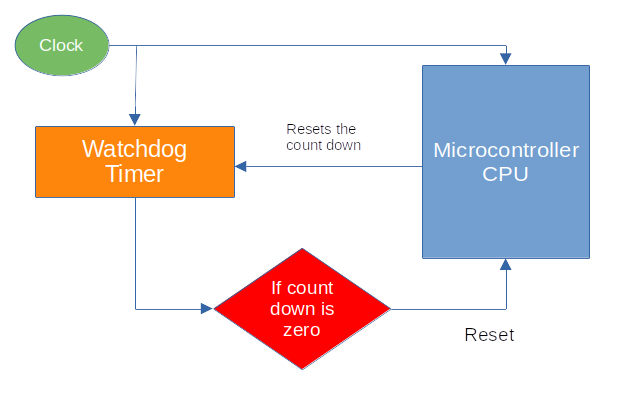
Code
In the following snippet, we set up the watchdog driver. This is required because the clock initialization code depends on the watchdog being available.
#![allow(unused)]
fn main() {
// Set up the watchdog driver - needed by the clock setup code
let mut watchdog = hal::Watchdog::new(pac.WATCHDOG);
}References
- Great Watchdog Timers For Embedded Systems, by Jack Ganssle
- Born to fail
- A Guide to Watchdog Timers for Embedded Systems
- Proper Watchdog Timer Use
Curated List of Projects Written in Rust for Raspberry Pi Pico 2
Here is a curated list of projects I found online that are interesting and related to Pico 2 and Rust. If you have some interesting projects to showcase, please send a PR :)
- Pico Rex: Dinosaur Game written in Rust for the Raspberry Pi Pico 2 (RP2350) with an OLED display, using the Embassy framework.
- GB-RP2350 A Game Boy emulator for the Pi Pico 2 written in Rust: You can also find the reddit post by the OP here.
- simple-robot: A very simple robot with HC-SR04 distance sensor and autonomous as well as remote controlled movement written in Rust(Embassy)
Useful resources
This section will include a list of resources I find helpful along the way.
Blog Posts
Tutorials
Other resources
- Curated list of resources for Embedded Rust
- Writing an OS in Rust : many useful concepts explained here
- Embassy Book